
Appearance
Finances
Beta
The treasurer toolkit is in beta. It isn't switched on for every club yet — ask us if you'd like early access — and while it's in beta we may still change how some of it works. The season report and expense claims are not affected.
The treasurer's toolkit for a club's own money: a season's income at a glance, the receipts-and-payments account an AGM reads, a budget the committee can hold itself to, and expense claims coming back the other way. Because nearly all club income already flows through RunClub HQ — subscriptions, affiliation fees, event entries, merchandise — most of this is generated straight from the payments the platform has already processed. There is nothing to key in for the season report: it answers "where is this season's money?" the moment you open it.
Who can do this?
Almost everything on this page — running finance setup, the statement, transactions, categories, entries, the budget, and deciding expense claims — needs Club Admin or Treasurer. Viewer can see all of it, including the year-end pack, but change nothing. Marking an England Athletics affiliation paid is a Membership Manager action; adding the amount, reference and notes when doing it in bulk additionally needs a finance role. See the Expense claims playbook for who decides a claim.
Enabling finance for a club
The whole Finances section of the volunteer console — the season report, expense claims, payouts, entries, the statement, transactions, the budget, and the treasurer's report and year-end pack — the member app's expense claims, and the Finance Categories list and Finance settings tab in the admin panel, is switched on per club by the platform, off by default, the same way mailing lists are: it isn't a setting in your club's own admin panel. We flip it under Platform Features on your club's record; ask us to enable it. Until then, none of this appears in the console or on Club at a Glance, expense claims don't appear in the member app, and Finance Categories and the Finance settings tab don't appear in the admin panel — Invoices, Payments, Payment Methods and Refunds are unaffected either way, and the Treasurer role can still be assigned.
Setting up finances
Before the statement can be trusted, complete the one-time finance setup wizard: financial year, go-live date, opening balance, and (for a club starting mid year) what moved before RunClub HQ took over. Find it in the admin panel under Finance → Set up finances.
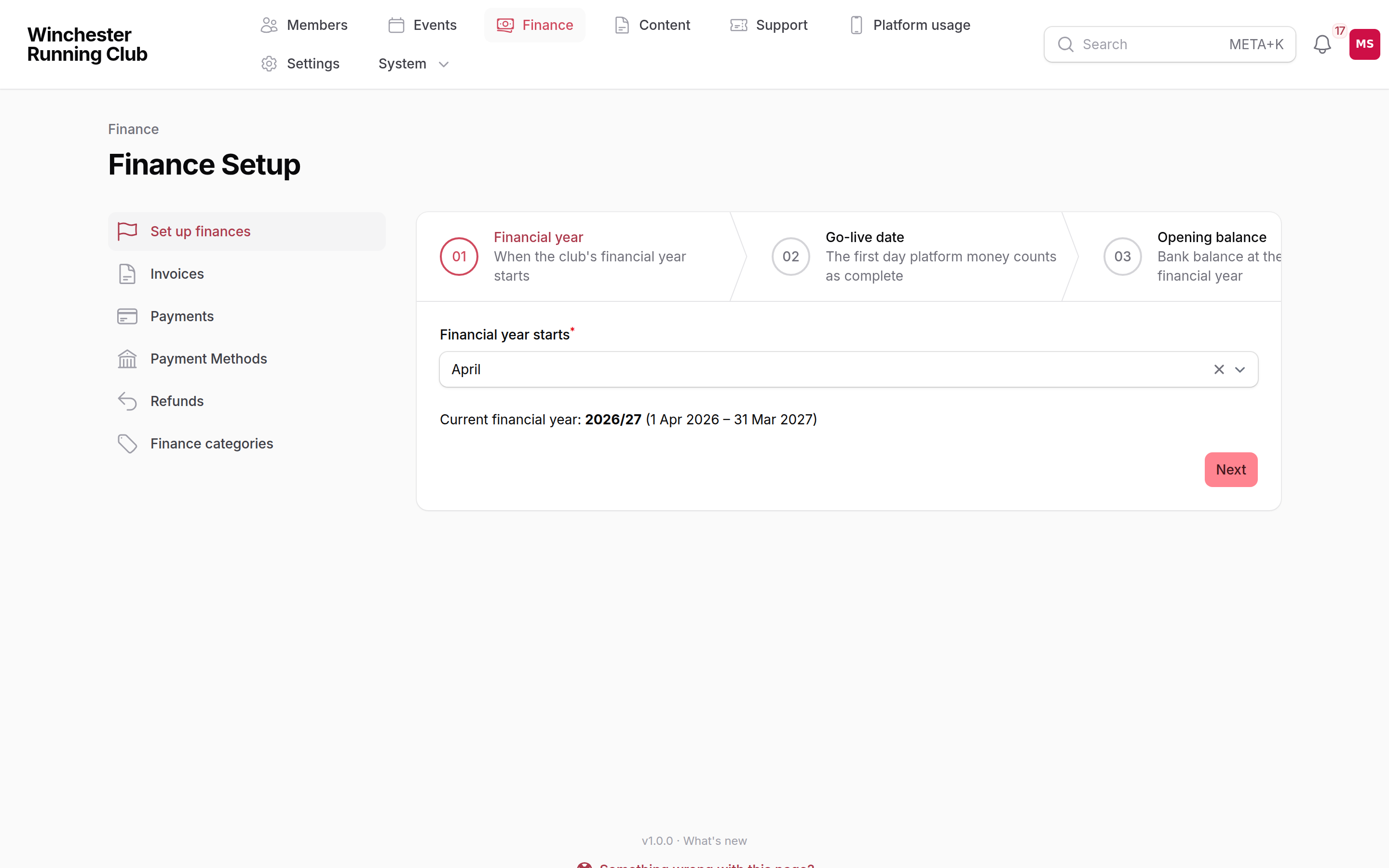
The wizard is six steps:
- Financial year — the month your club's financial year starts. A live preview shows the current financial year's dates as you pick.
- Go-live date — the first day platform money counts as your club's complete financial record. Earlier platform payments still appear, but are flagged so they aren't double-counted against the pre-platform totals below.
- Opening balance — the bank balance at the start of the financial year, and the club's cash float.
- Pre-platform totals — only shown when the go-live date falls after the financial year's start, i.e. the club's books on RunClub HQ begin mid year. Enter the receipts and payments per category from the financial year start to go-live; these are recorded once as opening adjustment entries dated the day before go-live, so year one reconciles.
- Categories — a read-only review of the club's category tree, with a link through to Categories and items if it needs changing first.
- Prior year — optional: each category's closing total for the financial year before this one, so the statement can show a comparison column before two full years of platform history exist.
Re-running the wizard is a normal way to correct a figure, not something to avoid: every step pre-fills from the current settings and any opening-adjustment entries already recorded, so a treasurer fixing a number edits rather than starts over. Re-running replaces that financial year's opening adjustments wholesale (delete and recreate), so it never leaves a stray or duplicated one behind. The first completion is recorded once and never overwritten; a later re-run is recorded separately, so there's a record that setup was revisited.
Only transactions work before setup completes — every movement from the club's first payout, running balance starting at zero until an opening balance exists. The statement, the budget, and the treasurer's report all wait for it: each presents a complete account rather than raw movements, and one built without a financial year and an opening balance would be silently wrong rather than obviously empty. Opening any of the three before setup is complete sends you to the wizard instead of showing figures.
Finding the season report
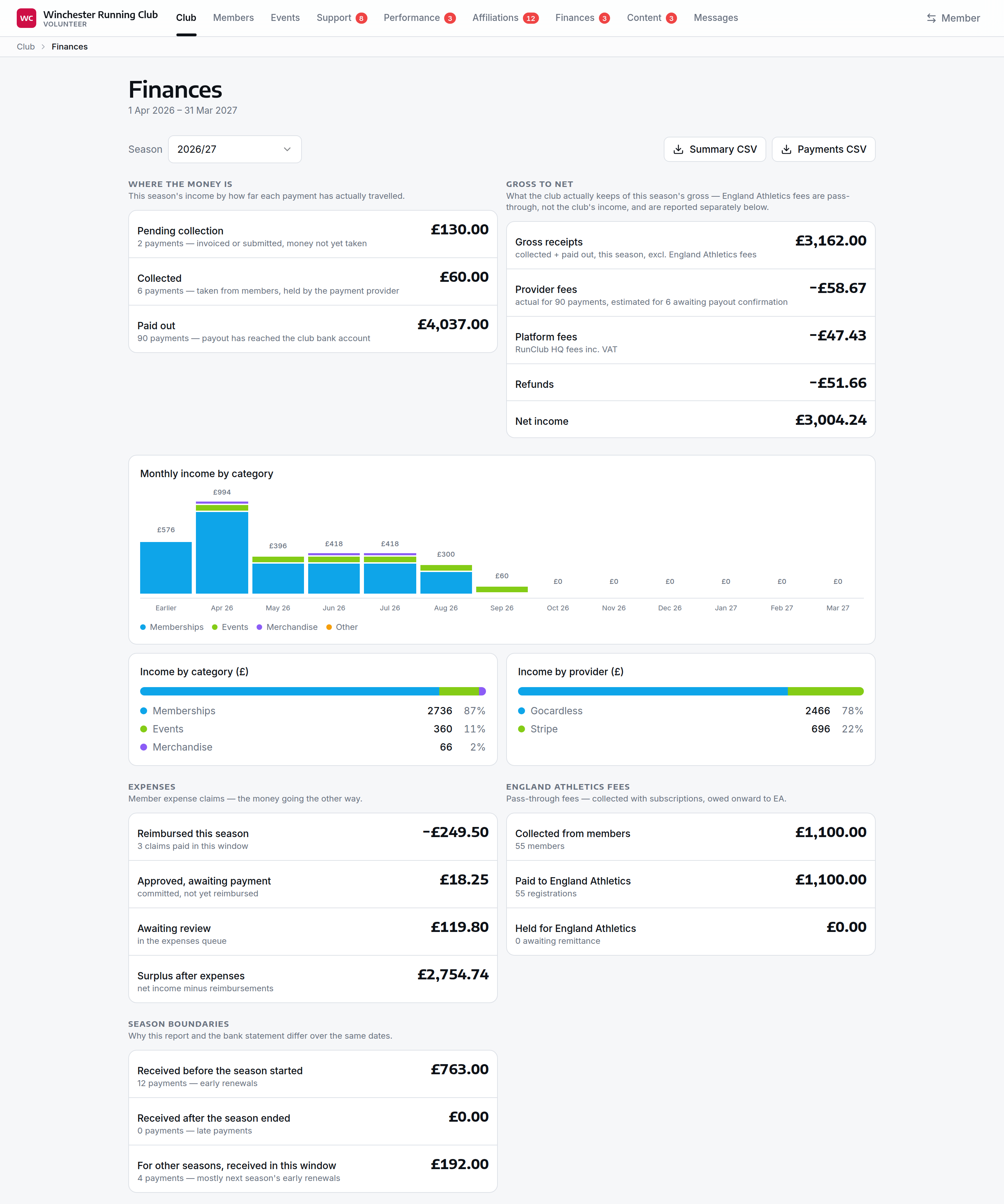
Open the volunteer console and tap Revenue (season) on Club at a Glance — for anyone with a finance role, that card opens the full Finances report. Viewers with analytics access but no finance role get a lighter revenue summary instead.
What your club pays us — your RunClub HQ tier, invoices and how you pay — is a different page entirely; see Your subscription.
A season's money, not a date range
Renewals straddle the season boundary: most of a season's subscriptions are collected before it starts, and a few trickle in months late. The report therefore attributes every payment to the season it belongs to — a renewal collected in March counts toward the season starting in April — rather than simply bucketing by the date the cash landed. The Season boundaries panel shows the difference explicitly:
- Received before the season started — early renewals.
- Received after the season ended — stragglers.
- For other seasons, received in this window — mostly next season's early renewals: money in the bank now that this season's accounts shouldn't claim.
Together these reconcile the report against the bank statement for the same dates.
Income that has no season of its own (event entries, merchandise) is attributed to the season whose dates contain the payment.
Where the money is
Every payment is shown by how far it has actually travelled:
| State | Meaning |
|---|---|
| Pending collection | Invoiced, or the Direct Debit has been submitted — money not yet taken |
| Collected | Taken from the member, held by the payment provider |
| Paid out | The provider's payout has reached the club's bank account — see Payouts below |
Only collected and paid-out money counts toward gross receipts — pending never inflates the totals.
Gross to net
What the club actually keeps: gross receipts, minus provider fees (GoCardless, shown as actuals once each payout confirms them, estimates until then), platform fees, and refunds. The result is the season's net income.
England Athletics fees
Affiliation fees are pass-through money: collected from members alongside their subscription, owed onward to England Athletics. The report shows what has been collected, what has been paid to England Athletics, and — the number treasurers most often need — what the club is currently holding for England Athletics, so the bank balance is never mistaken for the club's own money.
Exports
Two CSV downloads sit at the top of the report, built from exactly the same figures as the page:
- Summary CSV — the category × month matrix (memberships, affiliation fees, events, merchandise, other), in pounds.
- Payments CSV — one row per payment line: date received, status, invoice, payer, provider, category, and amount.
Both are ready for a committee pack or for import into whatever the club's accounts currently live in.
Expense claims
Money flows out of the club as well as in — venue hire, first-aid restocks, a coach's course fee. Once a claim is decided, it shows here as an Expenses group: Reimbursed this season, Approved, awaiting payment, Awaiting review, and a Surplus after expenses line — net income minus what's actually gone back out.
Filing and deciding claims themselves happens on Finances' own tab in the console, not on this report — see the Expense claims playbook.
Payouts
A member's Direct Debit payment doesn't reach the club's bank account the moment it's collected — GoCardless holds it, batches it together with other members' payments, deducts its fees, and pays the club in one bank credit a few days later. That credit is the payout, and it's the point the season report and the club's bank statement agree: the report counts a payment as collected as soon as GoCardless has taken it, but the money only becomes a payout — cash that has actually arrived — once the bank credit lands. Until then, it's held by the provider.
GoCardless is the only provider with payouts today. A club on GoCardless sees its payouts here; there is nothing to show for any other payment method.
Finding payouts
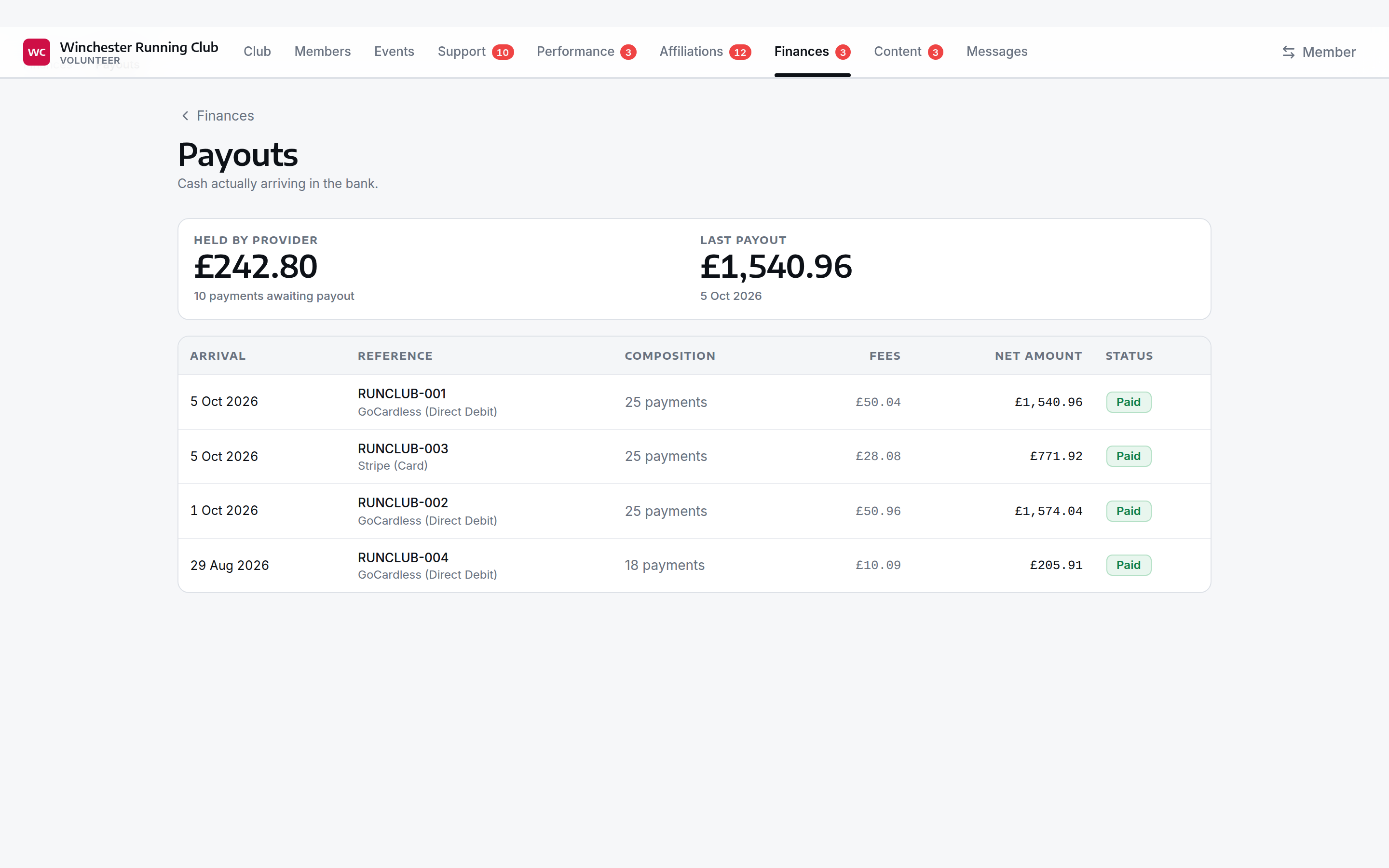
Open Payouts from the Finances tab in the console. The list shows every payout that has arrived, most recent first: the date it arrived, its bank reference, how many payments (and refunds) it carries, the fees GoCardless deducted, and the net amount. A summary above the list shows what's currently held by the provider — awaiting its next payout — and the amount and date of the last payout received.
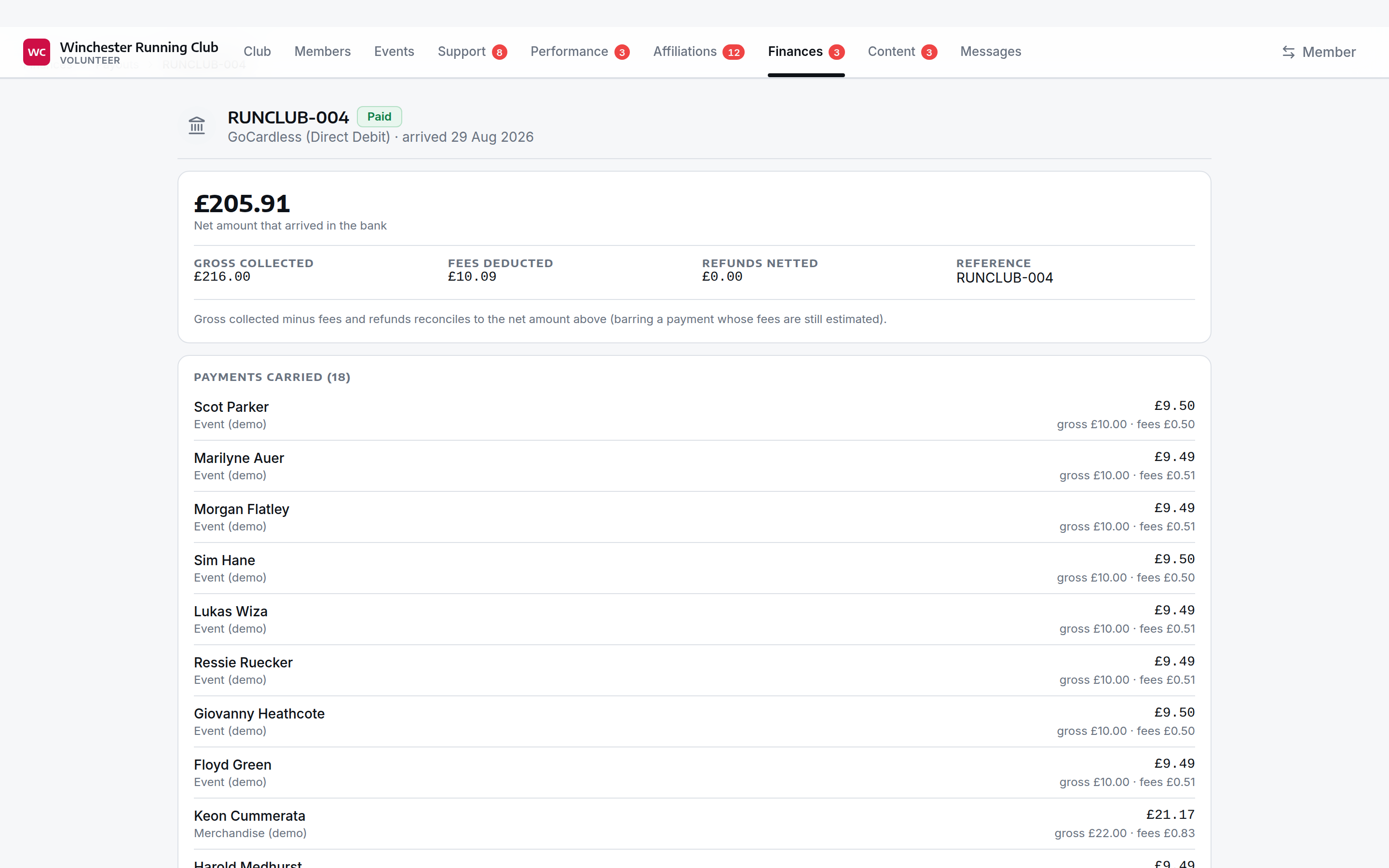
Open a payout to see its full composition: the gross amount collected, fees deducted, refunds netted off, and the net amount that arrived, followed by every payment it carried and every refund it netted, so gross minus fees minus refunds reconciles to the net figure at the top (barring a payment whose fees are still estimates rather than confirmed actuals).
There's nothing to configure here — rows are written automatically as each GoCardless payout arrives.
The statement
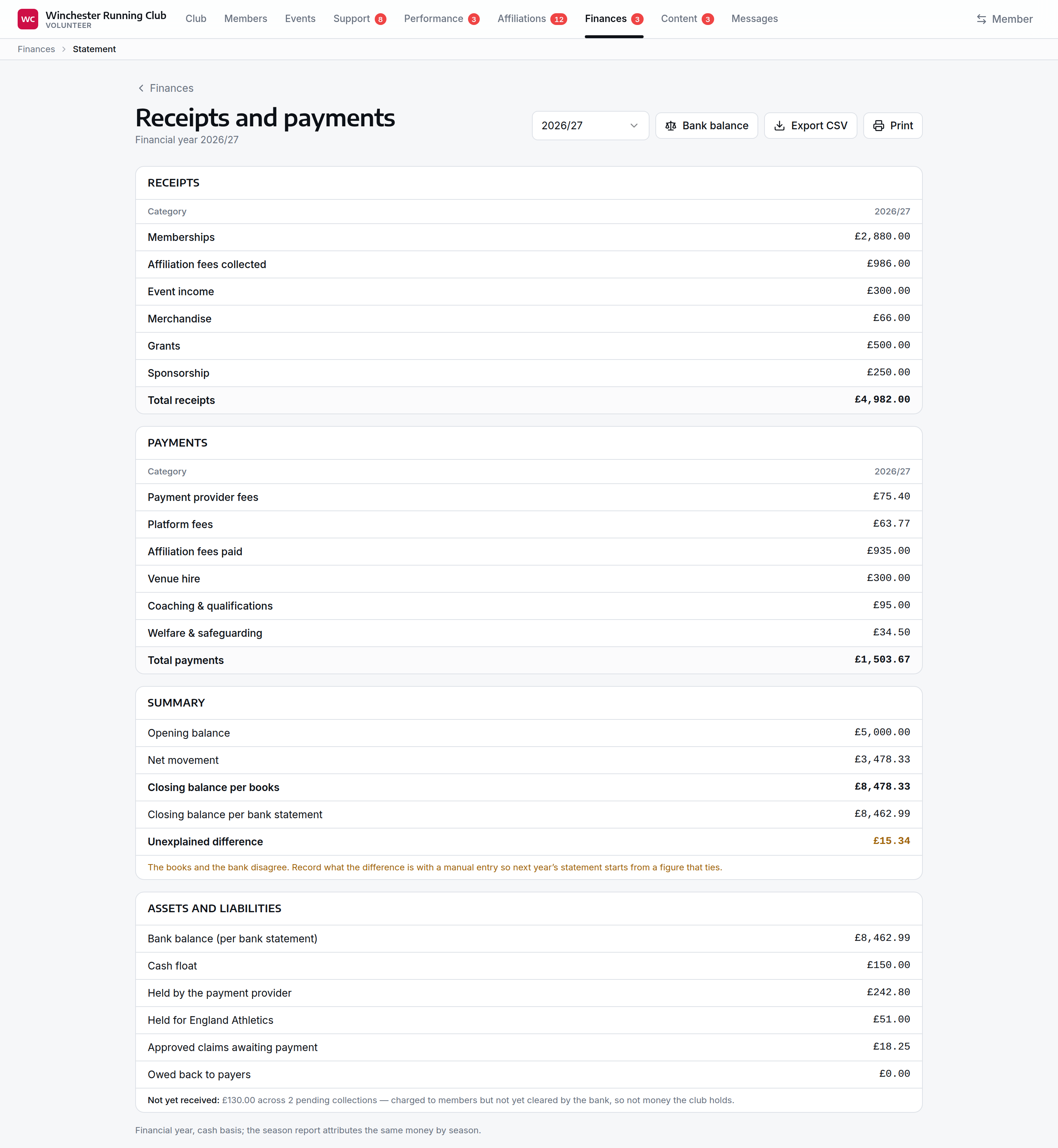
The season report above answers "where is this season's money?" The statement answers a different question: the club's receipts and payments for a financial year, cash basis, tied to the bank — the account an AGM reads and an independent examiner checks. The two legitimately disagree in places: money the payment provider has collected but not yet paid out is a receipt on the season report and an asset here, not yet counted as a receipt.
Finding the statement
Open Statement from the Finances tab in the console. Until finance setup is complete, this page sends you to the wizard instead of showing figures — a statement built without an opening balance is silently wrong rather than obviously empty, which is the one failure a treasurer can't afford.
Receipts and payments
Every category with money in the financial year, receipts and payments each in their own table, itemised where a category has items. Where you've entered a prior-year comparison (from the wizard or from that year's own history, if it now exists on the platform), it sits alongside as a second column.
Money owed back to payers
Sometimes money arrives for an invoice that's already paid, and it has to go back to the person who paid it (see Money owed back to a payer). That money is the payer's, not the club's, so it isn't a receipt and its refund isn't a payment. When a year has any, it gets its own Owed back table below receipts and payments: what came in for payers, less what went back. It still counts towards the closing balance, because the money really did pass through the bank.
Any fees the payment provider took on that money stay on the fee lines, like every other fee. If the money ends up paying for the invoice after all, it moves out of Owed back and into receipts.
If a payer claims it back through their bank
A payer can ask their bank to reverse a Direct Debit instead of waiting for your refund. When that happens after GoCardless has paid the money out to you, GoCardless takes it back from a later payout. RunClub HQ doesn't yet recognise that reversal as the money going back, so the statement shows it as extra Payment provider fees on that payout, and the payment stays under Owed back and in the Owed back to payer filter. Your surplus reads lower than it really is until it's put right.
Before you use Issue Refund on money owed back, check with the payer that they haven't already claimed it through their bank, or they'll be paid twice. If they have, don't refund it: get in touch with us and we'll correct the books with you.
Tying to the bank
A summary block shows:
| Line | Meaning |
|---|---|
| Opening balance | The bank balance you entered for the start of this financial year |
| Net movement | This year's receipts minus payments |
| Owed back to payers (net this year) | Money that came in for payers this year, less what went back to them. Only shown when there is any |
| Closing balance per books | Opening balance plus net movement, plus anything owed back to payers |
| Closing balance per bank statement | What you enter once you have the real bank statement |
| Unexplained difference | Closing per books minus closing per bank |
Click Bank balance to enter what the bank statement actually says; the statement recomputes immediately, and the unexplained difference is your to-do list — anything other than zero is what an independent examiner will ask about. A figure nobody has entered reads as Not entered, never as £0.00 — the statement never invents a number that looks authoritative and is wrong.
Assets and liabilities
The Charity Commission receipts-and-payments template's other half — what the club holds and owes at the year end, each line drawn from wherever the platform already answers that question rather than recomputed here:
| Line | Source |
|---|---|
| Bank balance | What you entered, or the closing balance per books if you haven't |
| Cash float | The club's cash float, from Finance settings |
| Held by the payment provider | The same figure as Payouts — collected but not yet paid out |
| Held for England Athletics | The same figure as England Athletics remittances |
| Approved claims awaiting payment | Approved expense claims not yet marked paid |
| Owed back to payers | Money received for invoices that were already paid and not yet refunded, at the year end. It's in the bank balance, but it isn't the club's |
A note below adds what's not yet received — payments charged to members but not yet cleared by the bank, gross of any fee a future payout will deduct.
Prior year, printing and the CSV
The comparison column comes from that financial year's own movements once the platform has them, and from the setup wizard's optional prior-year step until then — the page says which. Print drops the console chrome, the year switcher and every button, leaving the tables in black on white for an AGM pack. Export CSV is one flat table (section, line, item, amount, prior year) built from exactly the figures on screen, ready for a committee pack or import into whatever the club's accounts currently live in.
Reading the statement needs a finance role too — an independent examiner on a Viewer account reads it like anyone else, but cannot enter the closing bank balance.
Transactions
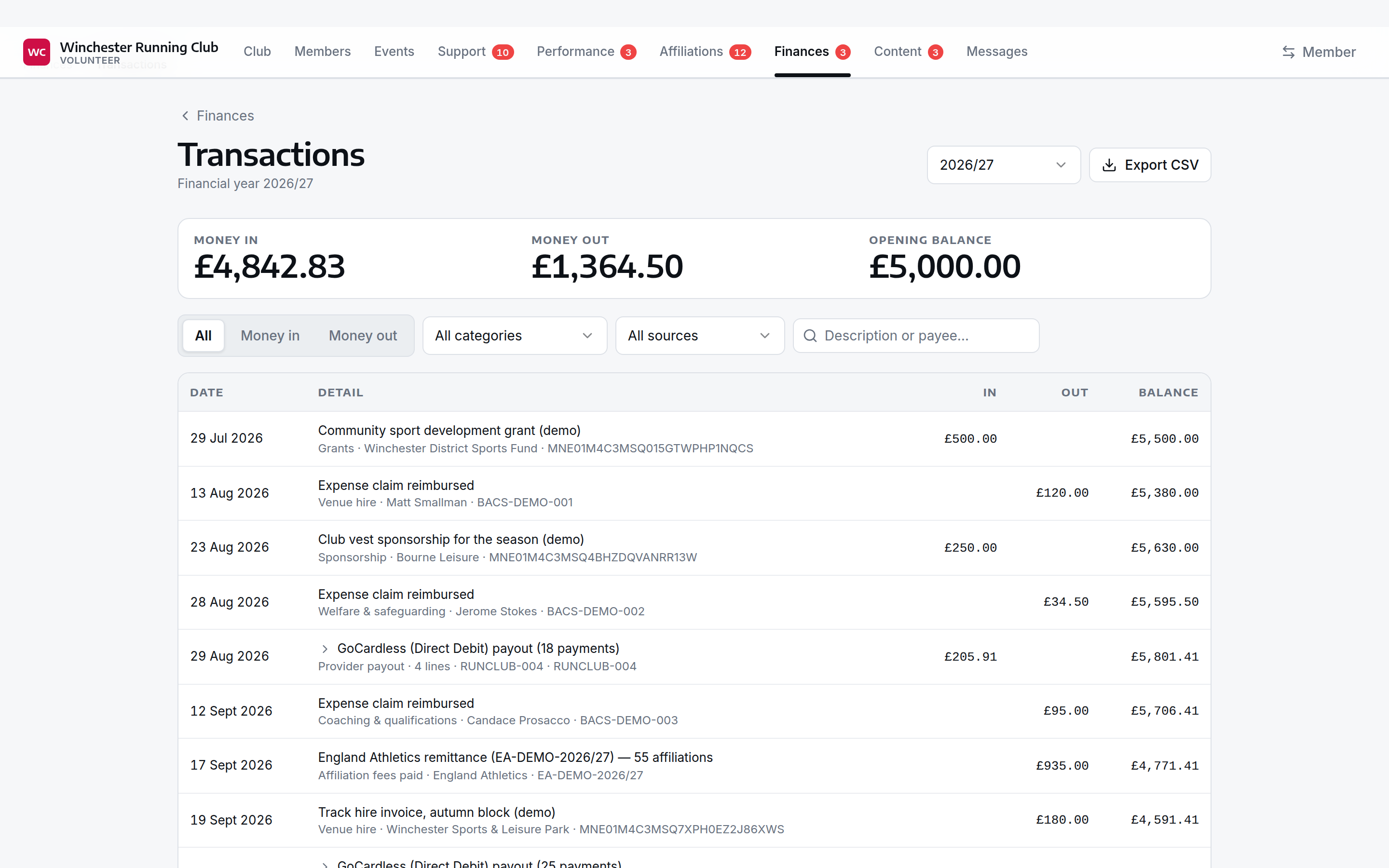
Every bank movement in a financial year, oldest first, each with a running balance — the treasurer's working paper, and the first thing an independent examiner asks for. The running balance is always computed over the whole year, even when a filter narrows what's shown, so it stays true to the club's actual bank position; narrowing the view can (correctly) leave visible jumps in the column.
Finding transactions
Open Transactions from the Finances tab. Unlike the statement, this page doesn't wait for finance setup — it's useful from the first payout, with the running balance simply starting from zero (and the page saying so) until an opening balance has been recorded.
Filtering and expanding
Filter by direction (money in / money out), category, item (once a category is chosen), source (payout, expense, manual entry, England Athletics remittance, and the other kinds that can carry a bank line), or free-text search across description and payee. A row carrying more than one category — a provider payout above all — collapses to a summary label such as "Provider payout · 42 lines" and expands in place to its category-and-item breakdown; a payout with two hundred subscriptions in it is one Memberships line here, not two hundred rows.
Rows are flagged Unbatched (no payout has been recorded for it yet, so it stands as its own bank line) or Opening (an opening-adjustment entry from finance setup).
The transactions CSV
Export CSV streams one row per movement — date, description, payee, category, item, in, out, running balance, source and its reference, and flags — the file that goes into a spreadsheet or accounting package, and the working paper an examiner asks for first.
Categories and items
Everywhere money gets filed on RunClub HQ — expense claims, entries — uses one two-level tree.
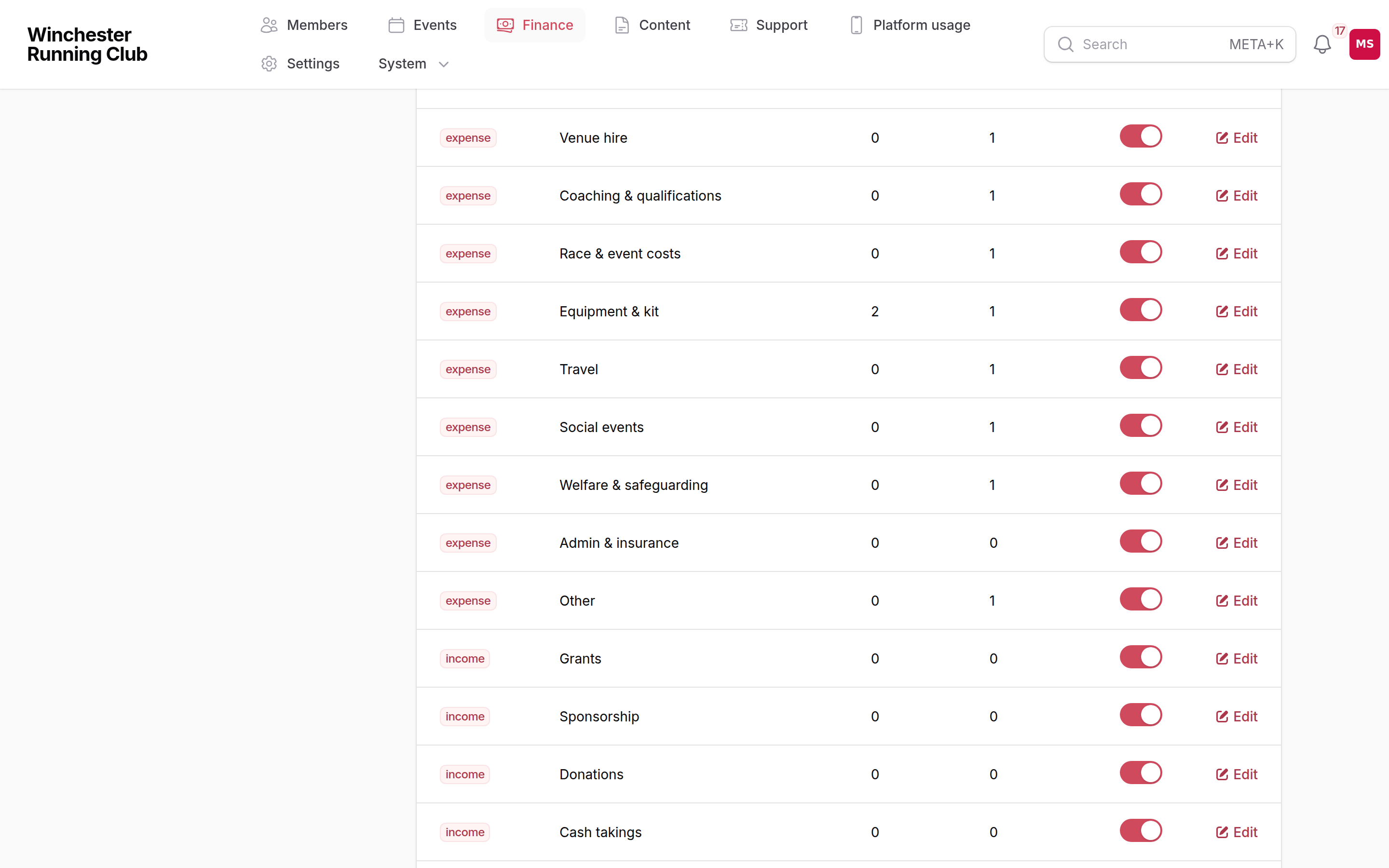
Category is the reporting line: income or expense, a name, and whether it's active. A handful of categories are system categories, seeded automatically and mapped to where platform money already lands — income categories for memberships, affiliation fees collected, event income, merchandise, and other income; expense categories for payment provider fees, platform fees, refunds, affiliation fees paid, and the club's own RunClub HQ subscription. You can rename a system category, but not delete it or change which side of the books it's on — the platform relies on that mapping to file its own money correctly. Every other category is fully yours: rename, add, reorder, or deactivate as you like.
Alongside the system categories, every club starts with a set of editable income defaults — grants, sponsorship, donations, cash takings, bank interest — as well as the nine expense defaults expense claims have used from the start (venue hire, coaching and qualifications, race and event costs, equipment and kit, travel, social events, welfare and safeguarding, admin and insurance, other).
Item is the thing a committee actually agreed money for, underneath a category — Venue hire → Sports centre (Tuesdays), Coaching → LiRF courses. Items are optional: a category with none is simply used on its own. Where a category does have items, one is required whenever money is filed against it — including, once a treasurer approves it, an expense claim; see the Expense claims playbook for how that categorisation works.
Deactivating a category or item (rather than deleting it) keeps its label on historic claims and entries — nothing already filed goes blank because you tidied the list later.
Managing the category tree
Manage the tree in the admin panel under Finance → Finance Categories. Open a category to rename it, toggle it active or inactive, or manage its items on the same page.
Entries
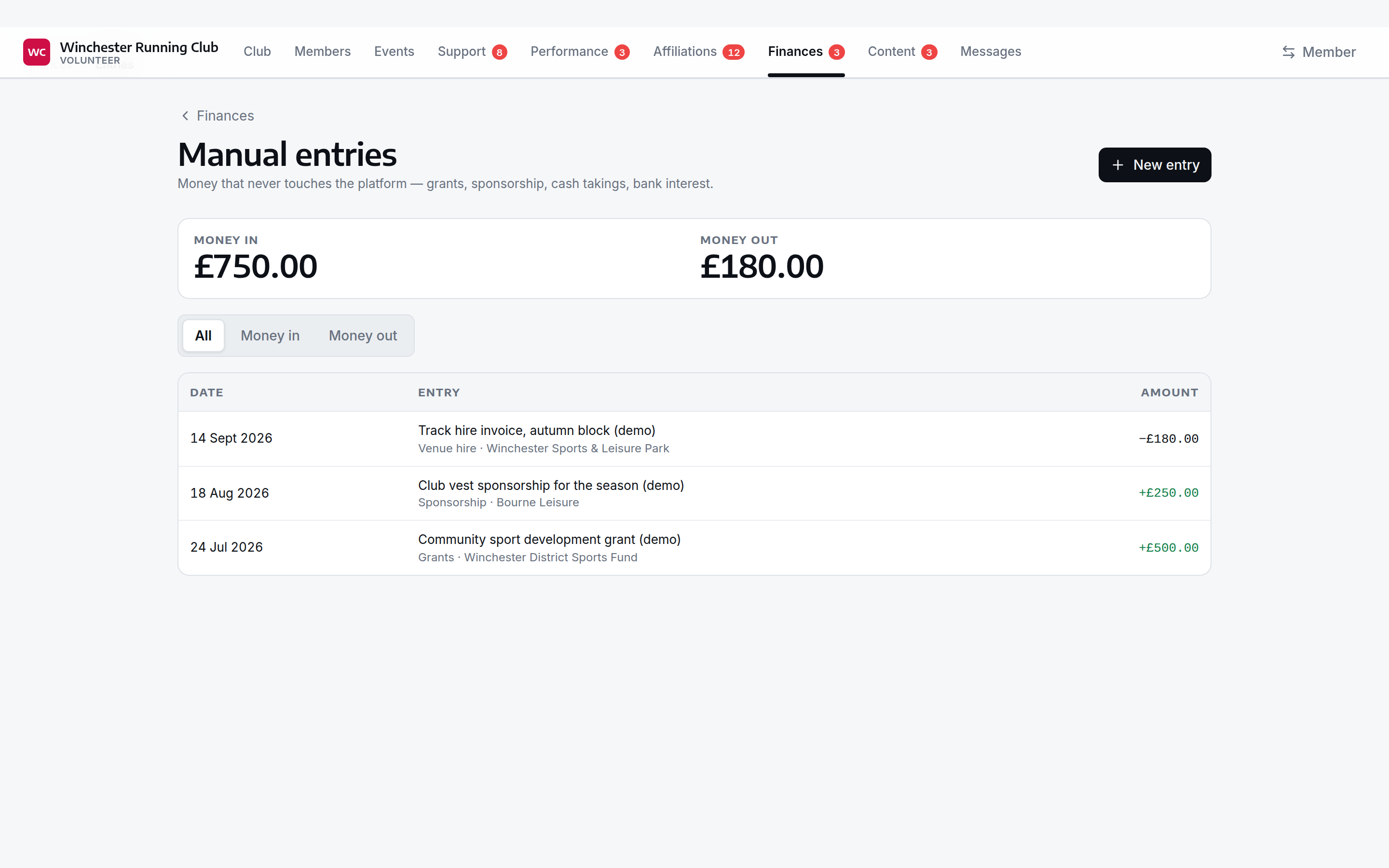
Not all of a club's money moves through RunClub HQ. Grants, sponsorship, cash takings at an event, bank interest, a venue invoice paid straight from the club's own account — none of that is a member payment, so it needs recording by hand. Entries are how.
Recording an entry
Open Entries from the Finances tab. Each entry records:
- Direction — money in or money out.
- Date and amount.
- Category (and item, where the category has one) — from the same tree as expense claims, filtered to the side of the books the direction implies: a "money in" entry can only be filed under an income category, and vice versa.
- Payee — who paid, or who was paid. Optional.
- Description — what it was for.
- Attachments — up to three files (photos or PDFs, 10 MB each) as evidence, the same allow-list as an expense claim's receipts.
Entries can be edited or deleted from the same list. A summary above it totals money in and money out for whatever you're currently viewing.
Opening adjustments are a special kind of entry, tagged Opening in the list — the figures a club enters once, when it first sets up its books on RunClub HQ, to account for money that moved before the club went live on the platform. They're created by the finance setup wizard, not typed in here directly; re-running the wizard replaces the whole set for that financial year, so use it rather than editing an individual opening adjustment here except for a one-off fix.
England Athletics remittances
When you mark an affiliation as paid to England Athletics — one at a time, or in bulk from the console's Affiliations queue — RunClub HQ now records a remittance: the amount actually sent, the date, an optional reference (an EA invoice number, say) and notes.
The bulk action's amount defaults to the sum of the selected affiliations' own fees, but it's editable — England Athletics' invoice occasionally differs from what the club expected to pay, and this is where you correct it. Marking a single affiliation paid attaches its fee to whichever remittance is already open for that payment date, or opens a new one if none exists yet.
Held for England Athletics, the figure shown on the season report, is computed from these remittances: what's been collected from members for affiliation fees, minus what's actually been sent on — both real cash movements, not a fee multiplied by a flag.
Marking an affiliation paid is a Membership Manager action; adding the remittance's amount, reference and notes when doing it in bulk additionally needs a finance role.
Budget
The committee's plan for a financial year — what it expects to spend and receive, the membership volumes behind the biggest income line, when the known payments fall, and the cash-flow projection those imply.
Starting a budget
Open Budget from the Finances tab. Like the statement, it waits for finance setup — with the switch on but setup incomplete, it sends you to the wizard instead of showing figures.
Pick a financial year (a budget is agreed before the year it covers, so next year is always offered), and — if none exists yet — pick the membership season it should assume and create it. RunClub HQ lays out one line per active category and item from the category tree, and pencils in membership volumes from that season's roster and last season's renewals. A club can have only one budget per financial year — correcting figures later is an edit to that budget (a reforecast), not a second one.
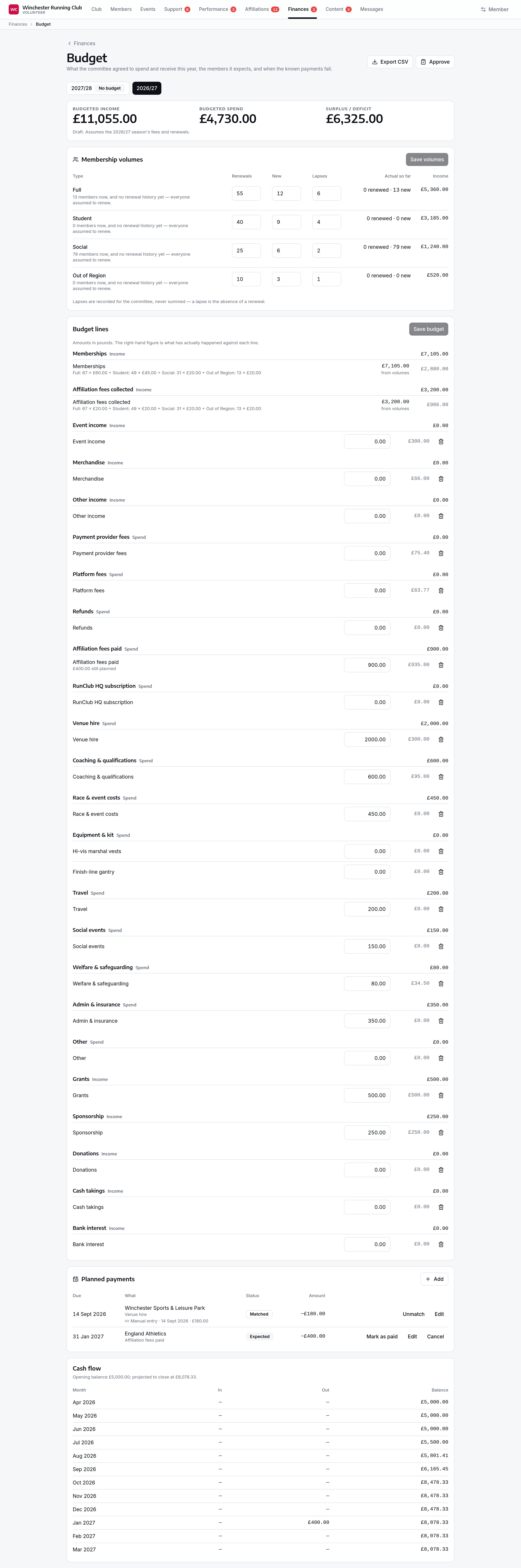
Membership volumes and the forecast arithmetic
For each active membership type, the budget prefills expected renewals from today's members at last season's renewal rate — renewals ÷ the population that could have renewed. With no renewal history yet (a club's first season, or a type nobody held last year), it assumes everyone renews rather than reading zero. The explanation under each row spells out the sum, e.g. "142 members now × 82% renewed last season (116 of 141) = 116 suggested" — the working, not just the result, so a figure can be argued with in a meeting. Renewals, new joiners and lapses are all editable; lapses are recorded for the committee but never subtracted from renewals — a lapse is a non-renewal, so counting it twice would double the loss. An actual so far column shows how many have actually renewed and joined this season, for comparison against the plan.
Two income lines are computed from these volumes rather than typed in: Memberships and Affiliation fees collected, each the sum across types of (renewals + new) × that type's fee for the target season, snapshotted onto the budget when volumes are set so a later fee change doesn't silently reprice an approved budget. These lines can't be edited directly — change the volumes instead.
Lines and items
Every other category and item gets a zero-valued line the committee fills in, in pounds. Only lines you've actually touched are sent on save, so saving can never overwrite a figure someone else changed in the meantime. Alongside each line, RunClub HQ shows what's actually happened against it (see Actuals below) and how much of any planned payment against it is still outstanding.
A line you no longer budget for can be removed. Its planned payments go with it — the confirmation says how many, since deleting the line drops them from the cash-flow projection too. A computed line (Memberships, Affiliation fees collected) has no delete: it's owned by the membership volumes above, and the way to remove one is to stop assuming the members, not to delete the line.
Planned payments
Dated expectations against a budget line — the track hire invoiced each quarter, the EA remittance due in April, the insurance renewal in September. Add a date, amount, and optionally a payee and description; whether it's money in or out follows the line it's against. A planned payment can be edited, cancelled if the expectation is off (the booking never happened — this keeps it on the list for the record but drops it out of the cash-flow projection), or deleted outright.
Marking one as paid is a manual decision, but not a blind one: RunClub HQ offers a ranked shortlist of the year's unclaimed movements on the same side of the books — the ones matching the amount exactly first, then anything within 5% of it, then everything else, each showing how far off it is on amount and on date so you can check the suggestion rather than just trust its position in the list. Search by description or payee if the right movement isn't near the top. Pick one and the planned payment becomes matched: it drops out of the cash-flow projection (it's real money now, not a plan) and the row shows what it was matched to. A movement already claimed by another planned payment is never offered twice.
Matched the wrong movement, or it turned out to be something else? Unmatch puts the planned payment back to expected and returns it to the cash-flow projection.
Actuals and cash flow
Every line's actual column is real money, read from the same movements as the statement and transactions — a category or item's share of what's actually been collected or paid this financial year. Membership volumes are live the same way: the renewed/new counts against each assumption are drawn from this season's subscriptions.
The cash-flow table runs the whole financial year month by month from the opening balance (or, with none recorded, from zero movement — the page says which). A month already lived through uses the real net movement for that month; a month still ahead uses whatever planned payments are still outstanding and dated into it — a planned payment whose month has already passed drops out of the projection rather than double-counting money that's either already happened or was never coming. Either way it runs to a projected closing balance, and a month whose closing balance would go negative is shown in red.
The budget CSV
Export CSV is one flat table: every budget line by category, with the formula behind a computed line, budget, actual and remaining; the year's totals; the membership-volume assumptions; and every dated planned payment. Built from exactly the figures on screen.
Approving a budget
Approve records that the committee has agreed this budget — a note is required, naming the meeting date or minute reference, so the audit trail can be traced back to a decision. Editing an approved budget stays allowed (that's what a reforecast is); doing so is logged both as a normal budget change and, specifically, as a reforecast, so the committee can see that an agreed figure was later revisited, and by whom. Re-approving is allowed too, and re-stamps the approver, date and note — the normal path after a reforecast goes back to committee.
Treasurer's report
The paper read out at a committee meeting: one page pulling together the bank position, what's held elsewhere, claims outstanding, receipts and payments, and budget vs actual — built from exactly the same figures as the statement, transactions, payouts and budget rather than a second calculation of any of them, so nothing on it can disagree with those pages.
Finding the report
Open Report from the Finances tab in the console. Like the statement and the budget, it waits for finance setup — with the switch on but setup incomplete, it sends you to the wizard instead of showing figures.
Pick a financial year and an as-at date at the top; changing the year clears the date back to that year's default, since the old one is almost certainly outside it. A date before the year starts, or after it ends, is pulled to the nearest end of the year — opening last year's report today still shows a real position, at the year end.
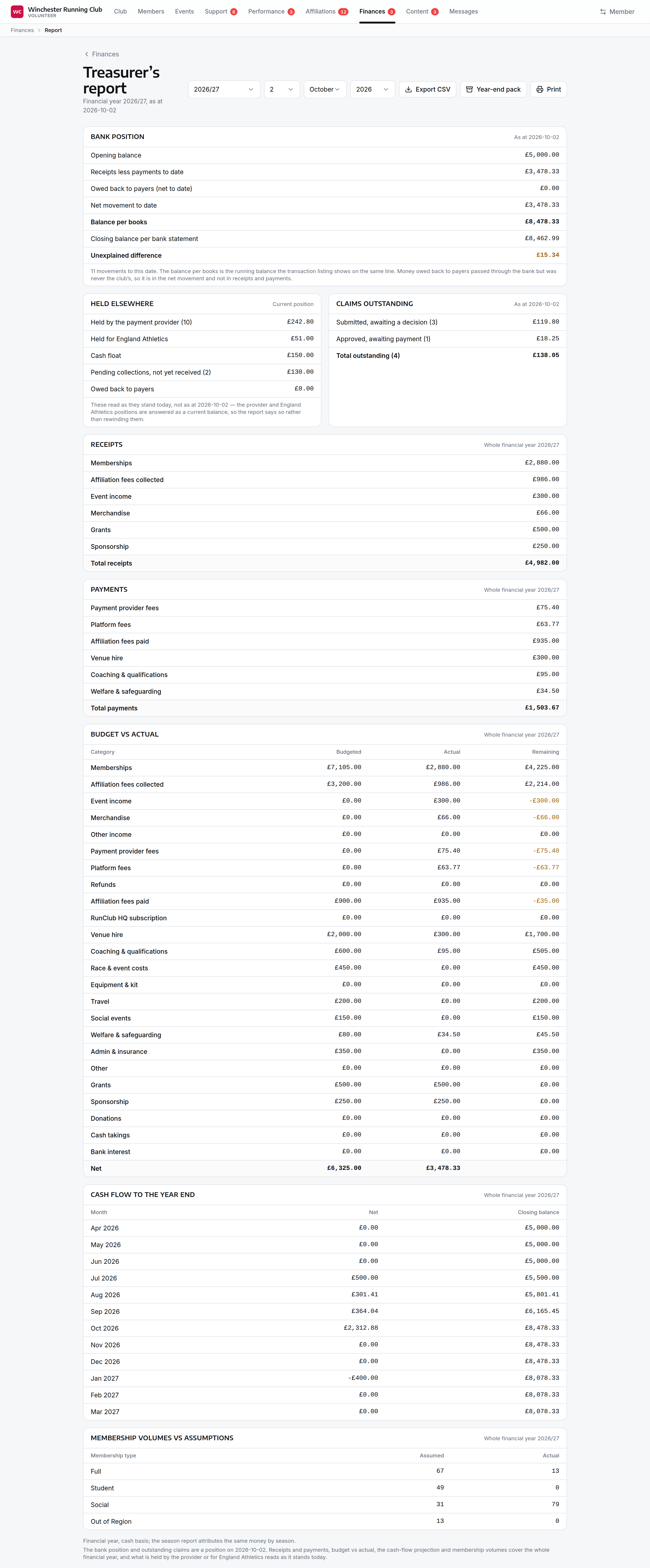
As at a date, or the whole year
Half the report is a genuine position on the date you chose, and half is the whole financial year, because the pages behind it offer nothing finer — each section on screen says which it is:
| As at the chosen date | Whole financial year | Current position, not dated |
|---|---|---|
| Bank position, claims outstanding | Receipts and payments, budget vs actual, cash flow, membership volumes | Held by the provider, held for England Athletics, cash float, pending collections |
The bank position figure is the same running balance the transaction listing shows on the last movement on or before that date, so the two pages never quote different numbers for the same day.
The bank position also splits its net movement in two: Receipts less payments to date, which is the club's own money, and Owed back to payers (net to date), which passed through the bank but belongs to payers (see Money owed back to payers). The two add up to the net movement. At the year end, receipts less payments matches the net movement in the receipts and payments section, so you can square the two sections on the page.
Notable items
A footnotes section flags anything worth raising at the meeting: bank movements with no payout batched against them yet, opening adjustments still present from finance setup, and planned payments past their expected date with nothing matched to them.
Print, CSV and the year-end pack
Print drops the console chrome, the switchers and every button, leaving the tables in black on white to read out or screen-share — the same treatment the statement uses. Export CSV is one flat table — section, line, detail, amount, and whether that row is dated or whole-year — built from exactly the figures on screen.
The year-end pack is a step further: a zip for handing to an independent examiner, containing:
statement.csv— the receipts and payments account, and assets and liabilitiestransactions.csv— every bank movement in the year with its running balancebudget.csv— budget vs actual, only included when the club has a budget for the yearcategories.csv— the category tree, so an examiner can read every other file against itexpense-decisions.csv— every expense claim touching the year, who decided it, when, and its audit trailREADME.txt— the period covered, the cash basis and the regulatory position (not accounting software, not MTD-compatible), in the one place an examiner will actually read it
Each CSV is the same file the console streams from its own page, not a second rendering — the pack a treasurer hands over is byte-for-byte what they'd have downloaded individually.
Reading the report, printing it, and downloading its CSV or the year-end pack all need only a finance role — an independent examiner on a Viewer account downloads the pack exactly as a treasurer would.
Finance settings
A club with the treasurer toolkit enabled gets a Finance tab under Settings in the admin panel, holding:
- Financial year start — the month the club's own financial year begins. Most UK clubs use April; some follow the calendar year.
- Platform go-live date — the first day platform money counts as the club's complete financial record. Leave it blank until the club is ready to complete finance setup.
- Cash float — physical cash the club keeps on hand, such as an event entry float.
These three are also set on the finance setup wizard's first two steps, and editable here afterwards for a routine correction. The opening balance, prior-year totals and closing bank balance are not edited here — they're set by the setup wizard and the statement, because they only make sense tied to a specific financial year.
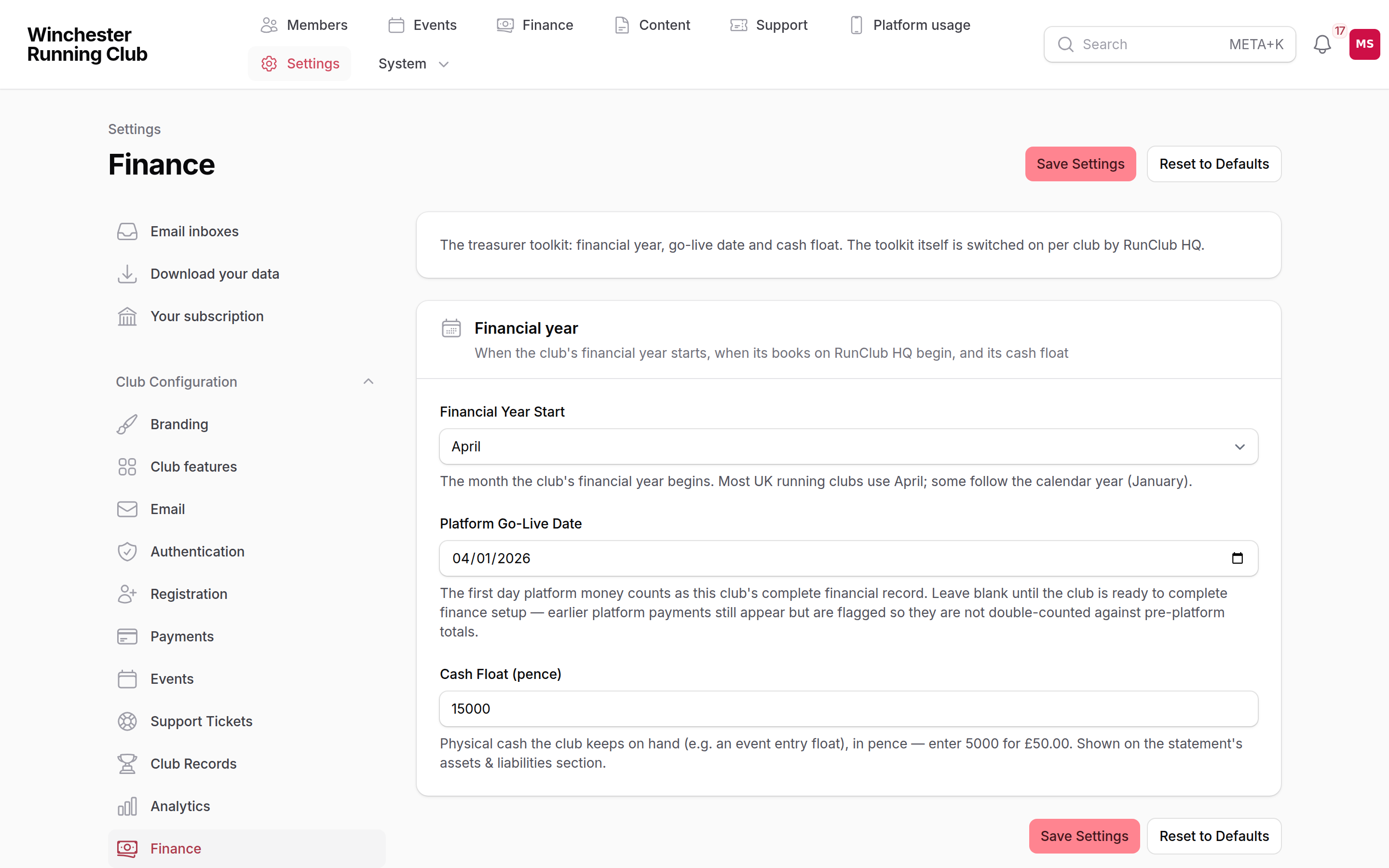
The Finance tab only appears once we've switched the treasurer toolkit on for the club, and only to a Club Admin or Treasurer — a Viewer doesn't reach it.
Notifications
Two things prompt an automatic notification once finance is enabled for a club — both in-app (bell) and push, never email:
- A payout arrives. Everyone with a finance role is told when a GoCardless payout lands: the amount, how many payments it carried, and the fees deducted, linking through to the payout.
- An England Athletics remittance is recorded. The same audience is told when a payment to England Athletics is logged: the amount, how many affiliations it covers, and the reference if one was given, linking through to Entries. Marking affiliations paid one at a time can add to the same day's remittance repeatedly — RunClub HQ only sends one notification per remittance per day, not one per affiliation.
What this is and is not
RunClub HQ's finance toolkit gives a treasurer visibility and a small set of record-keeping tools built on data the platform already has. It is deliberately not a substitute for proper accounting software:
- Not accounting software. RunClub HQ files nothing with HMRC, Companies House or the Charity Commission. The treasurer remains responsible for the club's accounts and returns.
- Cash basis. Money is recorded when it moves, not when it's earned or owed — the basis appropriate for the great majority of unincorporated clubs, CASCs, and charities below the accruals threshold.
- One bank account, in sterling, with no VAT accounting. A club that's VAT-registered, or preparing statutory accounts as a company limited by guarantee, needs real accounting software — use RunClub HQ's exports as the bridge to it, not as the books themselves.
- Records are retained for six years.
- Give an independent examiner their own account rather than emailing them spreadsheets — the Viewer role gives read-only access to everything a finance role can see, with nothing they can change.
Making Tax Digital — verify before relying on this
RunClub HQ is not Making Tax Digital (MTD) compatible software. Our current understanding is that MTD is not expected to apply to the clubs we serve: MTD for VAT binds only VAT-registered bodies (subscriptions to eligible non-profit sports clubs are VAT-exempt, and most clubs sit well under the registration threshold); MTD for Income Tax covers individuals, not clubs; MTD for Corporation Tax has no mandation date yet. This position has not been checked against current HMRC guidance and must be verified before a club relies on it — checked on: (not yet verified — do not publish this page until this line is replaced with a date and a source).