
Appearance
Add a new admin user
Bring a new committee member or volunteer onto the admin panel, with exactly the roles the job needs. This is a Club Admin-only screen — see Roles for what each role opens, both here and in the volunteer console.
Who: Club Admin. Where: admin panel. Takes: about 2 minutes.
Before you start
Decide the role, or roles, before you start — you can hold more than one, and it's easier to pick correctly once than to notice a gap later.
| They're… | Give them |
|---|---|
| The chair, secretary, or anyone who should see and do everything | Club Admin |
| Doing day-to-day membership admin | Membership Manager |
| Running the club records board | Records Manager |
| Reviewing submitted results, not club records | Results Reviewer |
| The club's safeguarding or welfare lead | Welfare Officer |
| Running check-in on race day | Check-in Manager |
| Managing events and event configuration | Events Manager |
| Publishing pages, posts and messages | Content Manager |
| Watching dashboards without changing anything | Viewer |
If the person is already a club member — say, someone brought in from an England Athletics import who has no login yet — you can link their admin account to their existing member record instead of creating a second, separate one.
Steps
- Open Settings → Admin Users.
- Click Invite Admin User.
- If they're already a club member with no login of their own, search for them under Link to existing member — this keeps their admin login and member profile as one record. If not, leave it blank.
- Enter their Email Address — this is where the invitation goes, and where they'll sign in from.
- If you left Link to existing member blank, give them a Name — it's how they'll appear around the console. Leave it and their email address is used instead.
- Under Administrative Roles, tick everything they need.
- Leave Send invitation email ticked, unless you'd rather tell them yourself.
- Save.
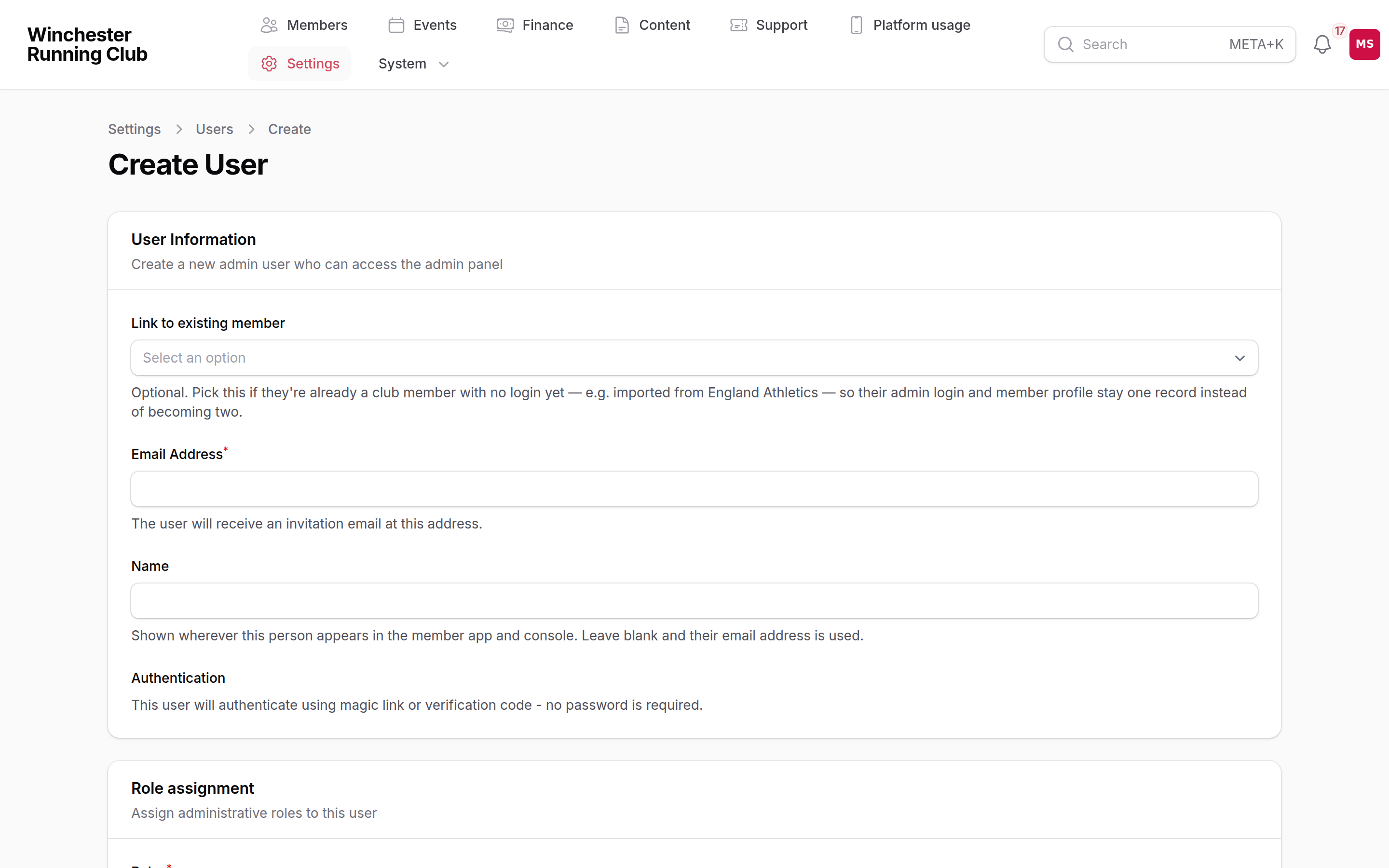
picking the roles a new admin user needs
What happens next
There's no password to set — like every RunClub HQ account, an admin user signs in with a magic link or a 6-digit code, not a password. If you left the invitation email ticked, they get one straight away with a way to sign in; otherwise, let them know yourself. Once they're in, they see exactly the tabs and screens their roles open, in both the admin panel and, for console roles, the volunteer console.
Changing or removing someone's roles
Same screen: open Settings → Admin Users, click their row, tick or untick roles under Administrative Roles, and save. There's no delete button — admin users are managed through roles, not removal, so taking away admin access entirely means clearing every role they hold rather than deleting the account. Whenever someone else's roles change, they get an email telling them what their access now is; changing your own roles doesn't email you.
You can't lock yourself out
The form won't let you remove your own Club Admin role — if you're the one making the change, it's put back automatically, with a note explaining why.
If it does not work
The person I invited can't sign in
Check they're signing in at your club's own admin address, not somewhere else, and that the email on their account matches what they're typing. An admin login is separate from a member login — someone can hold both, but one doesn't get you into the other.
They can sign in but the admin panel looks empty
They have an account but no role, or a role that doesn't open anything in the admin panel itself — Check-in Manager, for instance, works mostly from the console, not the panel. Open their record and check what's ticked under Administrative Roles.
I can't find a role I need to give someone
Not every role can be assigned from this screen — if the one you're looking for doesn't appear in the list, contact us rather than working around it.