
Appearance
Issue a partial refund
A member is owed some money back but keeps their place — a goodwill gesture after a complaint, an overpayment, a duplicate charge. This is the everyday refund: it touches the payment only, and leaves their membership or event entry exactly as it was.
| If you're refunding… | Use |
|---|---|
| Part or all of a payment, and the member keeps their access | This recipe |
| A member withdrawing from an event, or the club cancelling it | The event's Participations tab → Refund & Cancel on the participant row — see Payments → Refunds |
| A member leaving and you're refunding their membership fee | The subscription → Refund & Cancel Subscription — see End a member's membership |
Who: Club Admin or Treasurer. Where: admin panel. Takes: about 2 minutes.
Before you start
Have the reason ready — you'll be asked to pick a category and add a sentence of detail, and both are kept on the payment's activity log for good. If the payment was confirmed less than 7 days ago, the form warns you: GoCardless recommends waiting the full week before refunding, to avoid a late bank failure landing on top of a refund that's already gone out. There's nothing stopping you refunding sooner if the member needs it urgently — it's a warning, not a block.
Steps
- Open Finance → Payments and find the payment — search by member name or invoice number.
- Open it, then click Issue Refund in the page header.
- Under Refund Type, choose Partial Refund (or Full Refund, shown with the maximum amount, if that's what you mean).
- For a partial refund, enter the Refund Amount in pounds. You can't refund more than the payment is still worth — if an earlier refund already went out against it, the form shows what's left.
- Choose a Reason Category: Goodwill gesture, Overpayment correction, Duplicate payment, Event cancelled by club, Member withdrew from event, Subscription cancelled, Admin error, or Other.
- Add Reason Details — free text, required, up to 500 characters. Write enough that you or whoever's on the committee in six months' time understands why, without needing to ask.
Money moves as soon as you confirm
The refund goes to the provider immediately, and the member is emailed. There's no undo — if you need to change the amount, issue a further refund or, if you've overdone it, sort the difference out with the member another way.
- Confirm.
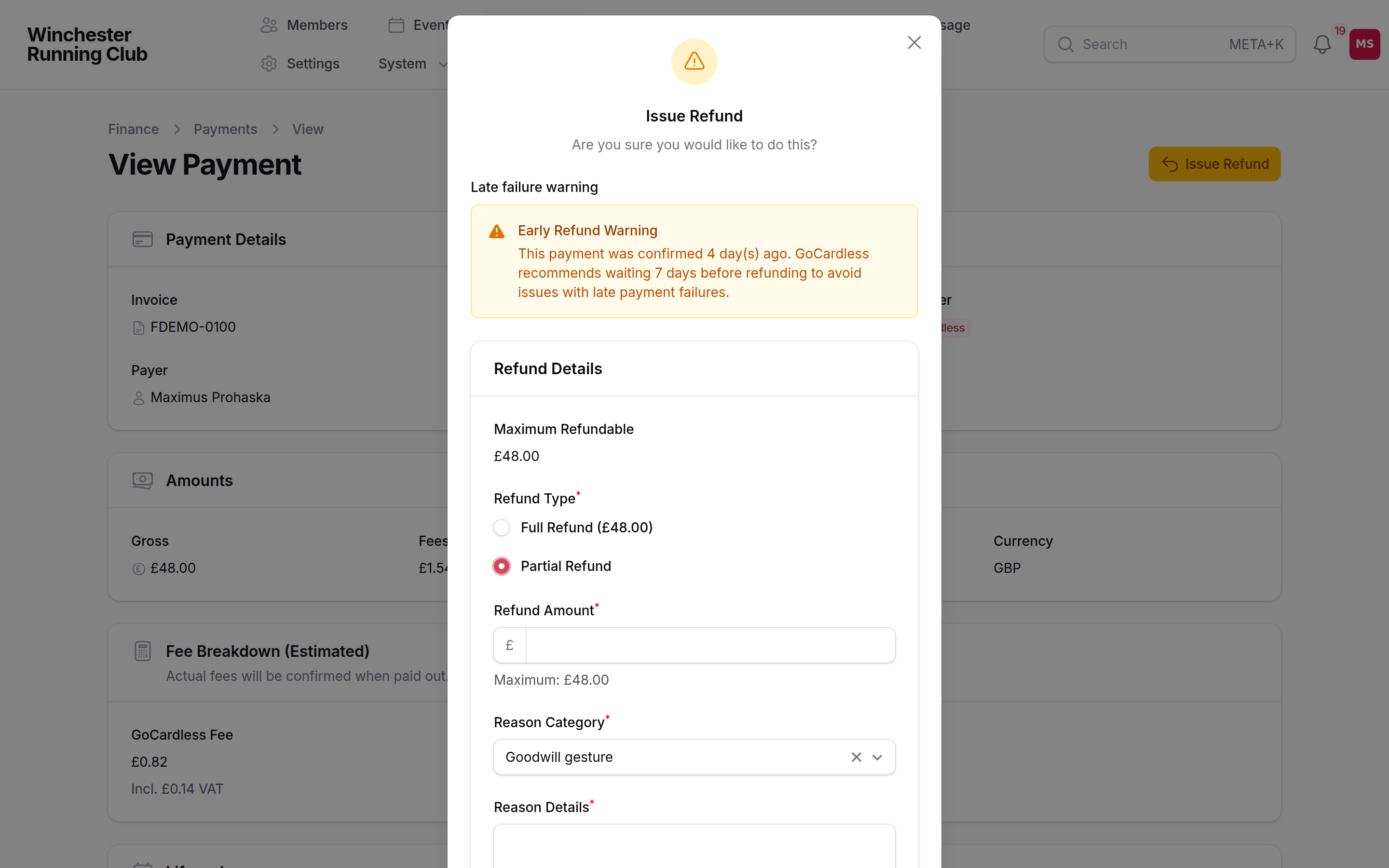
choosing a partial refund, with the amount and reason fields open
What happens next
We submit the refund to the payment provider straight away. The payment record shows a partial-refund badge, and the invoice's amount refunded updates — but the invoice's own status stays Paid; see Payments → How refunds appear on the invoice for why that's not a mistake. The member's subscription, event entries and anything else on their record are untouched.
The member gets an email once the refund is submitted, and another once the money is back with them — usually 5–10 working days later, depending on their bank. Everything you entered — who, when, the category, the details — is on the activity log.
If it does not work
The refund failed at the provider
Open the payment and check its activity log for the reason. The usual causes: the payment is too old to refund, the mandate behind it has since been cancelled, or a card has expired. If you can't recover it through the provider, refund the member another way — bank transfer, say — and add a note on the payment so your books still balance.
GoCardless won't take any more refunds against this payment
GoCardless allows at most 5 refunds per payment. If you're close to the limit the form warns you before you confirm. Once you're at 5, refund what's left another way and note it.
I need to refund more than the payment is worth
You can't. Issue the full remaining amount, then treat anything beyond it as a separate transaction — outside the platform, with its own note for the books.
I picked the wrong reason category
The category can't be edited once the refund's gone out. Add a follow-up note on the activity log if it matters for your records; the category itself stays as recorded.
See also
- Payments → Refunds — all three refund workflows, side by side
- Subscriptions and seasons — for a subscription refund specifically
- End a member's membership