
Appearance
Renewals
A renewal campaign is how a season's memberships get renewed for the next one, household by household, with as little chasing as we can manage between us. This page is the reference — for the calendar of when to do each part, see Your first renewal season.
Who can do this?
Creating and running a renewal campaign, recording a manual payment, and reinstating a household all need Club Admin or Membership Manager. Members handle their own renewal from their dashboard or the emailed link — see What a member gets below. See Roles & Permissions.
How renewal works
A campaign belongs to one season. Inside it, every household gets one renewal that covers everyone in it — a parent renewing for themselves and their children does it in one go, not once per person.
Each household's renewal moves through its own states as the season turns over. Most finish at Renewed without anyone needing to do anything; the rest are the ones worth recognising, because they're where your attention goes:
| Status | What it means |
|---|---|
| Pending | Proposed, not yet paid or scheduled |
| Auto Scheduled | A working Direct Debit was found — payment is booked in |
| Confirmed | The member has confirmed their choices; payment is about to be taken |
| Processing | Payment has been submitted for collection |
| Renewed | Paid — the renewal is complete |
| Payment Failed | A scheduled payment didn't go through |
| Mandate Invalid | There's no working Direct Debit on file |
| Grace Period | The season has started, still unpaid — access continues |
| Lapsed | The grace period ended, still unpaid |
| Resigned | The lapsed period ended — they're now a returner, not a renewer |
| Cancelled | The member chose not to renew |
| Excluded | You took them out of this campaign |
Setting up a campaign
Under Members → Renewals → Renewal Campaigns:
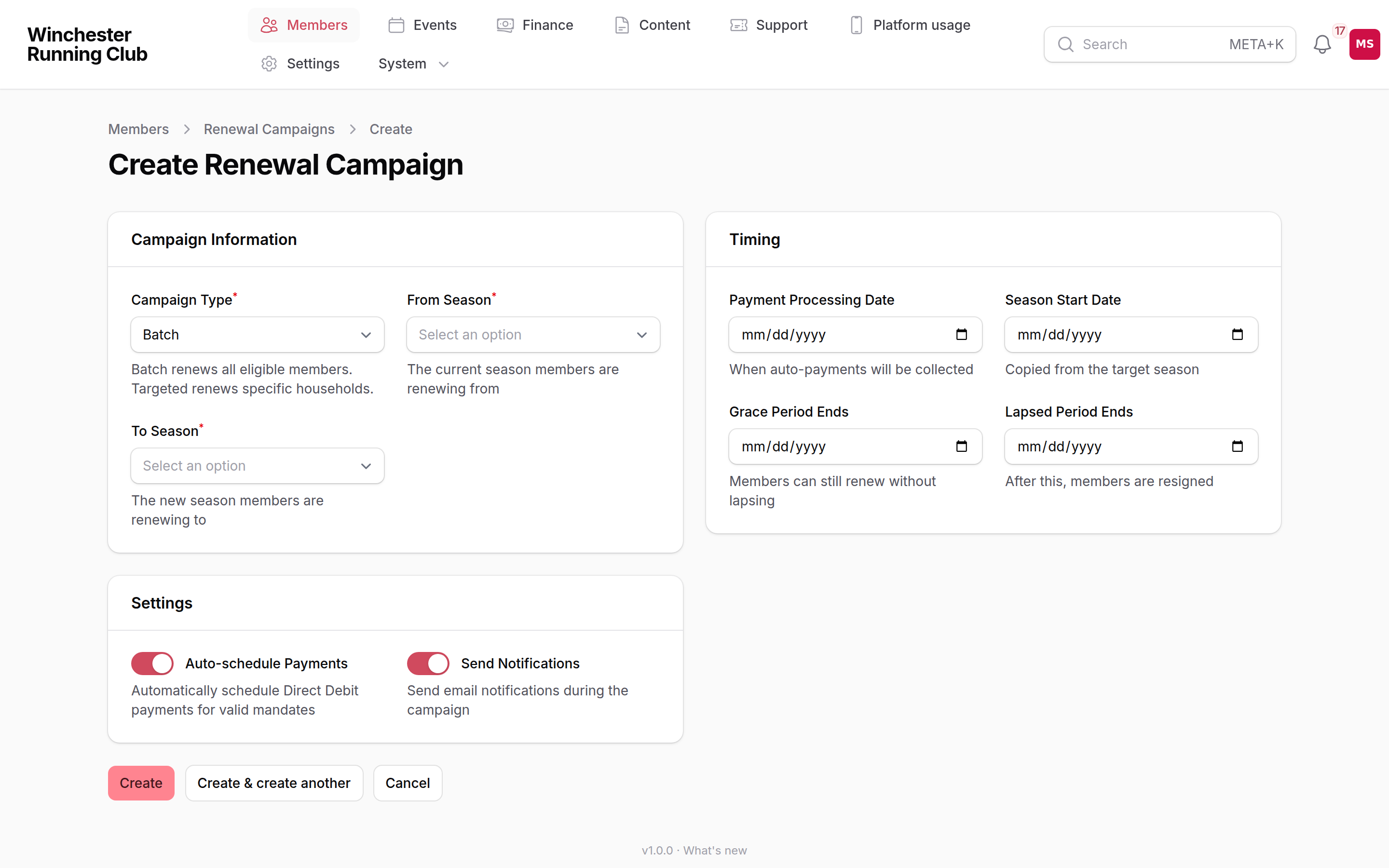
Choosing a campaign type and season
- Click New Campaign. For Campaign Type, choose Batch — it renews every eligible household for the season, and is what almost every club wants. Targeted renews specific households ahead of the rest, with its own reminder schedule; you can only have one batch campaign per season.
- Choose the From Season (the one ending) and To Season (the one starting). The to season needs its fees set for every membership type first — see Subscriptions — or the form won't accept it.
- The form fills in Season Start Date, Grace Period Ends and Lapsed Period Ends once you pick the to season, and asks you for a Payment Processing Date — the day Direct Debit money is collected. Check the suggested dates against the grace and lapsed periods you've agreed with us (see The settings we manage for you) and adjust them if they don't match; the form doesn't read those settings for you.
- Save. The campaign starts in Draft — nobody sees anything yet.
- Open it and click Generate Proposals. This builds one renewal for every household with an active subscription in the from season, works out each member's fee from the to season's fees, and marks a renewal for your review where a fee has risen sharply, a membership type needs approval, or a student membership needs verifying. The campaign moves to Reviewing.
- Work through the Household Renewals tab: check anything marked for review, click Exclude on anyone who's already told you they're leaving, and fix anything that looks wrong. Nothing has been emailed yet, so this is the easy place to correct a mistake. Members cannot see their renewal until you start the campaign.
- Click Start Campaign. Notifications go out straight away — see What a member gets — and the campaign becomes Active.
Changing your mind before you start
While a campaign is in Draft, Delete Campaign removes it and everything proposed. Once proposals exist and it is Reviewing, delete is no longer offered; use Cancel campaign instead. It takes every proposed renewal out and cannot be undone, and because nothing has been sent or charged at that stage, it sends, charges and changes nothing for members. A campaign you have started cannot be cancelled this way.
Two dashboards help you watch it land. Season Overview, on the campaigns list, adds up every campaign for a season. Each campaign's own Dashboard button breaks its households down by status and by how confident we are they'll renew.
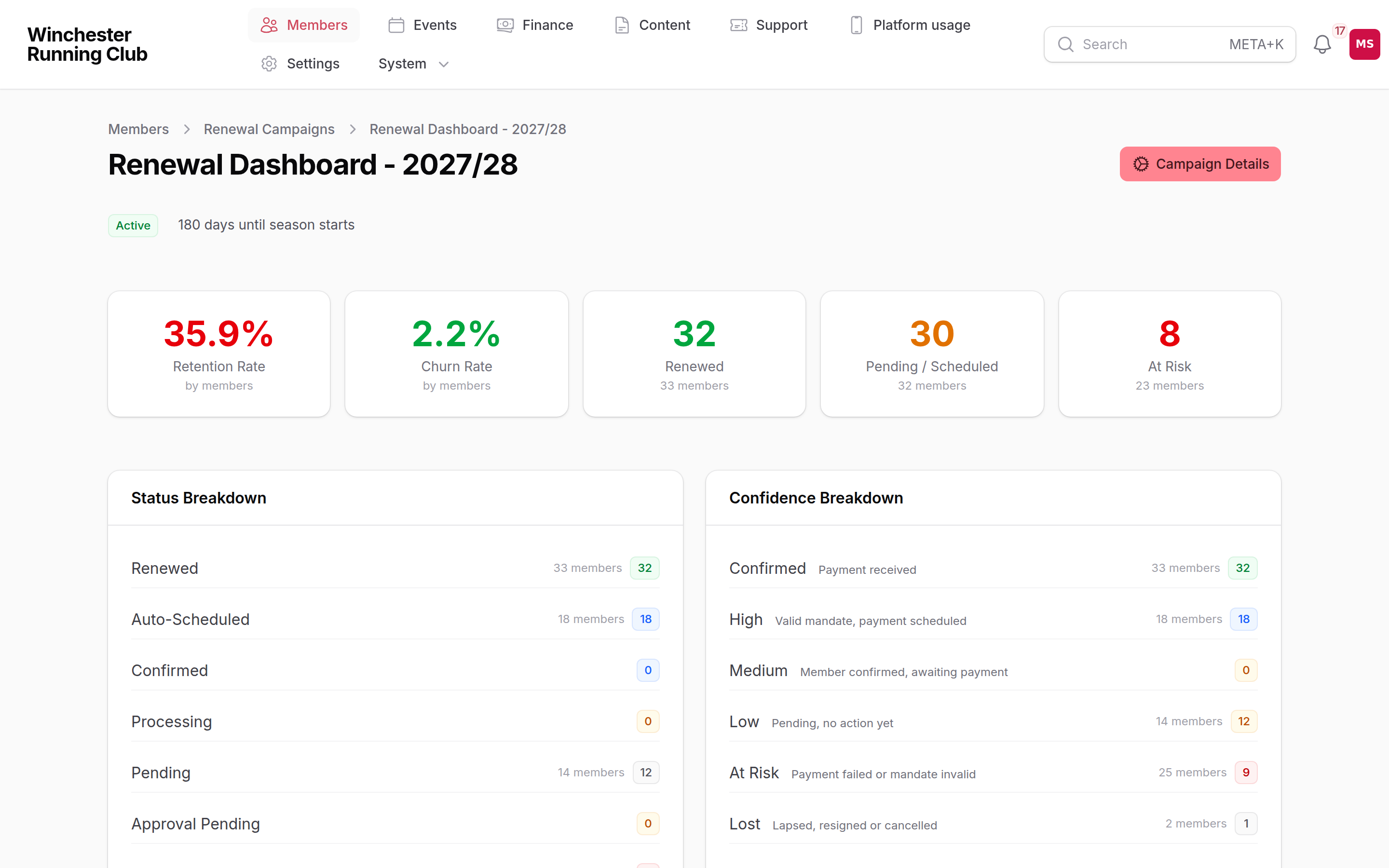
A campaign's dashboard mid-season
What a member gets
We email the billing member as the campaign moves through its states, and the same information sits on their dashboard the whole time:
| When | Who gets it | |
|---|---|---|
| The campaign goes active | Renewal Auto-Payment Scheduled or Renewal Manual Payment Reminder | Depending on whether they have a working Direct Debit |
| Before the season starts, on the schedule below | Renewal Manual Payment Reminder | Anyone still without a working Direct Debit |
| A few working days before their Direct Debit is collected | Advance Payment Notice (Direct Debit) | A "your payment is coming up" nudge — not the legally required Direct Debit notice, which goes out separately when payment is actually submitted; see Payments |
| During the grace period, on the schedule below | Grace Period Warning | Anyone still unpaid after the season has started |
| When the grace period ends, and again before auto-resignation | Membership Lapsed | Households still unpaid |
| When someone leaves | Membership Cancelled & Ended or Membership Resigned | Depending on whether they chose to go or were auto-resigned |
| Once payment succeeds | Renewal Confirmation (billing member) or Renewal Member Confirmation (other household managers) | Everyone who manages the household |
A renewal prompt also sits on the member's dashboard the whole time it's open, with a close button on anything that isn't urgent. A Remind Later option lets them push it back a few days rather than deal with it now — that option, and the close button, disappear once a payment has failed, a mandate has gone bad, or the season has moved into its grace period, because those are the ones we don't want quietly put off.
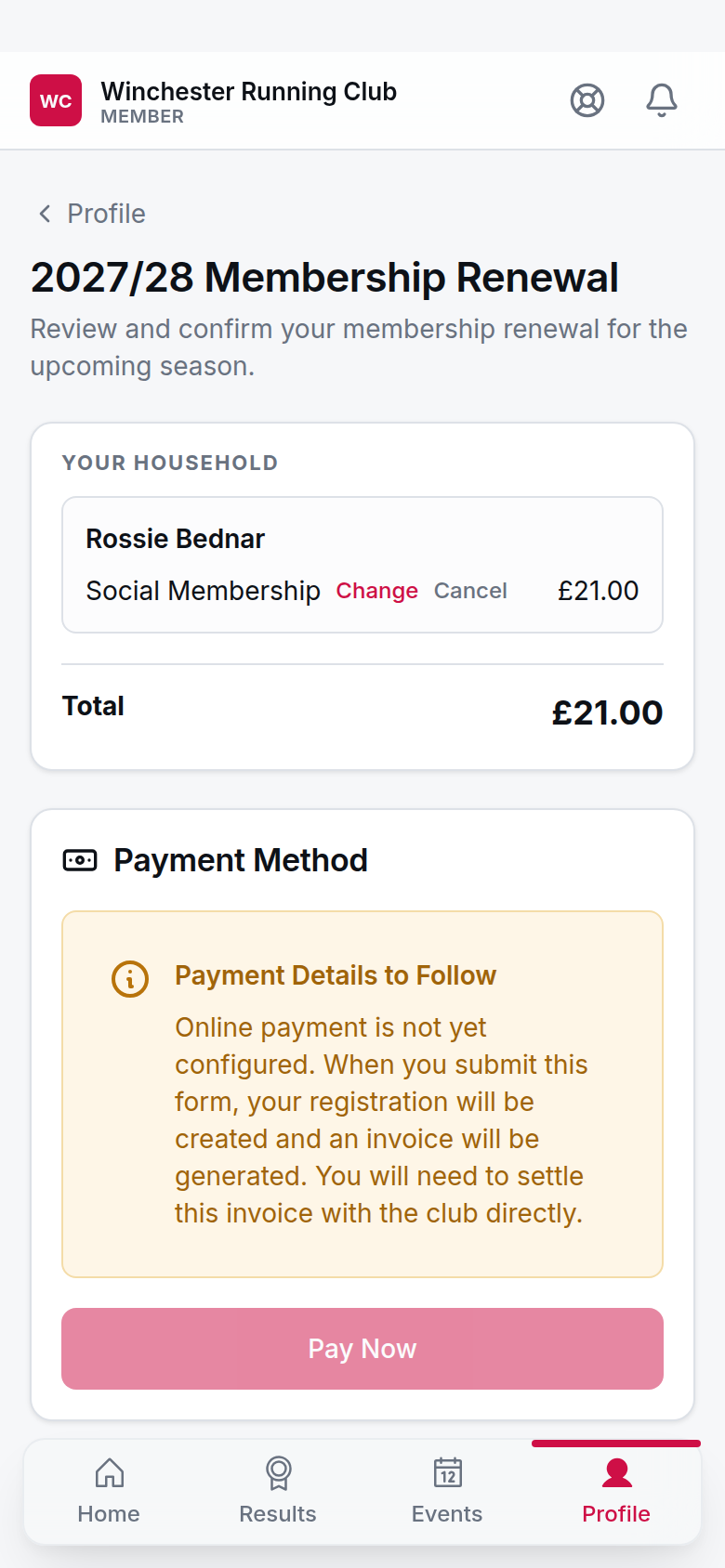
The Renew page a member sees for their household
From either the dashboard or the email, the member lands on the same Renew page. There they can see what's proposed for every household member, Change anyone's membership type where that's allowed, Cancel a member out of the renewal, bring someone back with Reinstate if they'd changed their mind, and pay. A household manages its renewal together — one confirmation covers everyone in it.
The email link works without signing in: it opens the same Renew page for that one household and nothing else, and stays usable for 30 days. Past that, or if the link has otherwise stopped working, the page tells them to sign in instead — the same renewal is waiting for them there.
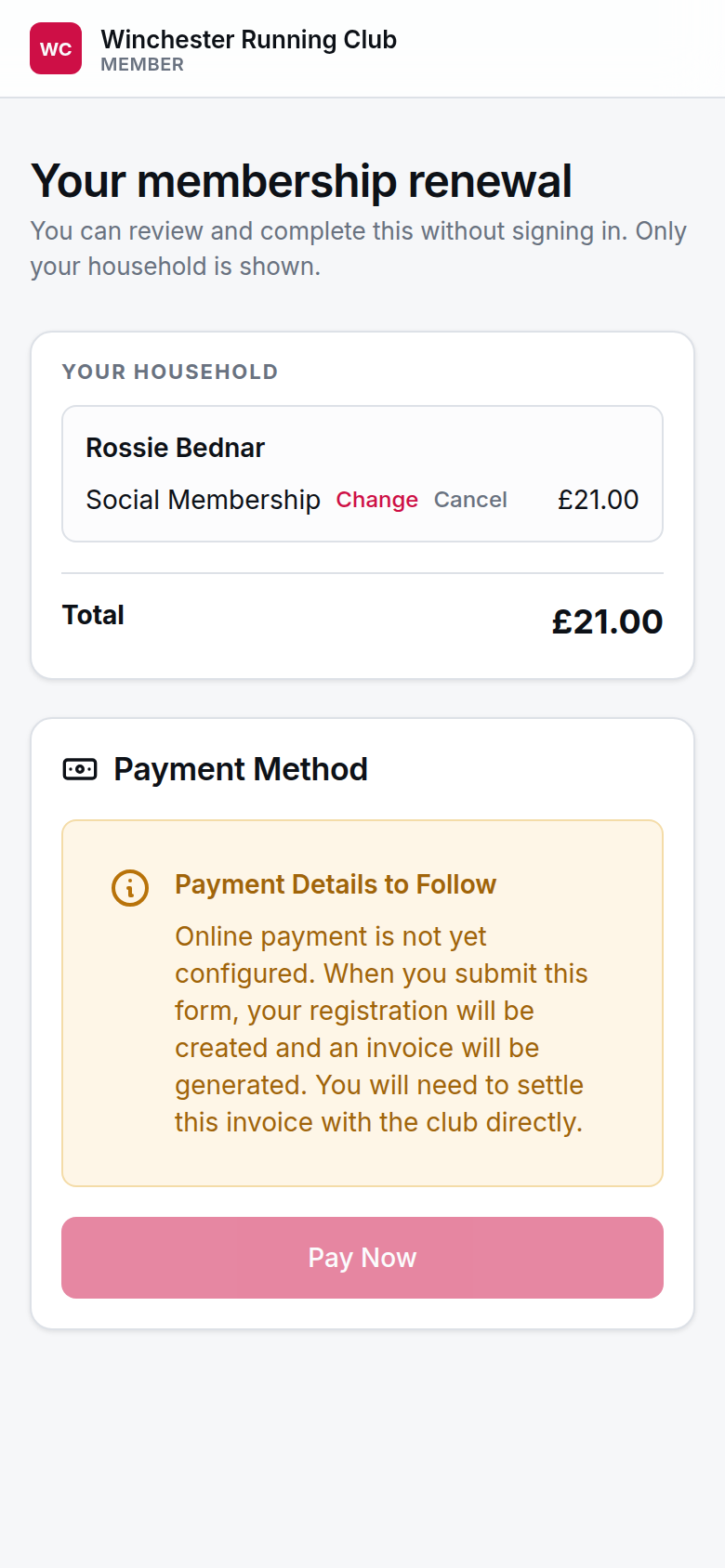
The renewal reminder's link, opened cold
Direct Debit households don't have to do anything. We submit their payment for collection several working days ahead of the Payment Processing Date, they get the advance-payment nudge above, and the legally required Direct Debit notice follows automatically once the payment is actually on its way to the bank.
Record a manual payment
A household paying by bank transfer or cash needs their payment recorded by hand once the money has arrived.
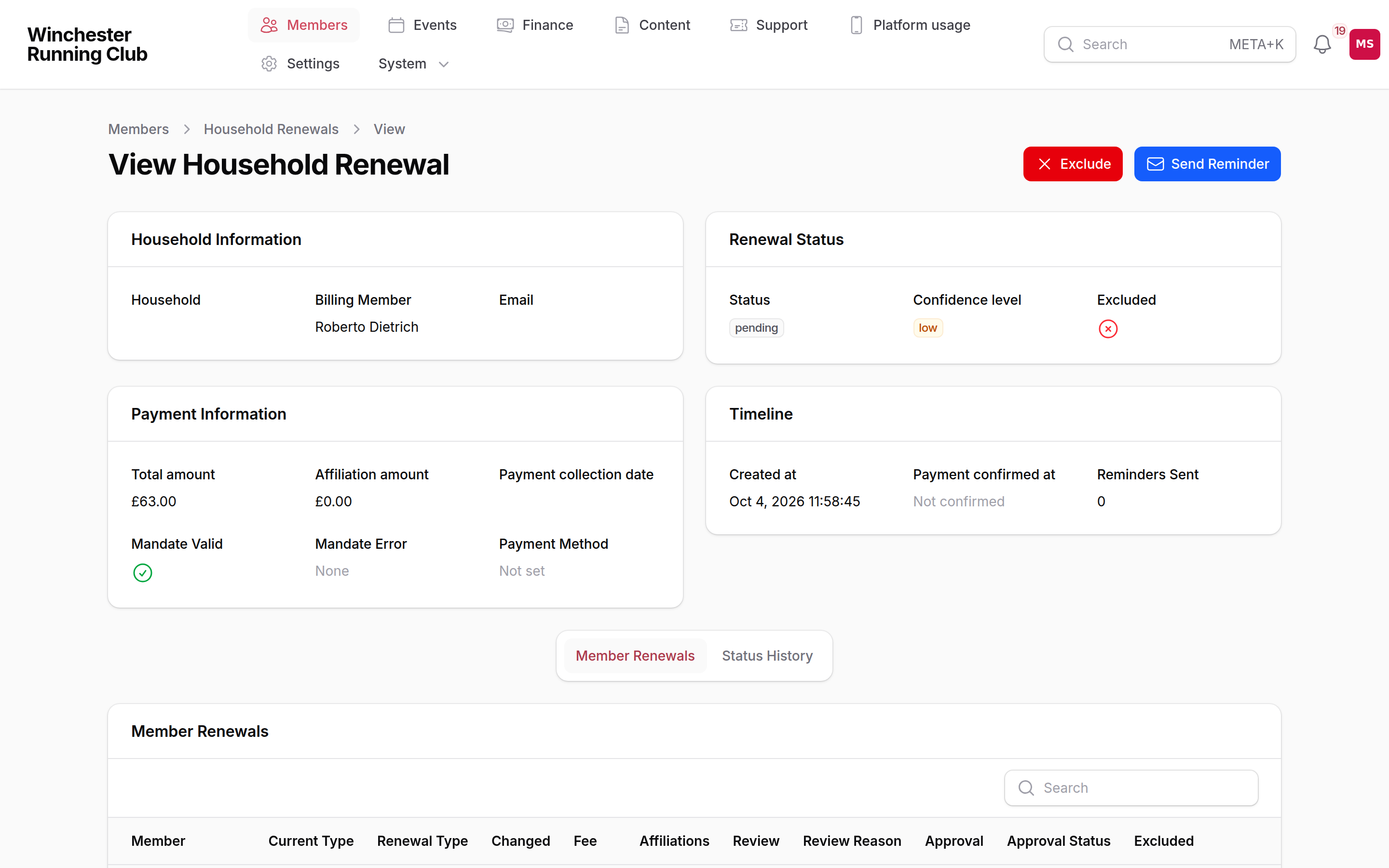
A household renewal in the admin panel
- Open the household — either from a campaign's Household Renewals tab, or directly under Members → Renewals → Household Renewals.
- In the page header, click Record Payment. This only appears when there's a pending invoice on the renewal to record against.
- Enter the Amount and choose Cash or Bank Transfer, then confirm.
The invoice is marked paid and the household moves to Renewed. The amount has to match what is owed; Payments explains what happens when it is more or less, and when a Direct Debit or card payment is still on its way.
Reinstate a cancelled renewal
A member who cancelled, or was auto-resigned once the lapsed period ended, wants to be back on. Open their household renewal and click Reinstate (or Include, if they were excluded rather than cancelled) — see the Reinstate a cancelled renewal recipe for the full walkthrough, including which button applies to which starting status.
Resolve a failed payment
There's no Retry button for a failed renewal payment — a failure is a prompt to find out why and help the member fix it, not something that clears itself. See the Resolve a failed renewal payment recipe for reading GoCardless's reason codes and getting the household back on track.
Resign someone during a campaign
Use End Membership on the member's own record, not anything on the campaign screen — see the End a member's membership recipe. Choosing to end it at season end keeps them out of next season's renewal without cutting off what they've already paid for; ending it now resigns them immediately. Either way, if they're inside an active campaign, their household renewal is updated to match.
When a household splits
An adult moving out on their own — grown-up children paying their own fee is the usual case — needs their own household before they can renew separately. Open their record under Members, and in the header click Separate from Household. They become the manager of a new household-of-one, and if a renewal is already in progress, it moves with them rather than staying behind.
Wait for any in-flight payment to resolve
You can't separate a member while their household has a renewal payment mid-collection. Wait for it to succeed or fail first.
When a renewal lapses
Once the season starts, any household not yet renewed moves into its grace period automatically — access continues, and reminders go out on the schedule you've agreed with us. The grace period runs for the number of days set in your renewal settings (30, by default) before the household becomes Lapsed and every member in it is marked lapsed too. A further lapsed period (60 days, by default) follows, with its own reminders, before an unpaid household is automatically resigned. None of this needs you to do anything — it's the reminders and the households with failed payments that need your attention, not the clock itself.
Restricted dashboard
A resigned or transferred member sees a restricted version of their dashboard rather than the full member app: a banner saying their membership has ended, a way back if they're eligible for one, and their previous membership on record. Their results, club records, invoices and messages are all still there — leaving the club doesn't take away what they earned while they were in it.
When a member wants to rejoin
Once a household renewal has run its course — the member is resigned, not merely lapsed — there's no separate rejoin process to explain. They come back through the same joining step a new member uses, from the Welcome Back action on their restricted dashboard; see The member app → The actions card. A member who is only lapsed still has a live renewal, and belongs in the flow above instead — sending them to rejoin would be the wrong door.
The settings we manage for you
These are set by RunClub HQ, with you, when your club is set up — there's no screen for them in the admin panel. Ask us if any of them need to change.
| Setting | What it controls | Default |
|---|---|---|
| Grace period | How long after the season starts a household can still renew before it lapses | 30 days |
| Lapsed period | How long after lapsing before a household is automatically resigned | 60 days |
| Manual payment reminders | When we remind households without Direct Debit to renew, in days before the season starts | 14 and 7 days before |
| Grace period reminders | When we remind unpaid households during the grace period, in days after the season starts | 0, 7, 14, 21 and 28 days after |
| Lapsed period reminders | When we remind lapsed households, in days before they're automatically resigned | 30 and 14 days before |
| Working days before collection | How many working days ahead of the payment date a Direct Debit collection is submitted | 7 working days |
| Auto-schedule payments | Whether a working Direct Debit is used automatically when a campaign starts (can also be switched off for one campaign when you set it up) | On |
| Fee increase review threshold | A renewal is marked for your review when a member's fee rises by more than this | 20% |
| Student verification notice | The note shown in renewal emails when a student membership type is included, asking for evidence of student status | A default note we can change |
Troubleshooting
A household didn't get the reminder
Reminders only go to households still waiting to act — one that's Excluded, Cancelled or already Renewed is skipped on purpose. Check the household's status under Household Renewals, and if it's genuinely due one, open it and click Send Reminder — it's available once a day, so if you've just sent one by hand it won't reappear until tomorrow.
A member renewed but shows as lapsed
Check the household renewal's payment history against your payment records — the most common cause is a payment that landed against the wrong record, or arrived after the grace period had already closed the household out. If the money is confirmed in, use Reinstate to bring them back into the flow, then Record Payment if it still needs marking as received.
The fee on the renewal is last year's
A renewal's fee is set once, when you click Generate Proposals — it's read from the to season's membership type fees at that moment. If you set or changed a fee afterwards, existing renewals don't pick it up automatically. Open the household under Household Renewals, find the member on the Member Renewals tab, and use Change Type — reselecting their current type pulls the fee fresh.
A member says the link in the email has expired
Renewal links last 30 days from when they're sent. Past that, the page tells them to sign in instead — their renewal is exactly where they left it once they do, no separate recovery needed.
See also
- Your first renewal season — the calendar this page is the reference for
- Subscriptions — seasons, membership types and fees
- Payments — Direct Debit, invoices and failed payments
- What your members see — the dashboard and the actions card
- Reinstate a cancelled renewal
- Resolve a failed renewal payment
- End a member's membership