Appearance
Your club's look
RunClub HQ shows your club's colour, name and artwork on your website, in the member app, in the volunteer console, in your emails and on link-preview cards. You set them once, in Settings → Branding. Every surface then uses them. This page is for the committee member who sets the club up. It explains what each setting does, where it shows and how to choose artwork that works at the small sizes of a phone.
Who can do this?
Club Admin only, from the admin panel under Settings → Branding.
Where your branding shows
Everything on this page is in two sections of Settings → Branding. Visual Identity holds your colour, name and artwork. Appearance holds a short list of style choices.
| Setting | Website | Member app and console | Link previews | |
|---|---|---|---|---|
| Accent Colour | Bar, buttons, links, hero | Bar, buttons, the bar over the tab you are on | Header, buttons, links | Card colour |
| Short Name | Bar, on a phone | Bar | — | — |
| Header Shows | Bar and footer | Bar | — | — |
| Logo | In place of the icon, if you have none | — | Header, when there is no wordmark | Card, when there is no icon |
| Icon | Bar, browser tab, news without a picture | Bar, Home tab, the iPhone app icon | — | Card |
| Header Wordmark (dark) and (light) | Bar and footer | Bar | Header | — |
| Font Style | Headings and figures | Headings and figures | — | Card |
| Header Style | Bar | Bar | Header | — |
| Hero Layout | Home page banner | — | — | — |
| Page Background | Behind every page | Behind every screen | Behind the message | — |
| Corner Style | Buttons, cards, fields | — | Buttons and the message card | — |
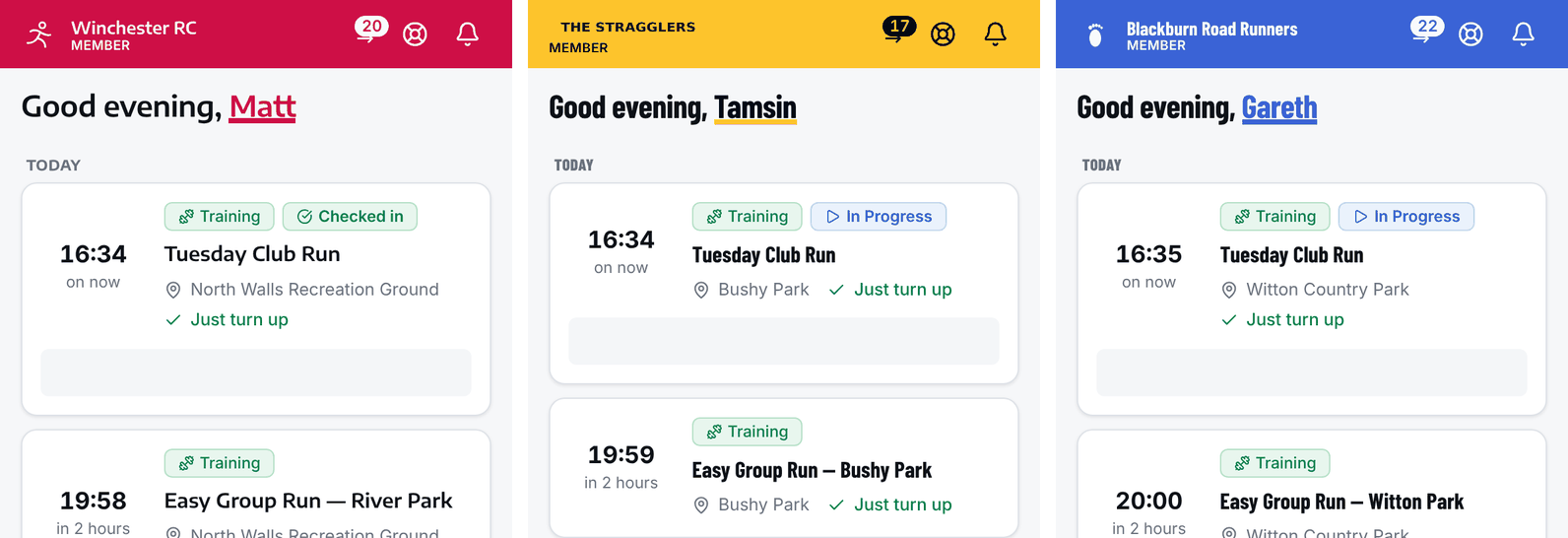
The same member home screen for a red, a yellow and a blue club
Your club colour
RunClub HQ derives all other club colours from Accent Colour. The colour fills these items:
- your buttons
- your email header
- the bars across the top of your website and of both apps, with the Accent colour header style
- the bar that marks the tab that the member is on, in the apps
The colour also underlines the name of a member on their home screen. It also colours your links. You do not choose text colours. On each fill, RunClub HQ chooses white or near-black text. It chooses the one that is easier to read on your colour.
If your colour is pale
A pale colour, such as bright yellow, light green or a pastel, works as a fill. It is too faint to read as text on a white page. When your colour is that pale, RunClub HQ writes in near-black any text that would be in your colour. Examples are a link, a heading or a sign-in code. Your colour still fills the bars and buttons, with near-black text on them. It still marks the current tab and underlines the name of a member. On your website and in your emails, links are near-black with an underline in your colour.
If your colour is strong enough to read as text, nothing changes. Your links and codes stay in your colour.
Choose a shade that gives white text
Your kit and artwork may be white on your colour. You then want white text in the bars and on buttons. RunClub HQ uses white only where it is easier to read than near-black. A mid-tone colour can therefore get near-black text. To fix this, choose a slightly deeper shade of the same colour.
For example, the logo blue of Blackburn Road Runners is #4776EC. It gets near-black text. A shade about 10% deeper, #3A63D6, gets white text and still looks like their blue. In the colour picker, choose a slightly deeper shade. Save the setting. Look at the header bar of your website. When its text is white, the shade is right.
How your club is named in the bars
Header Shows, under Appearance, decides what names your club in the bar across the top of your website and of both apps:
- Icon and club name shows your icon beside your name. This is the default. It is the right choice for most clubs.
- Club name only shows your name on its own. It leaves more room for a long name.
- Wordmark shows your one-line wordmark image in place of the name. See Logo and wordmark files.
A wordmark works in a bar only if it reads on one line at about 20 pixels high. Some logos show the club name over two lines, or a mark beside stacked words. These become too small to read at that height. Keep Icon and club name for those logos.
The short name
The app bars also hold the volunteer switch, help and notifications. On a phone, a long club name may not fit. Short Name is an optional shorter form of the name, with up to 20 characters. The app bars and the bar of your website on a phone use it. Page titles, emails, the footer and screen readers use the full name.
Either form can be the main name of your club. The Stragglers use "The Stragglers" as the club name and "Stragglers" as the short name. Winchester Running Club could use "Winchester RC". If you set no short name, the bars use the full name. They shorten it with an ellipsis if they must.
Your icon
Icon is the mark of your club on its own, with no words and no background. It shows in the bars and as the Home tab of the member app. It also shows in a browser tab when you have not set a Browser & Search Icon.
Upload the icon as one colour on a transparent background. Use PNG or SVG, at least 120 by 120 pixels. In the apps, the bar redraws your icon in the text colour of the bar, white or near-black. The icon then always stands out from the bar. A mark in several colours, or a mark on a coloured square, becomes a solid shape when this happens. If your artwork exists only on a background, ask us. We will make a transparent version for you.
Browser & Search Icon is a separate upload for browser tabs and Google results. These need a square image on a solid background. If you leave it empty, RunClub HQ uses your icon.
The app icon on a member's phone
On iPhone and iPad, members who have chosen your club can see your icon as the app icon on their home screen. RunClub HQ draws it from your Icon, on your club colour. App icons are part of the app itself. A new or changed icon therefore reaches members only with the next version of the app in the App Store. We do this for you. Tell us when your icon changes. Until then, and on Android, members see the RunClub HQ icon.
Logo and wordmark files
You can upload three pieces of artwork under Visual Identity. All of them are optional.
- Logo is your full logo, as you would print it. RunClub HQ uses it in your email header when you have no wordmark. It uses it on link-preview cards when you have no icon.
- Header Wordmark (dark) is your wordmark in a dark colour, for light bars.
- Header Wordmark (light) is your wordmark in white or a light colour, for bars in your club colour or in dark.
Each bar uses the wordmark that reads on it. A pale club colour gets near-black text, so its bars use the dark wordmark. A deep club colour gets white text, so its bars use the light wordmark. You may choose Wordmark but not upload the version that a bar needs. That bar then shows your icon and name instead. Upload both versions if you can.
Upload the wordmarks as SVG or PNG on a transparent background. The bars show them about 20 pixels high. The email header shows them about 30 pixels high.
SVG files and email
An SVG file is sharp at every size and has a small file size. Most email apps, including Gmail and Outlook, do not display SVG. The sites that draw link-preview cards do not display it either. When you upload an SVG file, we keep it for your website and the apps. We also make PNG copies for email and link previews. The copies are ready a short time after you save. You do not need to upload anything twice.
Fonts
Font Style, under Appearance, sets the typeface for headings and figures. It applies on your website, in the member app, in the volunteer console and on your link-preview cards. Body text always uses the same readable typeface, whichever font you choose.
The RunClub HQ default and the three custom fonts (Manrope, Barlow Semi Condensed and Barlow Condensed) each load one small font file. The other fonts are already on the phone or computer of the visitor, so they download nothing. The apps contain every font, so they fetch nothing.
Header, hero and page background
Header Style sets the bar across the top of your website and of both apps:
- Accent colour fills the bar with your club colour.
- Light makes the bar light.
- Dark makes the bar dark.
Your email header follows the same choice. A light header gets a thin line underneath to separate it from the message.
Hero Layout sets the large banner at the top of your home page:
- Full width spans the whole page.
- Rounded card in your club colour is a card with rounded corners, filled with your colour.
- Rounded card in black, with a club-colour headline is a dark card. The headline is in your colour when your colour is readable on black. Otherwise the headline is white.
Page Background sets the colour behind your pages on your website, in both apps and in your emails. The choices are Standard, White, Warm and A tint of your club colour. The list is short on purpose. Every choice keeps text, borders and status colours readable. The setting applies in light mode. In dark mode, pages keep the standard dark background. A tint of your club colour is very faint, so that your content stays clear. For a yellow club, it looks almost the same as Warm.
Corner Style sets how rounded the buttons, cards and form fields are on your website. It also sets the corners of the buttons and the message card in your emails.
What your emails show
Every email that your club sends has a header in your club colour. The header can also be dark or light, as Header Style decides. The header shows your header wordmark if you have one. If you have none, it shows your logo. If you have no logo, it shows your club name in text. The picture is inside the email itself. It therefore shows even when the email app of a member holds back images from the web. See Communications for what else every email carries.
Link previews
Someone may share a link to your website on WhatsApp, Facebook or Slack. The card that appears is drawn in your club colour, with your icon (or logo) and your heading font. To use a picture of your own instead, upload a Social Sharing Image at 1200 by 630 pixels.
Troubleshooting
My wordmark does not show
Check that Header Shows is set to Wordmark. Check that you have uploaded the wordmark version that reads on the bar. Use the dark version for a pale club colour or a Light header. Use the light version in other cases. A bar without the version it needs shows your icon and name instead.
My icon is a solid block in the app
The app bar redraws the icon in one colour. A mark on a coloured background therefore becomes a square. Upload the mark on its own, on a transparent background.
My links are black, not my club colour
Your colour is too pale to read as text on a white page. RunClub HQ therefore writes text in near-black. It uses your colour as a fill and a highlight. See If your colour is pale. To get your colour in links, choose a deeper shade of it.
Our name is cut off in the app
Set a Short Name. You can also choose Club name only under Header Shows. This gives the name the room that the icon took.
My logo is not in our emails
RunClub HQ makes the email copies of an uploaded file a short time after you save. If the header still shows your club name after a few minutes, upload the file again. You can also ask us to check it.