
Appearance
Running a pilot
A pilot is your club on the real RunClub HQ, with your real members, before you commit to anything. Everything you see is live — but a few things are deliberately switched off while you find your feet, and this page walks you through the order that keeps it safe.
Who can do this?
The steps below are for your club's Club Admin — the person RunClub HQ set up as your first login. See Roles & Permissions.
What we set up before you start
Before you sign in for the first time, we will have:
- Created your club and its web address
- Imported your member roster, where you gave us a source for it
- Created the first admin login for your named pilot lead
Migrating the member data you already hold is part of onboarding, and it is our job, not yours. If your club is affiliated to England Athletics, we start there — importing your England Athletics roster is the cleanest way in. We will not ask you for a club number: your admin panel finds your club by name, and if we have not already matched it you can do it yourself in Settings → Branding → Club Information. Getting your members in explains how to find your club and exactly what the import brings across, and what it deliberately leaves for you to check. If you are not affiliated, give us whatever you do have — a spreadsheet, a membership system's backup — and we will load it and check it with you before you sign in.
Moving your club to RunClub HQ is the full map: every way a club arrives, what each one brings, who does it, and where it sits in the order below.
Your imported members exist as records, but nobody can sign in yet. That is deliberate: a roster is not a mailing list, and nothing leaves RunClub HQ until you decide it should.
Step 1: sign in and look around
Your admin panel lives at your club's web address followed by /admin. Sign in with the email we set up for you and you will land on the dashboard.
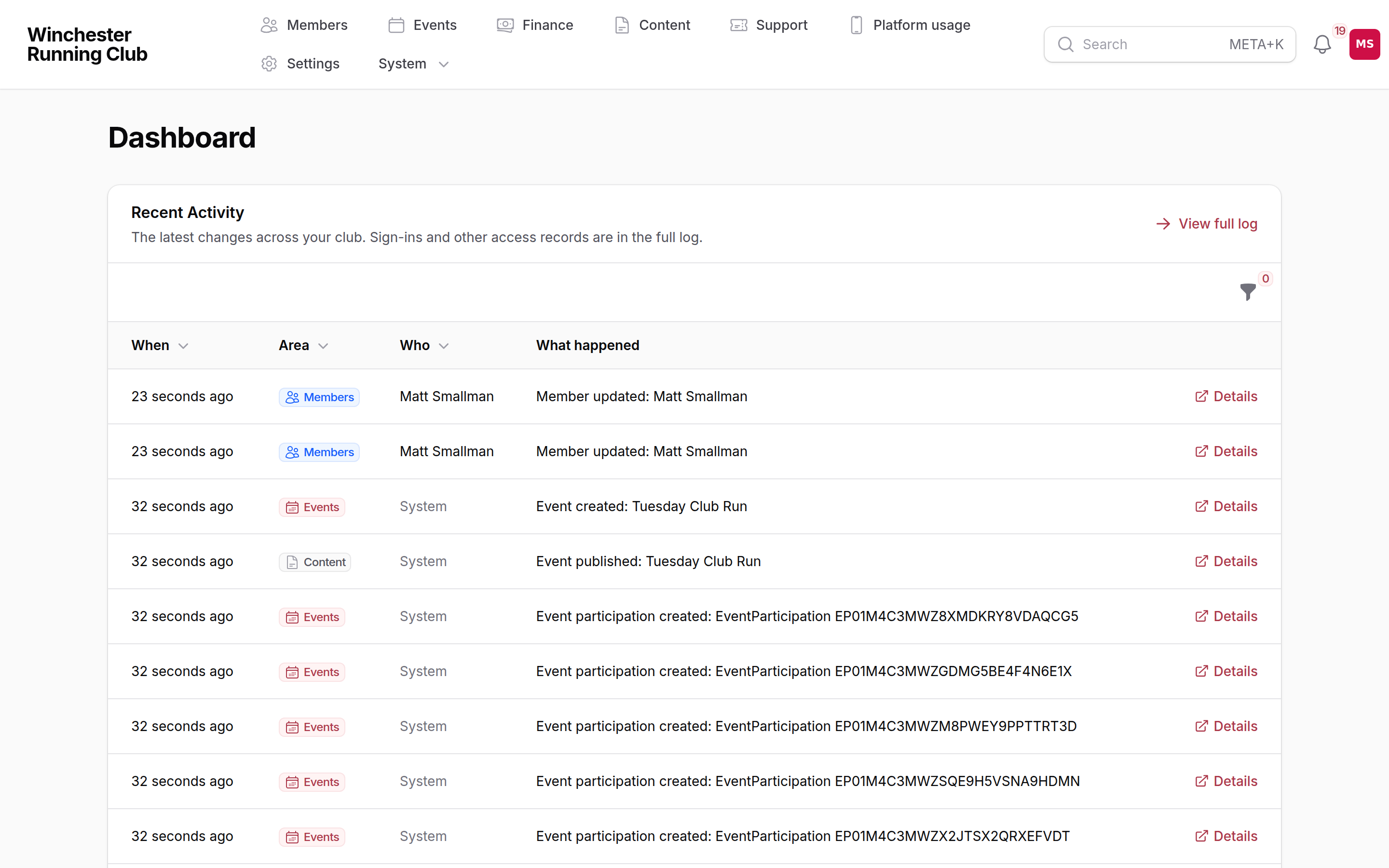
Have a click around before changing anything. Nothing here is public yet.
Step 2: make it look like your club
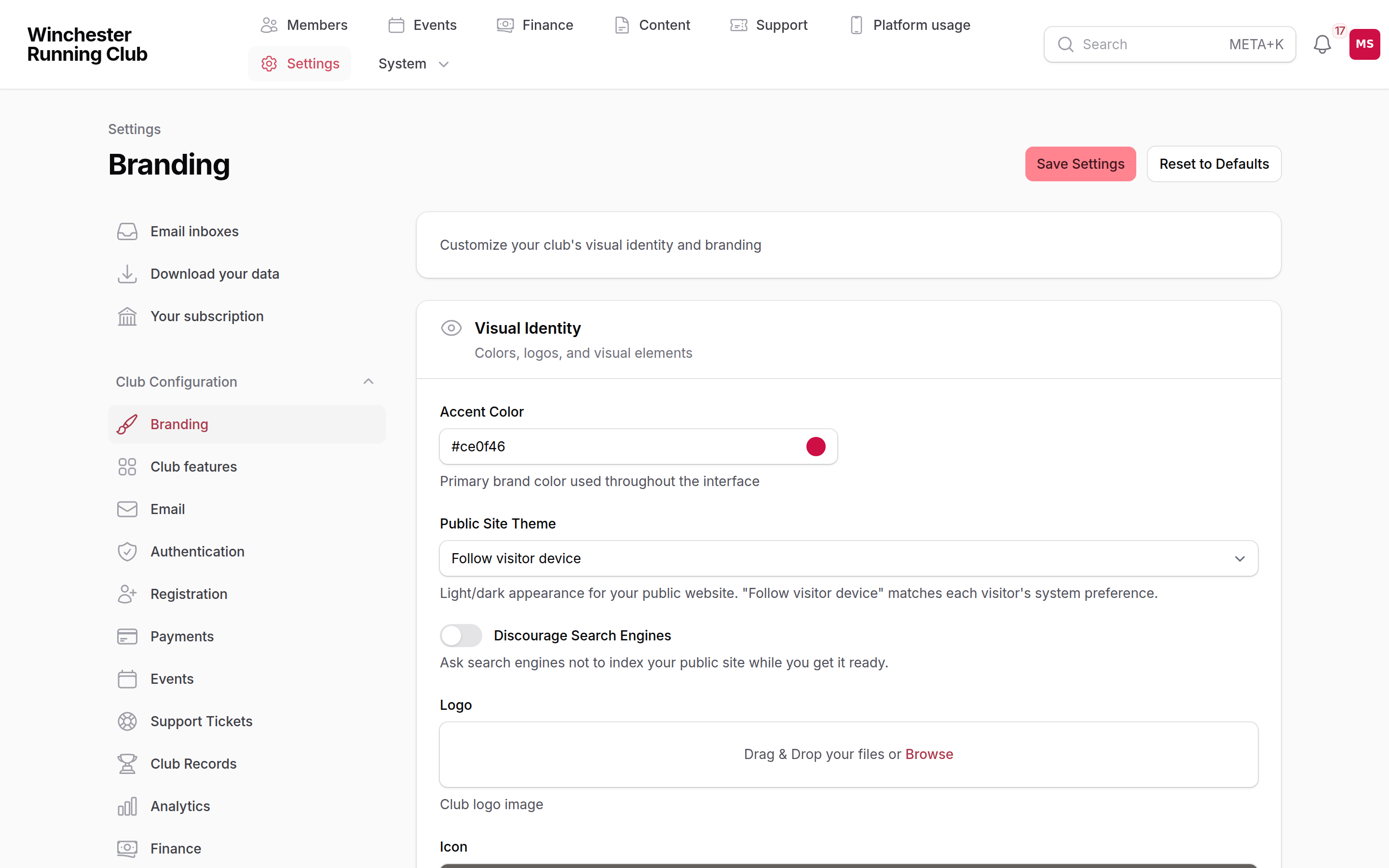
Settings → Branding. Set your club name, accent colour and logo. This is the quickest way to make RunClub HQ feel like yours rather than like a demo, and it is worth doing first — everything you look at afterwards will be in your colours.
Find your England Athletics club
Still on Settings → Branding, scroll to Club Information. In England Athletics Club, start typing your club's name — or your town, if you are not sure what England Athletics has you registered as — and pick your club from the list. Each result shows the club's name and where it is, so the several sets of Harriers in different counties are easy to tell apart. You do not need a club number: nobody at a club knows theirs, and we look it up with England Athletics for you.
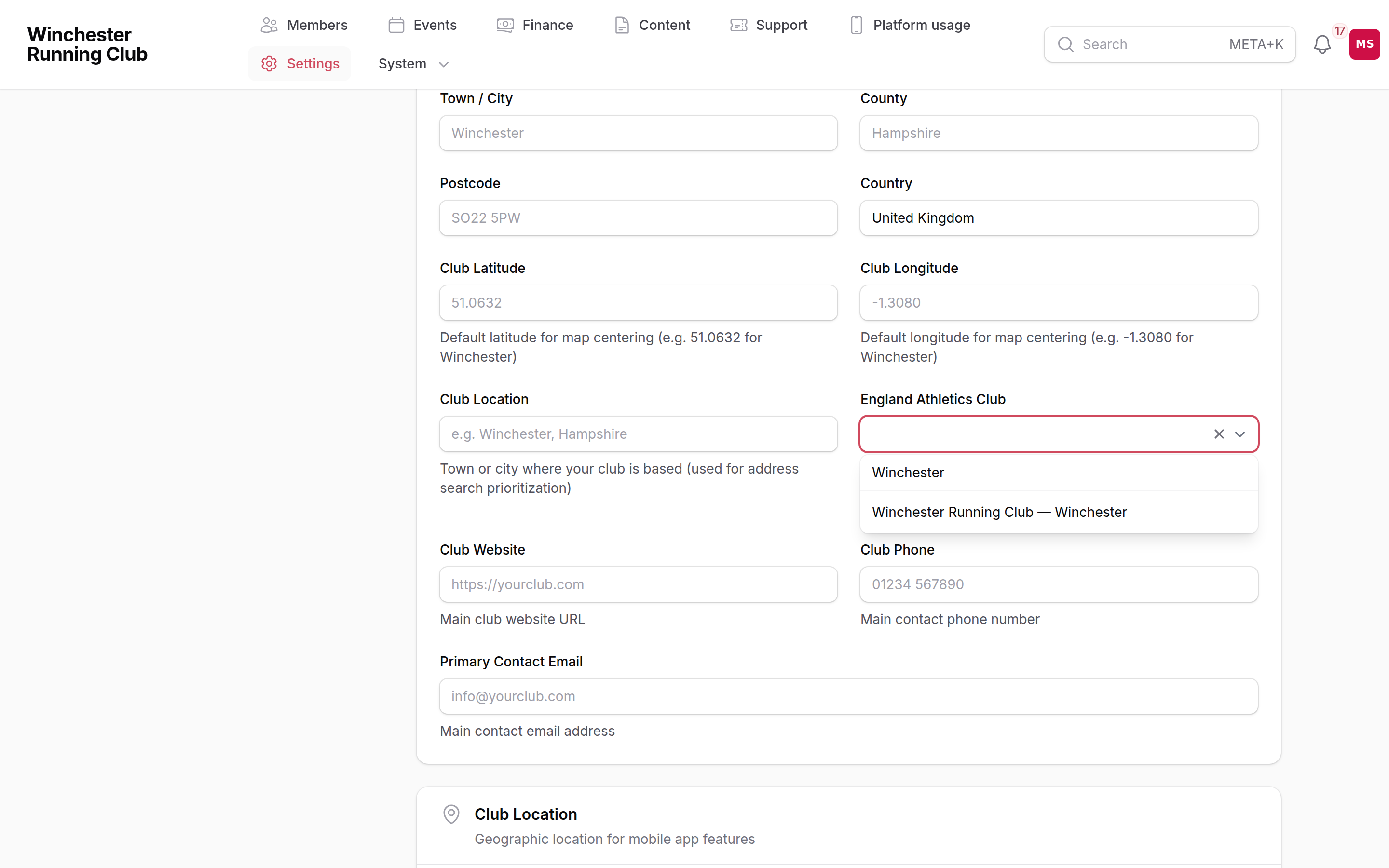
Save, and Import your roster appears next to the field — that is the link to Step 3's roster import, and it is the whole reason this field matters. If we already matched your club during onboarding, it will be filled in and there is nothing to do here.
Step 3: review your imported roster
Members → Members. Everyone we imported is here.
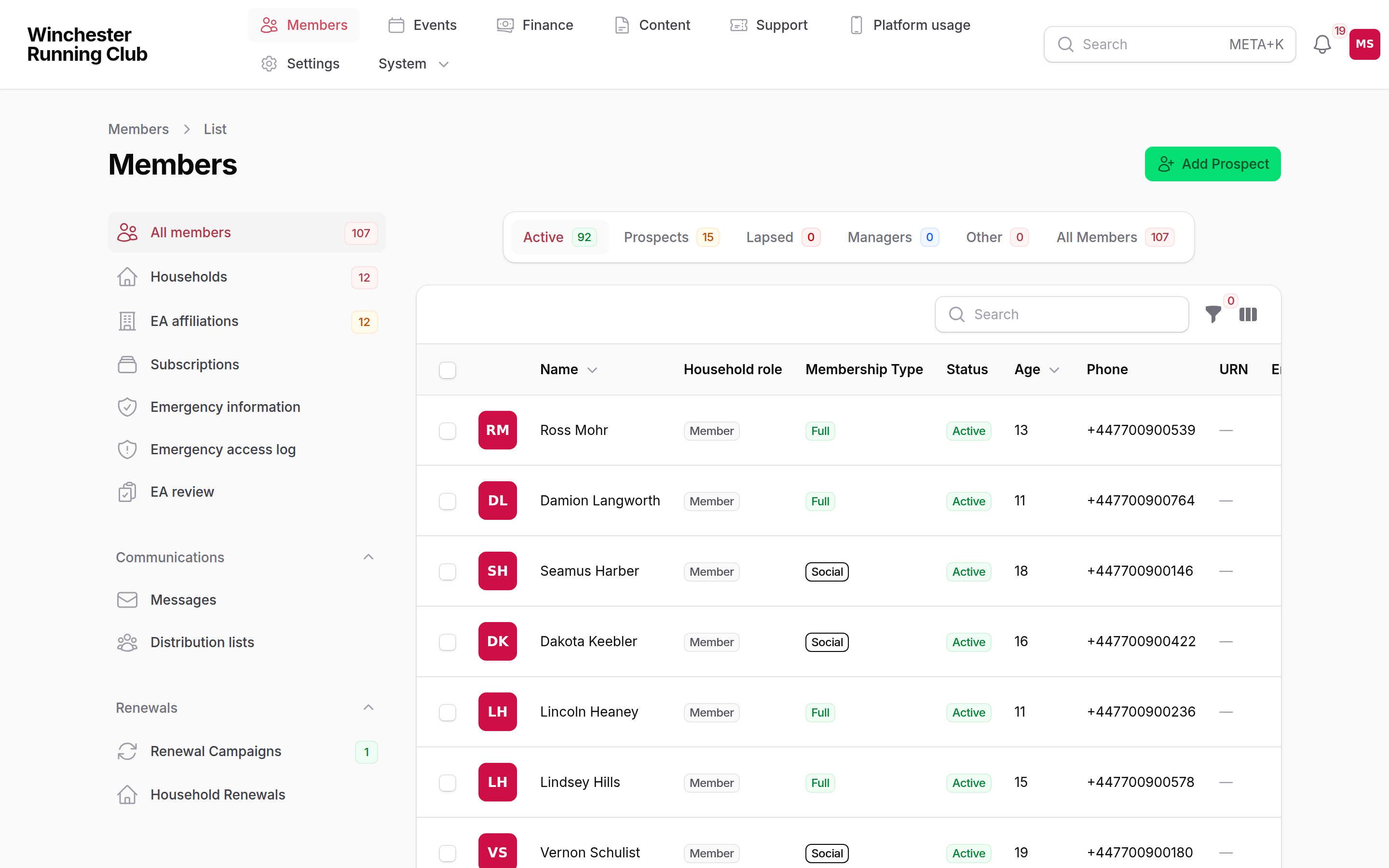
Imported members arrive as prospects with no login and, if they came from England Athletics, no email address — England Athletics does not share member email addresses with clubs. That is the normal starting state and not something to fix in bulk. The tabs across the top of the list (Active, Prospects, Lapsed) are the quickest way to see how your roster landed.
Spend a few minutes checking the import looks right: the number of members, a handful of names and dates of birth. Dates of birth matter more than you would expect — see the next step.
Some athletes will be waiting for you, not imported
England Athletics never removes a member who has resigned, so the import only creates records for athletes it shows as competitively registered with your club. Everyone else is listed under Members → EA Review for you to accept or dismiss — you are the only person who knows which of them left. Getting your members in walks through that queue, and through running the import yourself.
Step 4: set up a season and membership types
Settings → Membership Seasons and Settings → Member Types.
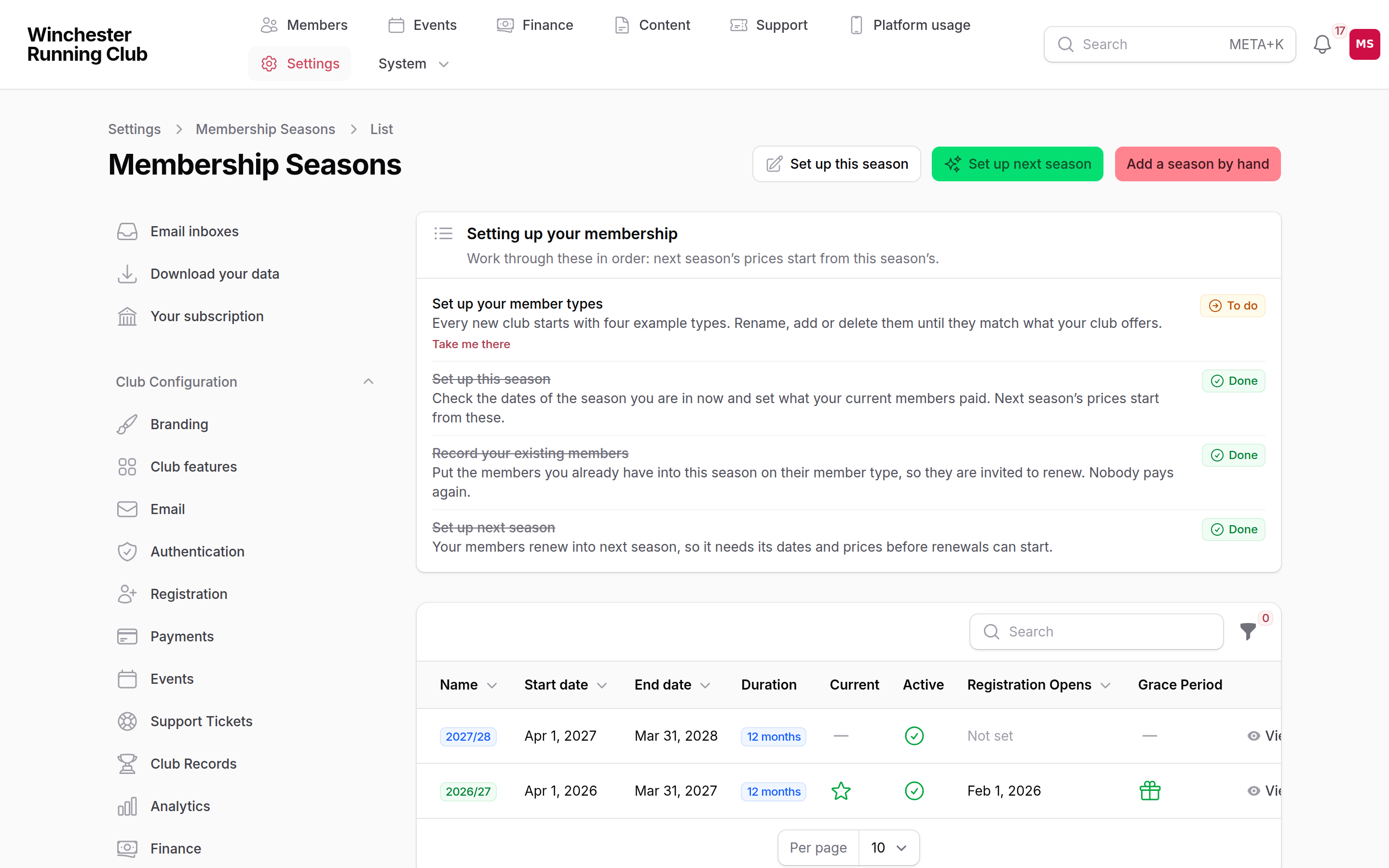
Your club starts with the season you're in now, four example membership types and placeholder prices. The season is dated from the month your club's year starts, which we ask you when we set your club up: usually April, for a season from 1 April to 31 March. Settings → Membership Seasons lists what to do with them, in order:
- Set up your membership types. Rename, add or delete the examples until they match what your club offers.
- Set up this season. Correct the dates if they aren't your club's year, and set what your current members paid.
- Record your existing members. Your imported members are prospects with no membership, so a renewal campaign would reach none of them. On Members → All members, filter to No membership this season, select them, and choose Record existing membership. Each gets this season's membership on a member type, with no invoice or payment, and becomes Active. See Recording the members you already have.
- Set up next season. Its dates follow on and its prices are copied from this season, so you only change what's going up.
Don't use Activate Member on people one by one instead. It changes their status but gives them no membership and no member type, so renewals still don't reach them.
Anything you set up by mistake can be deleted while nobody has subscribed to it or renewed into it. See Subscriptions and seasons. If the whole setup has got into a muddle, Start again with the example setup on Settings → Membership Seasons puts back what your club started with. It's there until your first membership, including one you record for an existing member, so do it before step 3. See Starting again. Until a season has a membership type with a fee, members can create an account and claim their record, but cannot subscribe.
Step 5: get your committee in first
Start with five or ten people you can talk to, not the whole club. There are two ways in, and for a pilot the first is usually easier.
Option A: invite them yourself (recommended)
Imported members have no email address on file, because England Athletics does not share member email addresses with clubs. So the first thing a login needs is an email address, and you supply it.
- Go to Members → Members and find the person.
- Use Enable login, either from the row or from their member page.
- Enter their email address and confirm.
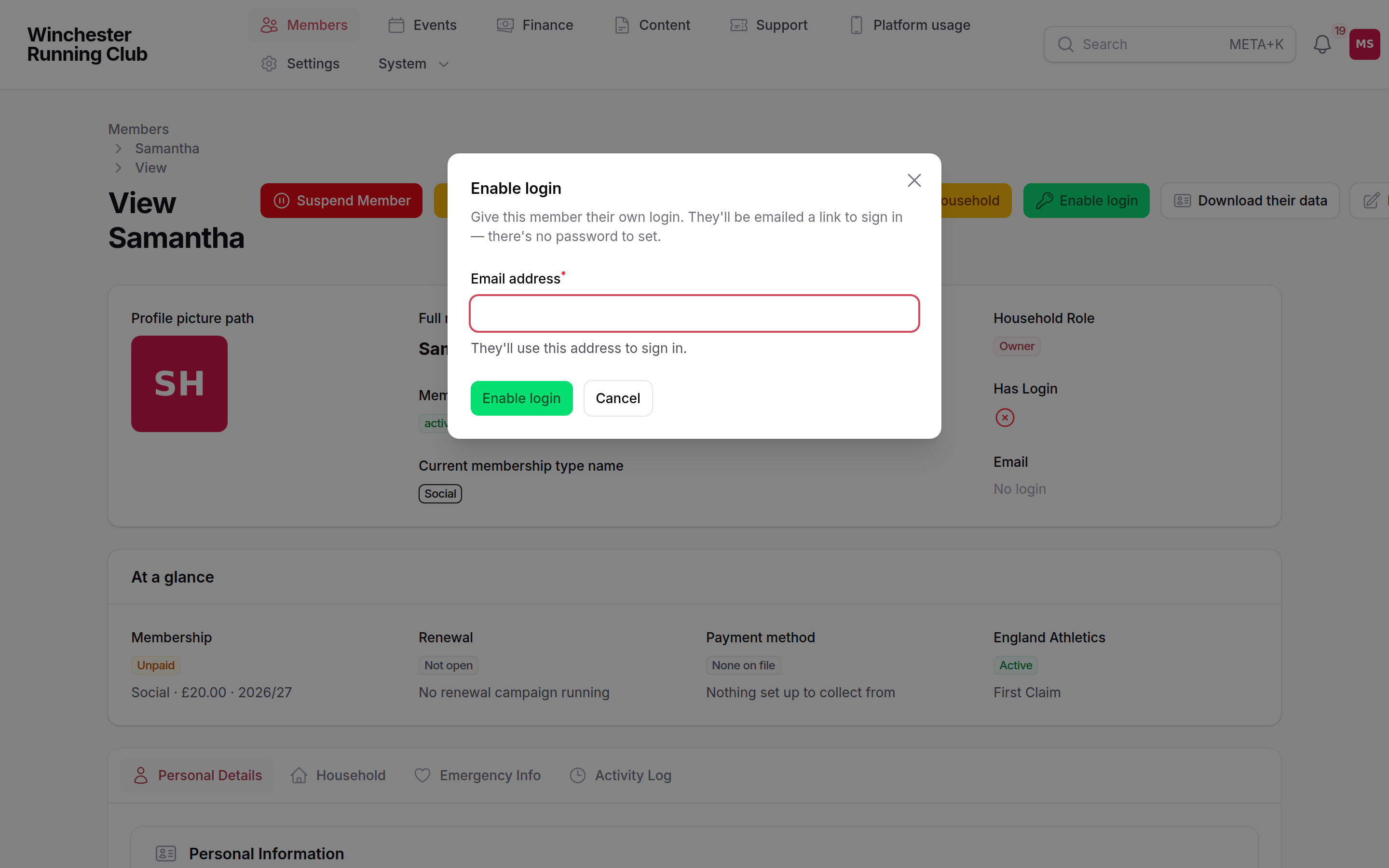
They get an email inviting them to sign in, and their login is attached to their existing member record — England Athletics URN, history and all. No duplicate record, and nothing for them to match up.
What they see after the invitation. They follow the link, sign in with the address you gave, and land on a short form with their England Athletics details already filled in — name and date of birth, which they cannot change, because those come from England Athletics and their URN is matched on them. What is left is short: the few things England Athletics does not tell us (gender and a phone number), what they like to run, and then the club's agreements. Once they have accepted those they arrive at their member dashboard. Until they have, they cannot get into the member app — this is the club's consent record, so it is collected before anything else, not after.
They stay a prospect through all of this. A login is not a membership: they become a member when they take one out (Step 6).
To do a whole committee at once, tick them in the members list and use the same Enable login action as a bulk action; you enter an address for each person and it reports back per person, so one bad address does not stop the rest.
This is what the pilot login limit counts
Each login you enable uses one of your club's places (usually 25 during a pilot). Admin accounts do not count against it — only members.
Option B: they sign themselves up
If you would rather not collect email addresses, members can do it themselves:
Go to your club's web address and choose to sign in.
Enter their own email address. They will get a link or a six-digit code by email.
Follow it, and they land on a short joining form.
On the Personal details step, they enter their first name, last name and date of birth.
If those match a record we imported, the form offers it back to them:
We've already created a record for [name] from your club's England Athletics roster. Linking it now keeps your URN and registration history attached to your account.
They choose Yes, that's me and their new login is joined to their existing member record, keeping their England Athletics URN and history.
They finish the remaining steps — interests and consents — and arrive at their member dashboard.
The match is exact
This is the reason Option A is usually less trouble. The record is only offered when the first name, last name and date of birth all match the imported record exactly. Someone who signs up as "Dave" when England Athletics has "David", or who mistypes their date of birth, will not be offered their record — they will create a second, empty one instead.
If that happens, it is fixable: you can merge the duplicate from the members list. But it is much easier to avoid, so tell your committee to use their full legal name and correct date of birth when they join. It is the single most common thing to go wrong in a pilot.
Step 6: run a real join, end to end
Once a committee member has an account and you have a season set up, have one of them take out a membership from their dashboard. This is the journey your members will actually experience, and it is worth watching someone do it.
At the payment step they will see this:
Payment Details to Follow Online payment is not yet configured. When you submit this form, your membership application will be created and an invoice will be generated. The club administrator will contact you separately with payment instructions.
The button says Submit Application rather than Pay Now. The membership is created and an invoice is raised — no money moves, and no bank details are collected. You can see the invoice in the admin panel straight away.
This is the whole point of a pilot: you get to walk the real journey without taking a single real payment.
Step 7: add a couple of events
Events → Events. Add a club night and one race, and check how they look to a member. Events are the thing members interact with most, so they are the fastest way to see whether RunClub HQ fits how your club actually runs.
See Events for the full picture.
How you can tell you are on a pilot
Every RunClub HQ surface tells you, so nobody has to remember:
- A band across the top of the member app and your admin panel, reading "Pilot — your club is still setting up RunClub HQ". On the mobile app it is a small badge instead, so it does not eat into the screen.
- A line on every email we send, telling the recipient the club is trialling RunClub HQ and is still being set up. The message itself is real — this is not a test email — and the notice says so.
- Your public website is hidden from Google. While you are on a pilot, your site carries a "do not index" instruction and your
robots.txtasks search engines to stay away. This is not something you can switch off, and it is deliberate: a half-built site being indexed under your club's name is not something you can undo later.
All three disappear the moment we promote you to a live club.
A pilot on our test site
Some clubs try a full sign-up, payment and renewal cycle on a separate test copy of RunClub HQ before they start on the real one. We set this up with you. On the test copy the band reads "Test site: no real payments are taken", every email carries the same notice, and payments go through a GoCardless test account, so no money moves.
Hiding your site after you go live
Once you are live, you can still ask search engines to leave your site alone while you work on it — Settings → Branding → Discourage search engine indexing. As with every platform that offers this, it is a request rather than a guarantee: well-behaved search engines honour it, and it does not make a page private.
What is switched off during a pilot
| Feature | State | Why |
|---|---|---|
| Online payments | Off | So test memberships never take real money |
| Number of member logins | Limited | So a pilot cannot email your whole club by accident |
| Search engine indexing | Off | So a half-built site is never indexed under your club's name |
Online payments. All payment providers start switched off, which is what produces the "Payment Details to Follow" screen above. When you want to try real payment collection, talk to us and we will set it up with you properly — do not switch it on mid-pilot and take a real payment by surprise.
Member logins. Your club has a limit on how many members can have a login during the pilot — usually 25. That is enough to get your committee and a friendly test group in, and it keeps the blast radius small while you are learning. If someone tries to join past the limit they will be told the club is not accepting online registrations at the moment; ask us to raise it and we will.
Everything else — members, events, content, your website, records, check-in — works exactly as it will when you go live.
When you are ready to go live
Tell us, and we will walk through going live together — that page has the full checklist, the decisions to make first and how billing works once you are live. In short, we work through this before flipping the switch:
- Any test members created during the pilot have been reviewed
- Payment to RunClub HQ is set up — we put your subscription on file and raise the first invoice
- Payments are configured, or you have decided to stay on manual payments
- Your custom domain is verified, if you have one
- You understand how club email is sent — our shared sending infrastructure, or your own custom email domain (see below)
When we promote you, the pilot band disappears, your site becomes indexable, and the login limit is lifted in one step.
Your data comes with you. Going live is a switch we flip, not a migration you redo. See Going live for what changes, and what a subscription costs.
A note on club email
By default your club's email is sent from our shared sending infrastructure. That means your delivery reputation is pooled with every other club's: if one club mails a stale list and collects bounces or spam complaints, delivery gets harder for everyone, and vice versa.
That is the honest reason behind the login limit during a pilot, and behind the guidance to only email people who expect to hear from you.
You can take your reputation into your own hands by setting up a custom email domain — you verify your domain with a few DNS records, then switch sending on yourself. After that your club's mail comes from your address and builds its own reputation rather than sharing everyone else's.
It is worth doing, but not on day one of a pilot. Get the club working first; the sending domain is a good thing to sort out shortly before you go live, so your members' first real emails arrive from your own address.
Getting help
If something does not work, or you are not sure whether it is meant to work that way, tell us — that is what a pilot is for.
The quickest route is from inside your admin panel: Contact RunClub HQ in the menu under your avatar, or the Something wrong with this page? link in the footer of every page, which brings the page you were looking at along with it. The same screen lists everything your club already has open with us. If you cannot sign in, use the contact form at runclubhq.com/contact or reply to whoever set you up.
Getting help covers both routes, what to include, and what to expect back.