
Appearance
The member app
Every member — anyone with an account, including a parent managing a household — uses one app, on the web and on the mobile app. This page is for you: what your members see when they open it, and what you control about it. Members themselves never read this page — they read the help library inside the app.
Who can do this?
Every member with an account uses the member app. The Volunteer switch inside it appears only for a committee member or volunteer with console access — see Roles & Permissions.
Signing in
A member types their email on RunClub HQ's own sign-in page — not your club's website, and nowhere you can put your own branding. We always send a link that signs them straight in and, unless you have turned it off in Settings → Authentication, a 6-digit code as well, so they can use whichever arrives first. A member who has set up a passkey (Face ID, Touch ID, or their device's PIN) can skip both.
There is no password, ever — nothing to forget and nothing to be stolen.
Signing in only works for an address that already has an account. Anyone else uses New here? Create an account, under the email box. See Prospects and joining for what a member sees if they type an address you do not hold for them.
A mistyped email domain is caught before we send anything: the sign-in page suggests the fix and lets a member accept it in one tap.
On the mobile app, signing in hands off to the phone's browser and brings the member straight back once they are done — the same flow, with one extra hop most members never notice.
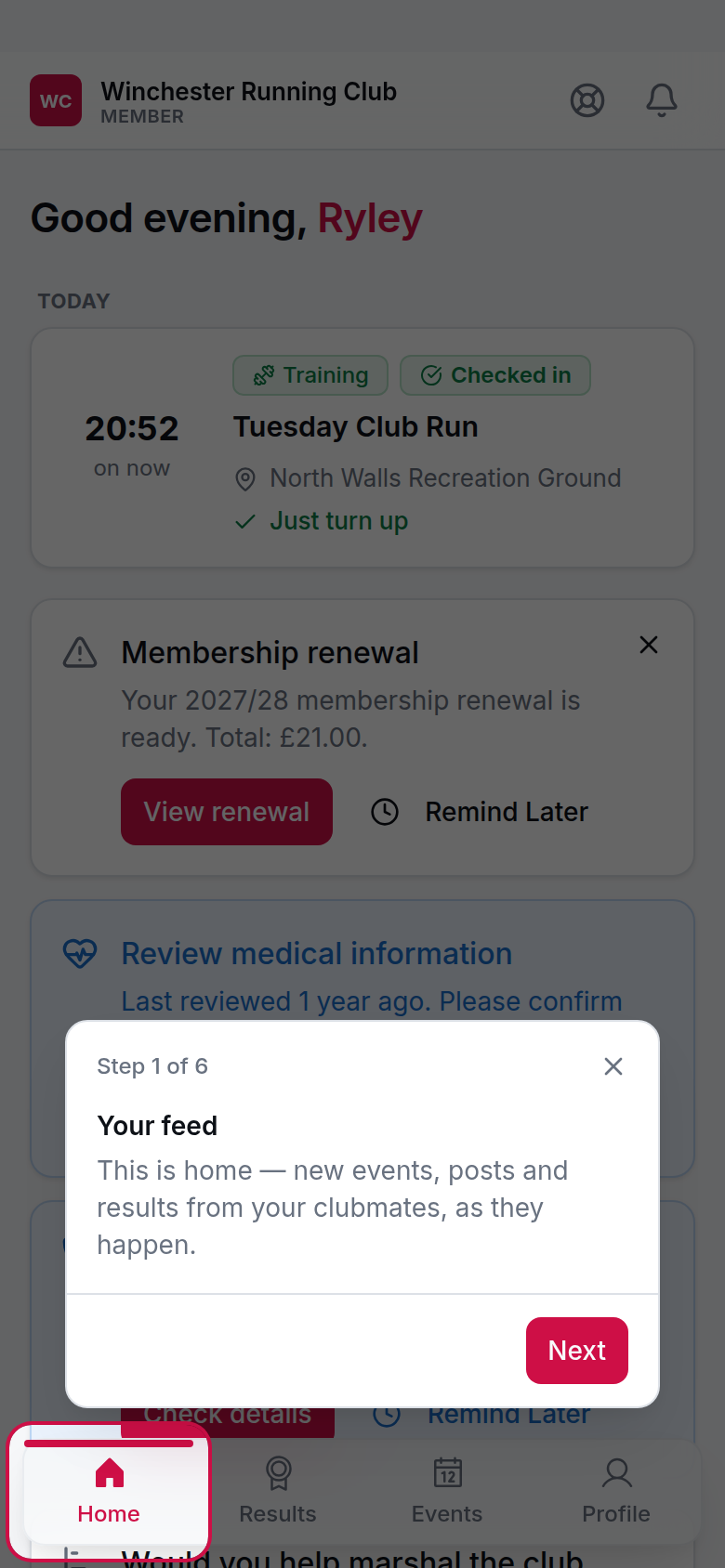
Home, with the actions card, a poll and the club feed
The four tabs
Home, Results, Events and Profile sit along the bottom of the screen on a phone, and along the top on the web. Two more things live in the bar itself rather than as a tab: a bell for notifications, and a Help icon.
- Home — season figures, the actions card (below), a poll if one is open, the member's diary for the week, and the club feed.
- Results — their season so far, race results, courses run, and club records.
- Events — what's on, their own entries, and event check-in.
- Profile — their own details, household, membership and account settings (below).
- The bell — messages the club has sent them.
- Help — search, their open conversations, and the help library.
Anyone with console access — a volunteer or committee member — also sees a Volunteer switch here, taking them to the volunteer console for the jobs they help with.
The actions card
Home carries an actions card: up to three prompts, ranked by how much they matter, telling a member what needs doing. This is the one place you can see why a member is being nudged.
| It says | It appears when | It clears when |
|---|---|---|
| Check in to [event] | An event is in progress and they can check themselves in, check in someone in their household, or manage check-in for it | They dismiss it, or the event ends |
| [Event] starts in [time] | They are registered for something today that has not started yet | They dismiss it, or the event starts |
| Welcome Back / Rejoin Us | They have resigned, transferred out, or manage a household with someone who has — the only way back in | They rejoin |
| Join the club | They manage a household but are not a member of it themselves | They register |
| Renewal Payment Scheduled (or another status — see Renewals) | A renewal is open and unsettled for them | They complete it, or its status changes. A failed payment, an invalid Direct Debit, the grace period or a lapse cannot be dismissed |
| Complete Your Membership / Complete [name]'s Membership | A prospect — themselves or someone in their household — has not finished joining | They dismiss it, or finish joining |
| [Name] invited you to join their household | Someone has asked them to join a household | They accept or decline, from the card or from Profile → Household |
| Add Medical Information | An active member with nothing on file at all | They add it |
| Review Emergency Contacts | Due its periodic check | They confirm it's current, on the page it opens |
| Review Medical Information | Due its periodic check (once something is on file) | They confirm it's current, on the page it opens |
| Come to a Training Session | A prospect who has not yet been to one, with a session recommended for them | They dismiss it, or attend |
| Register for [event] / Plan to Attend: [event] | A featured event is open and they have not entered it | They dismiss it, or enter |
| Check Your Contact Details | Due its periodic check | They confirm it's current, on the page it opens |
| Review Your Membership | A migrated member, for 30 days after their first sign-in | They dismiss it, or the 30 days pass |
| Add Your Profile Photo | An active member with no photo | They dismiss it, or add one |
| Link Your parkrun Account | An active member with no parkrun ID on file | They dismiss it, or add one |
| Review Your Running Goals | Due its periodic check | They confirm it's current, on the page it opens |
A card a member cannot act on right now can usually be put off a week with Remind Later — every card in the table above except the four safety and money ones marked non-dismissible offers it. The check-in prompt has its own banner on the day and does not take one of the three slots.
Profile
A member's own record sits under three groups, reached from Profile:
- Personal — Contact details, Email address, Emergency contacts, Medical information, Running goals, Profile photo.
- Membership — Membership, Subscriptions, Affiliations, Household, Invoices, Payment methods, Expense claims.
- Account — Notifications, Consents, Linked accounts, Security, Help & Support, Settings.
Two fields a member can never edit themselves: date of birth and gender. Both drive age-category placement, England Athletics registration and record eligibility, so a correction goes through you rather than a form — the member sees why, and how to ask, in the help library. Affiliations is read-only for a different reason: England Athletics status changes through your club's own affiliation administration, not through the app.
Households
Anyone managing more than one person — a parent with children in the club, partners sharing a login — works from Profile → Household. From there a manager can:
- Add Another Member. Choose Club Member to register someone who takes part (a short guided registration), or Manager Only to invite another adult by email to help run the household without taking part themselves.
- Invite a club member. Someone who already has an account — a partner who joined separately — searched for by name and asked to accept. Nothing changes unless they say yes, and they can say no. The invitation also goes to them by email, and they can decline from that without signing in.
- Give a junior their own login, once they are 13 or older — a magic link goes straight to them, with the same access to the app as anyone else.
- Remove a manager or a managed member, or resend or revoke an invitation that has not been accepted yet.
- Leave this household, from the bottom of the page. They move into a household of their own, taking their membership, results and any renewal in progress with them. The club's Minimum Age for Self-Registration setting decides who sees this.
A band across the top of the screen — the same one that says You're acting as [name] while a manager is working on someone else's behalf — is also how they switch between the people they manage. It appears for anyone managing more than one person, not only while acting as someone else.
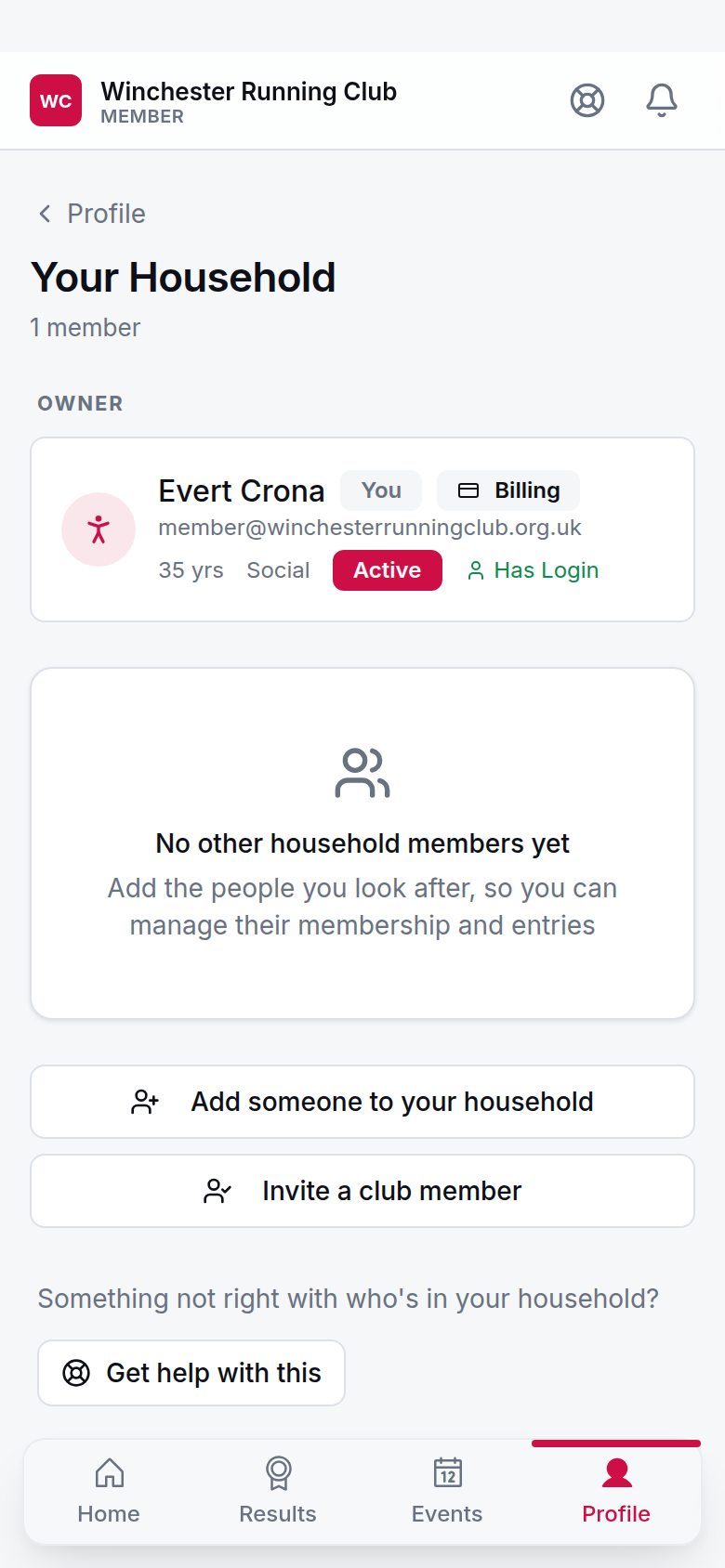
Profile → Household, showing a manager and two managed members
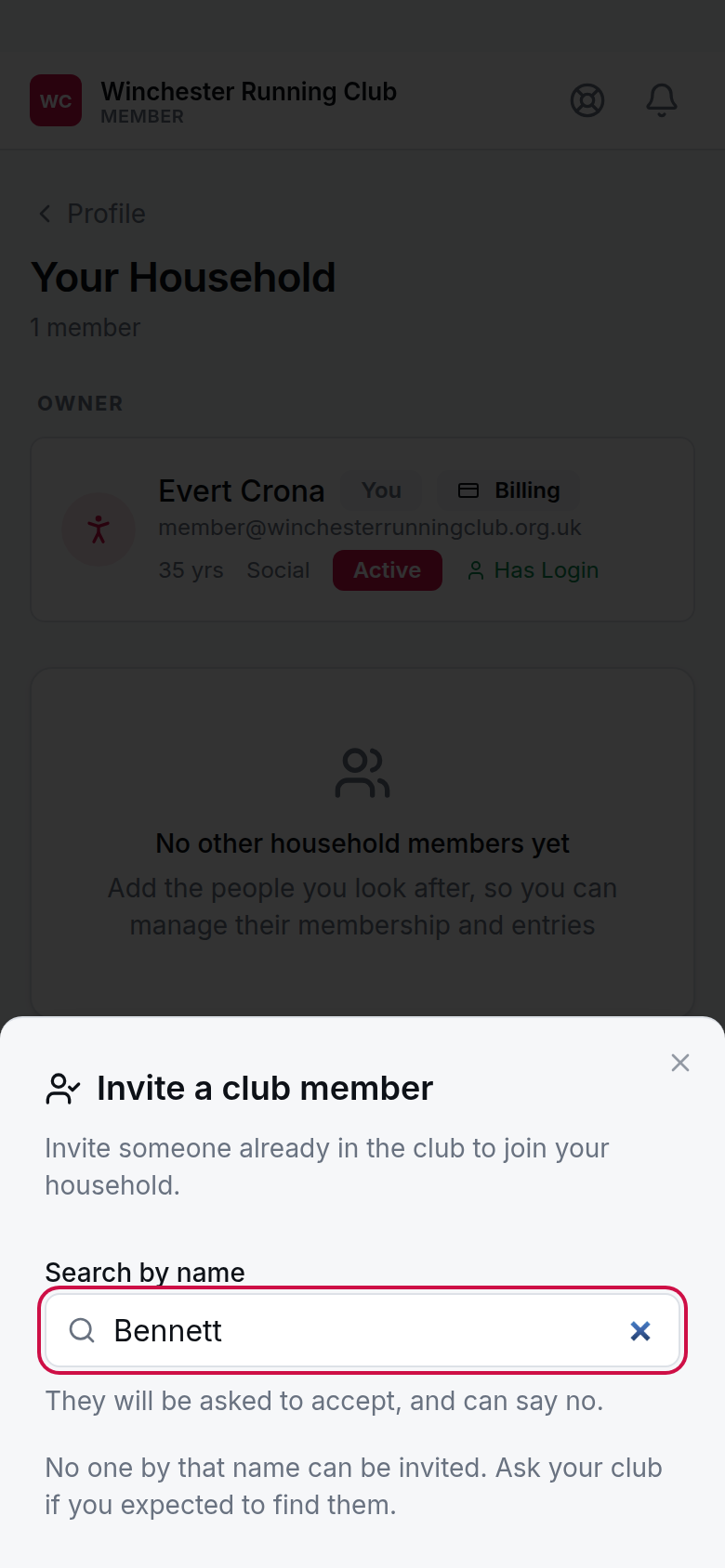
searching by name for somebody already in the club
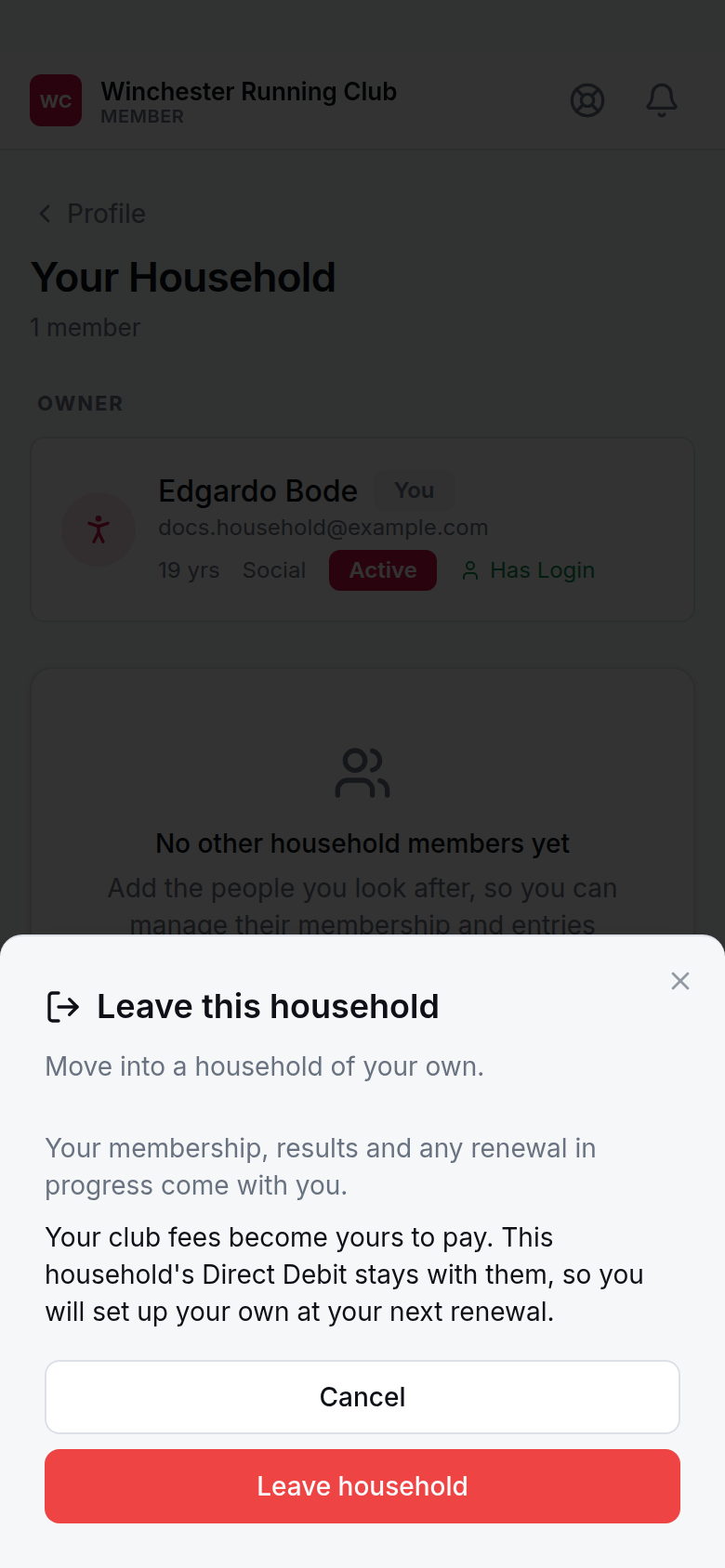
what moves with the member, and who takes the household over
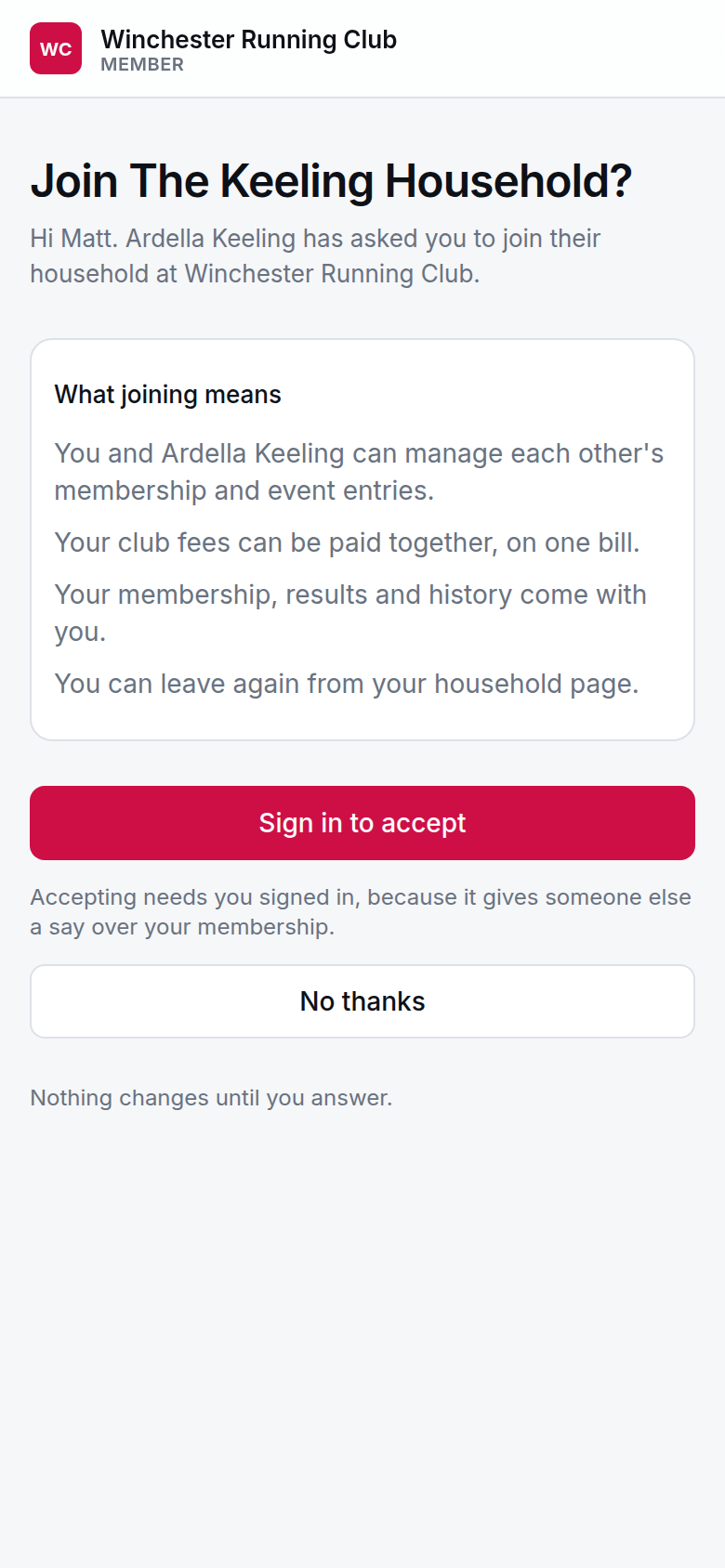
declining takes one tap; accepting asks them to sign in first
The first-run walkthrough
The first time a member opens the app, a short spotlight tour points out Home, Events, Results, how to log a result, Profile, and the Help icon — six stops, a few seconds each, and it runs once.
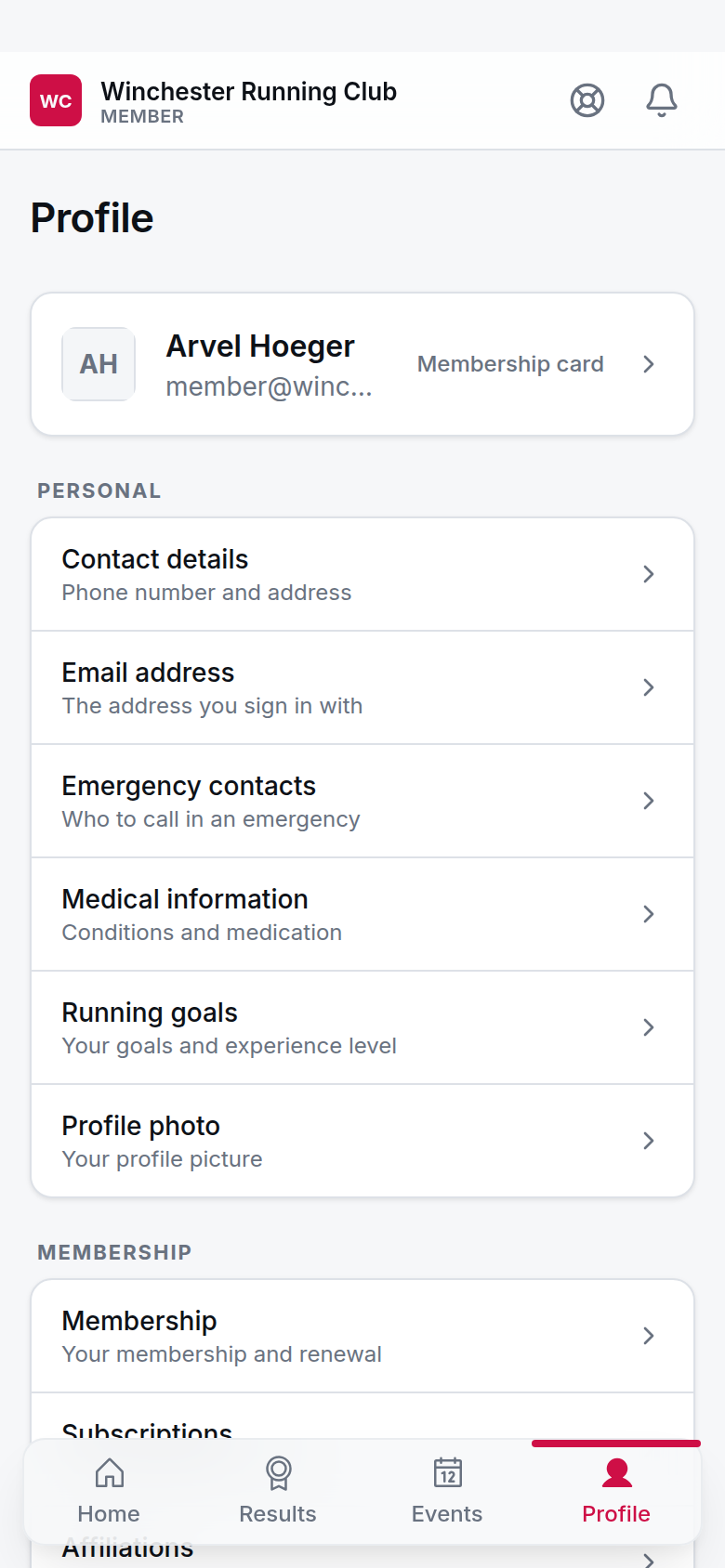
Profile, grouped into Personal, Membership and Account
Help
Every member's third front door — after the app itself and messaging you directly — is Help: search, articles grouped by topic, and a way to message you when nothing answers it. See The help library for what it holds and how to add your club's own answers.
Troubleshooting for the committee
A member says they can't find their inbox
It's behind the bell, not a tab — top of every screen, with an unread count when there's something new.
A member is looking for club records
They're under Results, not a section of their own.
A member has an old link to /console
It resolves to /volunteer automatically — nothing for them to do.
A member wants something corrected that Profile won't let them edit
Date of birth and gender go through you; everything else on Profile is theirs to change. Point them at the help library if they're not sure which is which.