
Appearance
Payments and invoices
This page is for the committee: how your club takes money from members, what an invoice is and where it comes from, and what to do about a payment that fails or needs refunding.
Who can do this?
Setting up payment providers, from Settings → Payments: Club Admin. Working with invoices, payments, payment methods and refunds, from Finance in the admin panel: Club Admin or Treasurer. A Membership Manager can also record a payment and collect one. That includes every refund, even Refund & Cancel on an event: an Events Manager can see the entries but not send money back. Viewer can see all of it but not change it. Members manage their own payment methods and see their own invoices from the member app.
The ways a club can take money
Direct Debit, through GoCardless. The one we recommend. A member sets up a mandate once, and every future charge — a renewal, an event fee — collects itself, with no card to expire and no link to click. Setting it up is something we do with you: your club opens its own GoCardless account, and GoCardless itself verifies it before it can start collecting.
Bank transfer. You publish your account details and a member pays you directly. A switch — turn it on and add your bank details, and every payment needs you to mark it received (see Invoices below).
Cash. For the club that still takes cash at sessions. A switch with nothing else to configure — you record it the same way as a bank transfer, on the invoice.
Card payments, through Stripe (beta). Card payments through your club's own Stripe account. Card is a beta that RunClub HQ switches on for your club — until we have, there's nothing about Stripe on your settings screen. See Card payments (beta) below.
You don't have to pick GoCardless alone. Most clubs run it for memberships and take bank transfer or cash for one-off event entries, and a club can also run entirely on bank transfer and cash if that's the decision it's made — see Going live for how that decision fits into launch.
Setting up
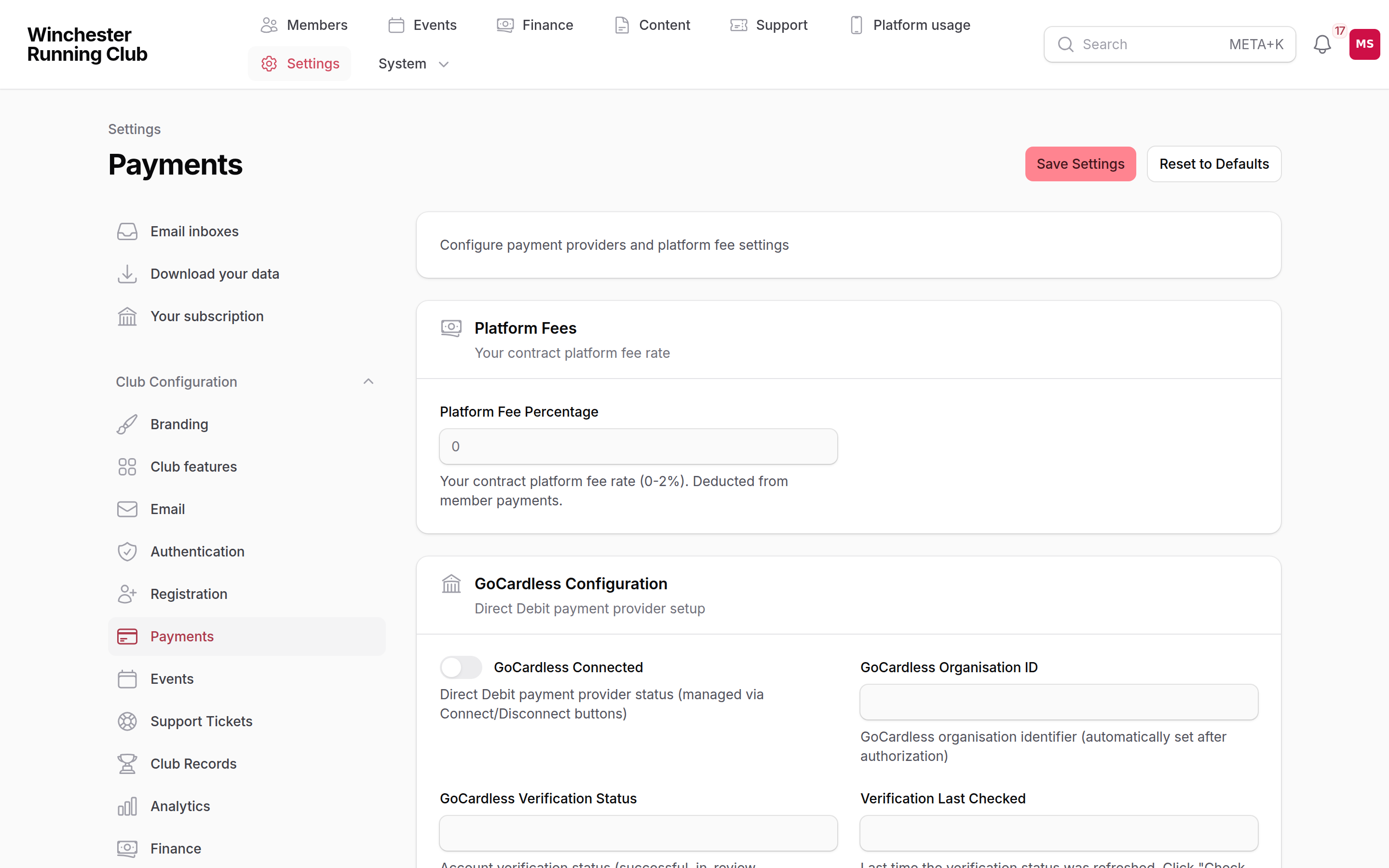
GoCardless connection status, the platform fee, and the manual payment switches
- Open Settings → Payments.
- Click Connect to GoCardless, if you're using it, and choose how to connect in the window that opens. GoCardless then verifies your account itself, which can take a few days — start it well before you plan to take your first payment. Check Verification Status on the same screen tells you where it's up to; Disconnect GoCardless is there if you need to start again.
- Turn on Enable Success+ (Smart Retry) if you want GoCardless to retry a failed collection automatically, and Enable Protect+ (Fraud Protection) for its mandate verification and fraud checks — both are GoCardless features, switched on here.
- Turn on Enable Bank Transfer or Enable Cash Payments, if you're taking either, and — for bank transfer — add the Bank Name, Account Name, Sort Code and Account Number a member needs to pay you directly.
- If your club isn't taking any of this through RunClub HQ — a standing order run outside the platform, say — turn on We collect payments outside RunClub HQ instead. It doesn't switch anything off; it's how the launch checklist tells "we chose not to" apart from "we have not set it up yet".
Your platform fee — RunClub HQ's small share of what members pay — is shown read-only on this same screen. See Subscriptions → The platform fee for how it's charged. Deciding how you'll take money is also one of the items on the going-live readiness checklist — either a provider is connected, or you've made the manual-payments decision, before we promote your club.
Card payments (beta)
Card payments are a beta. RunClub HQ switches them on for your club; ask us if you'd like to try them.
When members are offered card. If Stripe is the only online way your club takes money, because GoCardless isn't connected or hasn't finished verifying your account, every member sees card. Once GoCardless can take payments as well, members pay through GoCardless first, and you choose when card is offered too. See When you take both GoCardless and card below. Bank transfer and cash are offered on their own terms either way.
Your club is the merchant. Card money is taken in your club's own Stripe account, and Stripe pays it out to your bank on its own schedule. Your statements come from Stripe, not from us.
Each card payment is one-off. Cards aren't saved and nothing renews by card: a renewal or a later invoice is paid by card again, from scratch.
Fees. Stripe charges from 1.5% + 20p for a standard UK card, more for a premium or non-UK card, with no cap. There's no VAT on Stripe's card fees. RunClub HQ takes no platform fee on a card payment during the beta. Stripe's fee is estimated when the member pays and confirmed when Stripe pays the money out.
When you take both GoCardless and card
Once GoCardless and Stripe can both take payments, members pay through GoCardless first:
| What's being paid | How GoCardless takes it |
|---|---|
| Membership, new or renewing | Direct Debit. The member uses their Direct Debit, or sets one up. If their old one was cancelled or has expired, they set up a new one. |
| An event entry, merchandise or another invoice, by someone who isn't a member | An instant bank payment. They approve it in their banking app, it's paid straight away, and no Direct Debit is set up. |
| An event entry, merchandise or another invoice, by a member | As before: their Direct Debit if they have one, or they set one up. |
| Anything due too soon to collect by Direct Debit, such as an event in the next few days | An instant bank payment, for anyone. |
For this, a member is someone who is Active or Lapsed, or who pays for someone in their household who is.
When card is offered as well is set for each kind of payment under How members can pay on Settings → Payments. That section appears only once GoCardless and Stripe can both take payments. There's one setting each for Membership (new and renewal), Event entries, Merchandise and Other invoices, and each can be:
- Fallback (the starting choice for all four). Members see GoCardless. Under it is a quiet I can't pay from a UK bank account link: choosing it asks why, and then offers card. They're asked every time they pay, and the reason is kept with that payment. Members you've marked as card payers see card straight away.
- Equal choice. Members see GoCardless and card side by side and pick.
- Card payers only. Only members you've marked as card payers see card. Nobody else is offered the link.
- Off. Card is never offered for that kind of payment.
Nothing checks what a member says about their bank account. It's their own word, and Fallback is designed around that.
Card payers. A member who always needs card, for example because they live abroad, can be marked as a card payer so they aren't asked each time. Open their record and click Mark as card payer, and give a reason. The mark goes on whoever pays for the household, so marking a child marks the parent who pays. Clicking Card payer on the same record shows who marked them and why, and lets you remove it. Anyone who can manage members sees this, and every change is in the activity log. The button appears only when your club takes both GoCardless and card, since with card alone everyone already pays by card. A member who is already marked keeps the button, so you can remove the mark.
If a household changes who pays, a mark on the person who used to pay stays on their record but no longer offers anyone card, because card follows whoever pays now. Their record still shows Card payer, and clicking it explains this and lets you remove the mark. Then mark the new payer if they need card.
When a member gives a reason to pay by card, the payment's page in Finance → Payments shows it under Paid by card instead of from a bank, with Mark as card payer at the top for someone who keeps giving the same reason.
Connecting Stripe
- Open Settings → Payments and find Stripe card payments (beta).
- Click Connect Stripe. Stripe's own page opens, where you sign in to your club's Stripe account or create one, then send you back.
- Click Check Stripe status. It asks Stripe whether your account can take card payments and pay them out, and tells you whether members will see card, or whether they pay through GoCardless first. It also updates by itself whenever Stripe tells us something has changed.
If Stripe still needs something from the club, the status says so: sign in to Stripe to see what.
Refunds and disputes
A card payment is refunded from Finance → Payments like any other, full or partial, with no limit on how many refunds one payment carries. The GoCardless 7-day wait and 5-refund limit don't apply to card.
If a member disputes a card payment with their bank, the payment shows as Disputed. You answer the dispute in your Stripe account, not here.
Disconnecting Stripe
Disconnect Stripe on the same screen stops card payments straight away, and any card payment a member has started but not finished is cancelled. Money you've already taken stays in your Stripe account. After you disconnect, refunds and disputes for that money are handled in Stripe.
If RunClub HQ ends the beta for your club while Stripe is connected, members stop being offered card, but the Stripe section stays on your settings screen so you can still check the status and disconnect.
Invoices
An invoice is raised automatically whenever something is owed: a new subscription, a renewal, an event entry, an affiliation fee. Each one carries who it's for, one or more line items (Subscription, Affiliation, Event, Merchandise or Other), and a status:
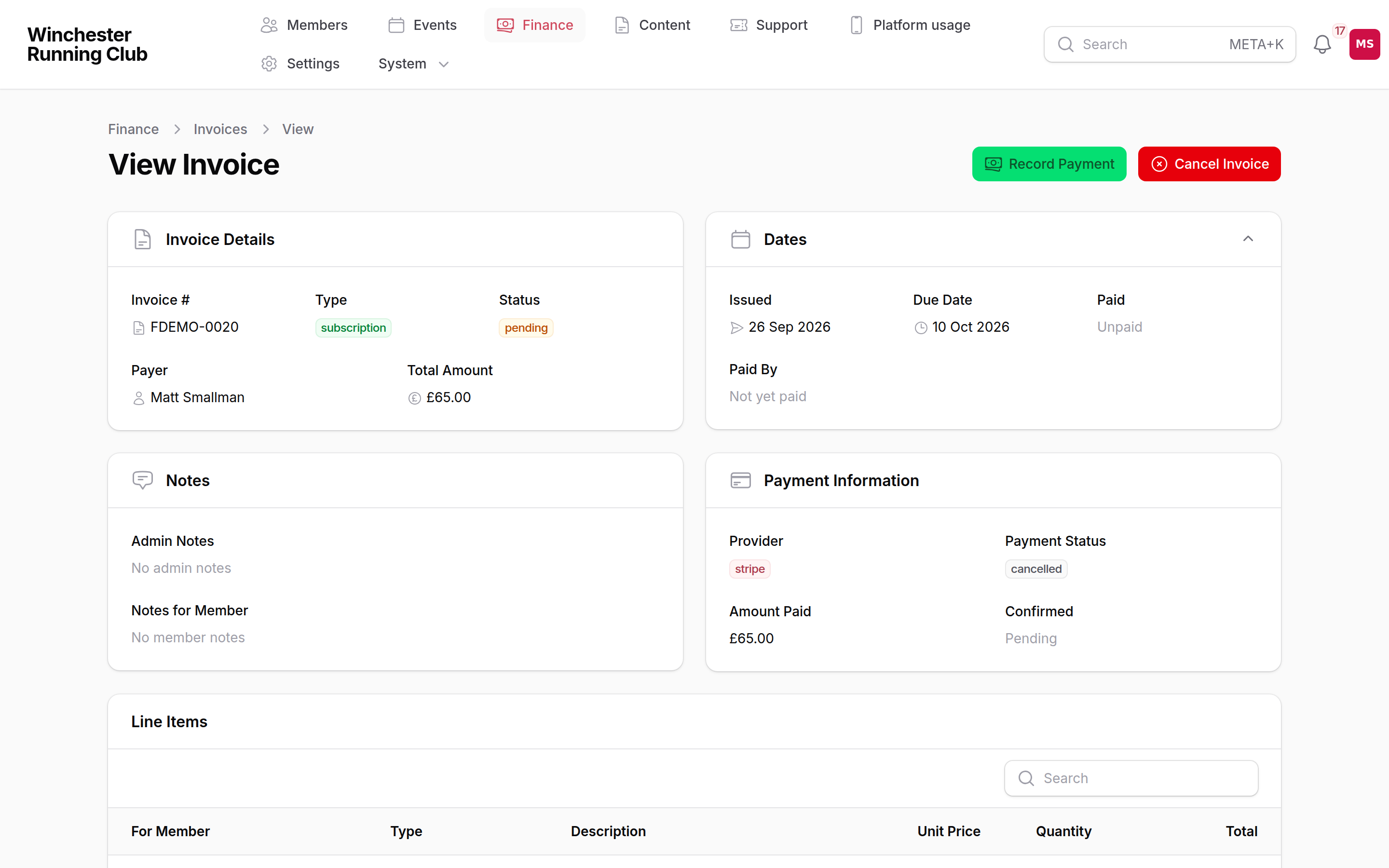
The payer, line items, status, and the Charge Direct Debit / Send Payment Request and Record Payment actions
| Status | What it means |
|---|---|
| Draft | Created but not yet issued — can still be edited or deleted |
| Pending | Issued and awaiting payment |
| Paid | Settled in full |
| Partially paid | Some money has come in, but not all of it |
| Failed | The payment attempt against it did not go through |
| Cancelled | Withdrawn — nothing is owed |
Open an invoice from Finance → Invoices to see the payer, the line items, the amount, and — once one exists — the payment against it. Two actions live in the header of a pending invoice:
- Charge Direct Debit or Send Payment Request — one button, and which it is depends on the member. If they have an active Direct Debit mandate it charges it, and they get the legally required advance notice by email before it's taken. Otherwise it emails them a link to pay online themselves.
- Record Payment — for a bank transfer or cash payment the member has already made outside the platform. See Record a cash or bank transfer payment below.
A Club Admin, Membership Manager or Treasurer can use Charge Direct Debit, Send Payment Request and Record Payment. Cancel Invoice, for a draft or pending invoice, is for the Club Admin and Treasurer.
Record a cash or bank transfer payment
- Open the invoice from Finance → Invoices, or the household's renewal (see Record a manual payment).
- Click Record Payment. The Amount starts at the invoice total.
- Choose Cash or Bank Transfer, then click Record Payment again.
The invoice is marked paid straight away. Three things can stop it, and nothing is recorded when one does:
- A Direct Debit or card payment is still in flight. We cancel it with GoCardless or Stripe first, so the member is not charged twice, and a checkout they left unfinished is closed. If the bank already has the payment, Record Payment refuses: wait for it to collect or fail, and refund it once it collects if the member has also paid you. If we could not reach GoCardless or Stripe, it asks you to try again shortly.
- The amount is less than the invoice total. Tick Accept as paid in full if the smaller amount settles it. The shortfall is logged against your name.
- The amount is more than the invoice total. Tick Record the excess as owed back to the payer if you will give the difference back. The invoice is marked paid and the Treasurer and Club Admin get a Payment to refund alert for the excess.
Cancelling an invoice follows the same rule for payments on their way. Cancel Invoice cancels any Direct Debit or checkout still in flight first, and refuses if one is already with the bank. Cancelling cannot be undone.
A member reads the same invoices from Profile → Invoices in the member app, and a payment request email carries a link straight to paying that one invoice — no sign-in needed, so it still works days later from a phone.
Payments
Every payment against an invoice shows in Finance → Payments: who paid, how much, the provider, and its status (Pending, Processing, Confirmed, Paid Out, Failed, Cancelled, Refunded, Disputed). Open one to see the fee breakdown — the provider's own fee, RunClub HQ's platform fee, and what's left after both — and, once the provider has paid it into your account, a Paid Out date.
GoCardless and Stripe each take their own processing fee, and RunClub HQ's platform fee applies too, except on card payments during the beta. Fees are taken from what your club receives rather than added to what the member pays.
Money owed back to a payer
Sometimes money arrives for an invoice that's already paid: a member pays twice from two tabs, or a Direct Debit the bank already had lands after you've recorded a cash payment. It can also arrive for an invoice that was cancelled. RunClub HQ keeps the first payment as the one that paid the invoice and doesn't apply the second. That money belongs to the payer, so:
- In Finance → Payments the payment carries Owed back to payer under its status, and the Owed back to payer filter lists every payment still waiting to go back.
- Every Club Admin and Treasurer gets a Payment to refund alert, in the admin panel's notifications and on their phone if they use the mobile app.
To send it back, open the payment from the alert or the list and use Issue Refund, with Duplicate payment as the reason category. Once the refund is under way the payment drops out of the filter. Refund that payment, not the one that paid: Refund & Cancel and a member's own cancellation always refund the payment that paid the invoice, and never touch the one owed back.
On the finance statement this money never counts as income, and its refund doesn't count as a club expense. It sits under Owed back until the refund goes out (see Money owed back to payers).
A Direct Debit can still fail days after it was confirmed. If the payment that paid the invoice fails that way while a second payment is still owed back, the second one takes its place and pays the invoice instead. You'll get a Payment no longer owed back alert: that money now pays for the invoice, so don't refund it.
Cash and bank transfer payments can't be refunded through RunClub HQ. When you hand back money owed on one of those, open the payment and use Record money given back: enter the amount, whether it went back in cash or by bank transfer, and the date. You can record part of it now and the rest later, but never more than is still owed. The payment's Owed back amount and the finance statement both drop by what you record. Each give-back is listed on the payment under Money given back, and it is included in the club's full data export.
Failed payments
When a payment doesn't go through, what happens next depends on what it was for:
- An event entry. We email the member a link to pay again themselves, with the reason it failed.
- A renewal. The renewal moves to Payment Failed, the member is told by email, and from there it follows the same grace-period timeline as any other non-renewing member — see Renewals and Resolve a failed renewal payment for the steps. There is no automatic retry on our side for a renewal; if GoCardless's Success+ is switched on, GoCardless may retry the collection itself first.
- Anything else on an invoice you're chasing by hand. Use Record Payment on the invoice once the member has paid another way, or wait for them to use the emailed link.
Refunds
There are three refund workflows, depending on what you're refunding and whether the underlying registration or subscription should end with it. Picking the right one matters: a goodwill £5 refund shouldn't end a membership, and cancelling an event entry should free the slot.
| Scenario | Use |
|---|---|
| Goodwill gesture, overpayment, duplicate payment — the member keeps their access | Finance → Payments → Issue Refund |
| A member is withdrawing from an event, or the club is cancelling it | The event's Event Registrations tab → Refund & Cancel on the participant row |
| A member is leaving and you're refunding their membership fee | The subscription → Refund & Cancel Subscription |
Every refund is full or partial, and asks for a Reason Category — Goodwill gesture, Overpayment correction, Duplicate payment, Event cancelled by club, Member withdrew from event, Subscription cancelled, Admin error, Other — plus free-text Reason Details, both kept in the activity log. GoCardless allows at most 5 refunds against one payment, and recommends waiting 7 days after a payment is confirmed before refunding it, to avoid a late bank failure landing on top of a refund — RunClub HQ warns you on the form when either applies.
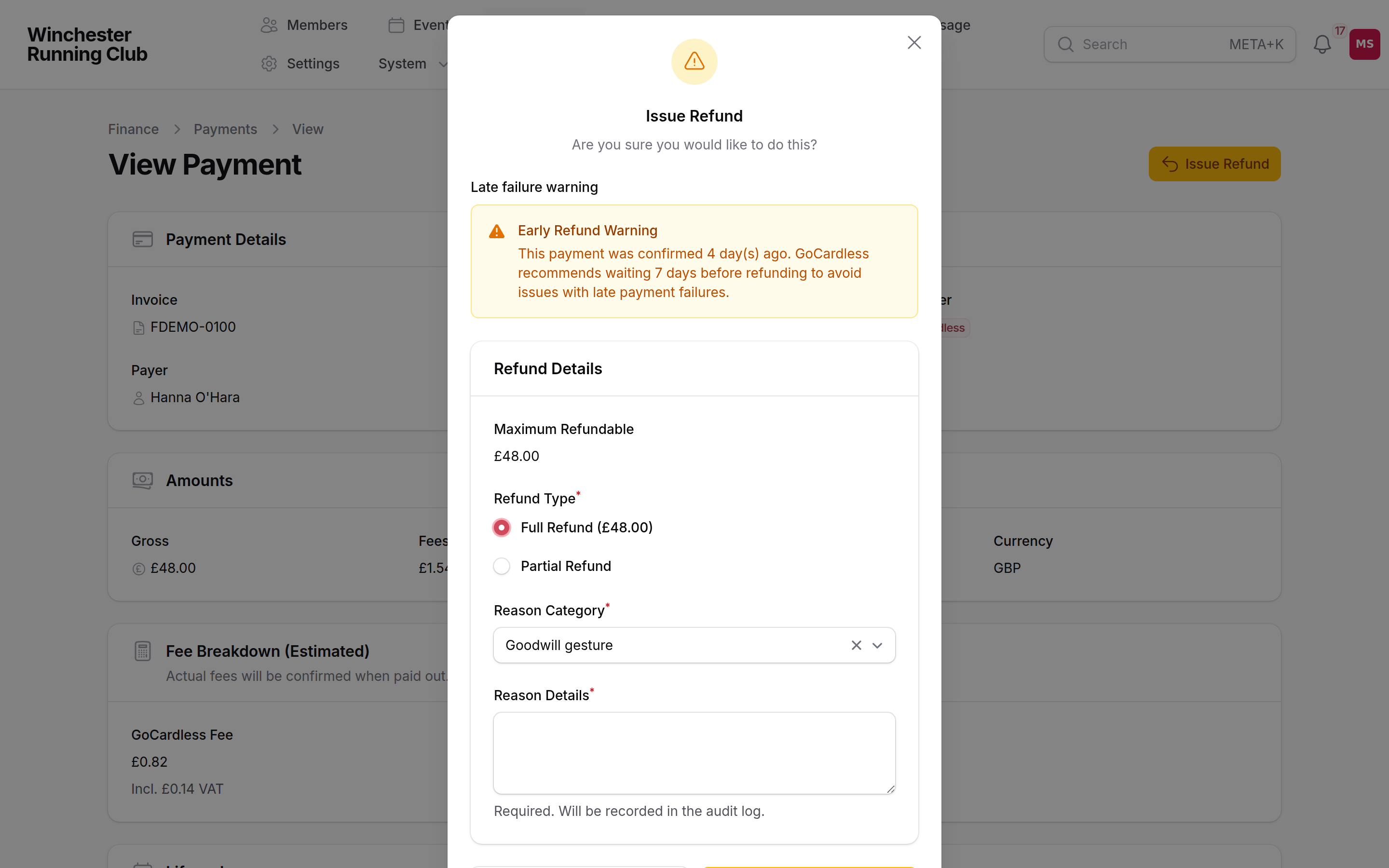
Full or partial refund, the reason category, and the 7-day and refund-limit warnings
If GoCardless refuses a refund while you wait, you see why straight away and nothing is cancelled, so you can put it right and try again.
Refunds being confirmed
Now and then GoCardless doesn't answer clearly when you issue a refund. RunClub HQ doesn't guess: it tells you the refund is being confirmed, keeps it as Processing on the payment, and checks with GoCardless every hour. Don't refund it again while it shows that way. If you used Refund & Cancel or Refund & Cancel Subscription, the registration or subscription is cancelled as soon as the refund is held.
If it went through, the refund carries on as normal. If it turns out never to have been made, or GoCardless later reports that a refund failed, the refund is marked Failed and every Club Admin and Treasurer, and whoever issued it, gets a Refund didn't go through alert naming the amount, the member and the reason. The money is still with the club, and you can issue the refund again.
WARNING
The cancellation still stands after a refund fails. When the refund came with Refund & Cancel or Refund & Cancel Subscription, or with a member cancelling their own entry, the alert says so: the registration or subscription is already cancelled, so refund the member another way or reinstate them.
See Issue a partial refund for the full walkthrough of the first workflow.
Your club's cancellation policy
Settings → Events sets a full-refund cutoff, a partial-refund cutoff and percentage, and a flat cancellation fee, for a member cancelling their own paid entry — all default to off, so nothing is promised, or refunded, automatically until you configure one. Where a policy is set, a member sees it stated in plain English before they pay and again on their own Cancel button, which shows the exact amount their cancellation is worth right now.
Confirming that Cancel button is what pays it out: RunClub HQ submits the refund itself, for the amount the policy entitled them to, at the same moment it releases their place — a member never needs to chase the club for money the policy already promised them. If the refund doesn't go through, the member's place is still released and every Club Admin and Treasurer gets a Refund didn't go through alert to resolve it by hand.
Some refunds can't be made automatically at all: the member paid by bank transfer or cash, or a refund is already in progress on that payment. The place is still released, and every Club Admin and Treasurer gets a Refund to issue by hand alert with the amount the policy gives the member, so you can pay it back yourself.
Refund & Cancel itself is never limited by this policy either way: a volunteer can refund more, less, or nothing at all, whatever the circumstances call for.
How refunds appear on the invoice
An invoice's status stays Paid even after a full refund — invoices are a financial record of what happened, not a live balance. Instead, the amount refunded is tracked alongside it, so your reports show the correct net revenue without rewriting history.
Processing times
Refunds usually settle back to the member's bank in 5–10 working days, depending on their bank. The member gets an email when the refund is submitted, and another once the money is back with them.
Payment methods
A stored Direct Debit mandate lives in Finance → Payment Methods, one row per member, per method — the provider, the bank or card, and a status (Active, Pending, Cancelled, Expired, Failed). A mandate is created by the member's own payment flow, not typed in by the club. Card payments don't appear here, because cards aren't saved.
A Club Admin or Treasurer can remove a method. Removing it cancels the mandate with GoCardless straight away, so nothing more can be collected on it, and the member's next method becomes their default. RunClub HQ won't remove a method while a renewal is being collected from it or is scheduled to be. It names the member and the renewal, so you can deal with the renewal first. If GoCardless can't be reached, nothing is removed: try again shortly. A removed method can't be restored; the member sets up a new one.
A member manages their own from Profile → Payment methods: they can set any method as their default, or remove one. Removing a mandate doesn't cancel a collection already in flight.
From the console
Club Admin, Treasurer and Viewer see a read-only Money tab on a member's card in the volunteer console — what's outstanding, their subscription, their payment method, and their recent invoices and payments. It's there so a volunteer on the phone with a member can answer "did that go through?" without needing to open the admin panel; raising, voiding and refunding all still happen there.
What members see
A member's invoices, payment methods and any outstanding balance live under Profile in the member app, and a payment request or refund email always carries a link that works without signing in.
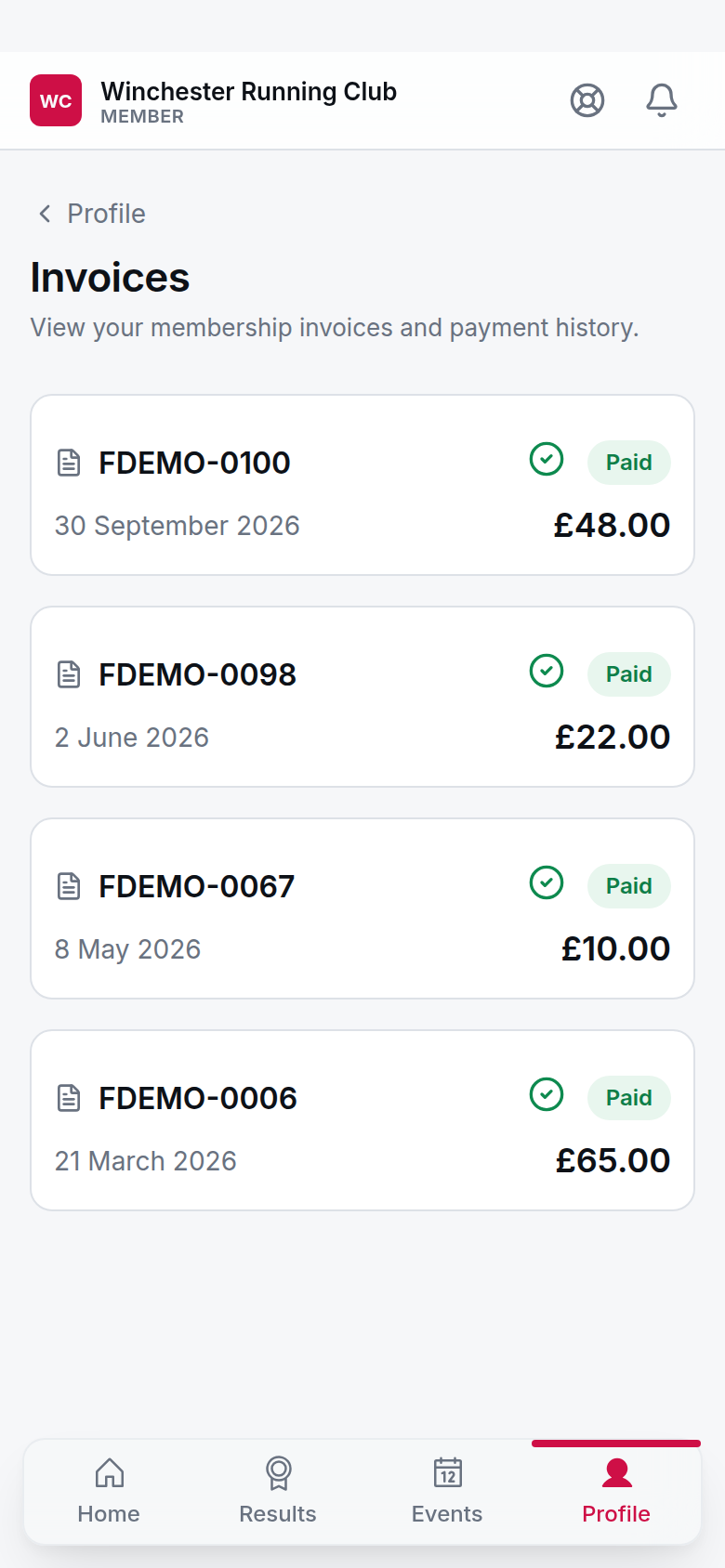
A member's invoice list with status and amount
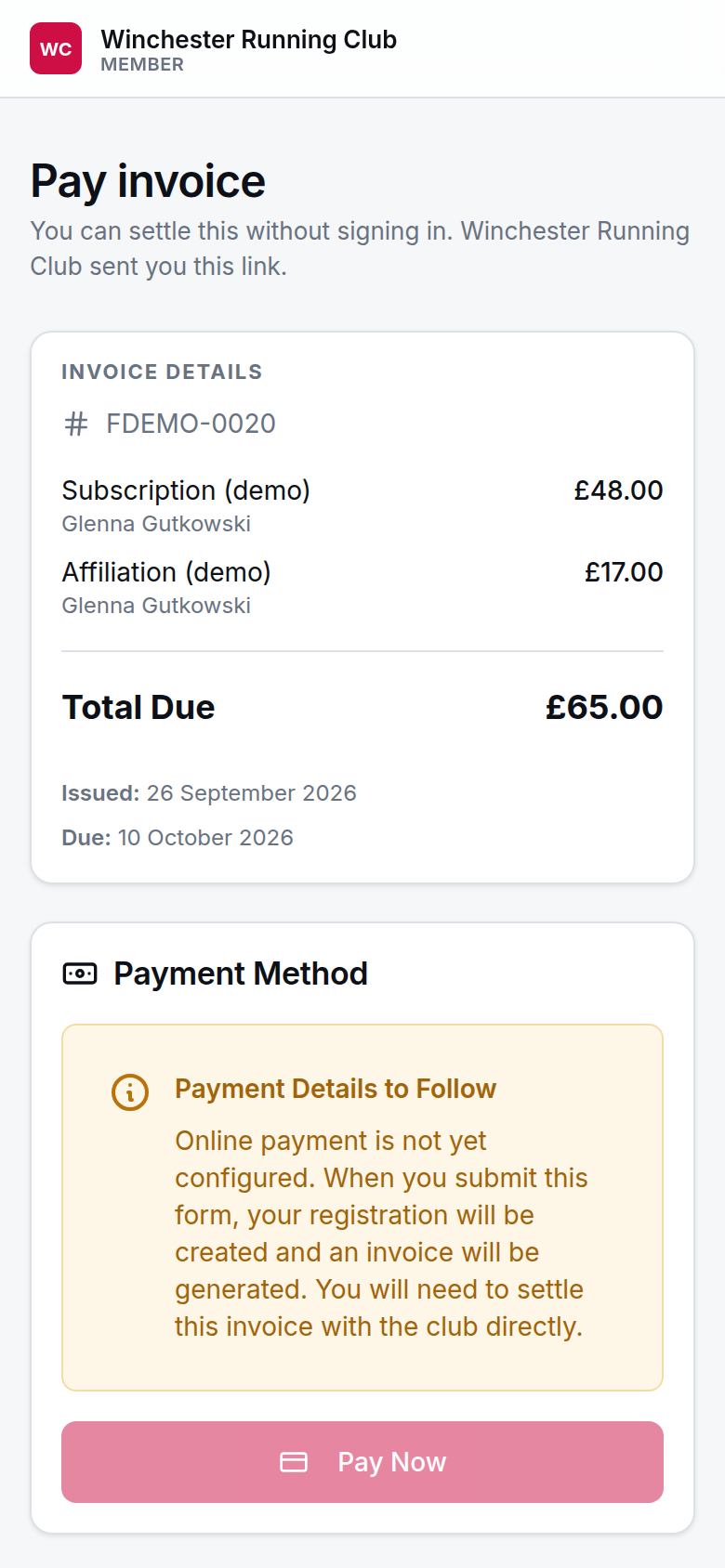
An invoice a member can pay with no sign-in
Where card is offered, a member sees Pay by card alongside any other way you take money. Where your club takes GoCardless too and card is on Fallback, card appears only after they choose I can't pay from a UK bank account and say why. The same step is on the page an emailed payment link opens. Pay by card takes them to Stripe's secure payment page, where they can pay by debit or credit card, or by Apple Pay or Google Pay where their device supports it, and brings them back to a confirmation page.
What a member reads about how payment works — mandates, failed payments, refunds — is answered in the help library rather than repeated here.
Settings
| Setting | What it controls | Default | Where |
|---|---|---|---|
| Platform Fee Percentage | RunClub HQ's share of each payment, taken from what your club receives | 0% | Settings → Payments (read-only) |
| Enable Success+ (Smart Retry) | GoCardless retries a failed collection automatically | Off | Settings → Payments |
| Enable Protect+ (Fraud Protection) | GoCardless mandate verification and fraud checks | Off | Settings → Payments |
| Enable Bank Transfer | Members can pay you by bank transfer | Off | Settings → Payments |
| Enable Cash Payments | Members can pay you with cash | Off | Settings → Payments |
| We collect payments outside RunClub HQ | Records that the club has deliberately chosen not to take payments through us | Off | Settings → Payments |
| Membership (new and renewal), Event entries, Merchandise, Other invoices | When card is offered beside GoCardless for each kind of payment | Fallback | Settings → Payments → How members can pay (shown once GoCardless and Stripe can both take payments) |
Troubleshooting
A member paid by bank transfer and still shows unpaid
Bank transfers aren't detected automatically — nothing marks the invoice paid until you do. Open the invoice and use Record Payment.
GoCardless says the mandate is cancelled
A cancelled mandate can't be reactivated. The member needs to set up Direct Debit again from Profile → Payment methods (or pay another way for now), and any renewal or invoice waiting on the old mandate will need retrying once the new one is active.
The refund failed
The Refund didn't go through alert gives the reason, and the payment's activity log keeps it. A payment too old to refund and a cancelled mandate are the common ones. If you can't recover it through GoCardless, refund the member another way and add a note so the books balance.
A refund has shown as being confirmed for a while
It stays that way until GoCardless confirms it one way or the other. Don't issue it again: if it never went through, you'll get a Refund didn't go through alert and can refund again from the payment.
Card isn't showing to members
Check, in order:
- GoCardless can take payments too. Members then pay through GoCardless first, and How members can pay decides when card is offered as well. On Fallback a member sees card only after choosing I can't pay from a UK bank account.
- Stripe can't take payments yet. Check Stripe status says so; sign in to Stripe to see what it still needs.
- There's no Stripe section on Settings → Payments. The beta isn't switched on for your club yet. Ask us.
A member was charged twice
The pay-by-link page won't let a member start a second payment while one is already in flight against the same invoice, so this is rare. If it happens anyway, the second payment is marked Owed back to payer and you get a Payment to refund alert. Refund that one with Issue Refund (see Money owed back to a payer).
See also
Subscriptions — seasons, fees and the platform fee
Renewals — what happens when a renewal payment fails
Going live — deciding how you'll take money before you launch
Connect GoCardless — recipe