
Appearance
Subscriptions and seasons
Every membership at your club runs on a season, a type, and a fee. This page is for the committee: how those three pieces fit together, how to set up a new season, and what to do when a member's subscription needs sorting out.
Who can do this?
Creating and editing seasons, membership types and affiliation fees: Club Admin, from Settings → Membership. Viewing a member's subscription and refunding it: Club Admin or Membership Manager, from Members → Subscriptions. Recording the members you already have, and removing a membership recorded by mistake: Club Admin or Membership Manager, from Members → All members. Starting again with the example setup: Club Admin. Viewer can see subscriptions but not change them. Members subscribe for themselves, from the member app.
How subscriptions work
A season is your club's membership year — usually 12 months, though you choose the dates. A membership type is what a member can be: senior, junior, second claim, social, whatever your club offers. Each type carries its own eligibility — an age range, sometimes proof of student status — and, for every season, its own fee.
England Athletics affiliation, or another body your club affiliates with, is a separate fee — set per season, and applied to whichever types need it. A subscription ties all of this together: one member, one season, one membership type and its fee, one invoice.
| What it is | Where you set it up | |
|---|---|---|
| Season | Your club's membership year | Settings → Membership Seasons |
| Membership type | What a member can be | Settings → Member Types |
| Fee | A type's price for one season | The season's Fees tab |
| Affiliation fee | England Athletics (or another body) cost for a season | Settings → Affiliation Fees |
| Subscription | One member's membership for one season | Members → Subscriptions (view only) |
Setting up a season
A new club starts with a current season, four example membership types, and placeholder fees for each. The season is the one you're in now, dated from the month your club's year starts: we ask you when we set your club up, and for most clubs it's April, which gives a season from 1 April to 31 March. None of these is yours yet. Until you've set them up, Settings → Membership Seasons shows a Setting up your membership list at the top, with four steps to work through in order: next season's prices start from this season's.
Set up your membership types — Settings → Member Types. Rename, add or delete the example types until they match what your club offers. To add one, use New Member Type. Give it a name, a description and a colour so members can tell types apart, then set:
- Minimum Age / Maximum Age — leave blank for no limit.
- Training Access — shown to members as "Training access" on your public pricing card. It's descriptive only: turning it off doesn't stop someone being checked in to a session they turn up to.
- Competition Access — shown to members, and used in two places. When you record your existing members with Suggest from age and England Athletics status, a member with a URN is only offered a type that has it. And when the England Athletics sync finds an Active member on your roster with no affiliation recorded, it raises an item for you to review only if their type has it.
- Voting Rights — descriptive, like Training Access.
- Student Verification Required — turn this on for a type only students should get. A member without valid, unexpired proof of student status won't see it as an option.
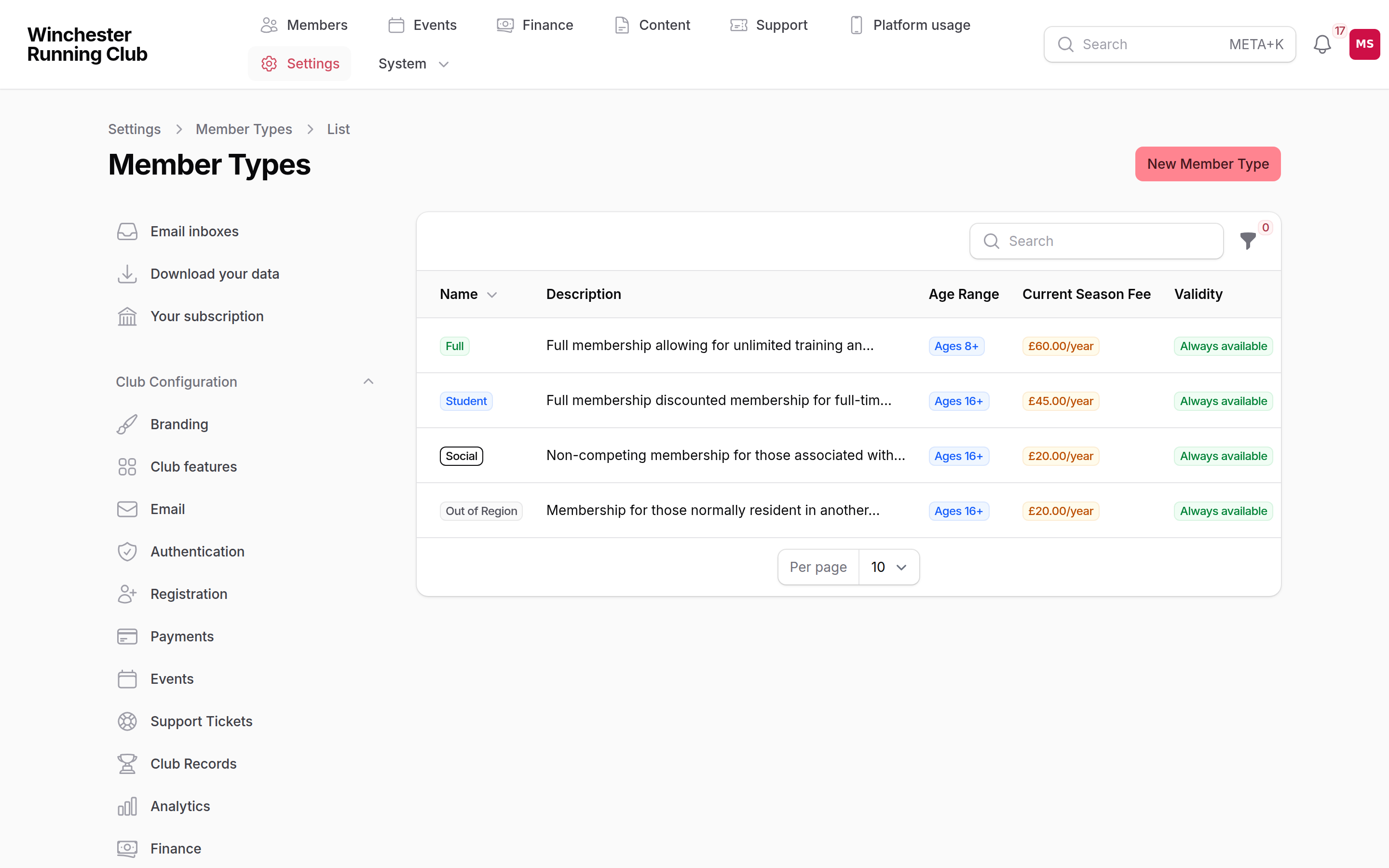
Age range, training and competition access, and the current season's fee for each type
Set up this season — the button of that name on Settings → Membership Seasons opens the season you're in now. Check its Start Date and End Date, and change them if they aren't your club's year; the name follows the dates unless you've typed your own. Only one season can be Current Season at a time: it's the one new joiners subscribe into and the one renewals run from.
Then set this season's fees on its Fees tab: the price each type costs now, which is what your current members paid. Open a fee to change its Annual Fee, or use Add a fee for a type that doesn't have one yet. Turn on Monthly Payment Plan Available if you want to let members pay in instalments — its Monthly Payment Amount is the total cost paid that way, and can differ from the annual fee. A type needs a fee for a season before anyone can subscribe into it under that type.
Registration Opens is optional, and it's the start of extended membership for early joiners — anyone who joins between that date and the season's start gets their membership carried through to the end of the following season too. RunClub HQ's own shorthand for it is "15 months for 12". Leave it blank and there's no early joining and no bonus months.
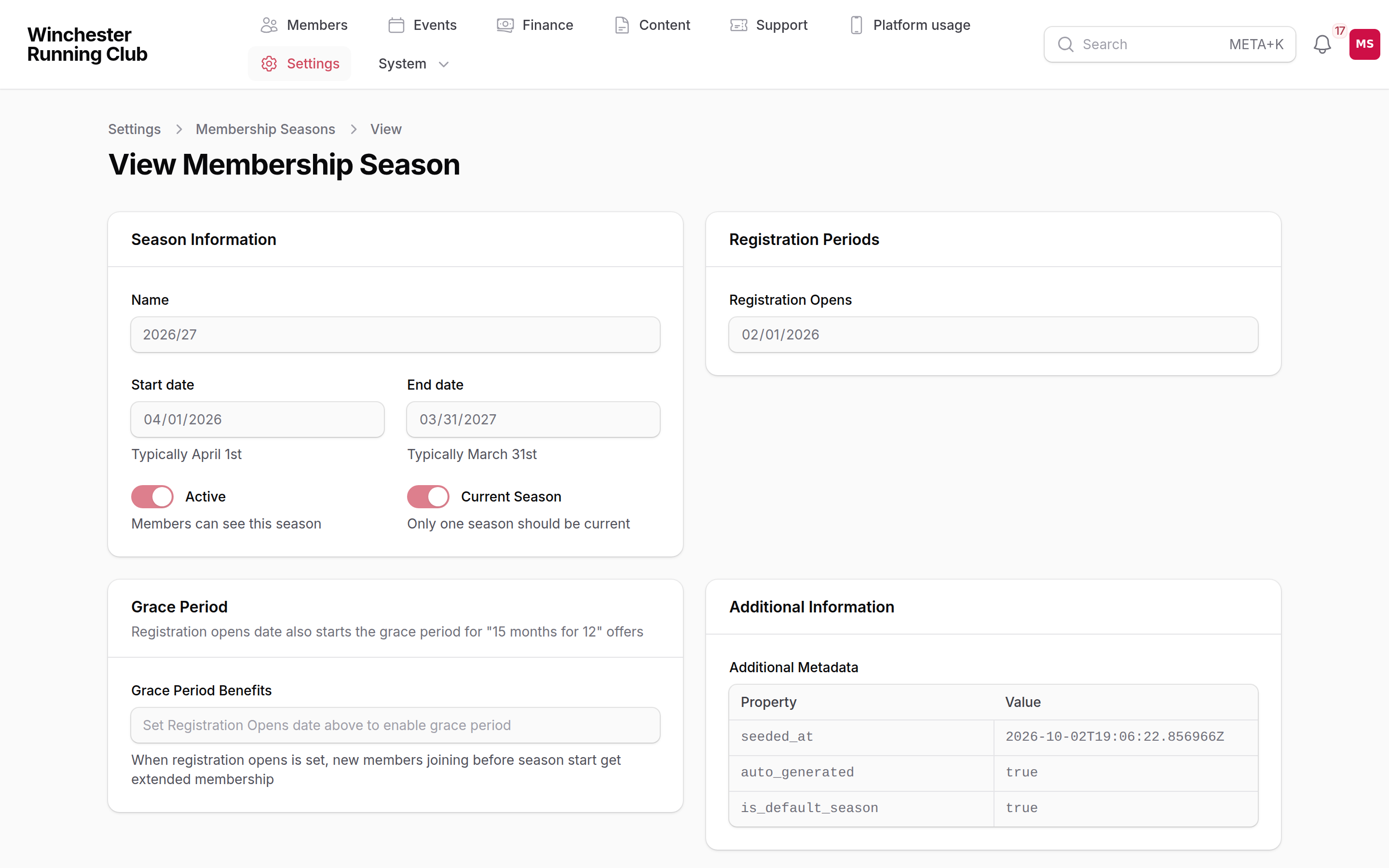
One fee row per membership type, with the monthly option where it's turned on
Record your existing members — put the members you already have into this season on their membership type, without anyone paying again. Its Take me there link opens the members list showing only the people with no membership this season. See Recording the members you already have below. The step is done once anyone has a membership in this season.
Set up next season — the button of that name on Settings → Membership Seasons, also under Settings → Membership → Set up next season. It's only available once this season has at least one fee you've set: until then it sends you back to step 2. The new season's dates follow on from this season's end, and each type's fee is copied from this season, so change only the ones that are going up. A type still on its example price this season starts blank, and needs a price before you can save. Your affiliation fees are carried over too. Its first step also previews your renewal timeline: the date non-renewing members reach the end of grace, and the date they're automatically resigned, based on the grace and lapsed periods RunClub HQ has set for your club — see Renewals for the full picture.
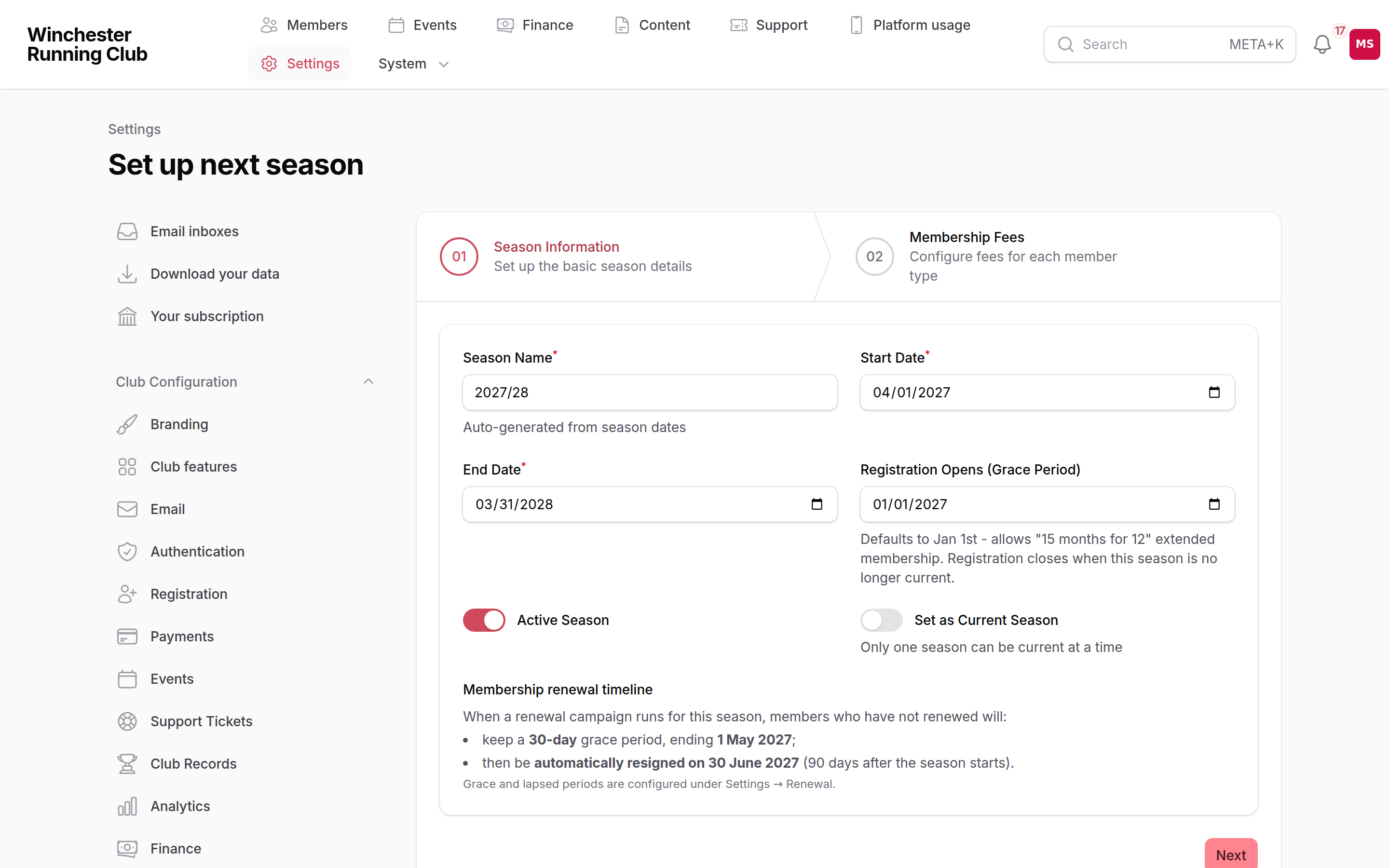
Every active type, priced from this season, ready to be changed where your prices are going up
If you need a season outside that pattern, such as last season to record history against, Add a season by hand on the same page creates one with nothing copied.
When your club's year starts
Settings → Registration → Membership Year → Membership Year Starts In is the month your club's year begins. We set it with you when your club joins, and it decides the dates of your first season. After that, it's used when you start again, and when there's no current season to follow on from.
Changing it doesn't move any season you already have. To change this season's dates, use Set up this season, as in step 2 above.
Recording the members you already have
When your club joins, the members you already have are on your list as prospects. That is how the England Athletics import brings them in. They have no membership for this season, so a renewal campaign would reach none of them: renewals go to members with a membership in the season you're renewing from. Recording them fixes that without anyone paying again. They paid your club before it joined RunClub HQ.
- Go to Members → All members and open the All Members tab.
- Under Filter, turn on No membership this season. The status and Junior Members filters narrow it further if you want to do juniors and seniors separately.
- Tick the members to record, then choose Bulk actions → Record existing membership.
- Pick the Season. It starts on your current season.
- Under Member type, choose one of these:
- Suggest from age and England Athletics status picks a type for each member.
- The same member type for everyone selected puts everyone on the type you pick under Record them as. Only types with a fee for that season are listed.
- Read What will happen before you save. It says how many members go on each type and who is left out, for example: Records 142 members as Senior and 31 members as Junior for 2026/27. 6 members match no member type: record them on a type you choose, or leave them out. It names the members no type fits.
- Choose Record memberships. A message tells you what was done.
For each member recorded:
- A membership for the season, on that type, for that type's fee this season. There is no invoice and no payment, and it never counts as money your club received. The fee is there so that renewals and your membership figures show what the membership is worth. In the member's Subscription History its total reads Recorded, not paid here.
- A household of their own, with them as the person who pays, if they don't have one yet. Renewals go out one household at a time. To bring a family together afterwards, see Move someone in, out, or between households.
- Their status becomes Active. The activity log says they were recorded as an existing member for that season. No welcome post goes into the club feed: they aren't new.
How a type is suggested
Suggest from age and England Athletics status looks at your switched-on membership types that have a fee for the season. For each member it keeps the types they're eligible for, the same way the join wizard does: their age against Minimum Age and Maximum Age, and Student Verification Required. A member on your England Athletics roster, with a URN, only gets a type with Competition Access turned on. A member with no date of birth only fits a type with no age limits. Where more than one type fits, the one with the highest Recommendation Priority wins.
A member no type fits is left out and named in What will happen. Record them in a second pass with The same member type for everyone selected, or check their date of birth first.
Running it again
It's safe to run it more than once. A member who already has a membership for the season is skipped, and What will happen says how many. Members who are Suspended, Deceased, Transferred or an Account Manager are left out too: recording only makes prospects, lapsed and resigned members active, and records members who are already Active but have no membership.
Recording a membership doesn't give anyone a login. To be invited to renew by email, a member needs one. See Members for Enable login, which also works on a group of members at once.
Removing a membership recorded by mistake
Open the member, go to Subscription History, and choose Remove recorded membership on that season's row. It's also on the subscription's own page. It only appears for a membership that was recorded this way, never for one a member joined, paid for or renewed.
You can remove it while nothing depends on it. Once a renewal campaign has proposed a renewal from it, or it has an invoice or payment, it can't be removed, and the confirmation says why. If it was their only active membership, the member goes back to being a prospect. Their household stays.
Deleting a season, type or fee
You can delete a season, a membership type or a fee while nothing has happened because of it: no one has subscribed, renewed, been invoiced or had an affiliation recorded against it. Use Delete on its row, or on its own page. Before anything is deleted you're told what goes with it. A season takes its own fees with it, for example, and a membership type takes its fee in every season.
Once something has history, it can't be deleted, and the confirmation says why. For a membership type, or a season that isn't the current one, you're offered Switch it off instead. A switched-off type keeps its history, but new members aren't offered it and renewals propose another type the member is eligible for. The current season can't be deleted at all. Make another season current first.
Every deletion and switch-off is recorded in your club's activity log.
Starting again
While your club is still setting up, you can throw away your seasons, membership types and fees and go back to the example setup a new club starts with. It's for a setup that has got into a muddle, when putting it right one record at a time would take longer than starting again.
Start again with the example setup is on Settings → Membership Seasons, for a Club Admin. It's only there until your club's first membership. Once anyone has a membership in any season, it goes, and doesn't come back. That includes a membership you recorded for an existing member, a cancelled one, a renewal campaign, an invoice, an England Athletics affiliation, a budget or a payment linked to any of your seasons, types or fees. From then on, change your setup one season, type or fee at a time.
This cannot be undone
Starting again removes every season, membership type and fee your club has, including any you have set up yourself. The confirmation lists how many of each.
What you get back is what a new club gets: the four example membership types, the season you're in now (dated from when your club's year starts), its example fees, and the default affiliation fees. Any mailing list aimed at one of your old membership types stops including that type. Nothing else changes: your members, events and settings stay as they are.
The Setting up your membership list starts again from the first step, and one entry in your club's activity log records what was removed and what came back.
What the activity log records
Every change to a season, membership type or fee is recorded in your club's activity log (System → Activity log), under Finance, with who made it: a price set or changed, a type renamed or its ages changed, a season's dates moved, a season made current, and anything switched on or off. A price change reads, for example, Changed the Senior fee for 2026/27 from £60.00 to £72.00. The example setup a new club starts with isn't recorded item by item.
Club Admin, Treasurer and Viewer can read the Finance entries.
The platform fee
RunClub HQ takes a small percentage of what members pay — up to 2%, set for your club as part of your contract. It comes out of what your club receives on each payment, the same way GoCardless's own processing fee does. It is not an extra amount added to what the member pays, and it does not appear as a separate line on a member's invoice.
You can see your club's rate on Settings → Payments — it's shown there, read-only; only RunClub HQ can change it.
A member's subscription
Every subscription lives under Members → Subscriptions — filter by Status (Pending, Active, Expired, Cancelled, Suspended), Season, or whether it carries Extended Membership. Open one for its full breakdown — membership fee, affiliation fees, any discount, and the total — alongside the invoice and payment it's tied to.
To end a member's subscription and give their money back in one step, open it and choose Refund & Cancel Subscription. It only shows while the subscription is active and its payment can still be refunded. See Issue a partial refund for the full walkthrough, and when to use this instead of a plain refund.
WARNING
Refund & Cancel Subscription cannot be undone. The subscription is cancelled straight away, and the member will need to subscribe again if they want to rejoin.
Changing a member's type mid-season
There's no button that swaps a member from one type to another. The platform treats a season's subscription as one thing, and won't let a member start a second one for a season they're already active in.
To move someone to a different type, refund and cancel their current subscription (above), then have them subscribe again. They'll be charged the new type's fee worked out the same way any new joiner's is — for the months left in the season, not the full annual rate.
Adding a membership type mid-season
New types don't have to wait for a season change. Create the type — Settings → Member Types → New Member Type — then open the current season under Settings → Membership Seasons and add a fee for it on the Fees tab. It's available to anyone subscribing from that moment; nobody already subscribed under another type is affected.
Changing a fee after people have paid
Editing a fee's Annual Fee changes what happens from that point on — new subscriptions, and members renewing into that season — not what has already happened. Each subscription keeps the fee it was charged when it was created, and the invoice behind it doesn't move either. If a fee change needs to reach someone already subscribed, refund and re-subscribe them (above), or adjust the amount directly on the line item on their invoice — see Payments.
What members see
A member's active subscription is on Profile → Membership — their type, its price, and what's included.
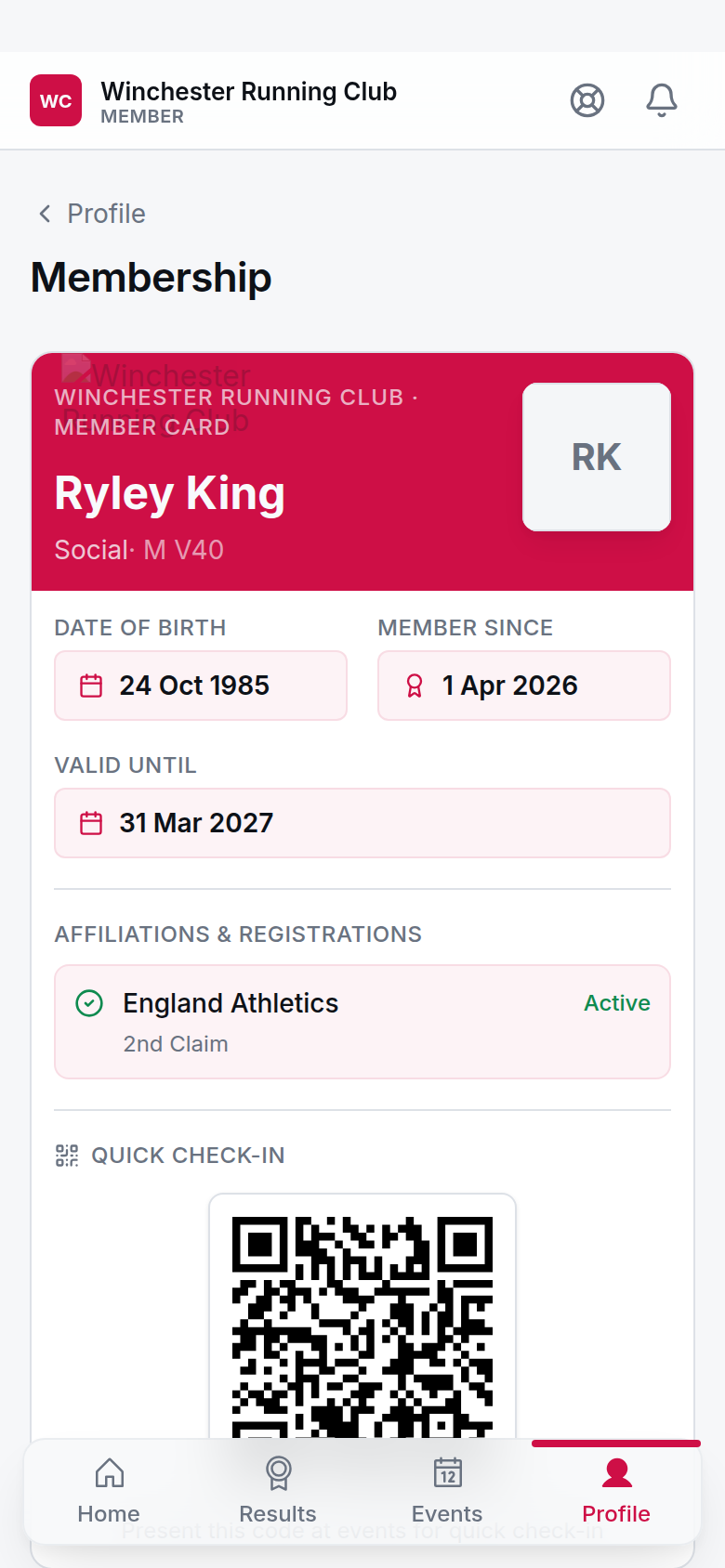
A member's current type, its price, and what's included
Their history — every season, what they paid and when — is on Profile → Subscriptions. Someone joining picks a type on the Choose Your Membership step of the join wizard, before they see anything about payment.
Their questions about what a status means — active, lapsed, and the rest — are answered in the help library. See the help library for how it works, and Renewals for what a member sees while renewing.
Settings
| Setting | What it controls | Default | Where |
|---|---|---|---|
| Platform Fee Percentage | RunClub HQ's share of each payment, taken from what your club receives | 0% | Settings → Payments (read-only) |
| Membership Year Starts In | The month your club's year begins, which dates a new club's first season | April | Settings → Registration → Membership Year |
The grace and lapsed periods that decide when a non-renewing member is automatically resigned aren't a club setting — RunClub HQ sets them for you. See Renewals.
Troubleshooting
A member can't see the type they want
Check three things on the type itself, under Settings → Member Types: it's turned Active; the member's age fits its Minimum Age / Maximum Age; and, if Student Verification Required is on, whether they hold a valid one. If none of those explain it, check the type has a fee set for the current season — a type with no fee for this season won't appear to anyone joining.
The fee is wrong on an invoice
Check which season the subscription is for, and what the fee was at the time it was created — a fee is fixed to a subscription the moment it's created, so an edit made afterwards won't have reached it (see Changing a fee after people have paid above). Also check whether you're comparing the member's total against what your club receives: the platform fee and your payment provider's own charge are both taken from your side, never added to the member's invoice.
We changed a fee and nobody was charged the new amount
This is expected if everyone affected already had a subscription before you made the change. The new figure applies to anyone subscribing or renewing into that season from now on, not to a subscription already created.
See also
- Renewals — the season's renewal campaign, once you have one running.
- Payments — providers, invoices and refunds in full.
- Issue a partial refund
- The help library