
Appearance
Check-in playbook
For a Check-in Manager, an Events Manager, or whoever an event names as its manager — the volunteer running the door at a session, race or social. Five minutes, and you're ready for your first one.
Who can do this?
Running check-in on the night: Check-in Manager, Events Manager, or the event's own named manager — no console role needed for that last one. Members enter events from the member app.
What you can do
- Check members, guests and first-timers in — by scan or by name
- Add a walk-up first-timer as a prospect, and check them in
- Record what someone did at the event — ran, marshalled, timed, and the rest
- Remove a check-in you made by mistake
Where you work
Open the event from the Events tab in the volunteer console and tap Manage Check-ins. That takes you to the check-in desk — a screen in the member app, not the console, which is why its named manager can run it without holding a console role at all.
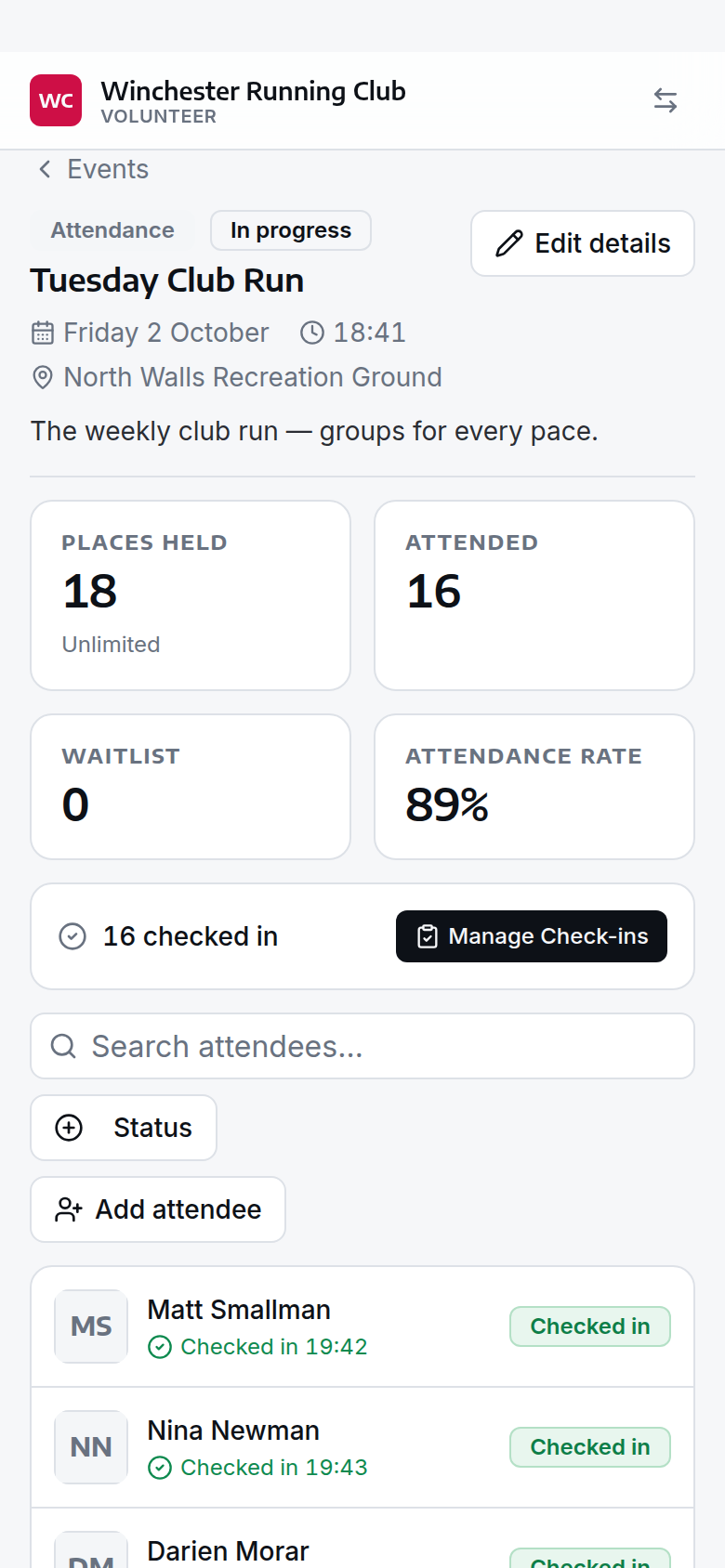
the Manage Check-ins button on an event's page
The desk works in a browser, but the mobile app is worth having: scanning uses the phone's camera, and the desk is built for a phone screen.
Before the session
- Charge your phone — scanning runs the camera continuously, and a long race will drain it
- Sign in the day before, so you're not fighting a magic link on the start line
- Check the event is set up and open — there's nothing to check people into until it is
- Know who else is marshalling, in case your phone dies
On the night
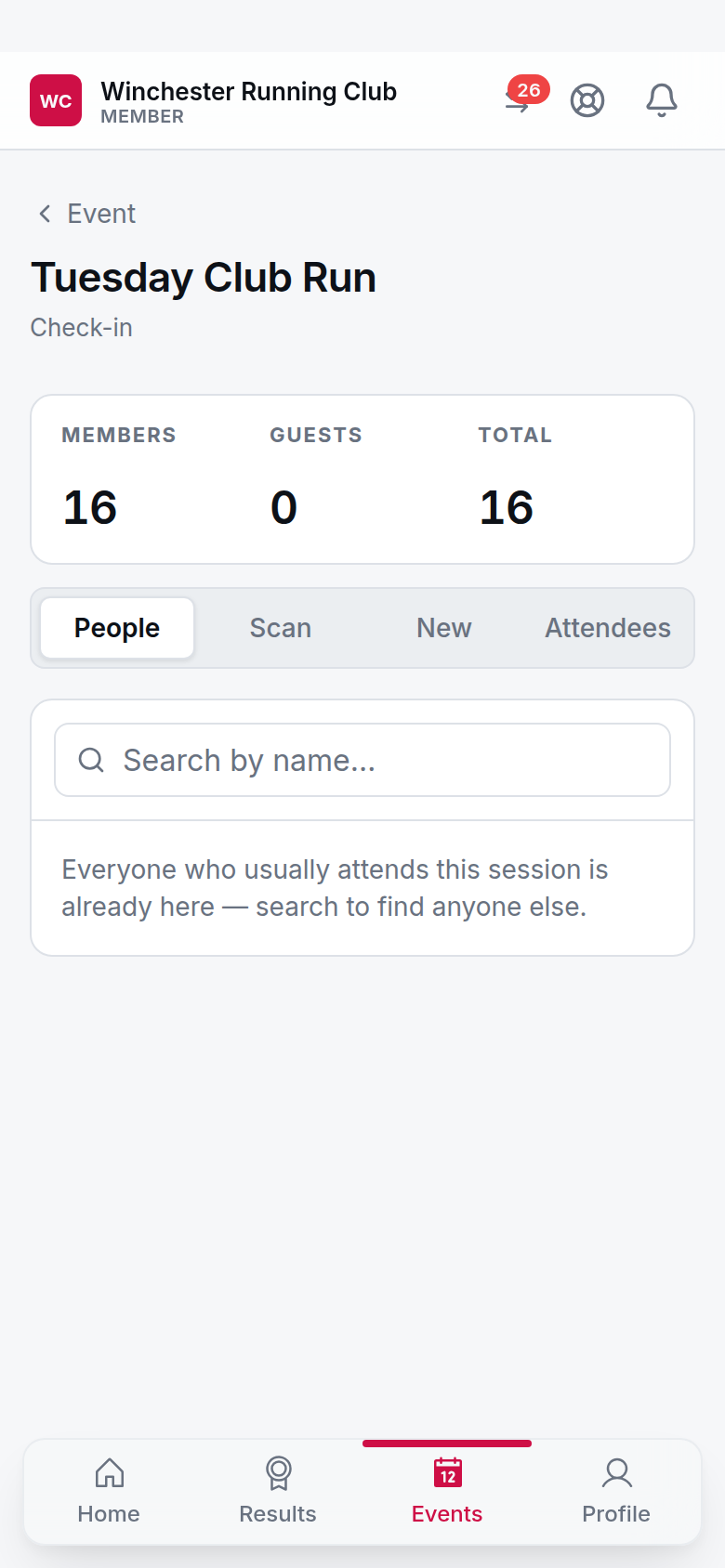
the check-in desk, with the counts strip at the top
Scan someone in
Open Scan and tap Start scanning. It reads a parkrun barcode, a member's own QR code, or an event ticket, and keeps going until you tap Stop scanning — no need to tap between scans. Each one gets a tone: rising for checked in, falling if it needs your attention, so you barely have to look at the screen. No camera on the device? Type the code into the box and tap Check in instead.
Find someone by name
Open People. Before you type anything, the regulars for that slot are already on screen — tap a name there, or start typing to search everyone eligible, even on a misspelt or half-remembered name.
A barcode nobody recognises
That opens Whose barcode is this? — search for the member and tap Link & check in, and it's saved on their record for next time. If it's a genuine first-timer, tap Add as new runner instead.
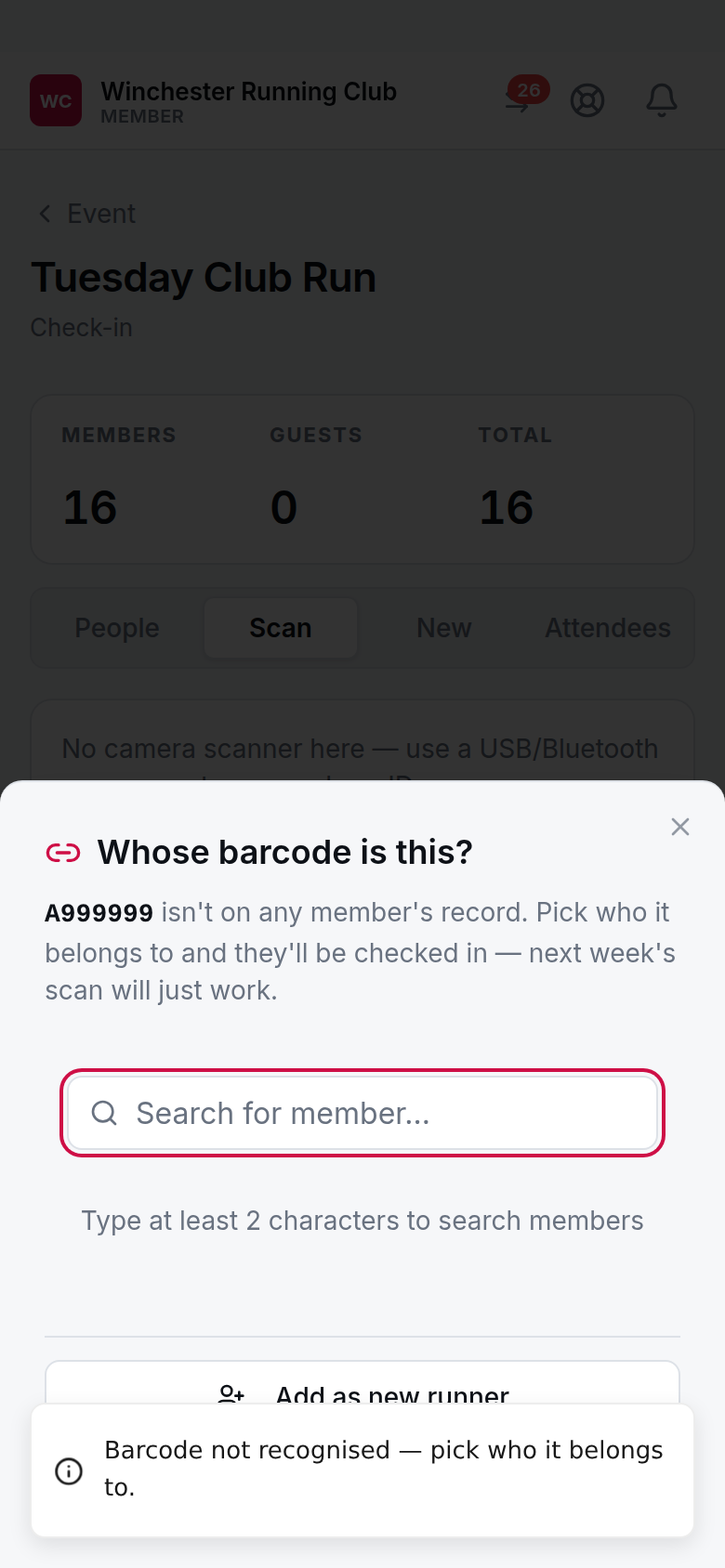
linking an unrecognised barcode to a member
Add a first-timer
Open New, fill in their name, email and date of birth, and tap Add & check in. This creates them as a Prospect and checks them in — no payment or medical details needed at the door, and they'll get an email to complete the rest. Your club's default is 3 trial sessions before they're prompted to subscribe — that's set in Settings, not something the door enforces.
Record what someone did
Tap the heart icon next to a checked-in name, choose what they did, and tap Save. Leave it as Took part for anyone who was there to run rather than race.
Undo a mistake
Open Attendees, find the name, and tap the bin icon, then Remove check-in to confirm.
The numbers at the top
Members, Guests and Total. Guests counts anyone without a membership of their own — someone a member brought along, or someone you have added on the night as a first-timer.
If something goes wrong
You can't find the event
The Events tab only lists this week's sessions. If it's further out, or hasn't opened for check-in yet, ask whoever set it up.
It says "Not your check-in"
You don't hold a console role that covers this event, and it doesn't name you as its manager — ask whoever runs your club's events to add you.
A member isn't in the list
Only Prospect, Active and Lapsed members can be checked in. If someone should be there and isn't, their status may need correcting — that's for a Membership Manager.
The camera won't start
Check the app has permission to use it, in your phone's settings. Failing that, type the code by hand, or use a USB or Bluetooth scanner if the club has one.
What you cannot do
You can't create or edit the event, see anyone's medical information — that's the Welfare Officer's — or take a payment at the door. Ask whoever manages your club's events, or a Welfare Officer for anything medical.