
Appearance
Expense claims playbook
This page is for whoever decides the club's expense claims — usually the Treasurer, sometimes a Club Admin covering for them. It takes about five minutes to read.
Who can do this?
Deciding a claim, and managing expense categories: Club Admin or Treasurer. Viewer sees the queue but cannot act on it. Any member can file a claim, from the member app.
What you can do
- Decide a member's expense claim — approve it (categorising it as you do), reject it with a reason, or mark it paid once you've made the bank transfer.
- Retag a decided claim if it needs a different category or item.
- Manage the categories claims are filed under.
Where you work
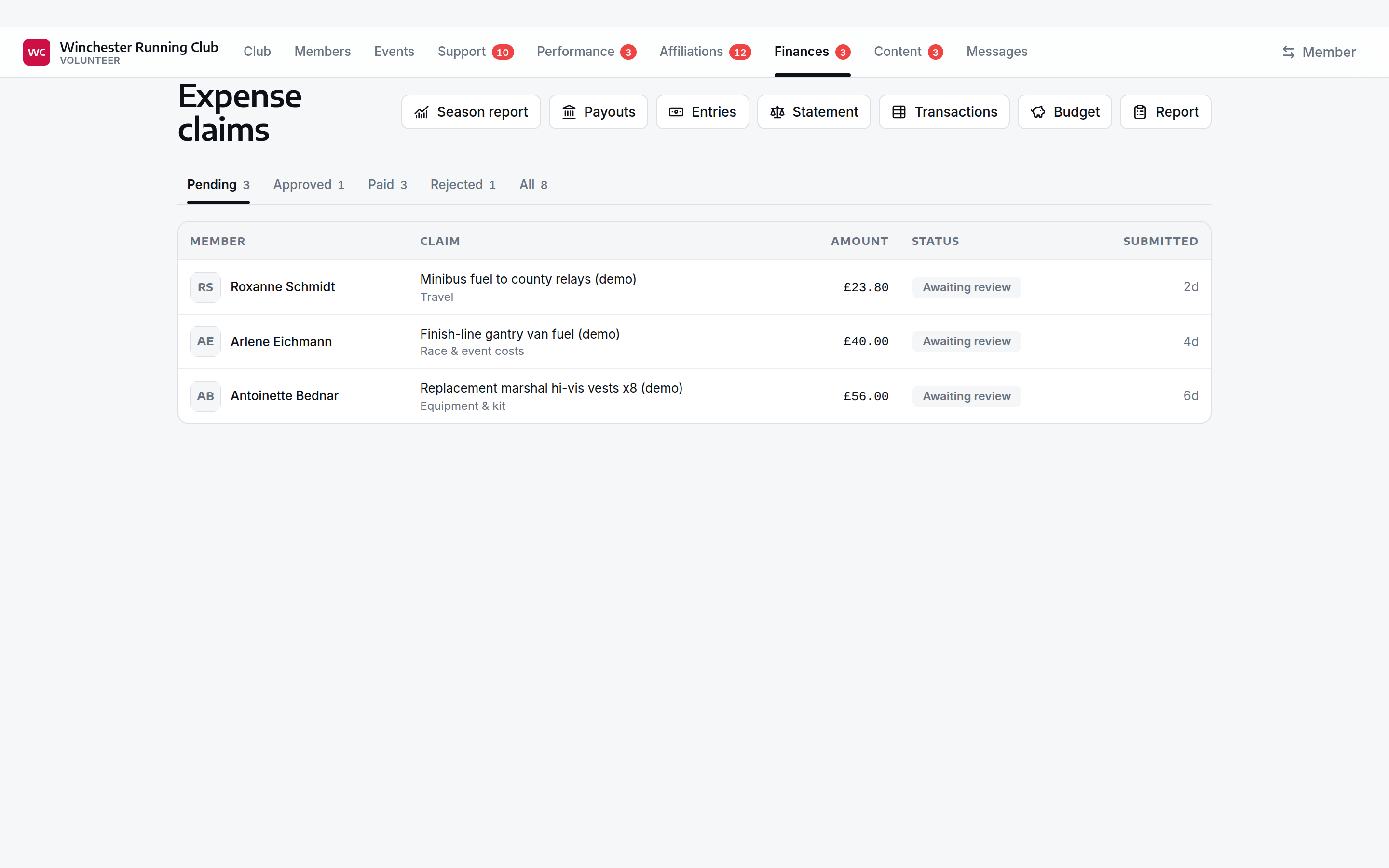
Claims live under Finances, a tab of its own in the volunteer console — at /volunteer/finances, with a badge showing how many are waiting on a decision. Four views inside it — Pending, Approved, Paid, Rejected — plus All — filter the queue; a claim's status badge reads Awaiting review, Approved, Rejected or Paid. A Season report button in the header takes you to the season's Finances report instead.
How a claim arrives
A member files a claim from Profile → Expense claims in the member app: the date and amount, what it was for, and up to three receipts — a photo or a PDF, up to 10 MB each. At least one receipt is required; a claim with none is the first thing a treasurer bounces.
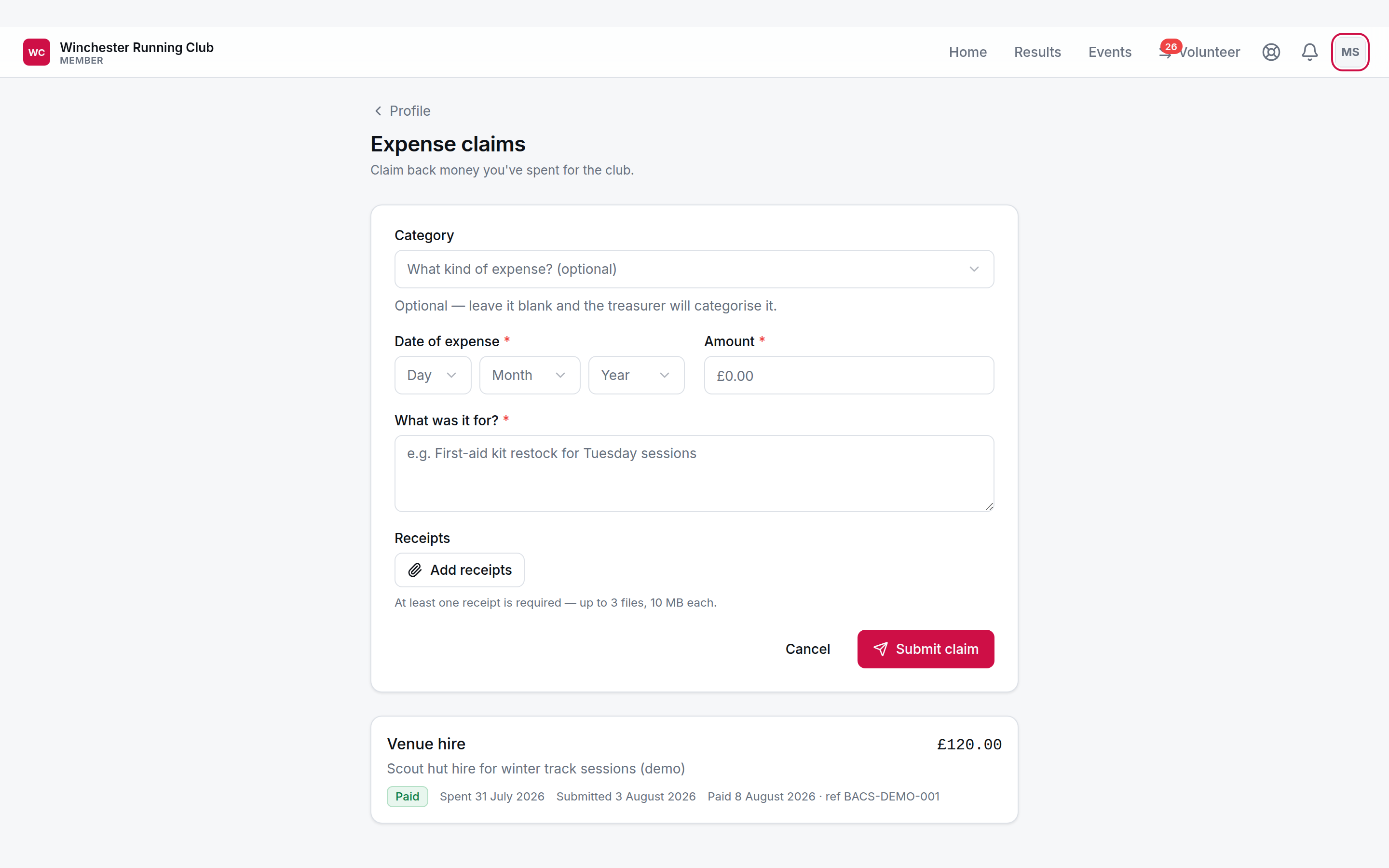
A category is on the form too, but it's optional — a runner claiming back a first-aid kit shouldn't have to guess a budget line. There's no item field for a member; that's yours to set at approval. If they did pick a category, it only pre-fills your form.
The categories on offer — venue hire, coaching, equipment, and so on — are set club-wide under Finance → Expense Categories in the admin panel: rename, add, reorder or switch one off. A switched-off category disappears from the member's form; claims already filed under it keep the name they had.
Deciding a claim
Open a claim from the queue to see the amount, what it was for, the receipts — each one downloads on its own — and the category the member picked, if they picked one. From here:
- Approve — pick the category and, if it has any, the item this claim belongs to, then approve. Required every time, whatever the member chose. Moves the claim to Approved, awaiting your bank transfer.
- Reject — needs a reason, emailed straight to the member, so it has to say something they can act on.
- Mark as paid — once you've made the bank transfer yourself, record it here, with an optional reference. RunClub HQ records the payment; making it is still yours to do.
- Retag — change the category or item at any point, in any status, a decided claim included. A normal edit, not something kept for mistakes.
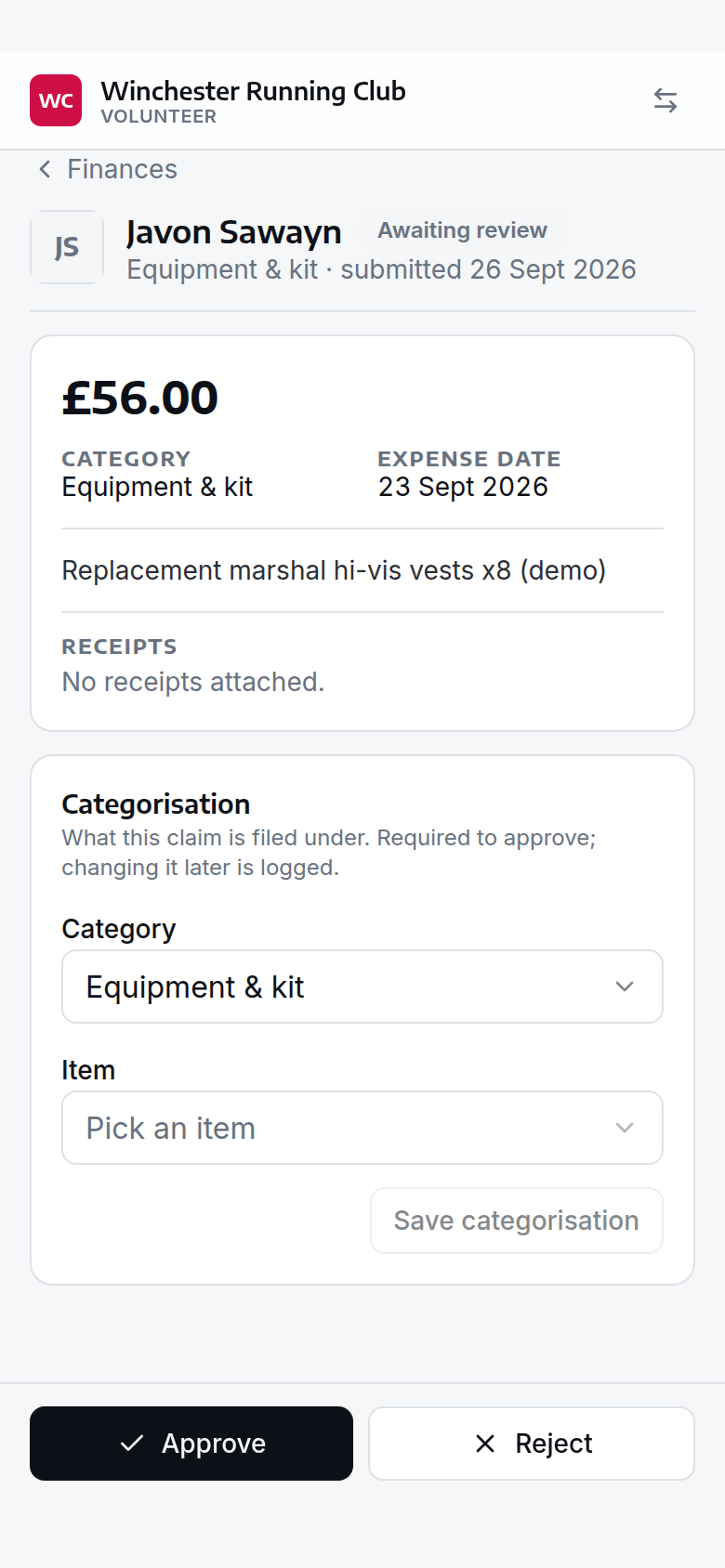
a claim open for decision, with the receipts and the actions
The member is emailed at every outcome — approved, rejected with your reason, or paid — and gets a push notification too, on the mobile app.
Nobody decides their own claim
Not even a Club Admin. If you open your own claim, the console tells you so and hides the actions — another finance volunteer has to approve it, and later mark it paid.
Where it lands
A decided claim shows up in the season's Finances report under Expenses — reimbursed, approved and awaiting payment, and awaiting review — feeding a Surplus after expenses figure alongside the season's income.
If something goes wrong
The claim has no receipt, or the wrong one
The member app won't let a claim through without at least one receipt. If what's attached doesn't actually back up the claim, reject it and say so — there's no way to add a receipt to a claim after it's been filed.
The claim is filed under the wrong category
Retag it — no need to reject and start again. If the category itself is wrong club-wide, rename it once under Finance → Expense Categories.
The member has left the club
That doesn't cancel money the club already owes them — open, approve and mark their claim paid as normal.
What you cannot do
- Pay a claim from inside RunClub HQ — approving and marking it paid records the decision; the bank transfer itself is the club's own to make.
- Add or change an expense category from the console — that's Finance → Expense Categories, in the admin panel.