
Appearance
Members and households
A member is a person: everyone who has ever joined, tried a session, or been added by a parent as a junior. A household is the group one person looks after — themselves and anyone they manage — and it's how RunClub HQ keeps a family's sign-in, billing and history together without pretending they're one person. This page covers the roster, a member's record, the everyday jobs (adding someone, giving them a sign-in, sorting out a household, merging a duplicate), and England Athletics affiliation.
Who can do this?
Adding, editing and the everyday household jobs below: Club Admin or Membership Manager. Deleting a record permanently: Club Admin only. Emergency and medical information: Club Admin or Welfare Officer — see the Welfare officer playbook. England Athletics affiliation: Club Admin or Membership Manager. Downloading the roster as a spreadsheet: Club Admin, Membership Manager, Viewer or Captain — not Check-in Manager, who works from the same list without seeing contact details. Everyone with an admin role can look a member up and see their contact details and history; only a Treasurer, alongside Club Admin and Viewer, sees what they've paid. See Roles for the full matrix.
How members are modelled
A household is the people one account looks after. Every member belongs to one, even if they're the only person in it. Members → Households hides households of one by default, because there's nothing to manage jointly; clear the Multi-member households only filter to see them all.
The household manager is whoever signs in and acts for the household — adds people to it, pays for it, updates their details. Most households have one: the person who joined first. A junior is a member with no sign-in of their own until the club or their manager gives them one, at 13 or older.
Some accounts exist only to manage — a parent who signed up to look after their children's memberships but doesn't run themselves. The product's status for that is Account Manager: they have a login and a household, but no membership of their own.
Every member carries one status:
| Status | What it means |
|---|---|
| Prospect | Has an account but hasn't joined yet. Can attend trial sessions and finish registering when they're ready. |
| Account Manager | Manages a household but isn't a member themselves — no participation, no fees. |
| Active | A current member in good standing. Can take part in events, be entered into results, and hold club records. |
| Lapsed | Their membership has expired. They can still check in and enter events for a while, and renewing brings them straight back to Active. |
| Resigned | Left the club by choice. Their history — payments, results, sessions — stays intact and readable; they can rejoin any time. |
| Suspended | Temporarily blocked from club activities while something is resolved. Needs a reason on file. |
| Transferred | Moved their England Athletics registration to another club. Can rejoin RunClub HQ at any time. |
| Deceased | Kept on the record, never removed. No further status changes are possible. |
The roster
Members → All Members is the roster: tabs for Active, Prospects, Lapsed, Managers, Other (resigned, suspended, transferred and deceased, together) and All Members, each with a live count. Search by name, England Athletics URN, phone or email; filter by household role, status, age or onboarding stage, or narrow to potential duplicates and undeliverable emails.
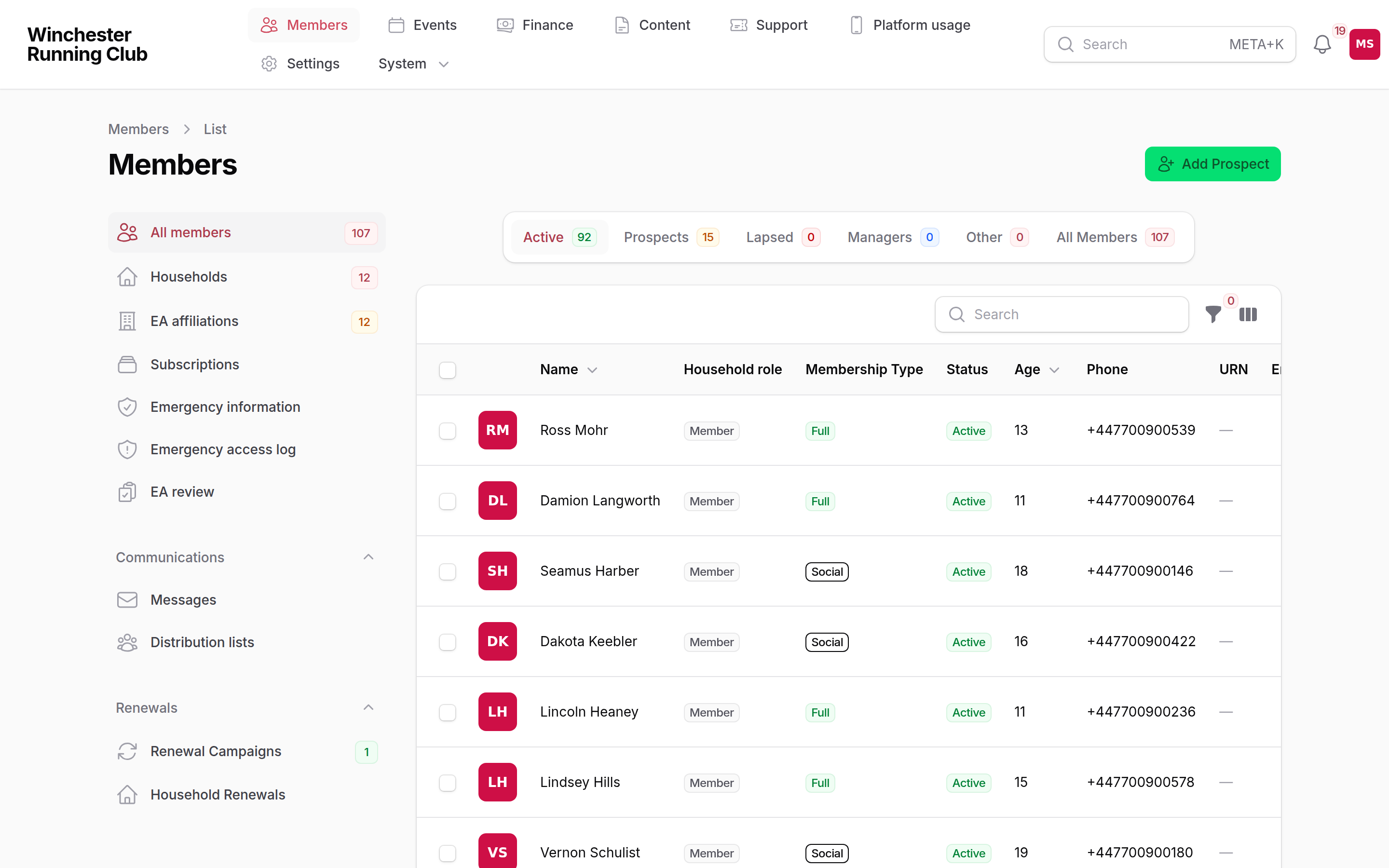
the roster, filtered to Active members
Open anyone to see their record: personal details, household, emergency information (if you can see it) and a running activity log, with lifecycle actions along the top.
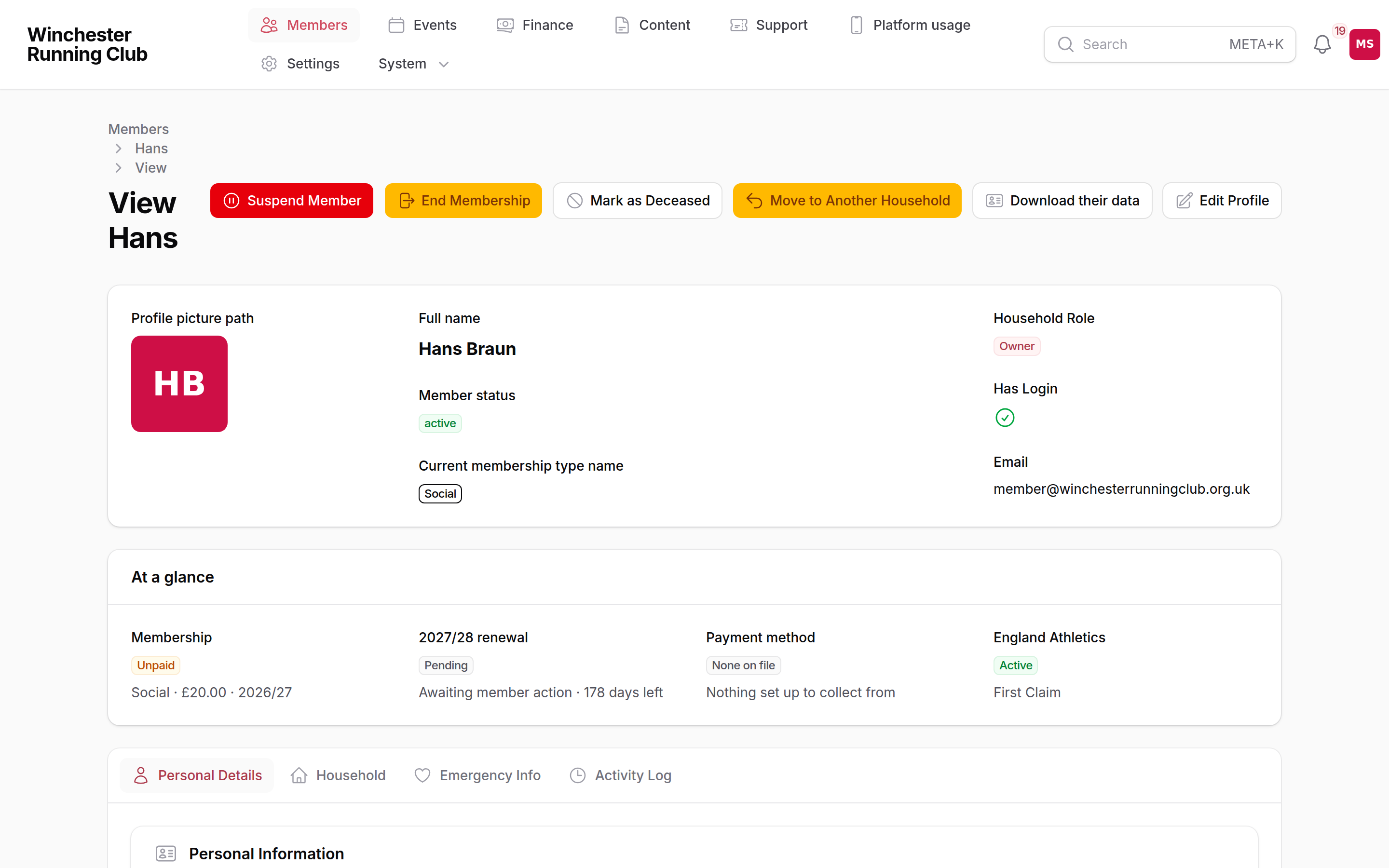
a member's record — the same standing facts as the console's member card, above the detail tabs
Give someone their own household
Members → Households lists every household with more than one person, so you can see who a household manager is looking after without opening each member in turn. Open one to see its members, who's billing-responsible, and the actions below.
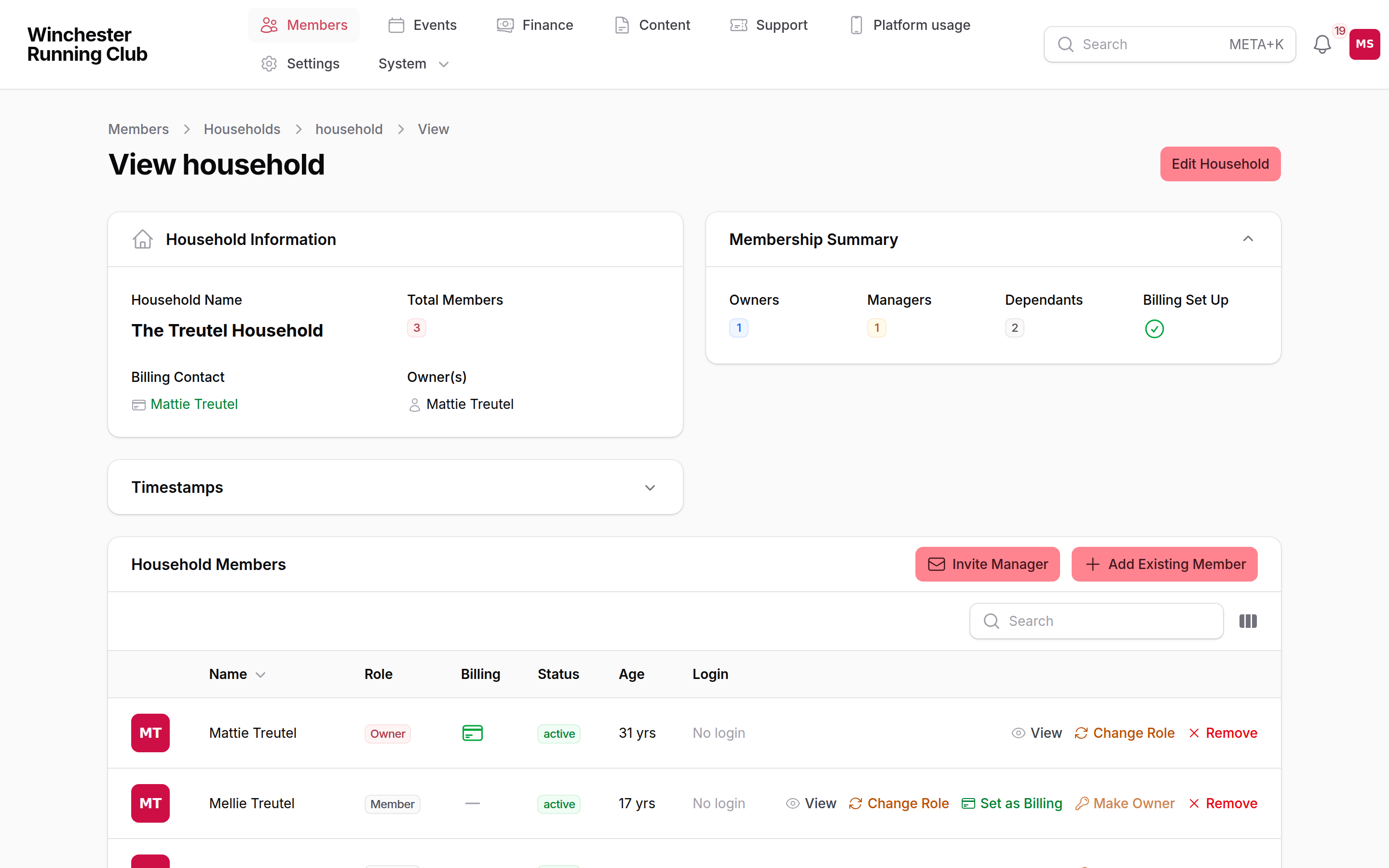
a household of three, with the billing-responsible member marked
Add a member
There are two ways to get someone onto the roster by hand, and a third that isn't by hand at all:
- Add Prospect, when you already have their name and email in front of you — after a race, on a call, from a paper form. Go to Members → All Members and choose Add Prospect. Give their name, email and date of birth if you have it — it's what tells two people with the same name apart, so without it a possible duplicate can only be flagged for review, not stopped outright. They're created as a Prospect, with their own household and login, and emailed to finish their profile.
- Send them your club's join link and let them register themselves, if you'd rather they filled in their own details.
- Import your England Athletics roster brings in everyone England Athletics can vouch for at once — see England Athletics below.
Whichever way someone arrives, the rest of their details — phone number, membership type, emergency contacts — can be filled in from their record whenever you or they have it. None of it is required to get them onto the roster.
Give a member a sign-in
Someone added by import, or by another household member, doesn't automatically get a login — that's deliberate: a roster is not a mailing list, and nobody's inbox fills up until you decide it should.
- Open their record and choose Enable login — or, from the roster, select several members and choose Enable login from the bulk actions to do it for a group at once.
- Give an email address for each member (the bulk version lets you skip anyone you're not ready for).
- They're emailed a link to sign in — there's no password to set.
Enable login only appears for a member who doesn't already have one and who's old enough — 13 or older. During a pilot, the number of member logins your club can create is capped; see what's switched off during a pilot. Bringing a lot of imported members onto the platform at once? Bulk-welcome imported members covers pacing it so your support inbox doesn't melt.
Invite a household manager
To add a second person who can sign in and manage a household — a second parent, a grandparent picking up the school run — open the household from Members → Households and, on Household Members, choose Invite Manager.
- Enter their email address. That's all you need — they give their own name the first time they sign in.
- They're emailed an invitation. Following it takes them straight to a short profile — just their name and the club's agreements — and from then on they can manage everyone in the household.
Move someone in, out, or between households
Add Existing Member on a household's Household Members tab moves anyone who lives on their own into this one. Search by name, give them a household role, and mark them Billing Responsible if they're the one paying. Their old household is closed behind them, and a renewal in progress comes with them.
To move someone who lives with other people, open their record and choose Move to Another Household. It asks who takes over the household they're leaving, so nobody is left without a manager.
Make Owner, on the Household Members tab, hands the household to someone else in it. They need a login, because the owner is who pays.
Separate from Household takes one person out of a household of two or more and gives them a fresh household of their own — the everyday example is an adult child who wants to pay their own fee. Open the member's record and choose Separate from Household:
- If they're the household's Owner, pick who takes over billing for the household they're leaving.
- If they have no login yet, give them one — separating them makes them responsible for themselves, so they need a way to sign in.
- Say why, for the record.
If a household renewal is in progress, it moves with the member who separates. The action is unavailable while a payment for that renewal is still with the bank — wait for it to clear or fail first.
Merge duplicate records
Two records for the same person — a duplicate the check-in kiosk made of somebody already on the roster, a family member registered twice, a spam sign-up — are combined with Merge duplicate, on the member's row in the roster.
- Confirm the two records are the same person.
- Choose which one survives. The other is retired — taken off the roster and kept on the Deleted tab for audit — and every payment, subscription, affiliation, session and result it held moves onto the one you kept.
- Where the two disagree on something — a date of birth, a parkrun ID, an England Athletics URN — the merge lists each disagreement so you can pick the value that's actually right, rather than automatically taking whichever record happens to survive.
This cannot be undone
Once merged, the two records cannot be pulled back apart.
The record chosen as the default survivor is the more established one — a login, an active status over a prospect — which isn't always the more accurate one. A parent registering a child often types a date of birth from memory while the child's own sign-up has it right, and whichever record paid tends to be the one that would otherwise win — so check the disagreements list before confirming.
Recover a mistyped email
Recover email appears on a member's record only when their address has started bouncing — they're not receiving messages or sign-in links. Enter a new address; they'll need to sign in with it once to confirm it works.
Change a member's status
Lifecycle actions live along the top of a member's record, and only the ones that make sense from their current status appear:
| Action | From | Does |
|---|---|---|
| Activate Member | Prospect, Lapsed, Resigned | Sets them Active by hand, bypassing the usual paid subscription. For exceptional cases — this is not how most members become active. |
| Suspend Member | Active | Sets them Suspended. Asks for a reason. |
| Lift Suspension | Suspended | Sets them back to Active. |
| End Membership | Active, Lapsed, Suspended | Offers a choice: end the membership right now (immediate, irreversible), or at the end of the current season (they stay active until then, and it can still be reversed). |
| Mark as Deceased | Any status but Deceased | Terminal. Cannot be undone. |
Ending a membership at the end of the season stops them being invited to renew but changes nothing else yet; ending it right now resigns them immediately. Either way, their history — payments, results, sessions — is kept. In the console, these same actions appear on a member's Admin tab as Activate member, Suspend member, Lift suspension, Resign now, Do not renew and Mark as deceased — the same choice, split into two separate buttons instead of one action with options.
Transferred has no button of its own — there's no everyday task that sets it, only a member telling you they've moved to another club. Set it from Edit Profile → Status.
Suspend and End Membership ask for a reason
Both are recorded on the member's activity log. Give a real one — it's what a future committee member reads if the same question comes up again.
A manager with no household of their own
If everyone an Account Manager was looking after has left the household — grown up and moved out, or been separated off — their own household is now empty, and they're offered the same choice a new prospect gets: join the club themselves, or add someone else and carry on managing. It isn't treated as "already registered", because for them it genuinely isn't.
Remove a record that should not exist
None of the statuses above fit a record that should never have existed — a duplicate the check-in kiosk made of somebody already on the roster, a spam sign-up, a test entry typed in during setup. Left alone, those inflate every count a committee reads.
Resign the member if they're a real person who was once part of the club — that keeps their history intact. Delete the record only when the row itself is wrong.
A record is protected from deletion when it carries any of:
- Money that actually reached the club — a cleared payment, or an invoice paid in full or in part. A refund or a chargeback counts too: money moved, and then moved back, and a treasurer needs both halves.
- A subscription that was ever real — anything past the pending state it's created in.
- An England Athletics affiliation. Withdraw it first.
Those are the club's financial and regulatory history, not a record to remove on a whim. A sign-up that stopped at the payment step isn't any of those — somebody who reached the last screen and never finished leaves an invoice and a payment attempt behind, and neither took a penny. That can be deleted, and the unfinished invoice and subscription are cancelled along with it.
A payment still with the bank
If a payment has been submitted and hasn't yet cleared or failed, the record is held rather than deleted. Wait: once it clears it's protected properly, and once it fails it stops standing in the way.
Deleting is recoverable. The record leaves every list, count and export and can no longer sign in, but it's still there on the Deleted tab, showing when it was deleted, by whom, and why — restoring puts it back exactly as it was. Delete permanently, which appears only on an already-deleted record and asks you to type the member's name, removes the member and everything attached — login, sessions, consents, notes, emergency information. It cannot be undone, and it's what a data-erasure request needs.
Not the same as archiving a prospect
Archiving a prospect takes them off the joining list but keeps every count they were part of — see Club at a Glance → Ageing out, and archiving. Deleting is for a record that shouldn't exist. They're opposite acts.
Both steps are written to the activity log.
England Athletics
If your club is affiliated to England Athletics, match it once in Settings → Branding → England Athletics Club, then bring your roster in — see Getting your members in for finding your club and running the first import. This section covers the day-to-day work afterwards.
The review queue
Members → EA Review lists everyone the import or the nightly sync couldn't place automatically — an unmatched prospect, or a review item explaining why a member's England Athletics status doesn't match what's on file. Import from England Athletics appears here too, once your club is matched.
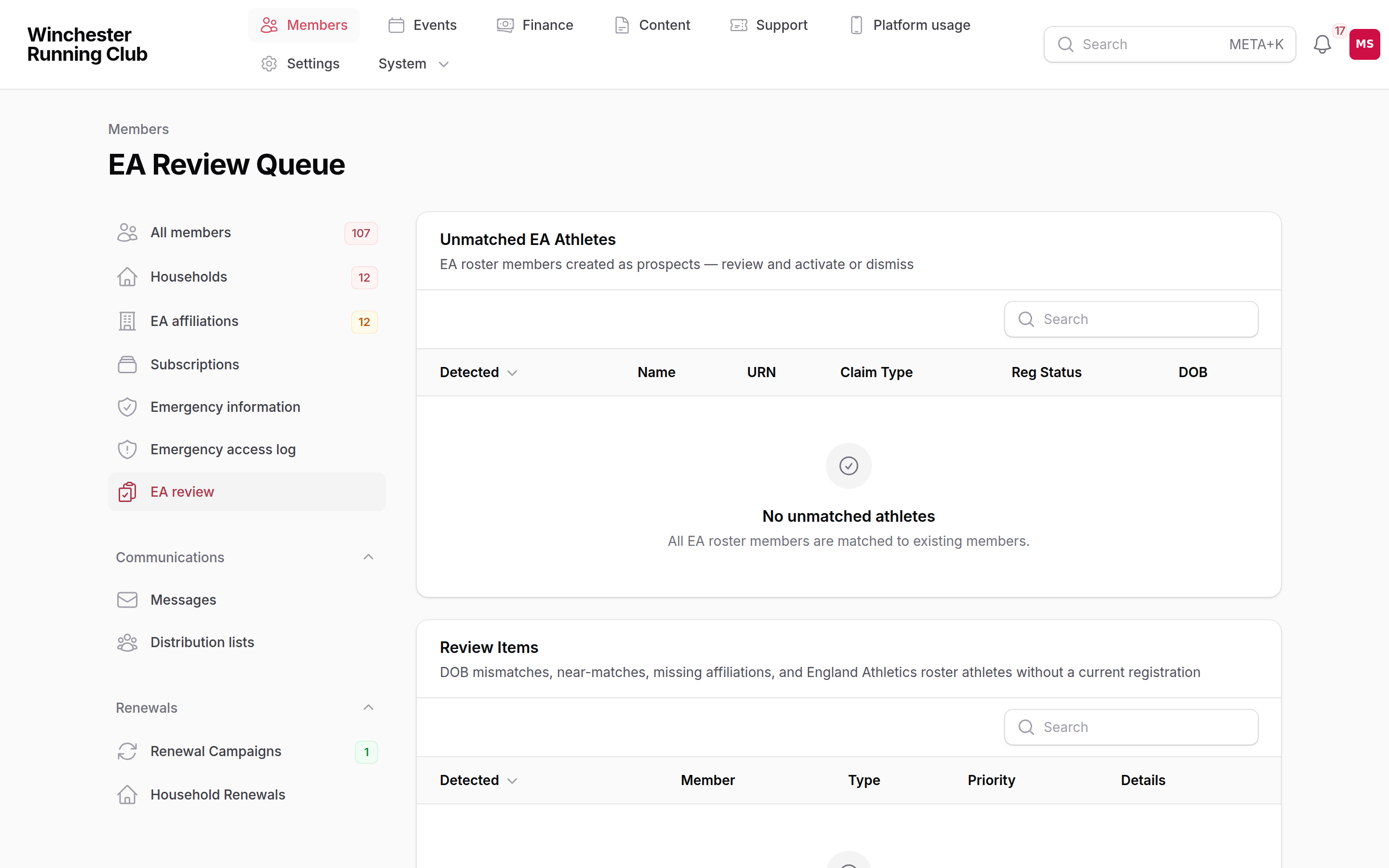
unmatched prospects and review items waiting on a decision
Affiliation actions
Members → EA Affiliations is where you work an individual member's England Athletics status through to the end:
| Action | Does |
|---|---|
| Register with EA | Sends a new registration to England Athletics for this member. |
| Mark EA Paid | Records that the England Athletics fee has been paid. |
| Complete Transfer | Confirms a transfer from a previous club has gone through. |
| Flag for EA Removal | Marks a member for removal from England Athletics — the first step, not the confirmation. |
| Confirm EA Removal | Confirms England Athletics has actually removed them. |
A second-claim member — affiliated to your club through someone else's — is treated the same way, except you must never charge them an England Athletics fee: their registration is paid by their first-claim club.
From the console
The console's Affiliations tab shows the same queue, broken into status views plus its own Review tab, so a Membership Manager can register a member, mark a fee paid, or confirm a resignation from a phone. It works from the same records as the admin panel.
A member reads their own status read-only, from Profile → Affiliations — their England Athletics registration and any other affiliations, with nothing to change; affiliation changes stay a club decision.
Export the roster to a spreadsheet
A team manager entering a squad needs names, dates of birth and England Athletics registration numbers in a spreadsheet, not on a screen. The console's Members tab downloads the roster as a CSV, and what you get is what you had on screen.
Filter first. Age and Gender each take more than one choice, so a team of V45 and V50 women is one filter rather than two exports, and Age lists only the age categories your club actually has members in — the same ones the list's Category column shows.
Then choose Export CSV. The dialog says how many members match and lists the columns: First name, Last name, Date of birth, Age category, Gender, EA URN, Phone, Email, Membership and Status. They all start ticked, so untick anything the spreadsheet does not need, and choose Download CSV. The file opens in Excel, Numbers or Google Sheets. In the mobile app it opens in your phone's browser, to save or share from there.
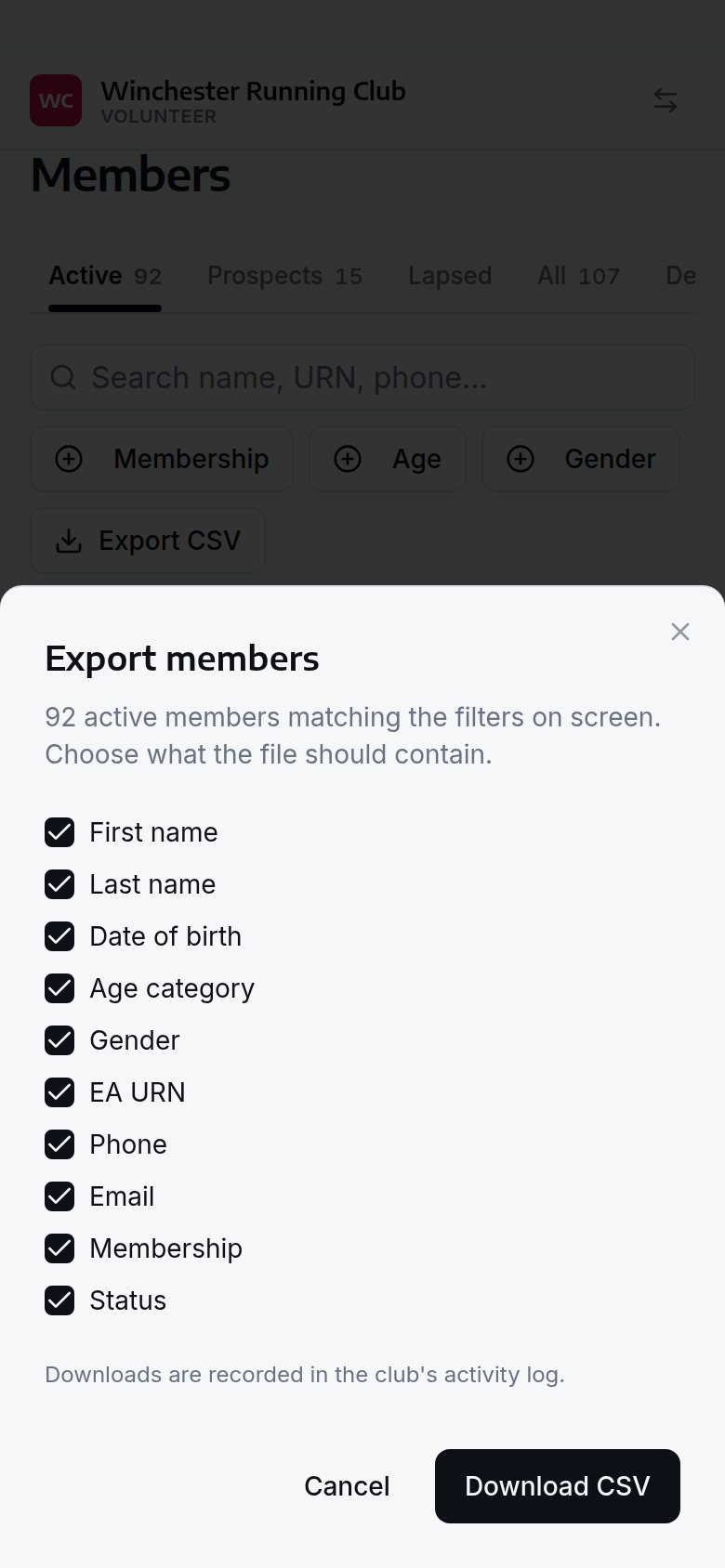
choosing what the roster export contains
The export covers Active members only — the tab you download it from — so a lapsed member is never quietly included in a team entry.
Every download is recorded
The file holds members' dates of birth and contact details, so each download is written to the club's activity log with who took it, what they filtered to and how many members it held. See Activity log.
From the console
The console's Members tab is a fast lookup on a phone: search, tap a member, and see their contact details, household, and — for whoever holds the right role — money and lifecycle actions. It's the same roster as the admin panel, read and worked from wherever you're standing. See The volunteer console for what each role can reach there.
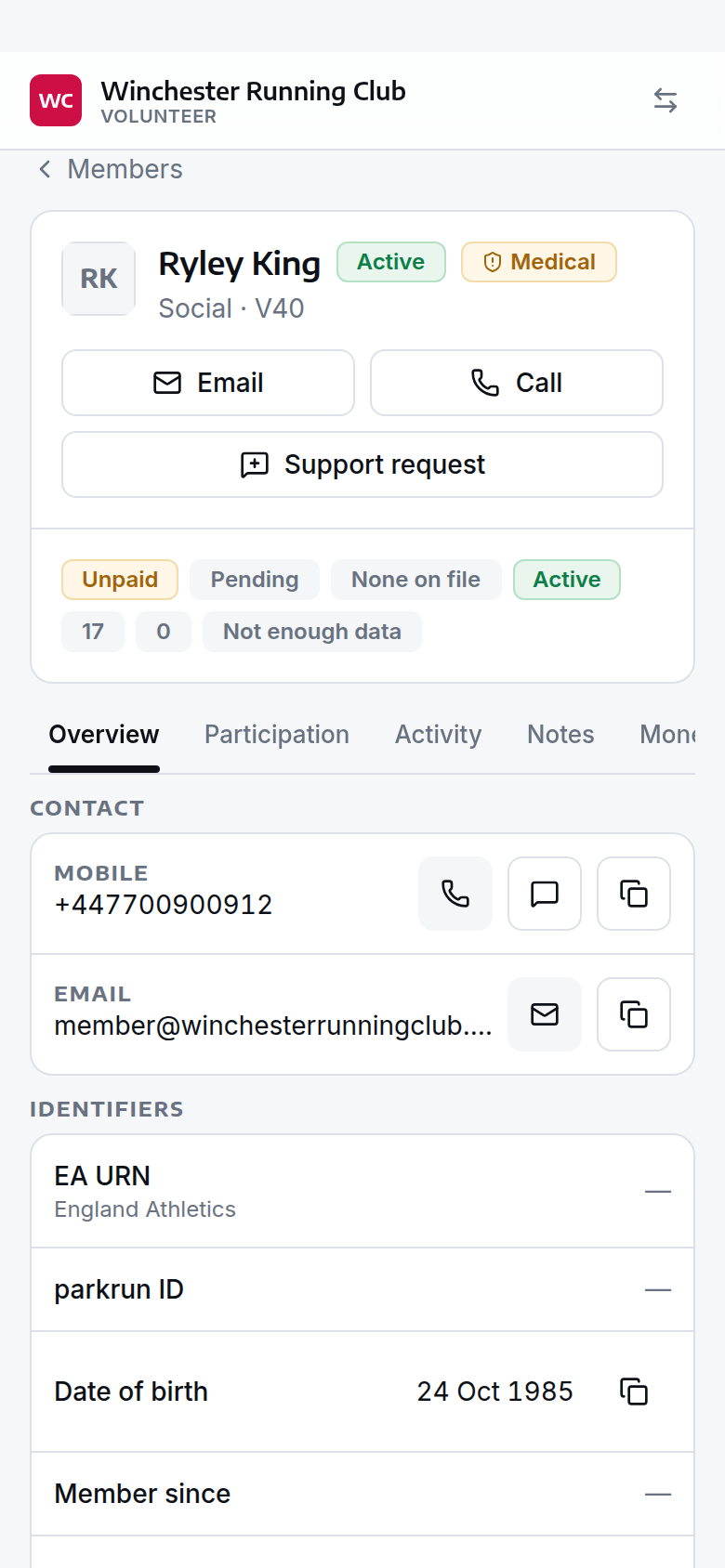
status, membership type and the at-a-glance facts
What members can change themselves
Members can update their own contact details, emergency information, goals and communication preferences, and manage anyone in their household. Two fields are locked: date of birth and gender, because they drive age categories, eligibility and England Athletics matching, and a member changing their own would quietly break all three. If one's wrong, correct it from their record — the member reads why in the help library.
Settings
From Settings → Registration:
| Setting | What it controls | Default |
|---|---|---|
| Require phone number | Whether a phone number is required to register | Off |
| Minimum age for runners | The youngest age a parent or guardian can register a junior at | 7 |
| Minimum age for self-registration | Below this age, someone must be registered by a parent or guardian | 18 |
| Prospects age out after | Days without any contact before a prospect drops off the joining list, without being deleted | 90 days |
Troubleshooting
A member says they can't sign in
Check their email hasn't started bouncing — their record shows an undeliverable-email warning, and Recover email fixes it. If it's a household member with no login at all, give them one with Enable login.
Two records for one person
Use Merge duplicate on either record — see Merge duplicate records above. Don't delete one by hand; deleting throws away whatever was only on that record.
A junior turned 18
Give them their own login with Enable login if they don't already have one, then Separate from Household to move them into a household of their own, still paying and managing themselves from then on.
The EA import matched the wrong person
Open the affiliation from Members → EA Affiliations and check the URN against the member's own record — the review queue exists exactly for this. If two members were merged onto the wrong England Athletics registration, contact us; URNs are copied rather than moved during a merge, so a mismatch there needs a manual fix.