
Appearance
Your admin dashboard
The admin panel is where the committee sets the club up and does the heavier work — full member records, bulk actions, settings. This page is about the panel itself: how it's laid out, what the dashboard you land on actually tells you, and where Platform usage fits. The one thing worth knowing before you start: your club's own numbers — members, attendance, revenue — don't live here any more. They live in Club at a Glance, in the volunteer console.
Who can do this?
Every admin user can sign in to the panel; which dashboard widgets and settings they see depends on their role. See Roles & Permissions.
Finding your way
Across the top of every screen: Members, Events, Finance, Content, Support, Platform usage, Activity Log and Settings, in that order. Search for anything — a member, an event, a page — with Ctrl K (⌘ K on a Mac) from wherever you are.
Your name, top right, opens Member Dashboard (your own account, as a member) and Contact RunClub HQ (our own support door — see Getting help). The same door sits at the bottom of every page as Something wrong with this page?, so you never have to go looking for it.
While your club is a pilot, an amber pilot badge sits across the top of the panel as a reminder that you're not live yet — see Going live. It disappears the day we promote you.
The dashboard
Signing in to /admin takes you to a small, deliberately short dashboard: four things, answering one question each.
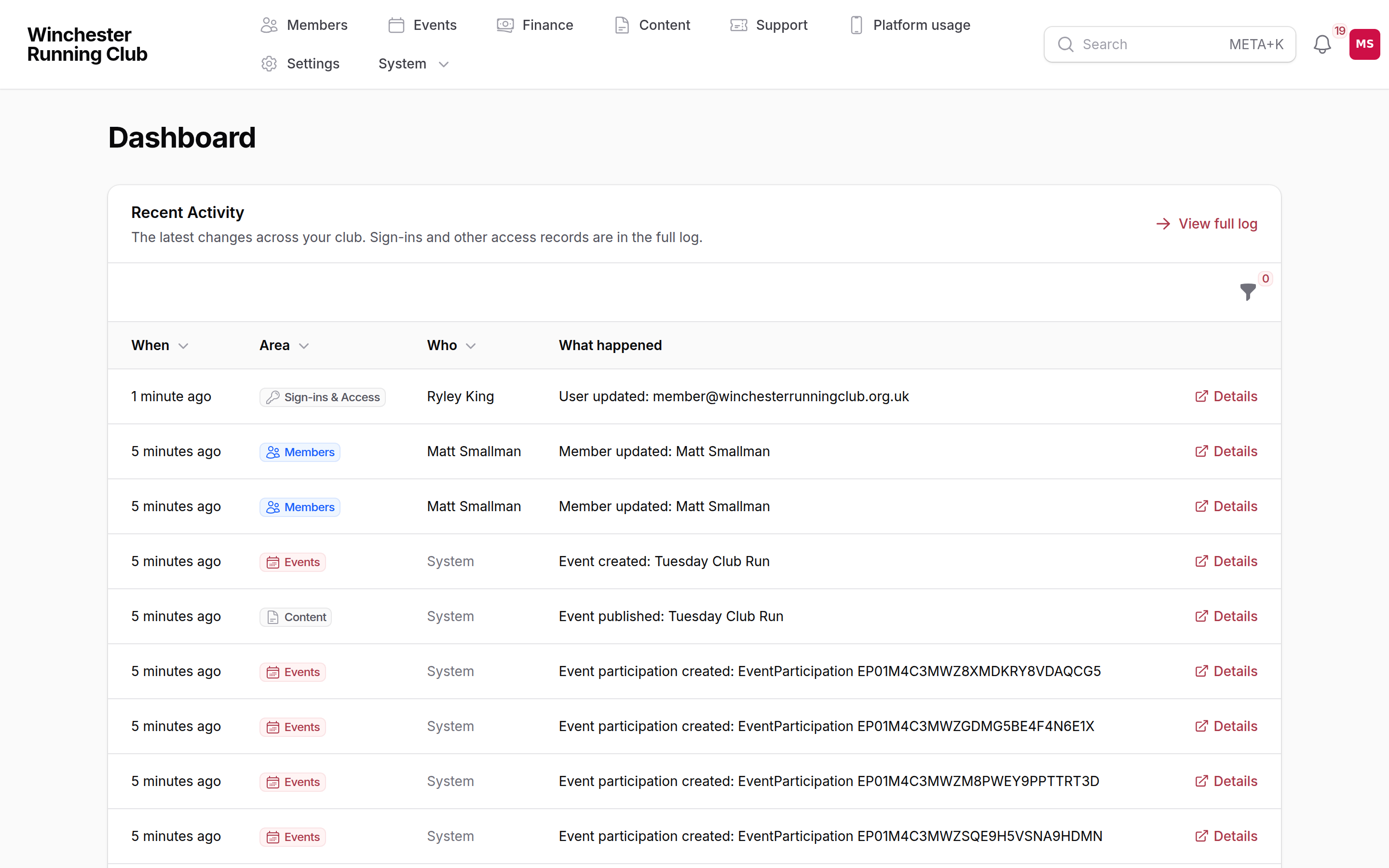
The admin dashboard — recent activity, integrations and queues
Getting ready to launch
Pilot clubs only, and gone for good once you go live. It's the same readiness checklist covered in Going live — twelve items, ten of them yours to do and two of them ours — shown here so you don't have to leave the dashboard to check your progress. Each item links straight to the screen that finishes it.
Who sees it: Club Admin, and only while the club is a pilot.
Recent Activity
The ten most recent things that have happened across your club — a member joining, a payment settling, a setting changed — each with when, who and what. It's a shortcut, not the record itself: View full log takes you to the Activity log for everything, filters, and detail on any one entry.
Who sees it: everyone. You see exactly the areas your own screens already show you — a Treasurer sees payments and expenses here, not member notes or support tickets.
Integrations
Is the club's own plumbing working? Five checks, each in one of four states — Working, Needs a look, Not working, or Not set up:
| Check | Answers |
|---|---|
| GoCardless | Is Direct Debit actually collecting? Reads your recent payment activity, not just whether it's connected |
| Custom domain | Is your own web address live and verified? |
| Email sending | Is club email going out from your own domain, or falling back to ours? |
| Support inbox | Is mail to your club address still reaching us as tickets? |
| Mailing lists | Are your committee mailing lists able to send? |
Not set up is neutral — a custom domain you've never asked for isn't a fault, and reads grey rather than red. Needs a look and Not working are the two worth acting on.
Who sees it: Club Admin sees all five checks. Treasurer sees GoCardless. Content Manager sees email sending and mailing lists.
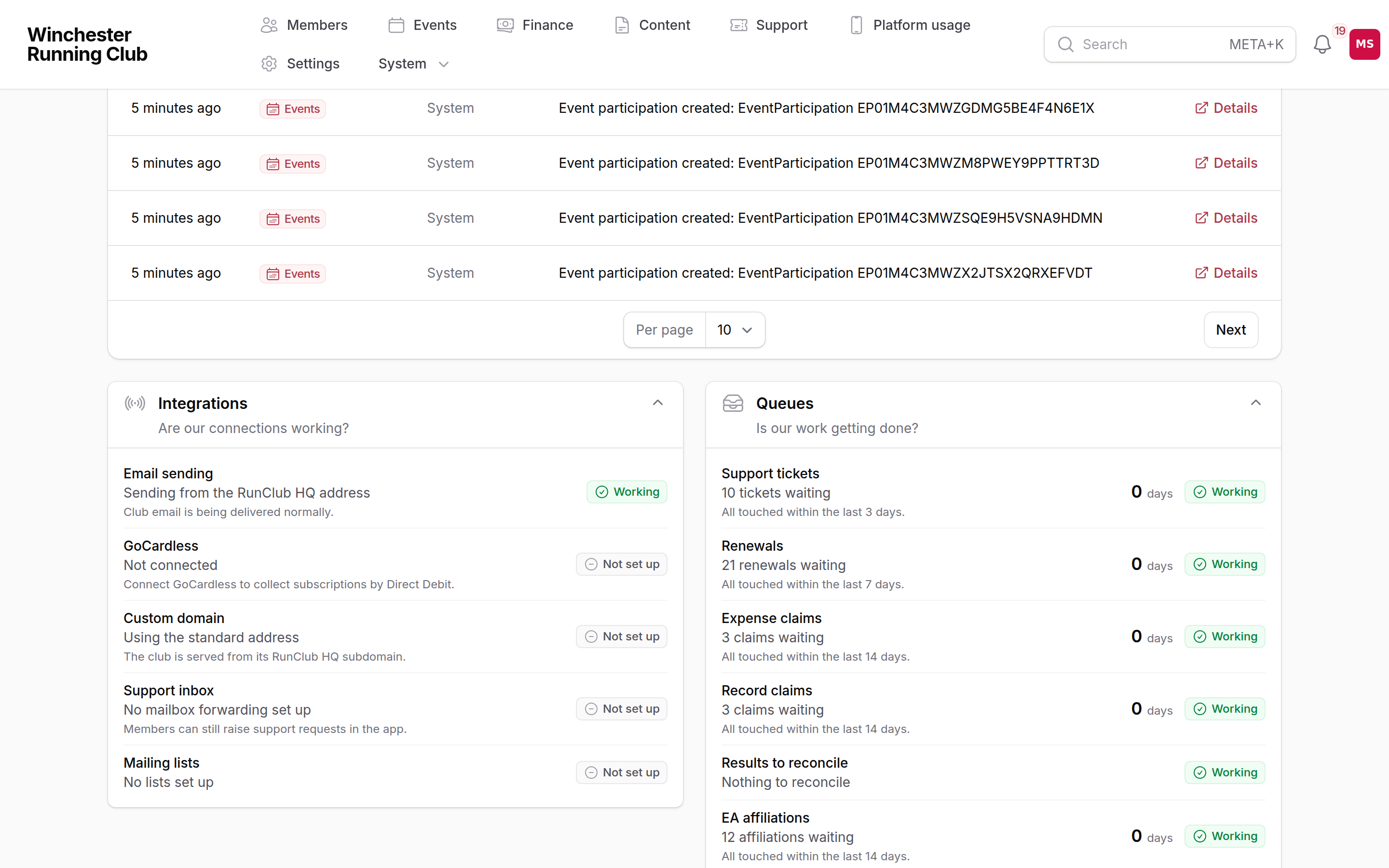
Integrations — each connection, and whether it needs a look
Is work getting done?
Queues lists six things the club works day to day, each measured by how long the oldest item has sat untouched rather than how many there are — a pile of five items picked up this morning is healthier than two nobody has looked at for three weeks:
- Support tickets
- Renewals (only shown while a renewal campaign is running)
- Expense claims
- Record claims
- Results to reconcile
- EA affiliations
Who sees it: Club Admin sees all six. Membership Manager sees renewals, record claims, results to reconcile and EA affiliations. Treasurer sees renewals and expense claims. Records Manager sees record claims and results to reconcile.
Club at a Glance is elsewhere
Member counts, attendance, revenue, prospects — the club's own vital signs — are not on this dashboard. They live in Club at a Glance, in the volunteer console, built to be read on a phone and drilled into. See Club at a Glance.
Platform usage
Platform usage, in the top navigation, is a different question from Club at a Glance: not what are people reading, but who is using the club's site, app and console, and on what device. At the top, seven stat tiles: page views and visitors today, bounce rate, pages per visit, and active members over the last day, week and month, split between app and web. Below them, three more:
- Traffic (Last 30 Days) — page views and visitors, as a trend
- Device Mix (Last 7 Days) — desktop, mobile and tablet, as a share
- Busiest paths today — the most-visited web addresses today, across the public site, the member app and the console together, filterable to just one of the three
A busy admin morning can outrank the public site on Busiest paths — that's the platform being used, not the site being read. For what content members are actually reading, see Club at a Glance → Website readership.
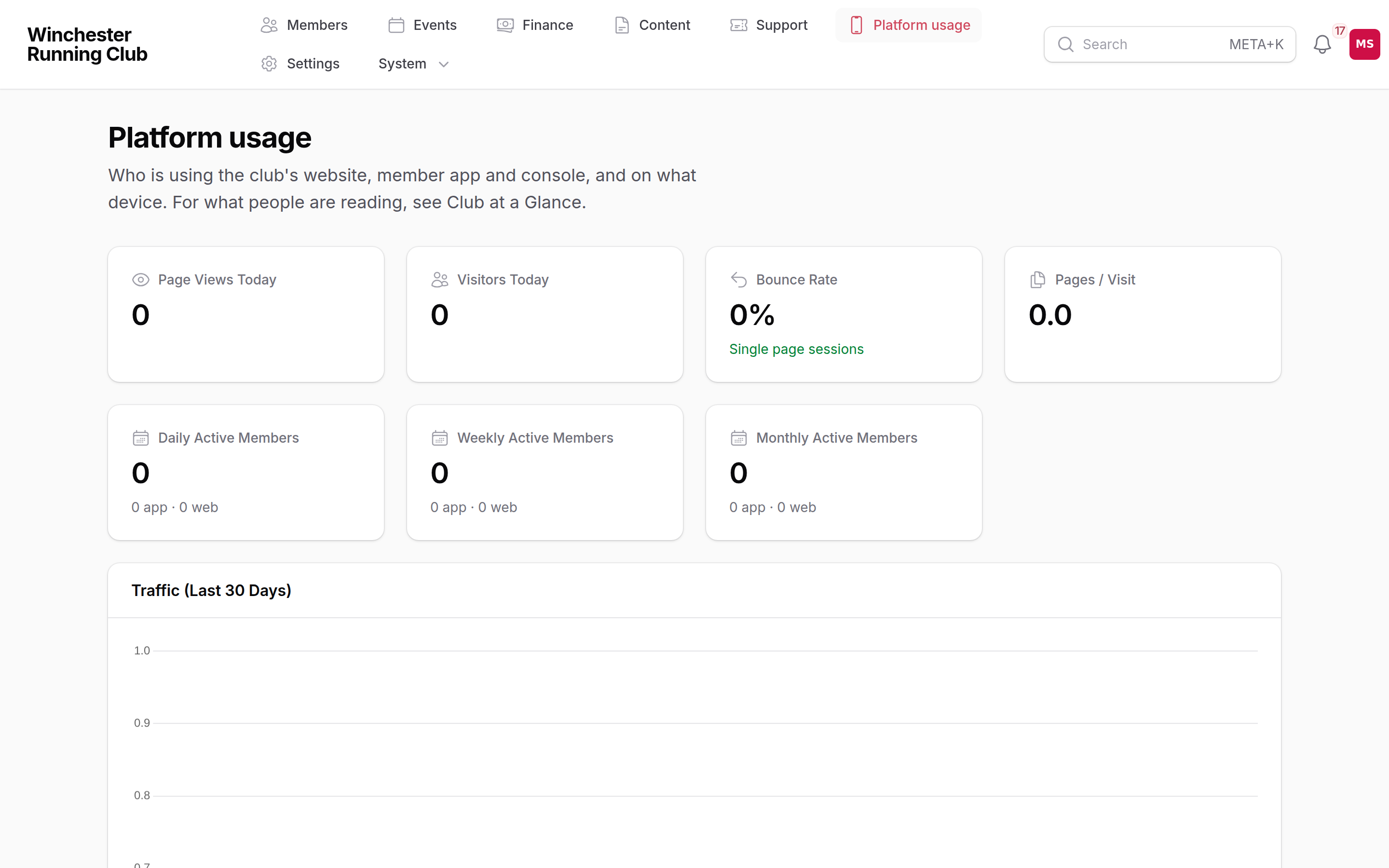
Platform usage — who's using the site, the app and the console, and on what device
Who sees it: Club Admin, Membership Manager, Viewer, Check-in Manager, Events Manager, Content Manager and Treasurer.
Troubleshooting
A widget isn't showing on the dashboard
Each one is tied to a role, and most check something you can actually fix — see who sees what above. If you think you should see something and don't, ask your Club Admin to check your role from Settings → Admin Users.
Integrations shows Needs a look or Not working
Open the check's own settings page — Settings → Payments for GoCardless, Settings → Domains for your custom domain and your sending domain, Settings → Email Inboxes for your support inbox, Members → Communications → Distribution Lists for mailing lists. The detail line under each check says what it found, which is usually enough to tell you what to do next.
The launch checklist won't get to 12 of 12
It won't, on its own — two of the twelve items are ours, not yours: setting up your billing and reviewing your test members. Getting ready to launch counts your own ten separately from these two, and you're ready to go live once your ten are done, whatever the two of ours say. See Going live.