
Appearance
The volunteer console
The volunteer console is where day-to-day club work happens, on a phone: check-in on the night, results and club record approvals, the support inbox, expense claims, club messages, and Club at a Glance. The admin panel is for setup and the bulk, structural work a committee does at a laptop — settings, membership types, seasons, the website. This page says what the console is, how you get in, and what's in each tab.
Who can do this?
Anyone holding a console role can get in — which tabs you see depends on which role, or roles, you hold. See the table below.
Getting in
You sign in the same way any member does — email and a magic link or 6-digit code, or a passkey. If your account holds a console role, a Volunteer switch appears in the app bar, next to your avatar; tap it to move from the member app into the console. The mobile app works the same way.
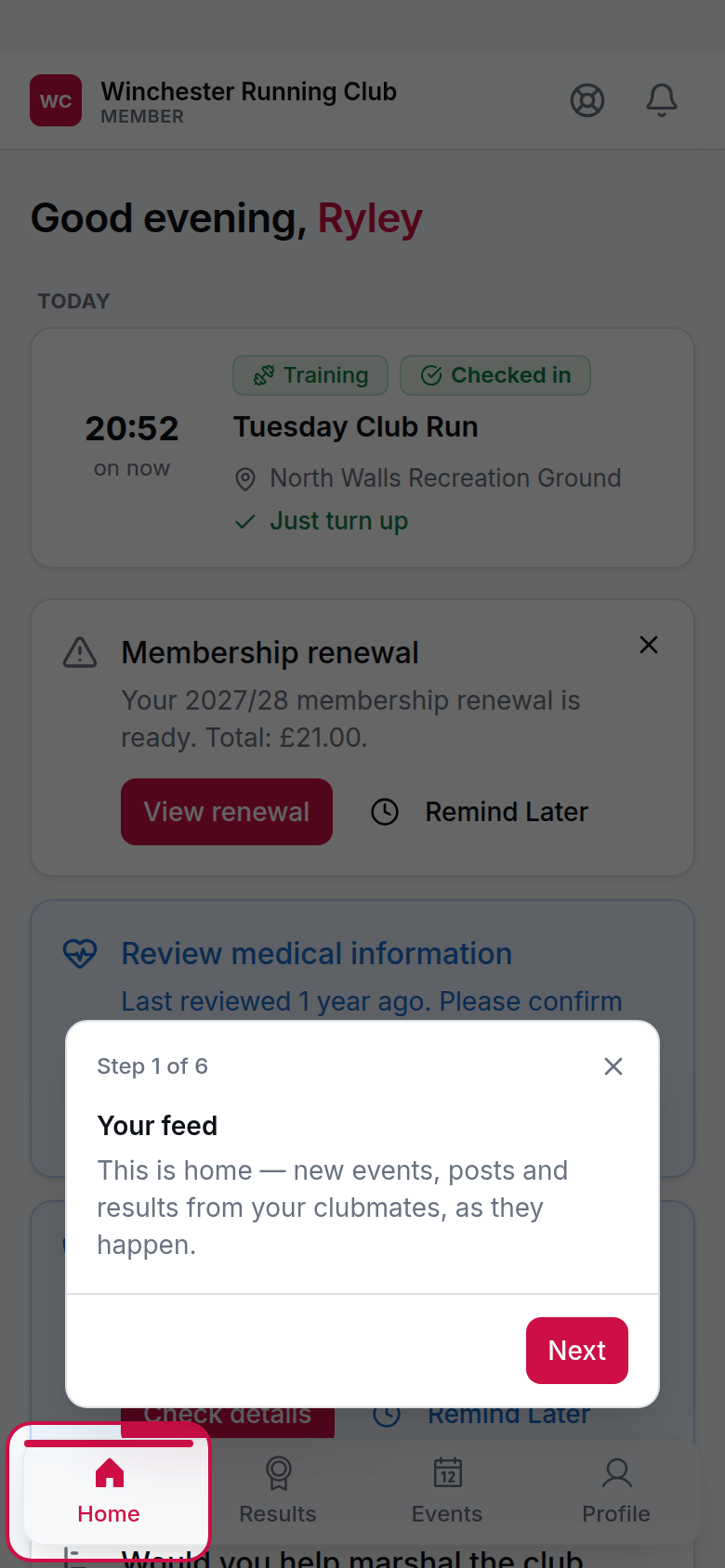
the Volunteer switch, next to the avatar
The console lives at your club's web address followed by /volunteer. First stop is Club at a Glance — a read-only look at the club right now: attendance, membership, money, and how prospects are moving through your pipeline.
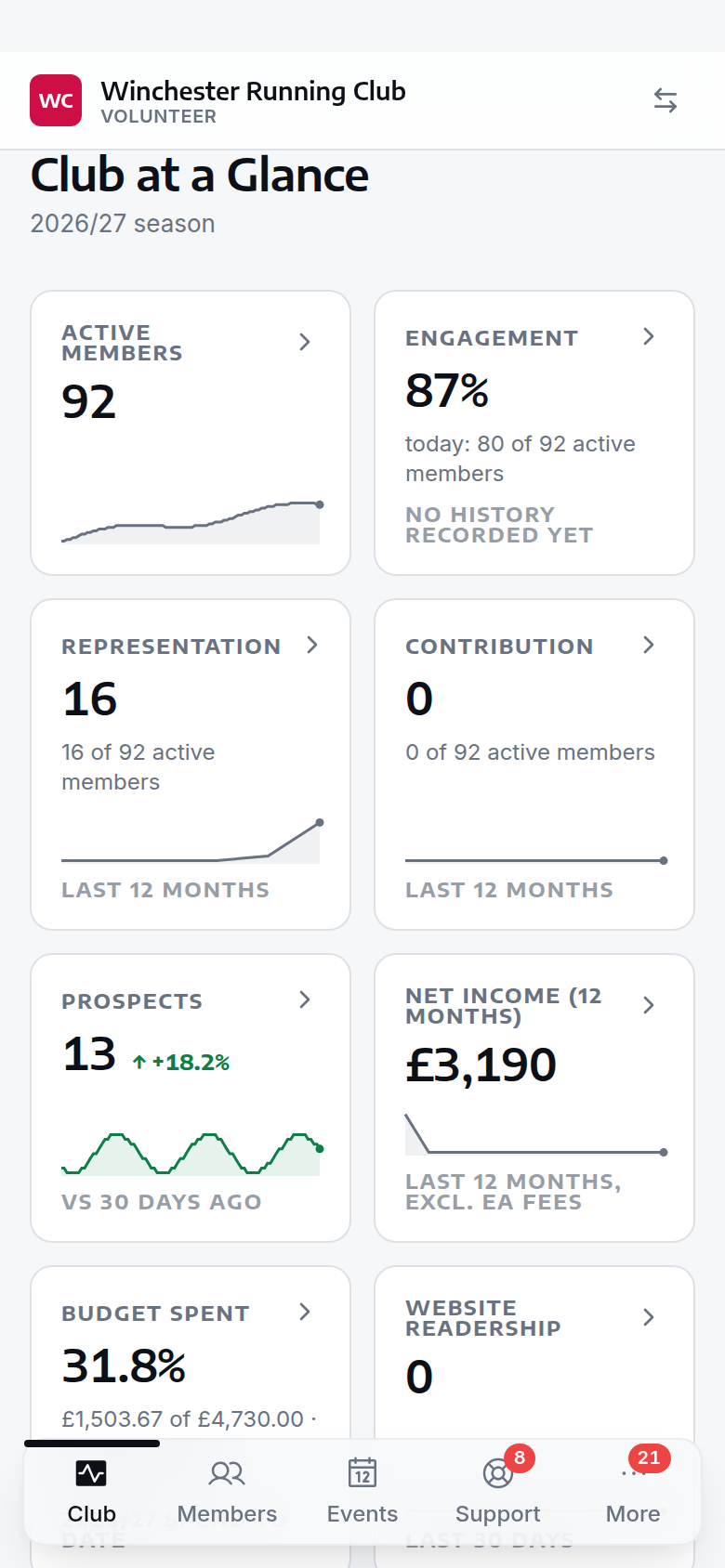
Club at a Glance, the console's first landing screen
The tabs
Club Admin sees every tab. Viewer sees every tab except Affiliations, and never acts on anything there — no replies, approvals or publishing, just the view.
| Tab | What you do there | Who else sees it | Read more |
|---|---|---|---|
| Club | Check the club's vitals — attendance, membership, money, the prospects pipeline | Membership Manager, Check-in Manager, Events Manager, Content Manager, Treasurer | Club at a Glance |
| Members | Look a member up, see their money, household and history, reveal emergency information, download the roster | Membership Manager, Welfare Officer, Check-in Manager, Events Manager | Members and households |
| Events | See today's and this week's sessions, quick-create a turn-up session, open check-in | Membership Manager, Check-in Manager, Events Manager | Events |
| Support | Answer members through the support inbox | nobody, by default — see below | Support inbox |
| Performance (More) | Clear the results queue and decide club record claims | Membership Manager, Records Manager, Results Reviewer | Reviewing results and records |
| Affiliations (More) | Register a member with England Athletics, mark a fee paid, confirm a resignation | Membership Manager | Members and households → Affiliations |
| Finances (More) | Decide expense claims | Treasurer | Finances → Expense claims |
| Content (More) | Publish posts and pages | Content Manager | the playbook for this is coming |
| Messages (More) | Send a club message | Content Manager | the playbook for this is coming |
You'll only see a tab for a section your role opens. Hold access to five or fewer and each gets its own tab; hold more than that and the first four stay as tabs, with the rest folding into a fifth tab, More.
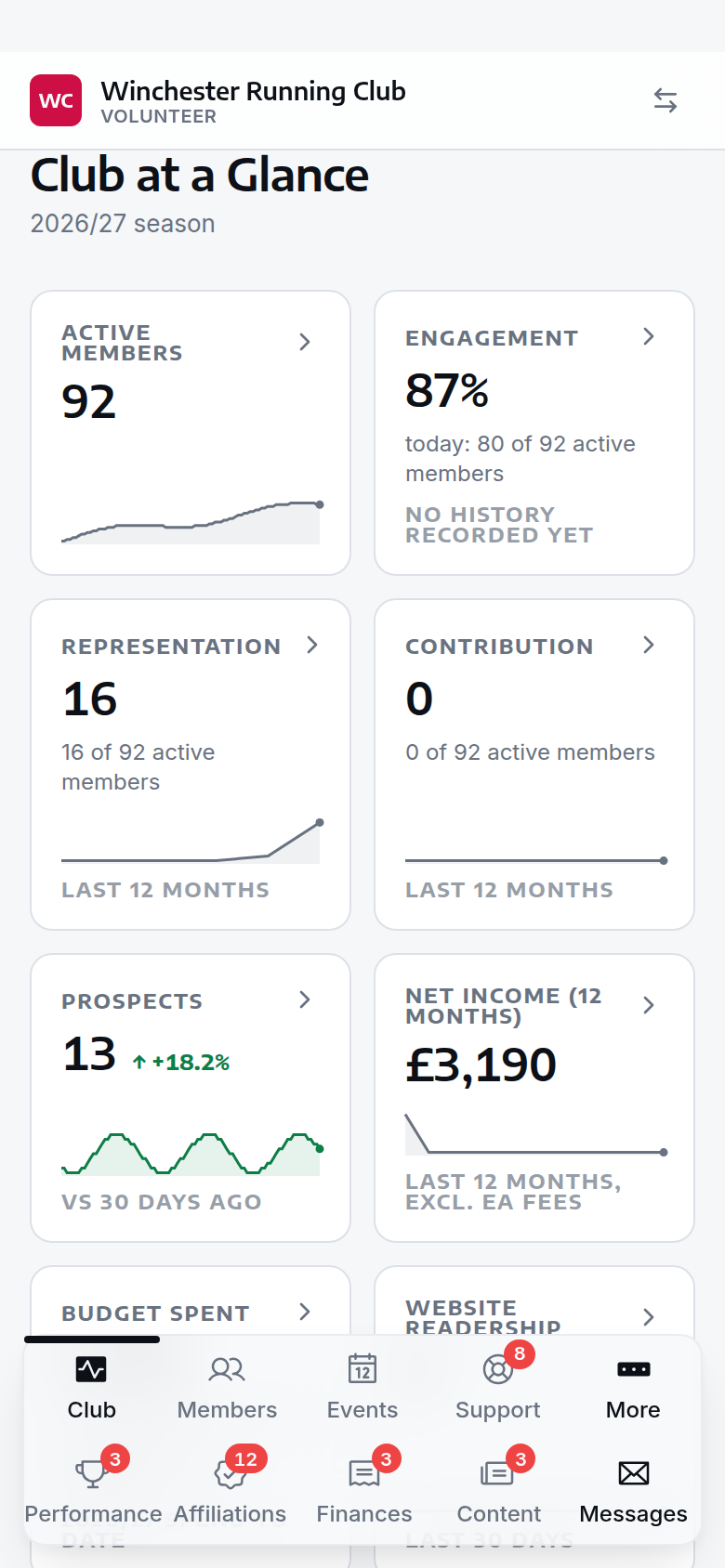
the More tab, opened to show the sections it folds away
No role comes with the support inbox on its own — Club Admin and Viewer are the only two that reach it out of the box. A club that wants a volunteer to answer members without handing them everything else can build a narrower role from individual permissions; see Add a new admin user.
What the numbers mean
Some tabs carry a badge — how many things are waiting for you, not a running total:
- Support — conversations that need a reply.
- Performance — results and club record claims waiting for a decision, added together.
- Affiliations — England Athletics registrations waiting on an admin.
- Finances — expense claims waiting on a decision.
- Content and Messages — drafts nobody has published or sent yet.
Club, Members and Events don't carry a number: Club at a Glance and Members are reference surfaces rather than queues, and Events shows only what's scheduled, not a backlog.
Where check-in lives
The check-in desk for an event opens from that event's page in the Events tab, but it runs on the member side, not the console. That's deliberate: an event's assigned manager can run check-in for it without holding a console role at all — the door on the night is theirs regardless of what else they can reach. Check-in has the rest.
What the console isn't for
Club-wide setup lives in the admin panel, not the console:
- Settings, branding and club information
- Membership types and seasons
- Email templates and communications
- Your club website
If a tab you expected isn't there
It comes down to your role. Every console tab is gated by a permission your role either holds or doesn't — see Roles for what each one opens. If you think you should have a tab you can't see, ask whoever manages your club's admin users (usually a Club Admin) to add the role, or the specific permission, from Settings → Admin Users in the admin panel — or read Add a new admin user yourself.