
Appearance
The mobile app
Members install RunClub HQ from the App Store or Google Play — the same account and mostly the same screens as the member app on the web, plus a few things only a phone can do: a camera for check-in, notifications, and updates that arrive without a trip to the app store. This page is for you: what a member sees when they install it, and what you can tell them when something isn't working. Members read the help library inside the app, not this page.
Who can do this?
Every member can install the app and sign in with their usual account. Anyone with volunteer console access also reaches the Volunteer switch from inside it — see Roles & Permissions.
Send members to runclubhq.com/app — it works out which store their phone needs and sends them there, so it's worth putting in a welcome email or on a poster rather than naming both stores separately.
Finding your club and signing in
The first time the app opens, it asks a member to find their club — by name, or by distance if they allow it to use their location — then hands off to their phone's browser to sign in exactly as the web app does: an email link, a 6-digit code, or a passkey. It brings them straight back once they're done.
Along the way it asks for two things:
- Notifications, so it can tell them about events, messages and club news.
- Location, so an event nearby can check them in the moment they arrive instead of making them find a marshal — see Check-in.
A third permission, camera access, is asked for separately — the first time someone opens the scanner at check-in, not on first launch.
A member can say no to any of these and still use the app. Saying no to location just means one-tap check-in doesn't work for them; they check in by hand instead.
Staying up to date
Most updates reach the app on their own, the next time it's opened — nothing to download, nothing to approve, nothing a member sees change. Once in a while a bigger change needs a fresh copy from the app store itself, and that follows the ordinary update prompt a phone gives for any app. Either way, Settings always shows the version currently running, with a What's new link to what's changed recently and a small badge when there's something a member hasn't seen yet.
Notifications
The app can notify a member about events they're entered in, messages you've sent, and news you post. The number on the app icon is their unread inbox count.
A member turns notifications off for the app in their phone's own settings, not inside RunClub HQ — Settings → Permissions shows whether it currently has permission, but there is no switch for it inside the app itself. What they can control from inside the app, at Profile → Notifications, is email: club messages, whether those arrive immediately or as a daily digest, and which mailing lists reach them.
Check-in
The camera scanner — parkrun barcodes, a member's own QR code, an event ticket — lives in the mobile app, and it's the fastest way to run the door on the night. See the check-in playbook for how a volunteer runs it.
Settings
Reached from Profile, Settings is about the app itself rather than a membership. On both web and the phone: the version, What's new, Log Out, and — for anyone who holds it — a link into the admin panel. On the phone only: the theme follows the device automatically, and a Switch Club button lets anyone who belongs to more than one club move between them — it signs them out of the current club and back to club selection without touching their account.
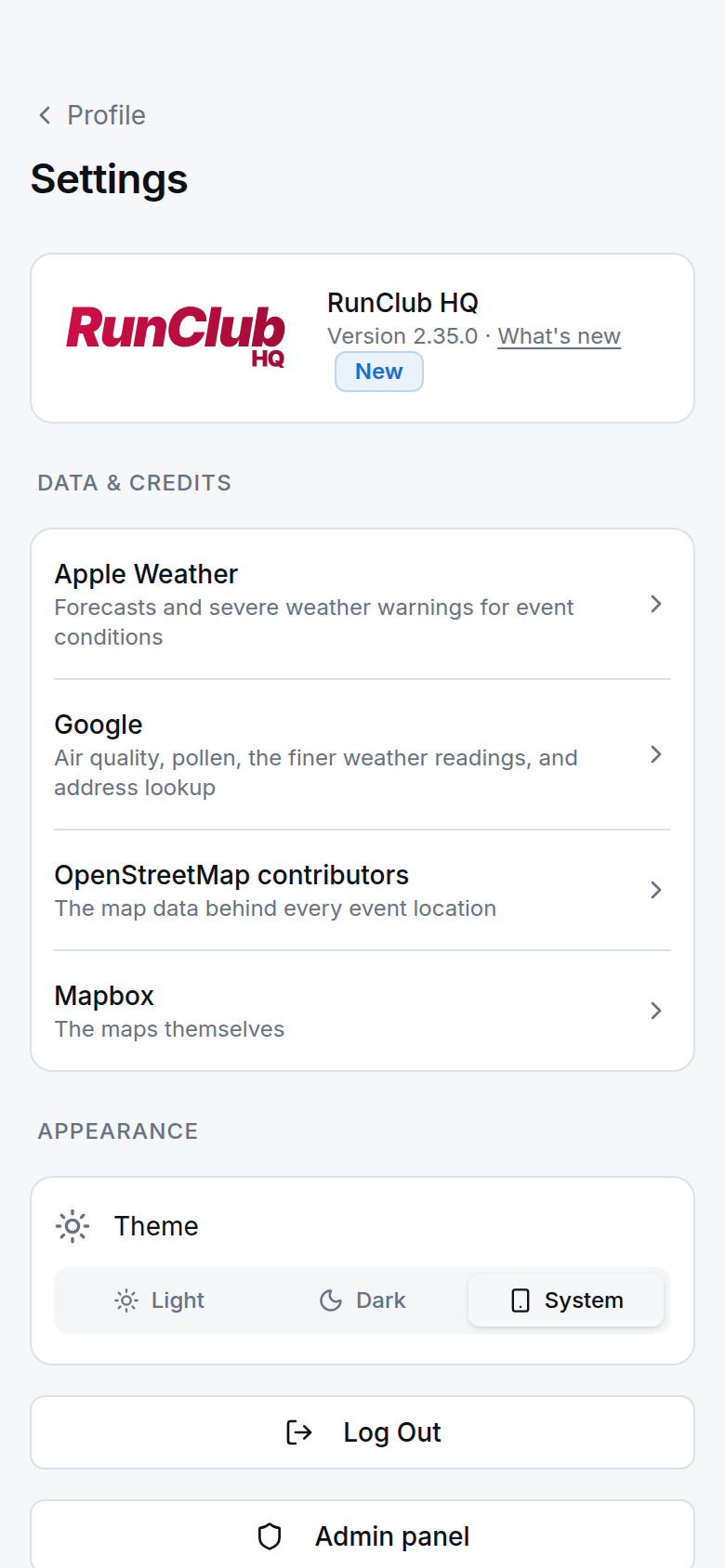
Version, What's new, Log Out and, on the phone, device and permission diagnostics
Further down, Device and Permissions show what the phone reports back — the screen, the network, and whether camera, notification and location access are granted. If a member gets in touch about something not working, asking them to open this screen first can save a few messages back and forth. Advanced holds three ways to reset a stuck app — Clear App Data, Revert to App Store Version, and Hard Reset — each says what it does and asks for confirmation before it runs.
This cannot be undone
Hard Reset signs a member out and clears everything the app has stored on the phone. They will need to find your club and sign in again.
Offline
The app needs a connection for almost everything it does — signing in, checking in, seeing what's on. If it can't reach the server it says so, names your club rather than showing a bare error, and offers to try again. There is nothing to browse while it waits.
Troubleshooting for the committee
A member says they can't find your club in the app
Every club we've set up is in the list, and the search matches a club's name or its location. If your club isn't showing up under a search a member would actually try, check both are set at Settings → Branding → Club Location.
The app seems stuck on an old version
Closing and reopening it usually picks up whatever was waiting — updates apply the next time it launches. Try that before anything else.
Sign-in loops back to the browser
That's normal the first time — sign-in always opens the browser and comes back on its own once the email link or code is used. If it seems stuck, check the member actually finished in that browser tab rather than closing it, then have them tap Continue to try again.
No camera
Check the app has permission to use the camera in the phone's own settings. Failing that, the check-in desk takes a typed code just as well — see Check-in.