
Appearance
Support
This page is for the committee: where a member's question can reach your club from, the admin panel screens behind that, and the settings that shape all of it. Answering what comes in, day to day, is the volunteer console's job — see Support inbox for that playbook.
Who can do this?
The settings below, and Categories, Snippets, Spam Blocks, Sender rules, Workflows and Email Inboxes in the Support cluster: Club Admin only. Viewer can open Tickets and Help articles, read-only. Answering messages day to day is the console's job — see Support inbox for who does that.
How support reaches your club
A member's question tries the help library first — a Get help button beside anything commonly confusing opens the exact article, and only offers to message you if nothing answers it. Every question an article could have answered is an evening a volunteer didn't get back.
When it can't, a message reaches you three ways:
- Help & support in the member app. The member is already signed in, so there's never any doubt who's asking.
- Your public contact form. Open to anyone, signed in or not, while Public Form Enabled is switched on below.
- A forwarded mailbox. Under Settings → Email Inboxes, create one and give it a name — shown as the sender on replies from it. We hand you a unique address; set up a forwarding rule in your own mail provider from your club address (
membership@yourclub.org.uk, say) to that one. The provider's confirmation email arrives as a message here — open it and follow the code or link to finish — then Send test to check it's working. Status becomes Verified once anything real arrives.
The Support cluster
In the admin panel, Support holds:
- Tickets — the same queue the console's Support tab works from, with the room a desktop screen gives you: a fuller filter set, bulk actions, and merging two messages that turned out to be the same conversation.
- Categories — sort messages by subject. Each one carries a default priority and, optionally, someone to assign its messages to automatically.
- Snippets — your canned replies. The console calls the same list Canned; see Support inbox → Canned replies.
- Help articles — your club's own answers, alongside the platform library. See The help library for how that works.
- Spam Blocks — senders you've blocked, so nothing more from them reaches the queue. A block can be a single address or a whole domain; the domain is what stops a run of spam that arrives from a new address every time. Domains your own members use are never blockable.
- Sender rules — senders whose mail is filed under Notifications rather than the queue: a payment report, a site audit, anything automated that nobody needs to answer. Most are made from a message with Sort; this is where you review them and remove one. A rule can also say the opposite — always treat one address as a request — for a real person writing from an address that looks automated. We already file common automated senders, such as GoCardless reports, for every club. As with blocks, domains your own members use are never offered.
- Workflows — rules that run themselves, on a new message or a member's reply: set a category, priority or assignee, or add a note, whenever the conditions you choose match.
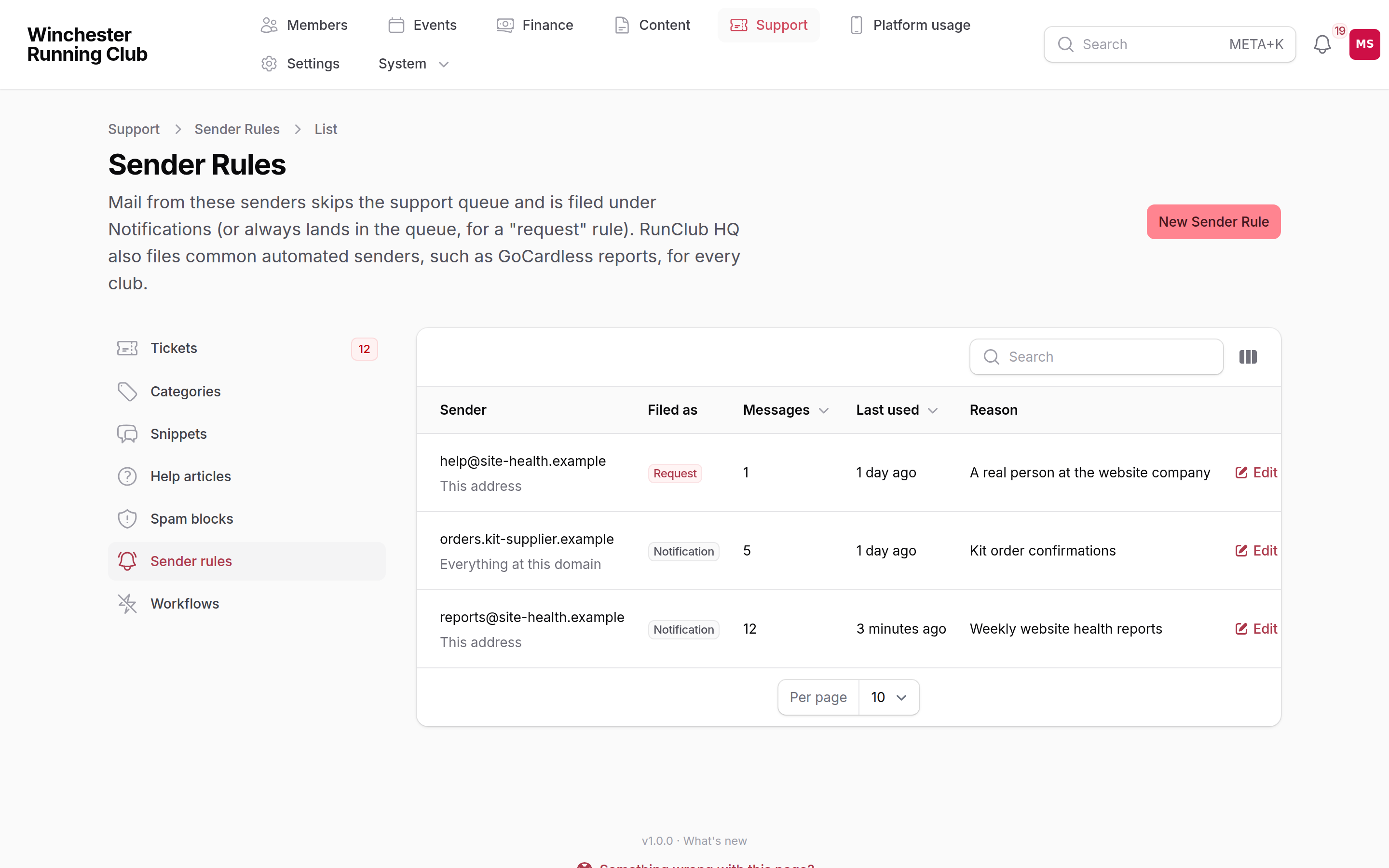
Support → Sender rules, with two filed-away senders and one address always treated as a request
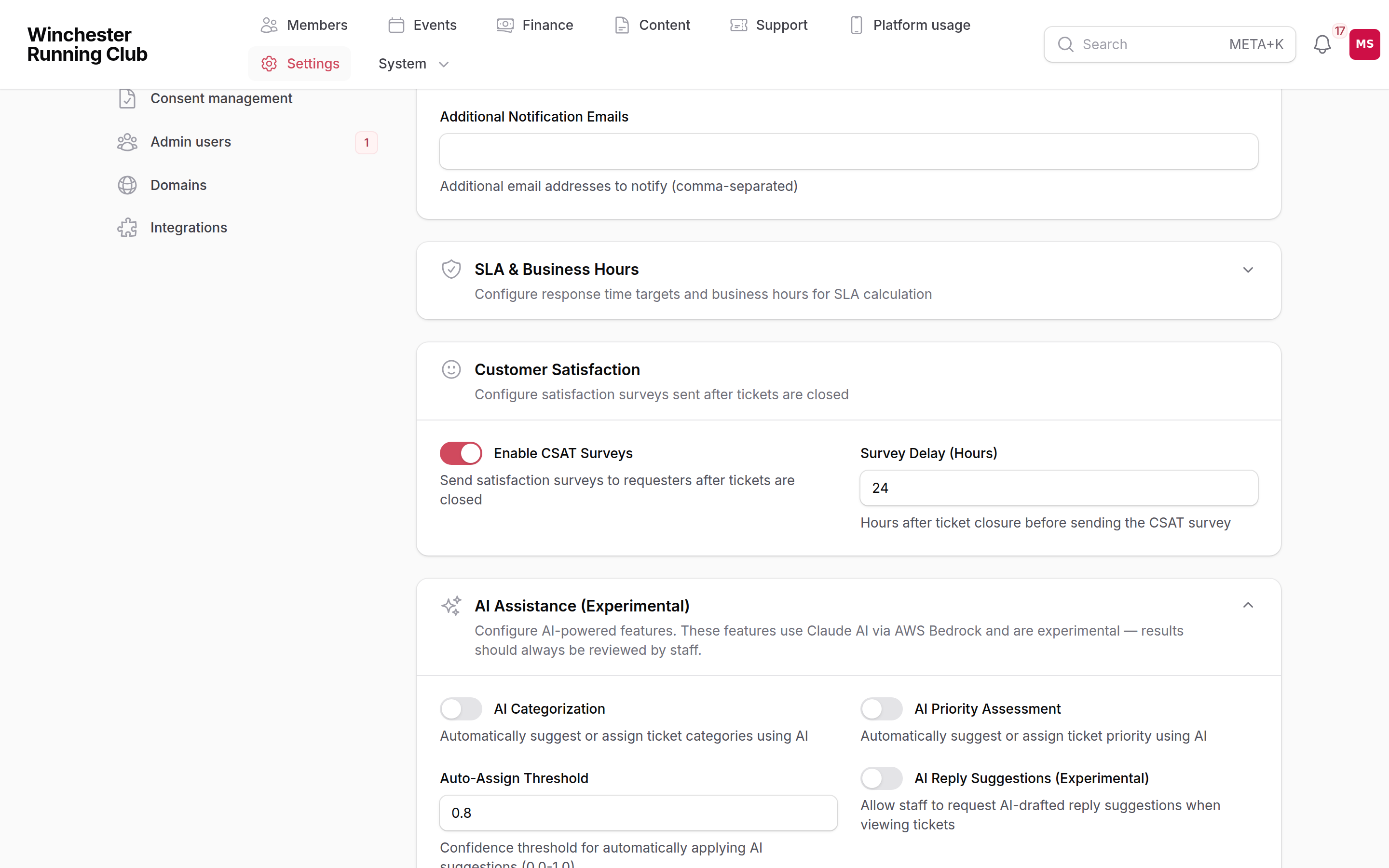
Settings → Support Tickets, with AI Assistance open
What members see
A member never reads the word ticket. Their message sits alongside their other conversations under Help & support, and every reply you send — from the console or this panel — appears there as it's sent. If your club replies from a shared mailbox, turning on Reply From Responder's Name below signs each one with the person who wrote it, not just the club.
What a member reads about getting in touch — and about the help library that tries to answer them first — is covered in the help library rather than repeated here.
Settings
All under Settings → Support Tickets, in the order the settings page itself uses.
| Setting | What it controls | Default |
|---|---|---|
| Enable Ticketing | Turns support off entirely — no member can message you, and the public form and forwarded mailboxes both stop working | On |
| Public Form Enabled | Lets anyone reach you from your public contact form, signed in or not | On |
| Enable Auto-Close / Auto-Close Days | Closes a resolved message on its own after this many days | On / 7 days |
| Notify on New Ticket | Alerts the team (bell, email, mobile push) when a new message arrives | On |
| Notify on Customer Reply | Alerts the team when a member replies and it's your turn again | On |
| Remind Us About Unanswered Messages / Remind After (days) | One reminder, and no more, if a member's message goes unanswered this long | On / 3 days |
| Notify on Assignment | Alerts someone when a message is assigned to them | On |
| Additional Notification Emails | Extra addresses to copy on every alert above, such as a club distribution list | None |
| Reply From Responder's Name | Signs a reply "{First name} at {Club}" instead of just the club's name | On |
| Pause Automated Emails | Emergency stop for every automated support email — use it to break a reply loop without losing any messages | Off |
| Enable SLA Tracking | Turns on response and resolution targets, and the columns that track them | Off |
| Business Hours Only / Timezone / Business Hours / Business Days | The SLA clock only runs during these hours | On, Mon–Fri 9am–5pm, Europe/London |
| Enable Escalation Notifications / Escalation Warning Percentage | Warns the team before a target is missed, not only after it is | On / 80% |
| Response Target / Resolution Target (per priority) | How long you have to reply, and to resolve, at each priority — the response target applies to the first reply and every reply after a member responds again, and both clocks pause while you're waiting on them | Low: 5 / 15 days · Medium: 2 / 5 days · High: 1 / 2 days · Urgent: 4 / 24 hours |
| Enable CSAT Surveys / Survey Delay | Asks "Was this helpful?" once, this many hours after a message closes | On / 24 hours |
| AI Categorization / AI Priority Assessment | Suggest, or — above the confidence threshold below — apply, a category and priority automatically | Off |
| Auto-Assign Threshold | How confident the AI must be before applying a suggestion itself, rather than only suggesting it | 0.8 |
| AI Reply Suggestions (Experimental) | Lets the team draft and review replies with AI from the console; see Support inbox | Off |
| AI Response Style Guide / Title / Summary / Urgency Instructions | Extra instructions so AI-drafted replies, titles, summaries and urgency flags match your club's tone | None |
Experimental — off until you turn it on. Every AI capability above is switched off by default and independent of the rest; turning one on is yours to do, from AI Assistance at the bottom of this settings page, no need to ask us. It runs on Amazon Bedrock, in the EU, using Claude models — nothing you send it is used to train a model, and every suggestion needs a person to act on it before anything happens.