
Appearance
Polls
Ask your members a question and see what they say — which venue for the summer social, how a track session felt, whether anyone would marshal. A poll takes a minute to write and seconds to answer.
Who can do this?
Writing and publishing club-wide polls: Club Admin or Content Manager. An Events Manager can run a feedback poll on an event they manage, without club-wide poll access. Reading results: those roles, plus Viewer.
Overview
There are two kinds of poll:
- Quick poll — a question for your members, answered on their dashboard. Use it for decisions: a social venue, a new training night, a kit colour.
- Event feedback — attached to an event, and offered only to the members whose attendance was recorded. Use it after a session to find out how it went.
Both live under Content → Polls in your admin panel.
Writing a poll
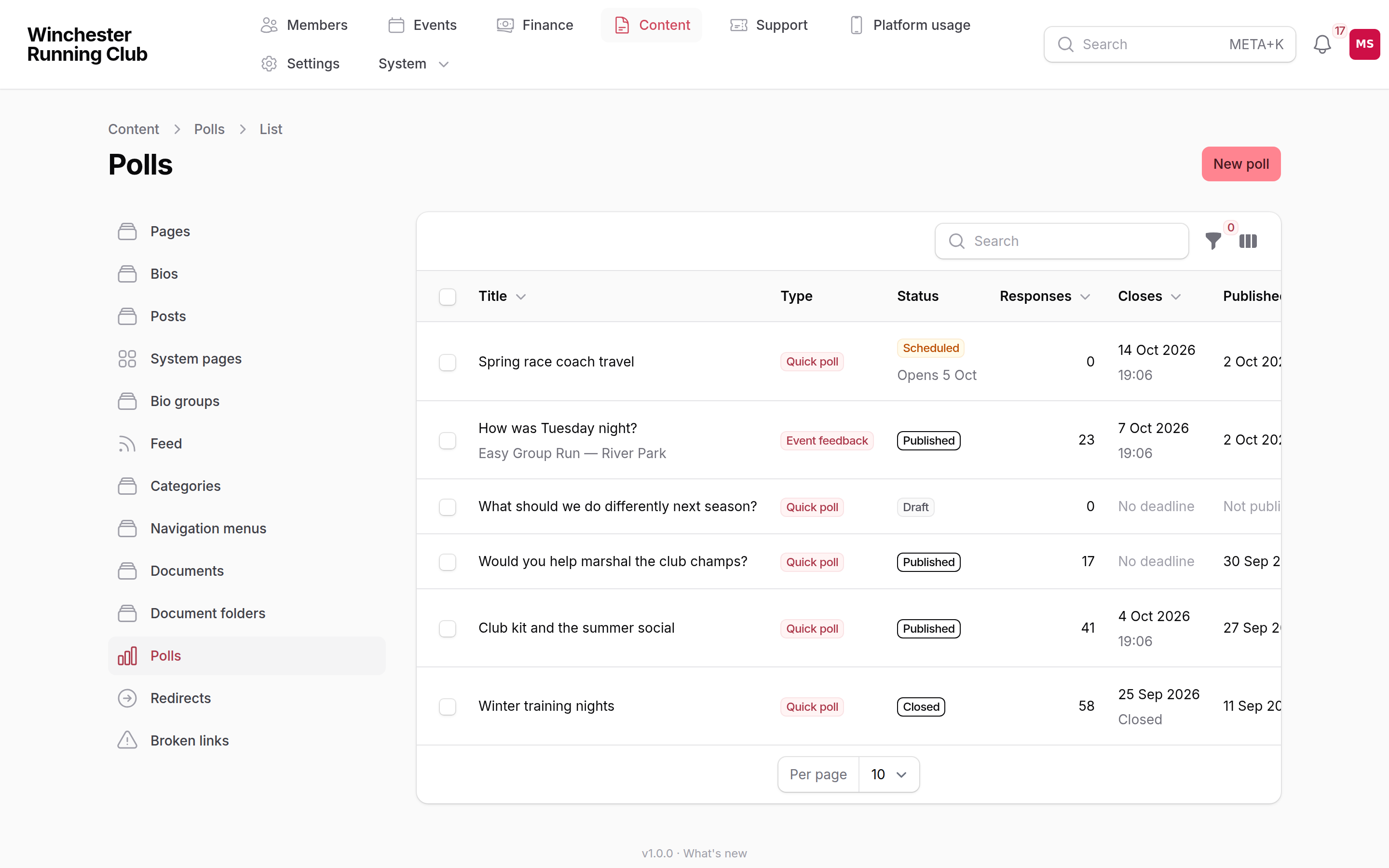
The list carries every poll you have ever run, so it has filters to match: by status and kind, by when it was published, and by Open to members — which is not the same as Published, because a poll scheduled for Friday and one whose deadline passed last week both say Published.
Choose New poll, give it a title — members see this as the heading, so a plain question works best — and add your questions.
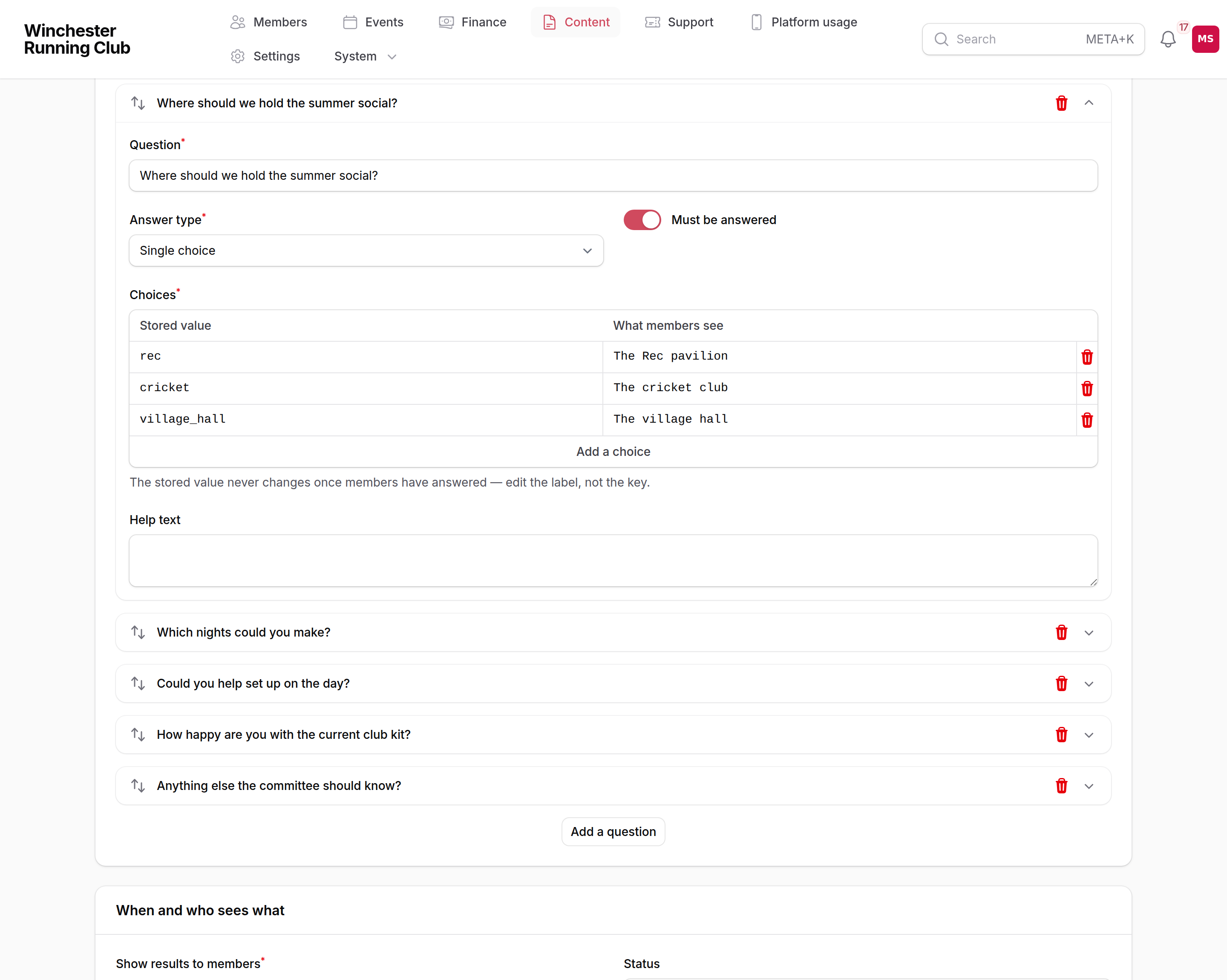
Each question has an answer type:
| Type | What a member sees | Good for |
|---|---|---|
| Single choice | A list; they pick one | Decisions with set options |
| Multiple choice | Checkboxes; they pick any number | "Which nights could you make?" |
| Yes / No | Two options | A straight question |
| Rating | A scale you set, 1–5 by default | "How did the session feel?" |
| Free text | A box to write in | Anything you cannot anticipate |
A few things worth knowing as you write:
- Choice questions need at least one choice. The stored value never changes once members have answered, so edit a choice's label rather than its key — changing the key would orphan the answers already given.
- A question can be optional. Members see "(optional)" and can move past it.
- One question is answered on the dashboard; two or more open their own screen. You do not choose this — it follows from how many questions you add.
Opening and closing
A poll starts as a draft and is invisible to members. Publish takes it live.
- Opens — leave empty to open the moment you publish, or set a date to schedule it. A scheduled poll shows as Scheduled in the list, with its opening time, so you can tell it apart from one members can already answer.
- Closes — leave empty to keep it open until you close it by hand. If you set a deadline, members see it on the card: "Closes in 2 days", and the poll closes itself when it arrives — you do not have to be there.
Close stops a poll accepting answers. A published poll cannot be deleted, only closed — it holds answers members gave in good faith. Drafts can be deleted.
Emailing the poll
The member app is on a minority of your members' phones, so a poll that lives only on the dashboard is a poll most of your club never sees. Send invitation emails it to everyone the poll was asked of.
Each member gets their own link that opens the question straight away — no signing in, no app, no password. It works on a phone at a bus stop, which is where club email actually gets read.
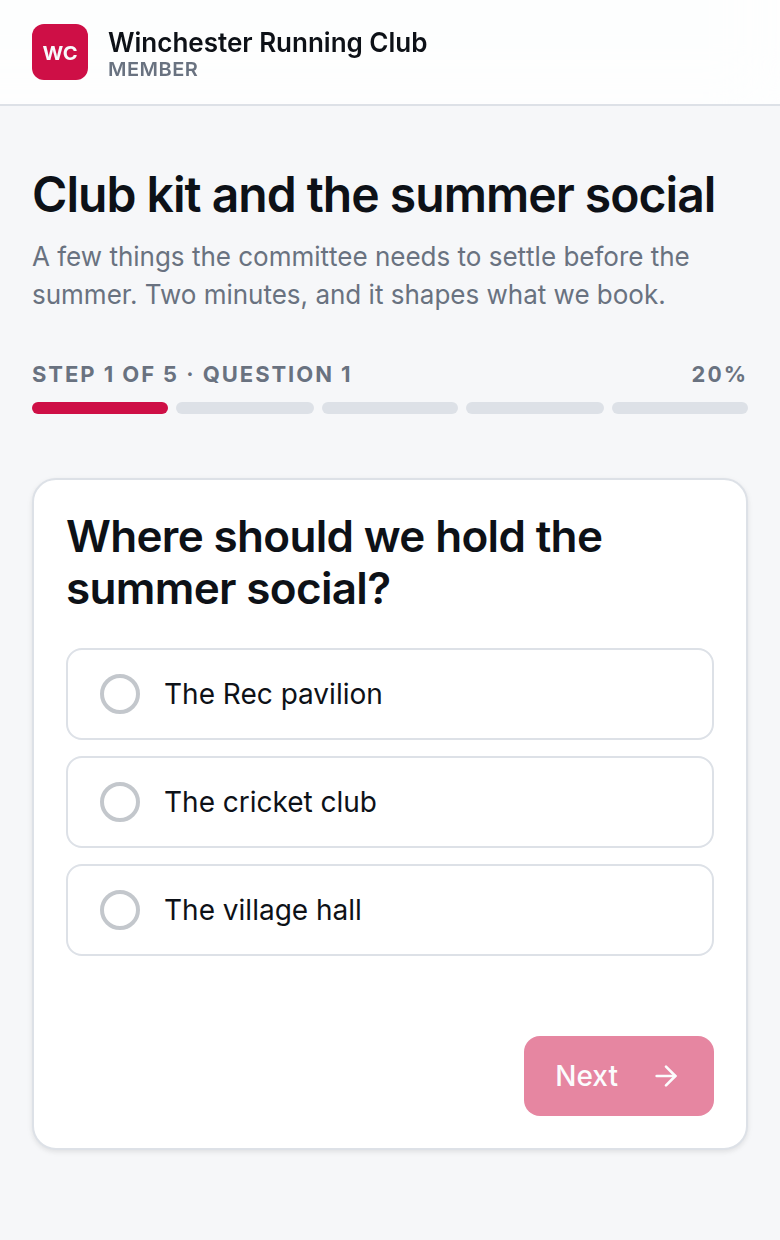
The page carries your club's name and colours, and a longer poll steps through its questions exactly as it does in the app.
A few things to know before you press it:
- It can only be sent once. There is no "send again", deliberately. If you want to chase, use the reminder below.
- Publish first. The button appears once a poll is live and open.
- Members who have turned club email off are left out — they still see the poll in the app.
- Members without their own email address are not written to. A household dependent answers in the app: the link answers as the member it names, so sending one to a parent's inbox would mean one person answering as another.
The link stops working when the poll closes. Anyone who follows an old one gets a page explaining why, not an error.
Reminding members who have not answered
If your poll has a closing date, you can tick Remind members who have not answered. Two days before the deadline, one email goes to the people who were invited and have not replied. Never more than one, never to anyone who has already answered, and never at all if you did not tick the box.
The toggle only appears once you have set a closing date — there is no moment for a reminder to arrive at without one.
Seeing what was sent
Once an invitation has gone, the poll itself says so — "Invitation emailed 4 September 2026 to 143 members", and a second line for the reminder once that has gone too. The polls list can show the same thing as an Invited column: open the column menu above the table and switch it on.
The number is who was actually emailed, which is fewer than the audience quoted when you pressed Send — members who have turned club email off and members without their own address are in the audience but never written to.
If a send goes wrong, your activity log records which of two things happened. "Poll invitation could not be sent, so no members were emailed and it can be sent again" means exactly that — the Send invitation button is back, and you can press it. "Poll invitation stopped before it finished" means some members have it and some may not, and a poll can only be emailed once, so tell us rather than waiting for a second attempt.
Changing the wording
Both emails are ordinary email templates, so you can rewrite them in your club's own voice under Settings → Communications → Email Templates — Poll Invitation and Poll Reminder.
Keep the tag in the body. It is a personal link that answers the poll as the member it was sent to; without it the email asks a question nobody can answer.
What members see
A poll appears as a card on the member's dashboard, below their reminders and above the club feed. A one-question poll is answered right there — tap an answer, tap Answer, done. A longer one opens its own screen with one question per step and a progress bar.
Members answer once. After that they get a short thank-you and the poll disappears from their dashboard.
Members are only ever shown polls they were asked. For event feedback, that means members whose attendance was recorded at that event, and nobody else — a question about Tuesday's session is not put to the two hundred people who were not there. A feedback poll also appears on the event's own page, under the session it is asking about, which is usually where a member goes looking after a run.
Showing members the results
Show results to members decides whether the people who answered get to see how everyone else did:
| Choice | What members see |
|---|---|
| Only the club (the default) | Nothing. You read the results privately. |
| When the poll closes | The breakdown, once the poll has shut. |
| Straight after answering | The breakdown, as soon as they have voted. |
The default is deliberate. Showing a running tally while a poll is still open nudges later answers toward whatever is already winning, so When the poll closes is the cautious way to share, and Straight after answering suits a poll where the fun is seeing where you fall. Only the club suits anything sensitive.
With When the poll closes, members who answered get a card on their dashboard once the poll shuts — the results are in — for a fortnight afterwards. It links to the poll, where they read the breakdown. Members who never answered get nothing: the results are shown to the people who took part.
A fortnight is deliberate. Results are news, and a card about a poll that shut two months ago is clutter. If the outcome is something the whole club should know about — including the members who did not answer — put it in a post or an email; the card is a nudge to the people who did, not an announcement.
Whatever you choose, this governs the member's view only — you can read the results whenever you like.
Reading the results
Results live in the volunteer console, under Club at a Glance → Polls. One page: the polls you have run, the answers to whichever one you pick, and who said what.
The list at the top is how you choose. Filter it by status, kind and date published, narrow it to the polls members can answer right now, or sort by any column — including how many answered, which is usually the quickest way to find the poll worth reading.
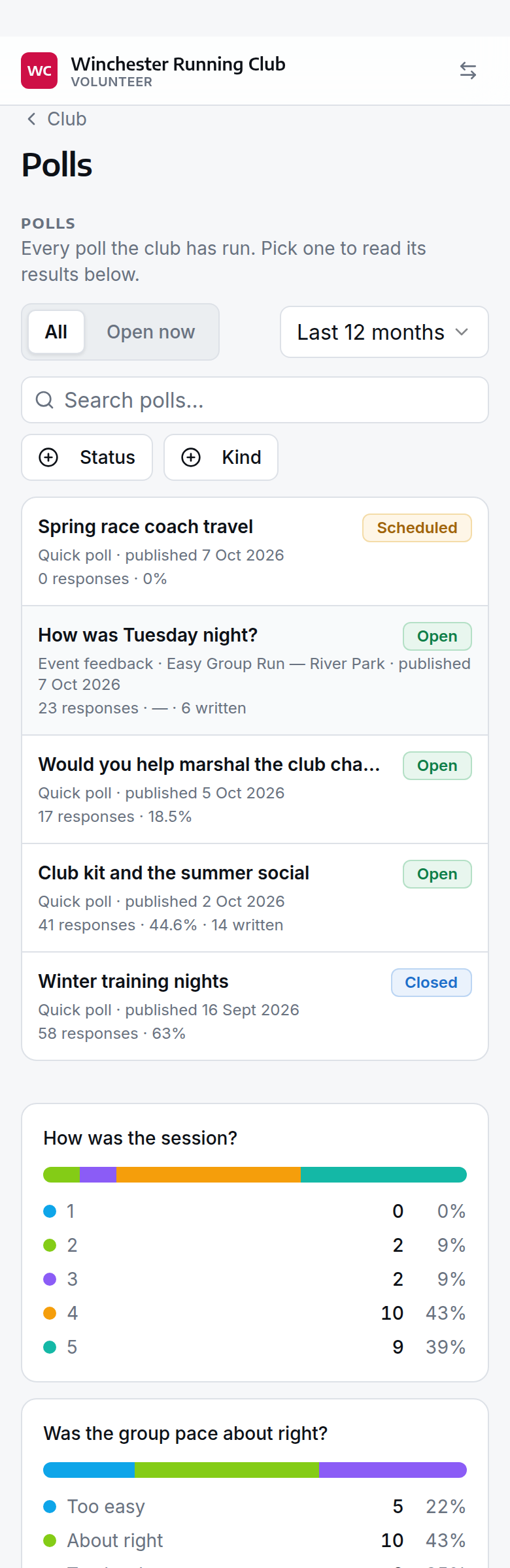
Each question gets its answer breakdown, with counts and percentages. Choices nobody picked keep their row at zero — a two-horse race where one option got nothing is a finding, not a gap.
The page shows:
- Response rate — out of the members the poll was asked of, not your whole membership. A poll sent to one group is not doing badly because everyone else ignored it.
- Responses — the count, and when the poll closes or closed.
- From the email — the share of answers that came in through the emailed link rather than the app, shown once you have sent an invitation. It is how you tell "members will not answer polls" apart from "members never saw it".
- Written answers — how many people typed something. Free text is not charted (a hundred distinct sentences is not a chart) — read those in the by-member list further down the same page.
Use the Poll selector at the top to move between your recent polls. A poll that is published but has not opened yet is in the list, but it is never what the page opens on: two empty charts and a 0% response rate would look exactly like a poll nobody answered.
Reading individual answers
Below the charts, By member lists one row per member — every answer they gave, with choices shown as the labels they saw and written answers quoted in full.
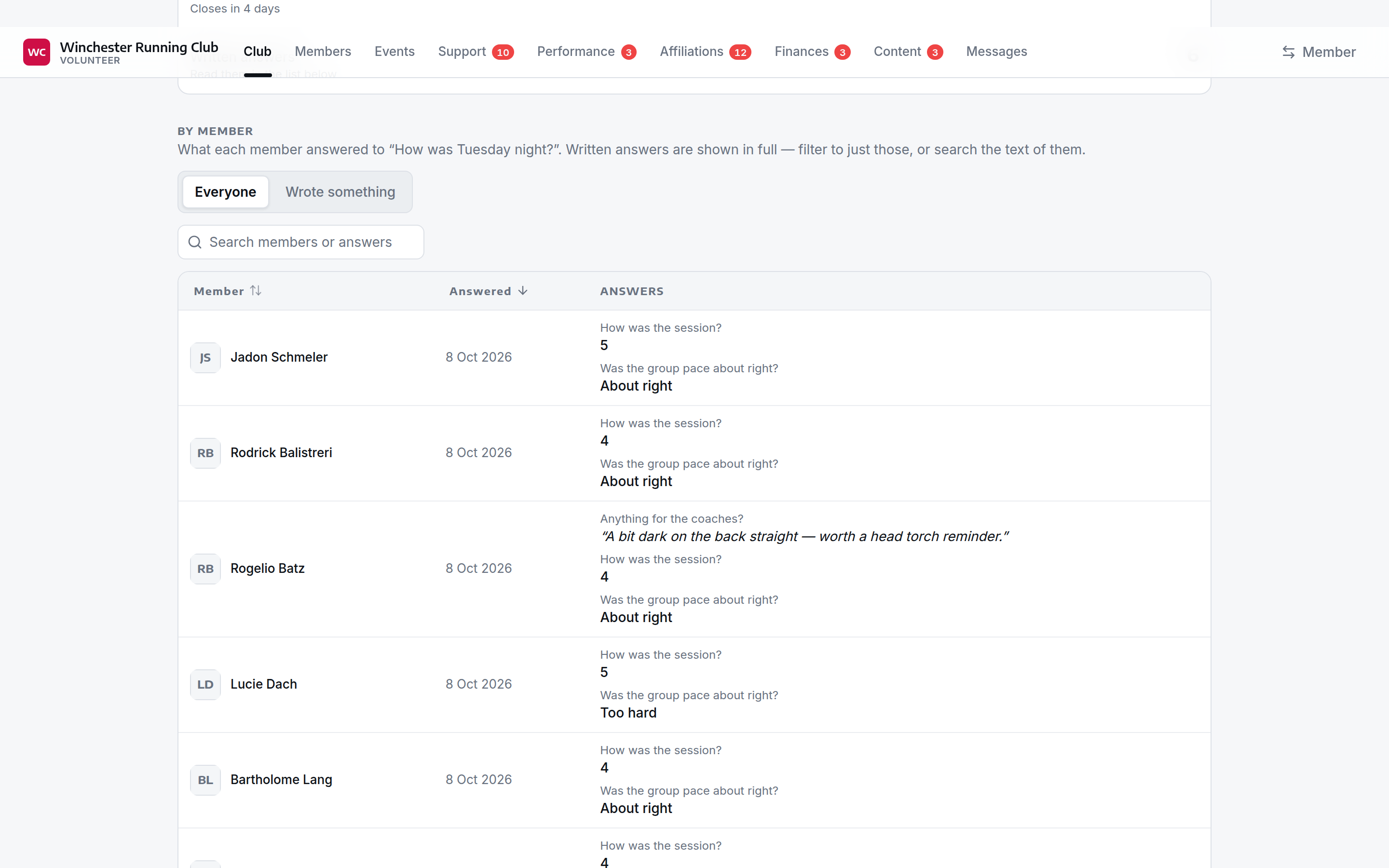
Two things make a long list workable:
- Wrote something narrows it to the members who typed an answer, which on a poll of two hundred is usually a dozen people.
- Search matches both member names and the text of what they wrote — searching "parking" finds everyone who mentioned it.
Answers are read-only everywhere. A response is a record of what a member said, so nothing edits one.
Exporting answers
Export CSV on any poll gives you one row per member and one column per question, with choices resolved to their labels rather than their stored keys — the same reading as the Responses tab, for anyone who wants to sort or keep it.
Member email addresses are deliberately not included. An export is a record of what your members said, not a mailing list — you can find anyone by name in the member directory if you want to follow up.
Common questions
Can members change their answer? No. One response per member, per poll.
Can I see who said what? Yes — the Responses tab and the CSV export both name the member against each answer. Polls are not anonymous, and members are not told they are, so do not promise anonymity when you ask.
Why can't a member see the poll I just published? Check three things: whether it is scheduled to open later, whether its closing time has passed, and — for event feedback — whether that member's attendance has actually been recorded.
Can I email a poll to members? Yes — Send invitation on the poll. See Emailing the poll. Each member gets a link that answers it without signing in.
Someone forwarded their poll email to a friend. Can the friend answer? They would be answering as the member the link was sent to, and it counts as that member's one answer. It is the same trust a forwarded renewal reminder or invoice link already carries. If that matters for a particular question, do not email it — the dashboard card requires signing in.
A member says the link does not work. Poll links expire when the poll closes, and some email systems rewrite links as they pass through, which breaks the signature. Either way they get a page telling them so, with a way to sign in instead. Their answer is not lost — nothing was recorded.
See also
- Run a poll after a session — recipe