
Appearance
Communications
Everything your club sends by email — and, where a member has the app, by push notification too — comes together here: the templates behind your automatic emails, the messages you write yourself, and what a member controls at their end. Mailing lists are covered on their own page; this one is about templates and the messages you compose.
Who can do this?
Editing email templates, and the domain and sender settings: Club Admin. Writing and sending a message, from the admin panel or the console: Club Admin or Content Manager. Creating mailing lists and moderating their posts is the same pair — see Mailing lists. Everyone with one of those roles, plus Viewer, can see the message history in the activity log.
Three kinds of email
- Automatic emails. A sign-in link, an event confirmation, a renewal reminder — the product sends these on its own, from a template you can put your own words into. See Templates below.
- Messages you write. A one-off to your whole club or a group of them — "the Tuesday run is moving to the leisure centre car park", a newsletter, an urgent alert. You write it, choose who gets it, and send it from the admin panel or the console. See Sending a message.
- Mailing lists. A closed list your committee or coaches post to from their own inbox, so a conversation among a small group reaches everyone on it without anyone maintaining a BCC list. For most club-to-member communication, a message is the better tool — a mailing list is for a group that needs to talk among itself. See Mailing lists, which this page doesn't repeat.
Anywhere a member has the mobile app, a push notification can ride alongside the email — an alert always does, a message can, and a mailing-list post can if the list has push turned on.
Where your emails come from
Settings → Email sets the From Name shown on every email, an optional Reply-To Email for where replies land, and an optional BCC Email that auto-copies everything sent — handy for a compliance mailbox.
By default, your club's mail goes out from RunClub HQ's own shared address. If you'd rather members saw mail unmistakably from your own domain — news@yourclub.org.uk instead of the platform's address — verify your domain and turn on custom sending; see Custom email domain for how. Once it's on, we still watch it for you: if your domain's verification ever lapses — a DNS record disappears, DKIM stops confirming — sending falls back to the platform address automatically and nothing bounces, so a broken domain never means broken email. Support and ticket replies always come from the platform's support address, whatever your domain settings say, because that address has to receive replies too, and only the platform domain accepts inbound mail.
Templates
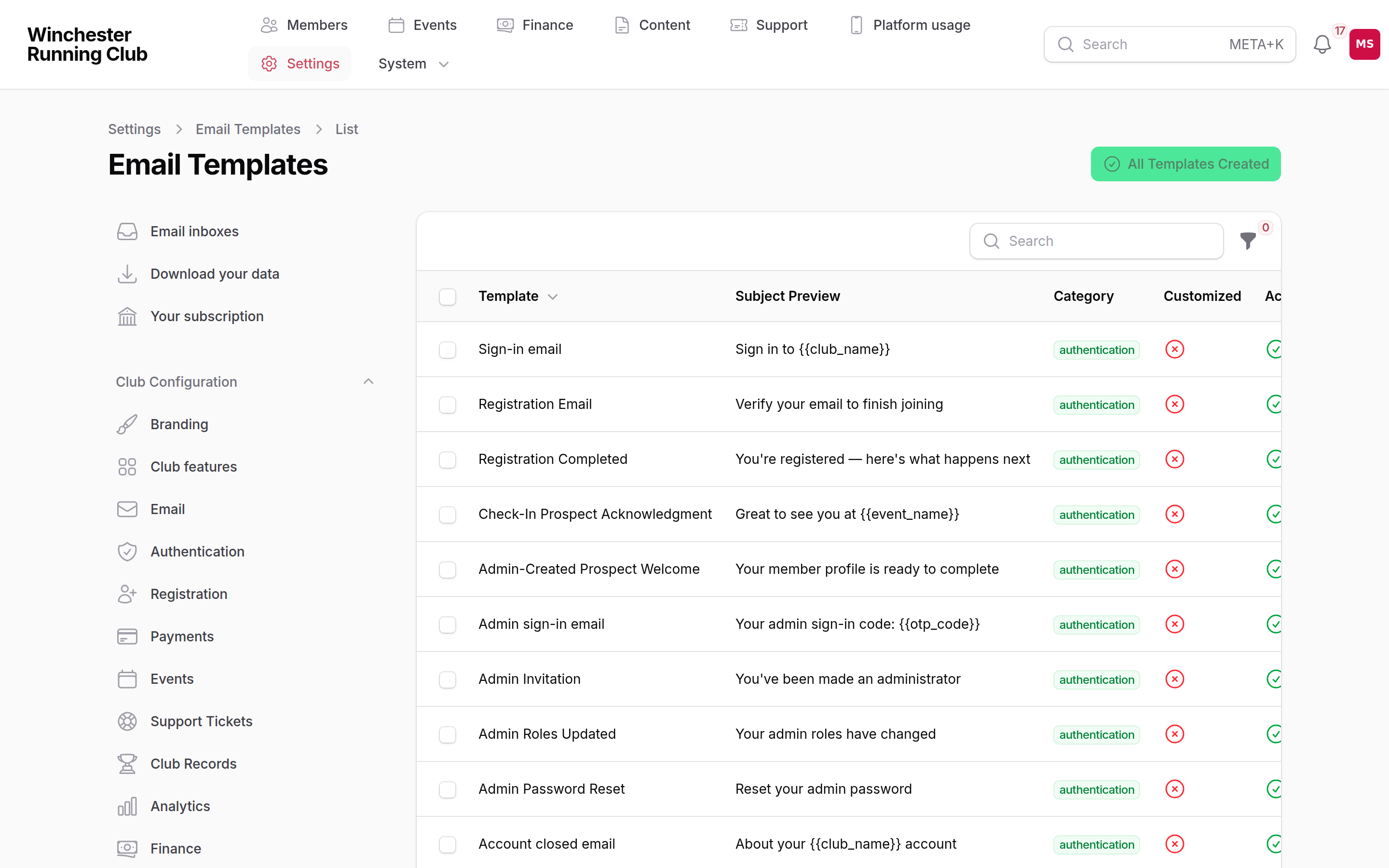
Email Templates, grouped by category
Settings → Communications → Email Templates lists every automatic email your club sends, organised by category — authentication, member communications, event management, payments, renewals, club records, race results, polls, support tickets and more. Open one to edit its subject, its preheader (the line shown after the subject in an inbox list) and its body in a rich text editor, using merge tags to pull in details specific to the send:
— your club's name— the recipient's first name— the event the email is about, where one applies
Most tags are specific to the email they're on — a payment reminder carries and , a welcome email carries — so the tag picker in the editor only offers the ones that email actually resolves. The Email Templates screen is the up-to-date list of every template and the tags each one supports; a change here goes live on the next send, and Reset to Default puts a template back exactly as it shipped.
Use Preview to see a template rendered with sample data before you save. There's no separate test-send for a single template — Send Test on a message (below) is how you check a message you've composed lands the way you expect.
If you mistype a tag — instead of — saving is refused rather than left to reach a member as a literal with nothing on the page to explain what went wrong. Every email carries your club's logo, accent colour and footer details automatically — nothing to configure per template.
Sending a message
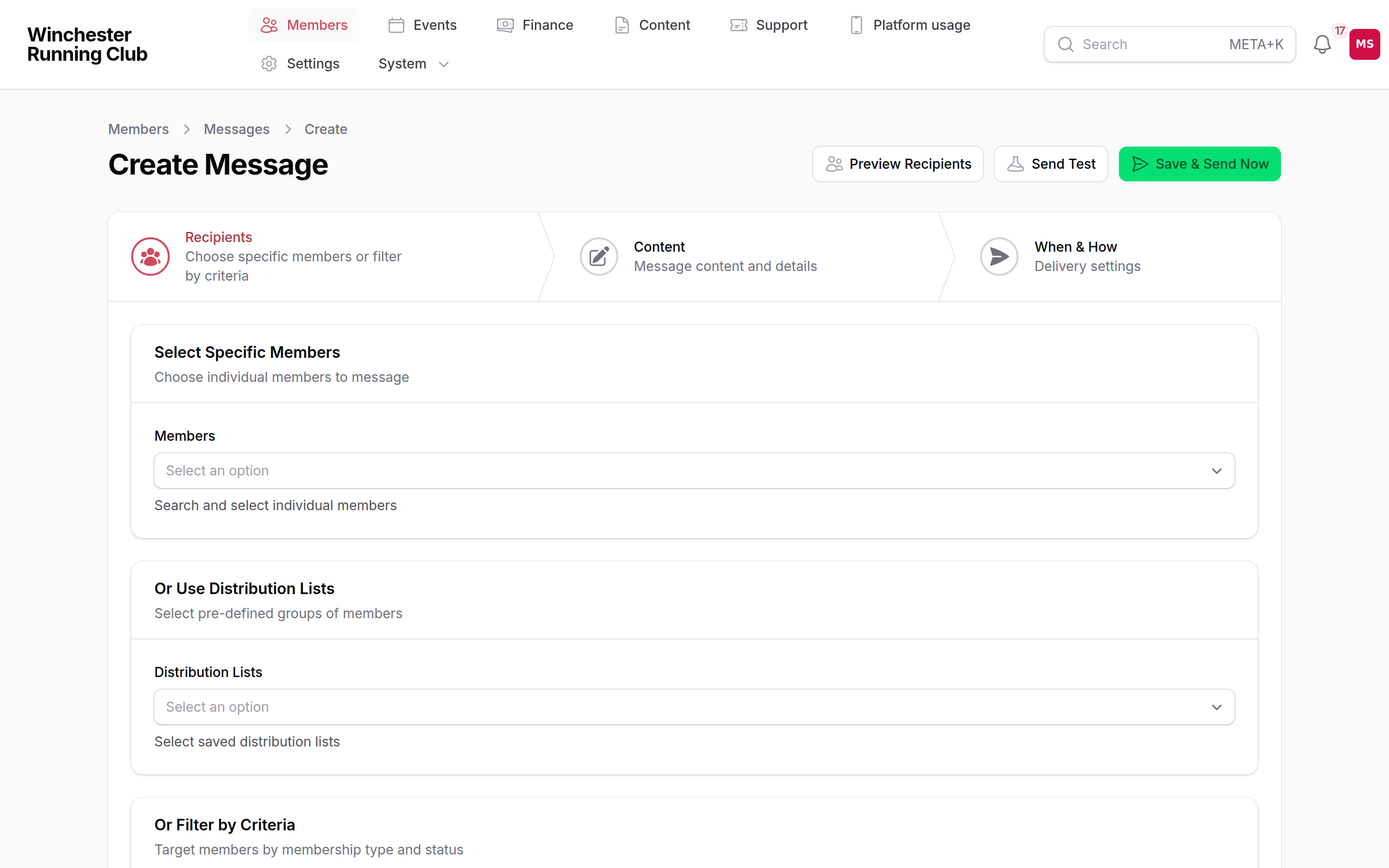
choosing an audience in the message compose wizard
In the admin panel, go to Members → Communications → Messages and start a new one. The form is three steps:
- Choose your Recipients — individual members, one or more of your saved distribution lists, or a filter by membership type and member status. Leave every filter empty and it defaults to your active members and household managers.
- Write the Content — choose Message or Alert (an alert carries an expiry and is delivered immediately, ahead of anyone's digest), then the subject, the push notification text and the full email and in-app body.
- Set When & How — an optional sender name and reply-to for this message, and an optional date and time to schedule it for later instead of sending straight away.
Before sending, Preview Recipients shows exactly who the audience resolves to — a total, a breakdown by channel (who has an email, who has the app installed for push), and a sample of names — and Send Test sends the message as it stands to any address you choose, so you can check it on your own phone first.
You can't unsend a message
Once you press Send Now, it's on its way to everyone in the audience — there's no recall. Sending to a large audience asks you to type the recipient count to confirm before it goes. Use Send Test and Preview Recipients first.
Duplicate as Draft copies a sent message's content and audience into a new draft, which is the quickest way to send a similar message again without rebuilding it.
From the console
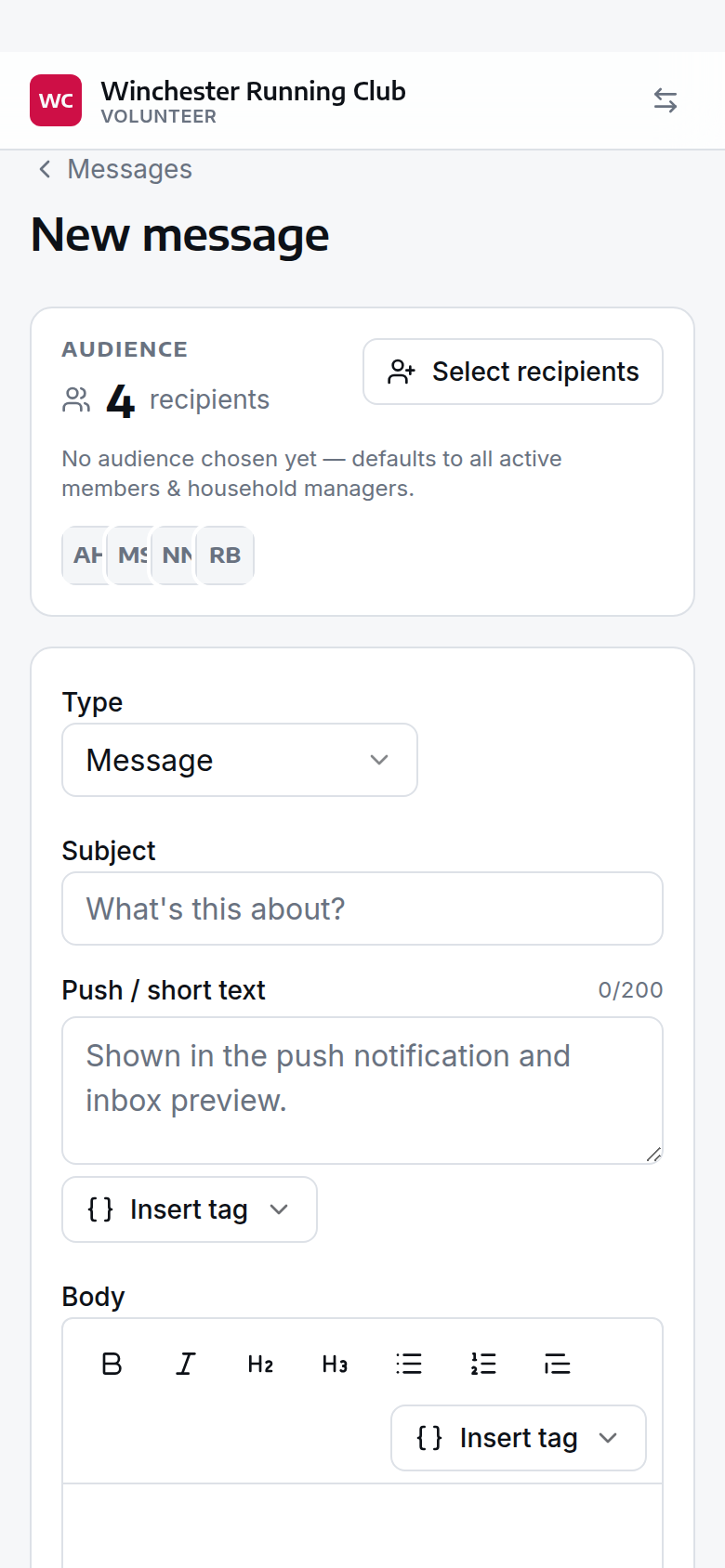
composing a message in the console
The console's Messages tab (under More if you hold several console roles) does the same job on a phone — compose, preview the audience, send a test, send. Once a message has gone, its detail screen shows a per-recipient breakdown: whether each person's copy was delivered by email, arrived as a push notification, and whether they've read it in their inbox. A large send asks for the same typed confirmation as the admin panel.
What members receive and control
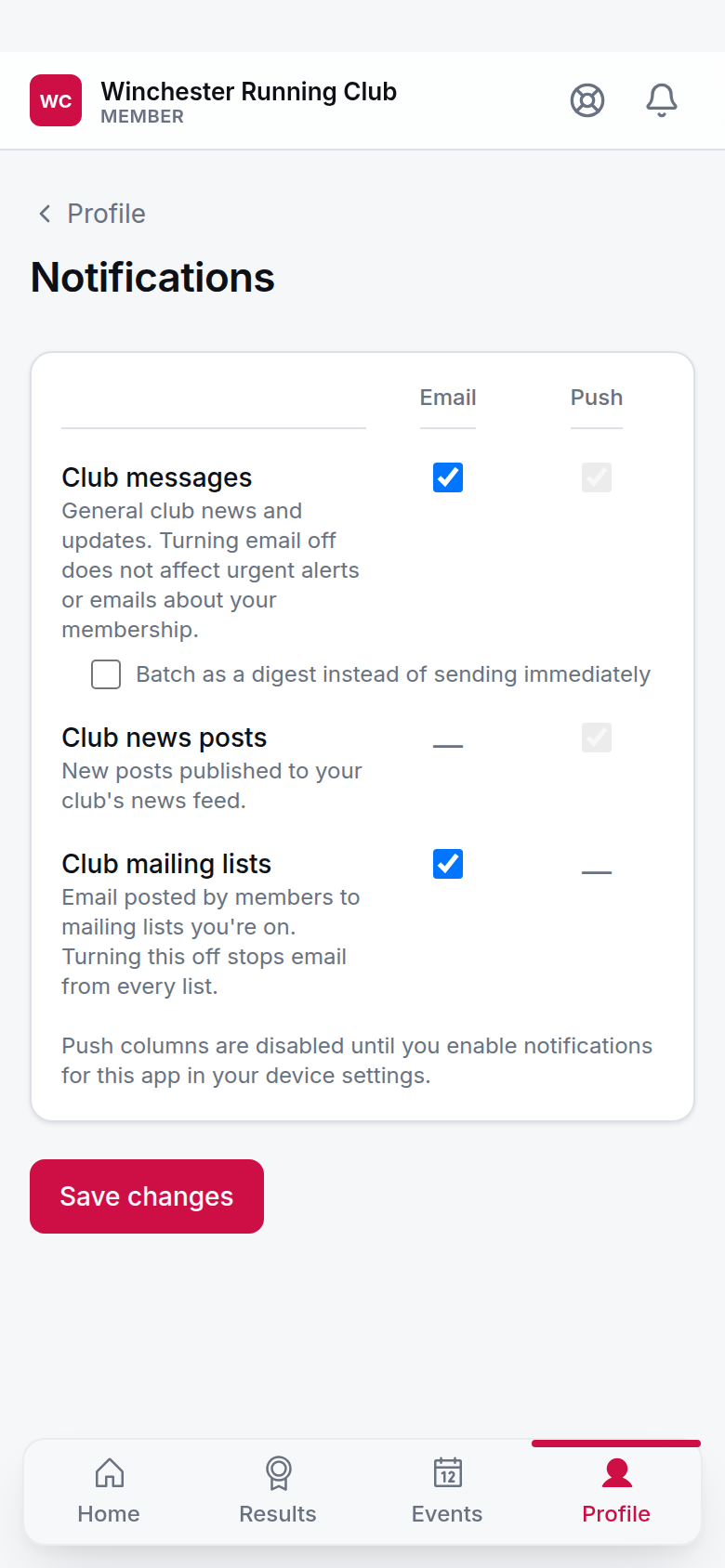
a member's notification preferences
Every message and alert lands in the member's inbox in the member app, with a badge on the notification bell for anything unread. From Profile → Notifications, a member controls:
- Club messages by email — on by default. Turning it off stops email for ordinary messages; it doesn't touch alerts or anything about their own membership.
- Email digest — batches messages into one email (daily or another frequency they choose) instead of one email per message. Only appears while club messages are switched on.
- Club mailing lists — one switch for all list email, plus a switch for each list they're on individually; see Mailing lists → How members unsubscribe.
Members can't turn off alerts (they're urgent by design) or account emails — sign-in links, invoices, payment and renewal notices, and anything else about their own membership. Every message and mailing-list email also carries a one-click unsubscribe link, which changes the same setting as the Notifications page.
Bounces and complaints
When an email address bounces or is marked as spam, we stop sending to it and flag the member's account — you'll see an icon against them in Members → All Members, and a warning banner on their record, with a filter to find every member in this state at once. They won't receive anything else, including sign-in links, until the address is fixed: open their record and use Recover email to set a new one. The member confirms it works by signing in with it.
The audit trail
Every email your club sends is logged, whether it's an automatic template send or a message you composed — recipient, subject, when, and which template or message it came from. Find it in Activity Log, filtered to the Messaging area. A member's own record also shows every message they've received, under its Messages Received tab, with whether they've read it and its email delivery status. Sign-in links and password reset emails are logged the same way but aren't archived to the member's inbox, since they carry a one-time code.
Troubleshooting
A member says they get nothing from us
Check Members → All Members for the undeliverable-email icon — if it's bounced, see Bounces and complaints above. Otherwise, check the activity log for whether the send actually happened, ask them to check spam or junk, and check their notification preferences haven't turned off the kind of email they're expecting.
Our emails go to spam
A shared sending address is more likely to be filtered than one on your own domain, which builds its own reputation over time. Setting up a custom email domain is the main lever you have here.
A message went to the wrong people
There's no recall once Send Now is pressed. Preview Recipients before every send is the way to catch a wrong audience before it goes; if one does go out wrong, the message's recipient list shows exactly who received it, so you know who to follow up with directly.
The From address is the platform's, not ours
Check Settings → Domains: is the domain verified, and is custom sending switched on? Verifying alone doesn't change any sending. If it was on and has stopped, your domain's verification may have lapsed — the page shows what to fix. Support and ticket replies are always sent from the platform address by design, whatever your domain settings say.