
Appearance
Results and club records
Every time a member runs and the club knows about it, that is a result — a time, at an event. The fastest result any member has ever posted in a category becomes a club record. This page is for the committee: setting up the distances and age groups records are measured against, where a result actually comes from, and what your public records board shows. Deciding one claim — a member's result, or their application for a record — is a different job; see the reviewer playbook for that.
Who can do this?
Configuring formats and categories, under Record Configuration: Club Admin, Membership Manager or Records Manager. The records and analytics settings are Club Admin only, under Settings. Recording an event's own results, and team results: Club Admin or Events Manager. Deciding a result or club record claim once it has been submitted is a different job — see the reviewer playbook for who does that. Members submit their own results and apply for records from the member app.
How results and records relate
A result is one member's time at one event. A club record is the fastest approved result any member has ever posted in a category — an age and gender group — for a format, which is the distance and surface it was run over. Every result feeds a member's own Results page and their age grade; where it was run over a course the club has set up, it also becomes their personal best on that course. Only the fastest ones ever reach the records board.
| What it is | Where it shows | |
|---|---|---|
| Result | One member's time at one event | Their Results page, their age-grade trend, a course personal best |
| Club record | The fastest approved result in a category, for a format | The records board |
Setting up records
Before anyone can submit a time, the club needs formats to measure it against and categories to place it in. Both live under Events → Record Configuration, and new clubs already start with a full set — most clubs only ever add to it.
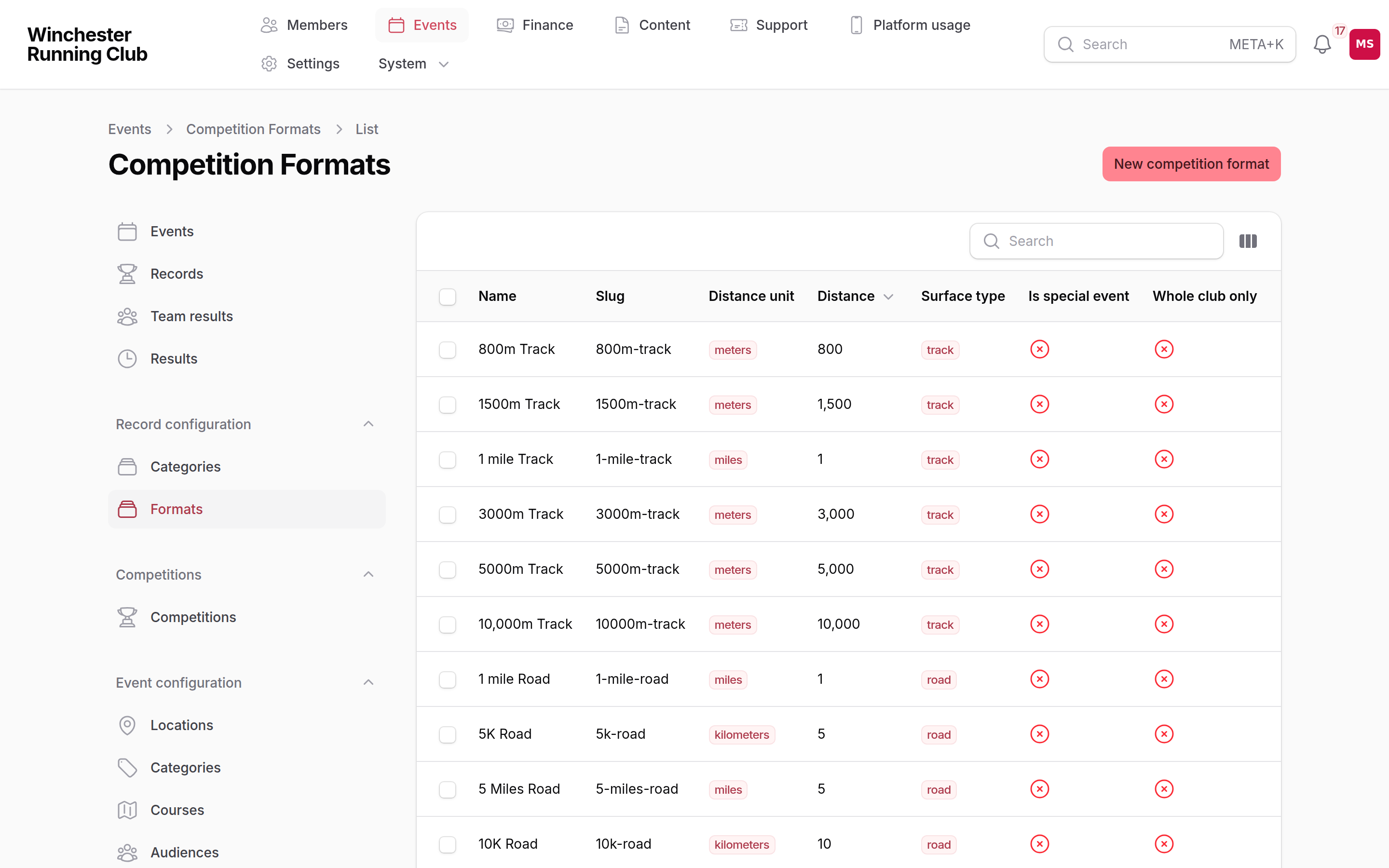
record configuration, ready with a standard set of distances
- Open Record Configuration → Formats to see what is there already: standard road and track distances from 800m to marathon, all active from day one. Add your own with Name, Distance, Distance Unit and a Surface Type — road, track, trail or cross country.
- Set Min Age and Max Age on a format if it should be off-limits to some ages — a marathon that starts at 18, for instance; a member outside the range cannot apply for it. Turn on Whole Club Only for a format that should only ever hold overall male and female records, with no age-category breakdown, and Is Special Event for a one-off or named race rather than a standard distance — your club's own annual race, say.
- Open Record Configuration → Categories for the age and gender groups a record can be won in — Senior, the veteran bands, and the two overall categories are seeded already. Add your own with Name, Gender, Min Age and Max Age.
- Decide, under Settings → Club Records, whether reviewers are alerted — bell, email and push — every time a member submits a record application. On by default.
Competition formats
A member's category is never entered by hand. It is worked out automatically from their date of birth and gender, as they stood on the day of the event — the same calculation the reviewer playbook's category checks rest on. Get date of birth and gender right on a member's own record and every category placement follows from it, including whether they are old enough for a format you have restricted with Min Age.
One setting sits a step away from records but shapes how a member reads their own progress against them: Settings → Analytics carries the Trajectory band, the number of age-grade points a member's season has to move, year on year, before their Results page calls it Building or Dipping rather than Holding. The default of 2.0 is drawn from one club's own spread of results — recalibrate it if yours reads differently.
Where results come from
A result reaches the club three ways. You record one yourself, from a Race event's own Participations tab — see Events → After the event for that day-to-day work. A member tells you what they ran, with Submit results on their Results page in the member app: "Tell the club what you ran — and find out if it's a club record." Or a whole race arrives at once, brought in through the automation tools connected to your club; any row it cannot confidently match to a member lands as a staged result, and gets sorted out from that event's own results screen rather than one long club-wide list.
However a result arrives, it is not official until it has been through review.
Reviewing
Nothing a member submits, and nothing an import brings in, becomes an official result or a club record on its own — a reviewer decides it first. That decision, the queue it sits in, and everything about corroborating a claim against its evidence belongs to the results and club records reviewer playbook, not this page.
Beta — ask us to switch this on for your club. Where the AI evidence check is switched on, a reviewer sees the model's own reading of the results page a claim points at, alongside the claim itself — a verdict they can check rather than take on trust. It never decides anything by itself.
The records board
Every approved record shows on your club's public records board at /records — a system page, built like your events or news pages from sections. It carries a Record Board section with its own distance and age-group filters, and you can add a Honour Roll & Results section to the same page, or any other, to hand-type things the record system does not capture — a league placing, a marathon finisher list. See Your club's website → Building pages with sections for how sections work. The board's shape carries through to the member app, under Results.
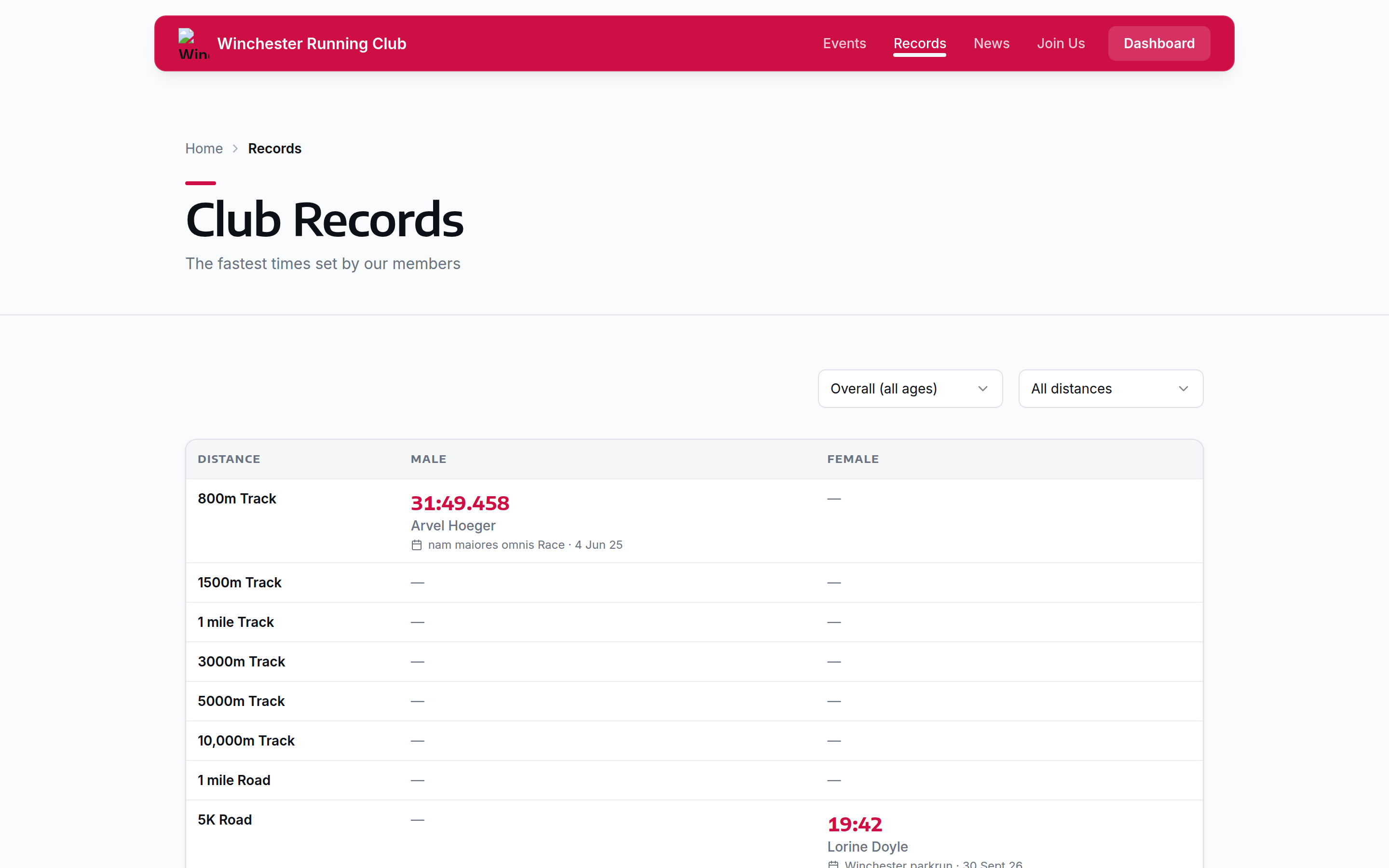
the public records board, filterable by distance and age group
A category's history is never just its current holder: every record that was ever fastest stays listed, each shown against the dates it held. "Current holder" is not something anyone sets by hand — it is whichever approved record is fastest right now, worked out live. Amending a pending claim's details never touches it, and once a faster claim is approved, it becomes the new current holder immediately, with no separate step to mark the old one superseded.
Entering a record yourself
You can enter a record without waiting for a member to claim it. Open Events → Records and start a new one from the list. Pick the Member, the format and category, then enter the Time, the event name and date, and an Evidence link.
It goes through the same checks as a member's claim: the member must be eligible, and the time must beat the current record for that category. The one difference is that you can enter an Overall record, which a member cannot claim. The record is approved straight away and the member is emailed, as they are when a reviewer approves their claim.
To bring an old record across, such as your club's existing records table, tick Historic record before you save. A historic record skips the membership and "beats the current record" checks, and nobody is notified. The time format, the evidence link and the usual limits still apply, and if you link it to a result, that result must already be accepted.
Who can do this?
Club Admin, Membership Manager or Records Manager.
Team results
A team result is the organiser's placing for a whole club team at an event — "Open, 47th of 65" — not something you can work out by adding up what individual members ran, so it is recorded on its own, under Events → Team Results: the team's Team name, Club, Gender and Category, its Position and Field size, and a total Scored on time, points or summed positions, whichever the organiser published. Team results reach the club the same two ways individual ones do — recorded by hand, or brought in with an import — and show on the event's own public page, underneath its individual results.
What members see
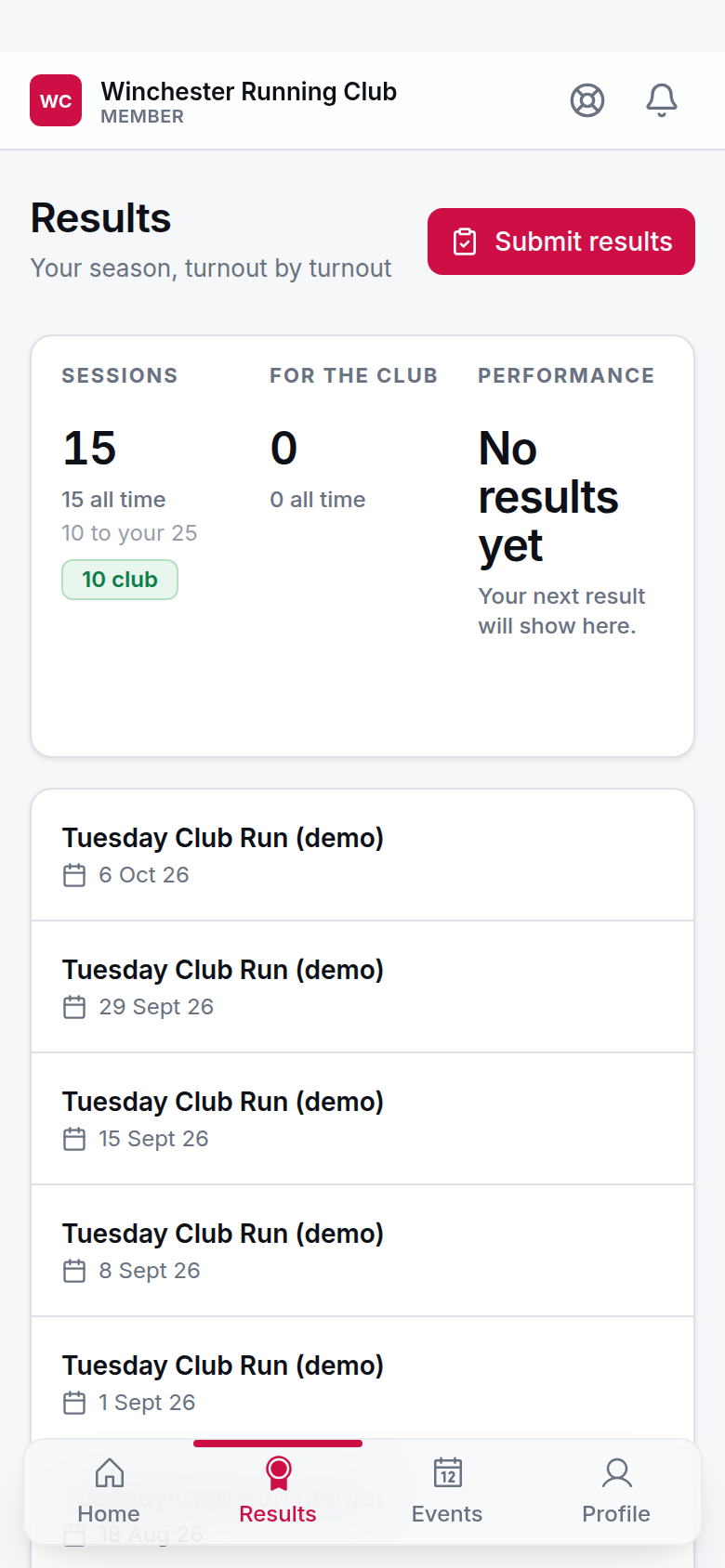
a member's own Results page
A member's Results tab is their own season: a few headline figures, how their age grade has moved across it, and every result and course they have run — a course gives them a personal best on that specific route, not just the year's races. From there, Submit results lets them tell you about anything the club has not recorded yet, and Records opens the board three ways: My Category (their own age and gender group), My Records (everything they currently hold or have held), and All Records across the whole club, filterable by format and category.
Applying for records
Applying is part of the same Records area: a member picks who they are applying for, the event and the format, and the wizard suggests their category automatically — the same date-of-birth-and-gender calculation the board itself uses. From there they add the time and any evidence and review before submitting. See The member app for what the four tabs look like end to end, and The help library for what you can add there to answer a member's own questions about results and records.
Settings
| Setting | What it controls | Default | Where |
|---|---|---|---|
| Notify on application | Whether reviewers are alerted — bell, email and push — when a member submits a record application | On | Settings → Club Records |
| Trajectory band | How far a member's median age grade must move, year on year, before their Results page reads it as Building or Dipping rather than Holding | 2.0 age-grade points | Settings → Analytics |
Troubleshooting
A member's category looks wrong
Category is worked out automatically from date of birth and gender at the event date — never entered by hand. Correct those two fields on the member's own record (see Members and households), then have them reapply; a decided claim cannot be recategorised after the fact. If the claim is still sitting with a reviewer, see the reviewer playbook's notes on a wrongly categorised claim.
A record isn't showing on the board
Only Approved records appear, so check the claim has not stalled with a reviewer first. If it has been approved, check that both the format and the category it was won in are still Active — deactivating either drops any record set under it off the public board, without deleting the record itself.
An imported result matched the wrong member
Use Say who ran to correct the match before it is accepted — the same step whether the row came from an import or a member's own submission. See the reviewer playbook's notes on a wrongly matched claim.