
Appearance
Support inbox playbook
For whoever answers members from the console — usually a Club Admin, sometimes a Viewer keeping an eye on the queue without replying. Five minutes, and you're ready for your first message.
Who can do this?
Replying, resolving and changing anything on a message: Club Admin. A Viewer can read every conversation but not change one — the controls still show, so don't be surprised if a Viewer says the buttons "don't work". No other role reaches the inbox by default; to let someone answer members without handing them everything else, see Add a new admin user.
What you can do
- Read and reply to a member's message, or leave a note only the committee sees
- Change a ticket's status, priority and category, and who it's assigned to
- Draft a reply with AI and edit it before sending, where your club has switched that on
- Sort a message as a request, a notification or spam, and decide what happens to future mail from the same sender
- Mark a notification reviewed once you've read it
- Put something back in the queue if it was filed as spam or as a notification by mistake
- Drop in a canned reply for a question you answer often
Where you work
The console's Support tab (/volunteer/tickets) — see The volunteer console if you haven't used it before. Its badge is a count, not a total: how many messages need a reply from you right now.
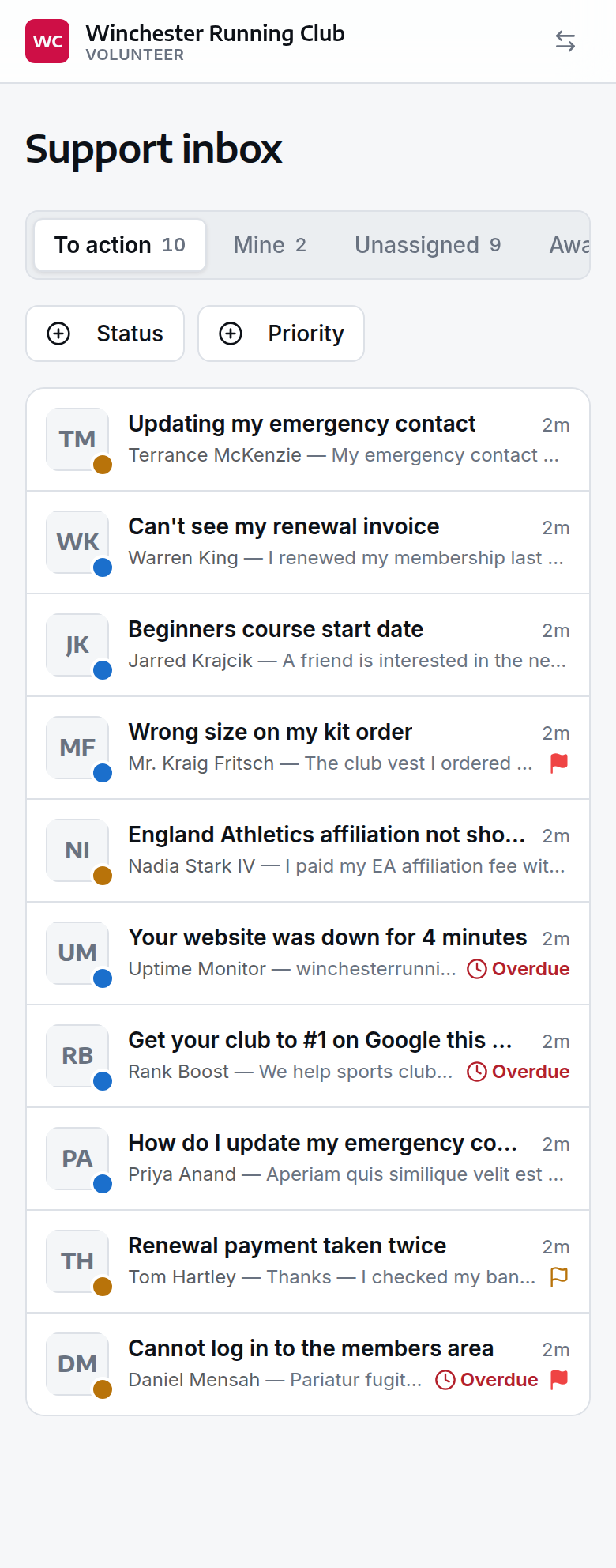
The inbox on a phone, open on To action
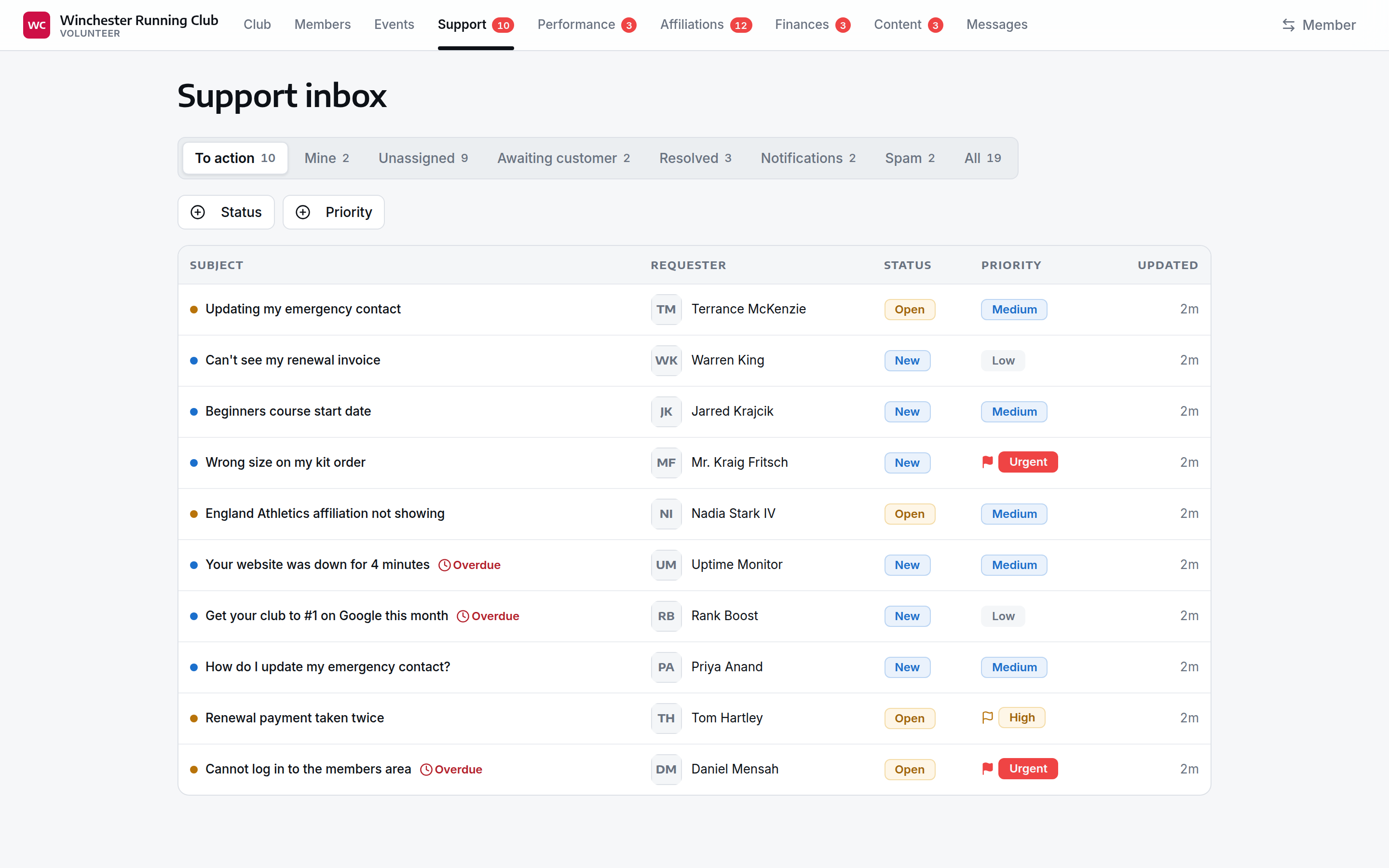
The same inbox on a laptop, where all eight views fit across the top
Vocabulary
A member never reads the word ticket. They call it a message or a conversation, under Help & support in the member app; you're looking at the same thread as a ticket. Never confuse it with an event ticket, the only other thing a member reads that word for.
Working the inbox
Eight views along the top, which you scroll sideways on a phone: To action (new, or the member replied last — it's your turn), Mine, Unassigned, Awaiting customer (you replied last, waiting on them), Resolved, Notifications, Spam and All. Narrow further with the Status and Priority filters.
Open a message to read the full thread. If someone else on the committee has it open too, you'll see who at the top of the page, so you don't both reply at once.
Post that nobody needs to answer — England Athletics receipts, GoCardless payment results, out-of-office replies — goes to Notifications rather than your queue. It never counts towards the badge, and nobody is reminded about it, but some of it still asks something of the club: a club transfer to approve, a cancelled Direct Debit to follow up. Open each one, deal with anything it asks, then tap Reviewed. That closes it and clears it from Notifications; it stays under All if you need it again. There's no reply box on a notification, only Add a note for the committee. If one turns out to need an answer, sort it as a request first and the reply box comes back.
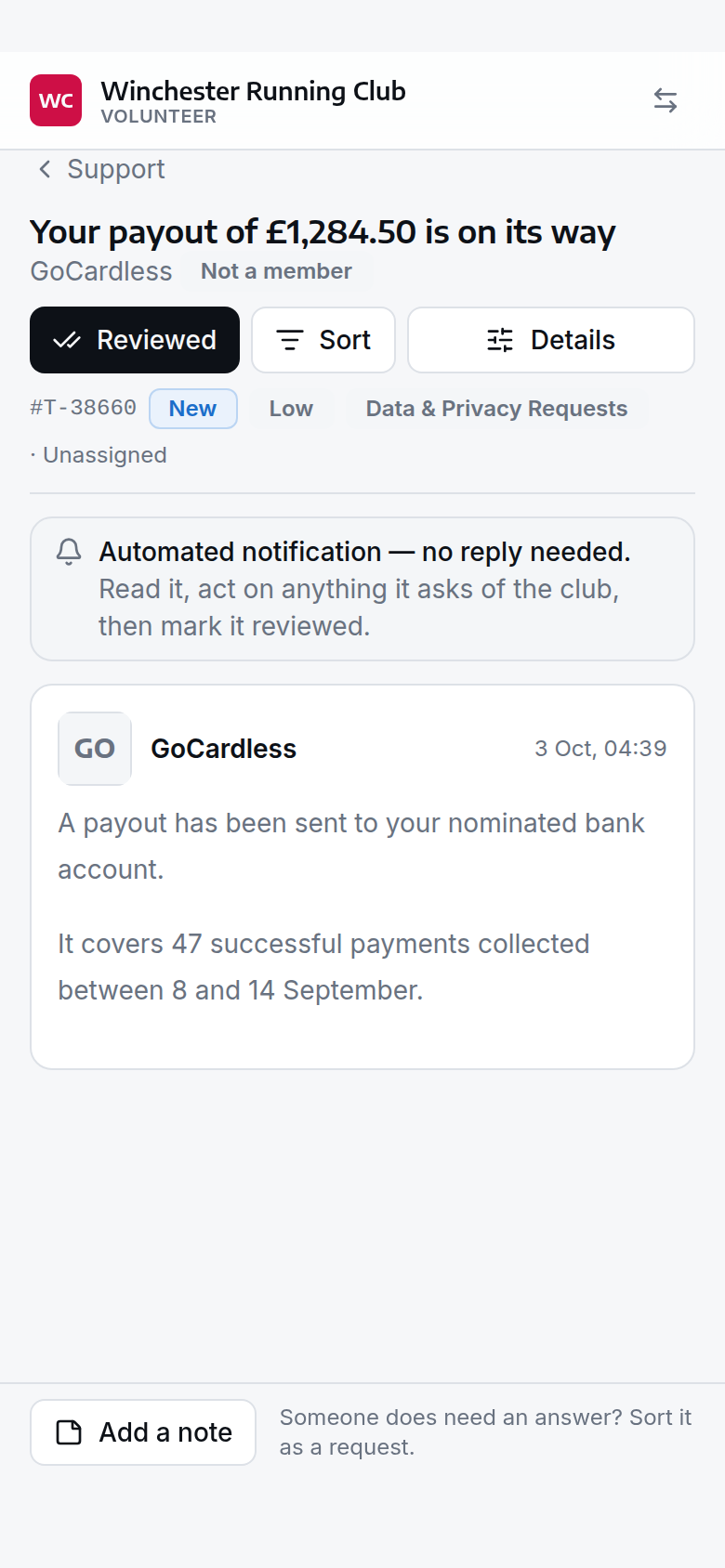
A notification: read it, then tap Reviewed
The alert you get for one is different too. Its subject starts Notification (no reply needed), so it doesn't read like a member waiting. Replying to that alert adds a note for the committee; it never goes back to the sender.
If your club has switched on AI assistance (Settings → Support Tickets → AI Assistance), Draft puts a suggested reply in the box to read and edit — a starting point, never a finished reply. Review checks one you've written for tone and clarity before it goes.
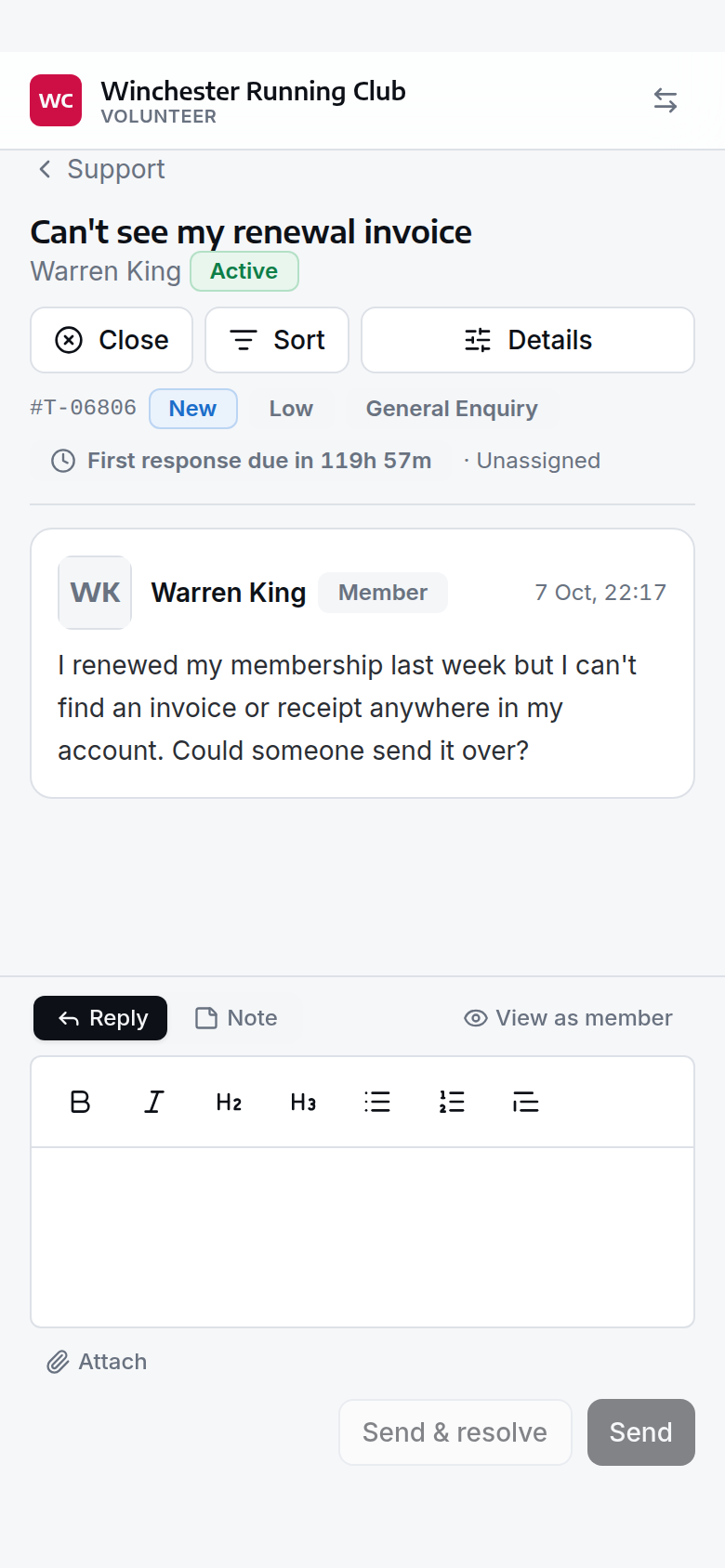
A conversation, with the reply composer and its Draft, Review and Canned tools
Switch between Reply and Note above the composer — a note never reaches the member, and pinning one keeps it at the top for whoever picks this up after you. Send & resolve does both in one tap. Status, priority, category, assignment and taking ownership live under Details. At the top sit Close (Reviewed on a notification) and Sort. On the list, swipe a row right to resolve it, or to mark a notification reviewed, and left to mark it as spam, without opening it.
Sorting a message
Sort asks what a message is, in one sheet:
| Choose | When | What happens |
|---|---|---|
| Request | Someone needs a reply | It stays in, or goes back to, your queue |
| Notification | Automated mail to read, no reply needed | It moves to Notifications and stays there until someone marks it reviewed |
| Spam | Unwanted | It closes, and you can block the sender |
Under Future mail from this sender you choose whether the next message from the same place is sorted the same way, by its address or by everything from its domain, or whether this is a one-off. The address is the safer choice for notifications: a whole domain can include real people as well as reports. Domains your own members use are never offered. You can change the category in the same sheet, then Save.
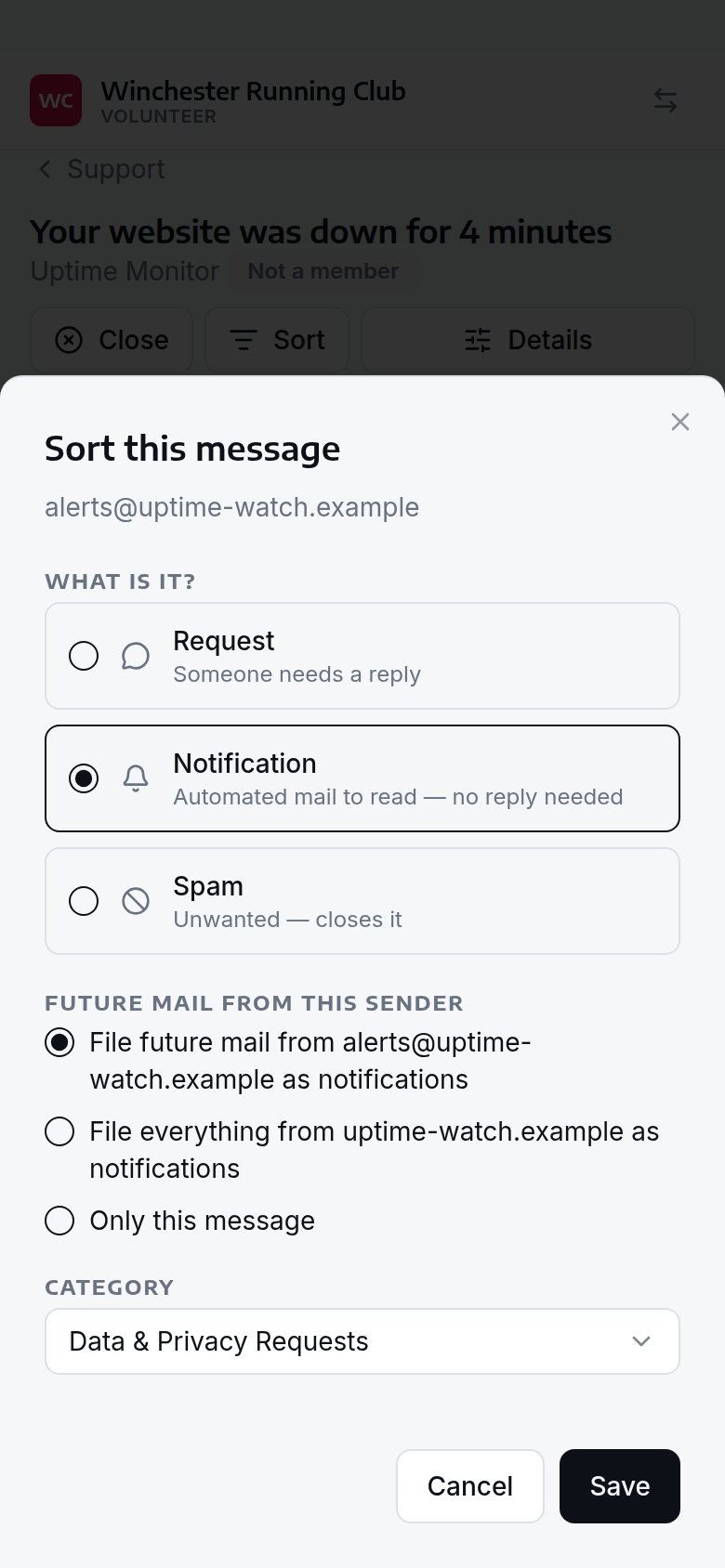
Sorting an automated alert as a notification, and its sender's future mail with it
A member's email reply reopens a resolved message and lands it back in To action. A reply to a closed one starts a new, linked message instead — nothing is lost, it just gets a new number.
Canned replies
The admin panel calls these Snippets (Support → Snippets); here, tap Canned above the reply box, pick one, and it drops into your draft to personalise. A snippet can carry the member's first name, last name and email, filled in for you.
If something goes wrong
A member replied by email and it isn't showing
Check the message wasn't closed — a reply to a closed one creates a new, linked message rather than reopening the old thread, so look for a second one from the same person.
A message isn't from a member
Someone we can't match to a member record — through the contact form on your website, or a forwarded email — shows a Not a member badge next to their name. That's not a red flag on its own; it just means there's no member account behind it yet.
A run of spam arrives at once
Swipe left on each one to mark it as spam without opening it. If they keep arriving from slightly different addresses at the same place, open one, tap Sort, choose Spam, and pick Block everything from that domain rather than the address alone. A sender who invents a new address each time is untouched by blocking the old one.
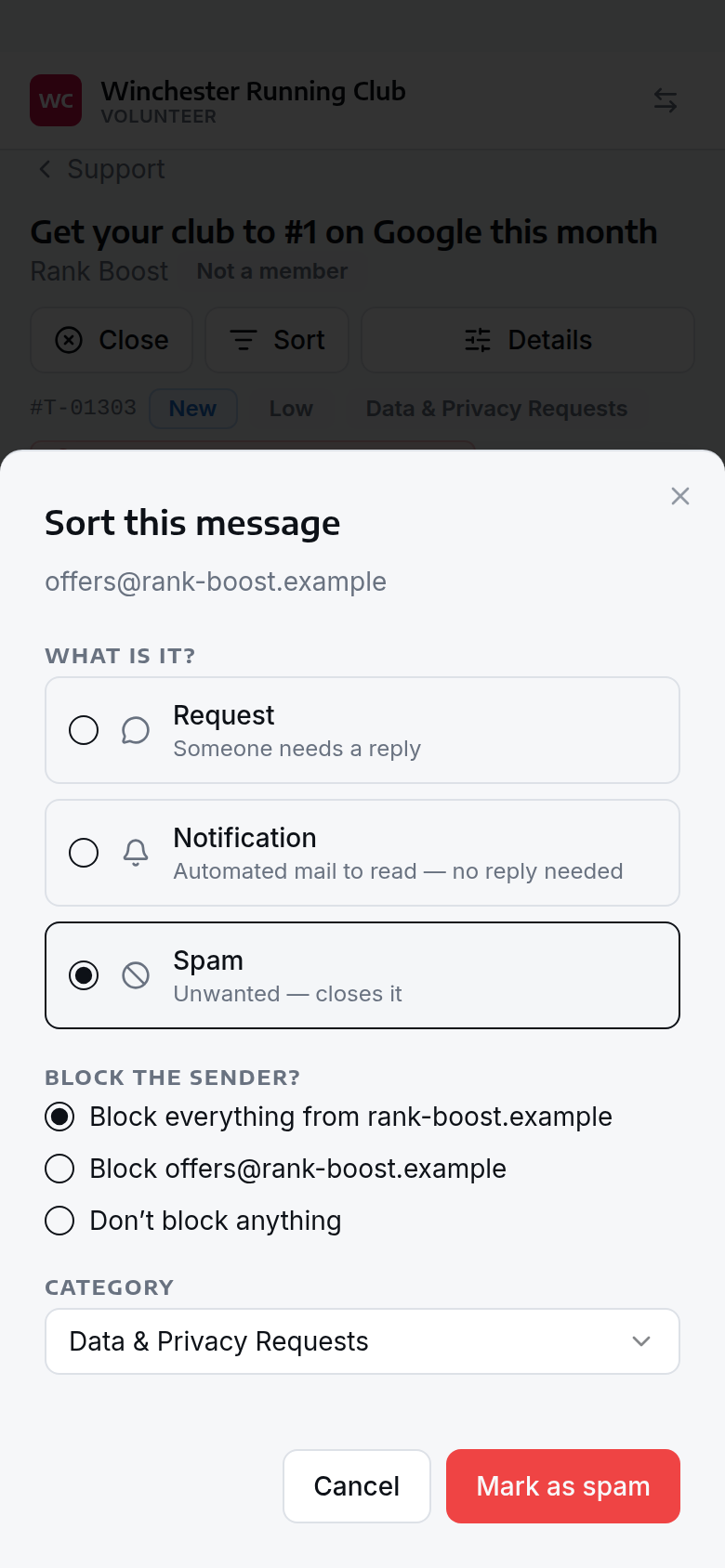
Choosing what to block when you sort a message as spam
Blocked senders are turned away silently: no bounce, no reply, nothing in your queue. Domains your own members use are never offered, so you can't cut your club off by accident. Blocks are listed under Support → Spam Blocks in the admin panel if you need to remove one.
The same automated sender keeps landing in To action
Some automated mail looks like a person wrote it, so it lands in your queue. Open the next one, tap Sort, choose Notification, and under Future mail from this sender pick its address. From then on its mail goes straight to Notifications. Rules are listed under Support → Sender rules in the admin panel if you need to remove one.
Something was sorted by mistake
Open it from Spam or Notifications, tap Sort, choose Request and Save. It reopens and goes back to To action. If a rule filed it, you can also choose to always treat mail from that address as a request. Any block made at the time stays; remove that separately under Support → Spam Blocks.
What you cannot do
Categories, canned replies, removing spam blocks and sender rules, and the settings behind all of this — SLA targets, notifications, AI assistance — are set from the admin panel, not the console. See Support.